Many of us find ourselves sending the same emails repeatedly. Whether it's reminding customers about subscription renewals, sending weekly team meeting invites, or even just emailing yourself daily appointments, these repetitive tasks consume valuable time and energy.
While you could delegate these tasks to an assistant, that often involves additional costs and simply shifts the burden. A more efficient and cost-effective solution is to implement automated recurring emails. These emails are sent automatically based on a predefined schedule, streamlining your communication and freeing up your time.
This tutorial will guide you through setting up recurring emails in Gmail. We'll start by exploring Gmail's native capabilities, then dive into a more advanced, flexible, and powerful solution using Make.com, a no-code automation platform.
How to Send Recurring Emails in Gmail (Native Feature)
While Gmail doesn't offer a direct "recurring email" feature, it does provide a workaround using email templates and its scheduling function. This method allows you to save frequently used content and schedule individual sends.
To use this approach, you would first create an email template with your desired content. Then, for each instance you want the email to be sent, you would open a new email, insert the template, and use Gmail's built-in scheduling feature to send it at a later date. This process needs to be repeated every time you want a recurring email to go out.
However, this native method has significant limitations. Although it saves time on typing and reusing content, it still requires manual effort for each send. You would need to:
- Create each recurring email instance.
- Manually address them to the correct recipients.
- Individually schedule each email for its specific send time.
This makes the native Gmail option less feasible for users who send recurring emails frequently or to different groups of people. Fortunately, a much more robust and efficient solution is available through automation platforms.
How to Send Recurring Emails in Gmail with Make
Make.com is a powerful no-code automation platform designed to automate repetitive tasks, including sending recurring emails. It provides a visual editor that allows you to connect various applications and define automated workflows without writing any code.
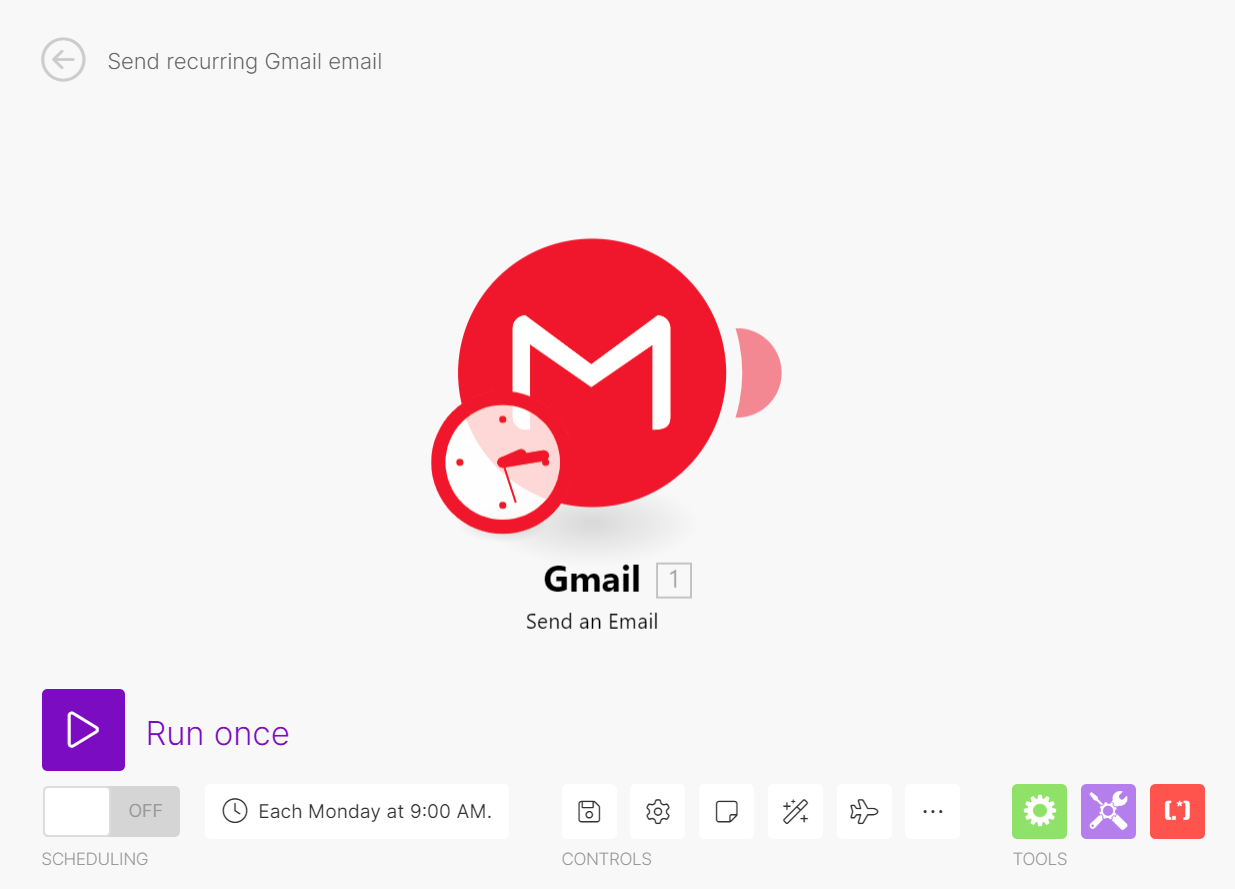
With Make.com, you can easily build an automation that sends an email at a specific time, such as 9 AM every Monday, without fail. Once you create the automation, your recurring emails will be sent automatically as many times as needed, requiring no further manual effort on your part.
This automated approach is not only convenient but can also be critical in situations where timely delivery is essential, such as for customer subscription renewal notices. It also provides a solution if you don't have a stable internet connection at the exact moment an email needs to be sent, as Make.com handles the sending reliably.
Furthermore, Make.com allows for much more than just sending fixed email content. You can customize your recurring emails with dynamic data pulled from other applications you use. For instance, you could set up an automation to send daily Google Analytics reports, ensuring stakeholders receive up-to-date information automatically, even if the data changes every day.
Make.com truly offers the most powerful solution for sending useful recurring emails on autopilot. Let's explore how to leverage this platform to set up your recurring email automations.
How to Send Recurring Emails Containing Fixed Content Using Make
For recurring emails with static content, such as monthly expense claim reminders or weekly meeting notifications, a simple Make.com automation with a single Gmail module is sufficient. This setup is straightforward and highly effective for consistent, unchanging messages.
Examples of fixed content recurring emails include:
- Sending an email on the 26th of each month to remind employees to submit their expense claims.
- Automatically sending a reminder for a regular Wednesday team meeting every Monday at 9 AM.
- Sending birthday wishes to business contacts on their respective birthdays.
Building this type of automation involves just two main steps, making it one of the simplest scenarios to implement in Make.com.
Step 1: Set up your Gmail module
First, if you don't already have one, sign up for a free Make.com account. Once logged in, create a new Make scenario. Within this scenario, add the "Gmail > Send an Email" module.
Connect this module to your Gmail account, granting the necessary permissions. Then, fill in the required details for your email, including the recipient's email address(es) in the "To" field, the subject line, and the body of your email content.

To test your setup, temporarily set your own email address as the sole recipient in the "To" field. Then, click the "Run once" button in Make.com to execute the scenario. Check your Gmail inbox to ensure the email looks as expected. If everything is correct, change the "To" setting back to your intended recipients.
Step 2: Schedule your scenario
Once your email content is configured, the next step is to define when and how often your Make.com scenario should run. This is done by adjusting the scenario's scheduling settings.
Make.com offers various scheduling options, allowing you to run your scenario daily, on specific days of the week, on certain days of the month, or at custom intervals. For example, if you want to send a weekly meeting reminder, you would schedule the scenario to run every Monday at 9 AM.
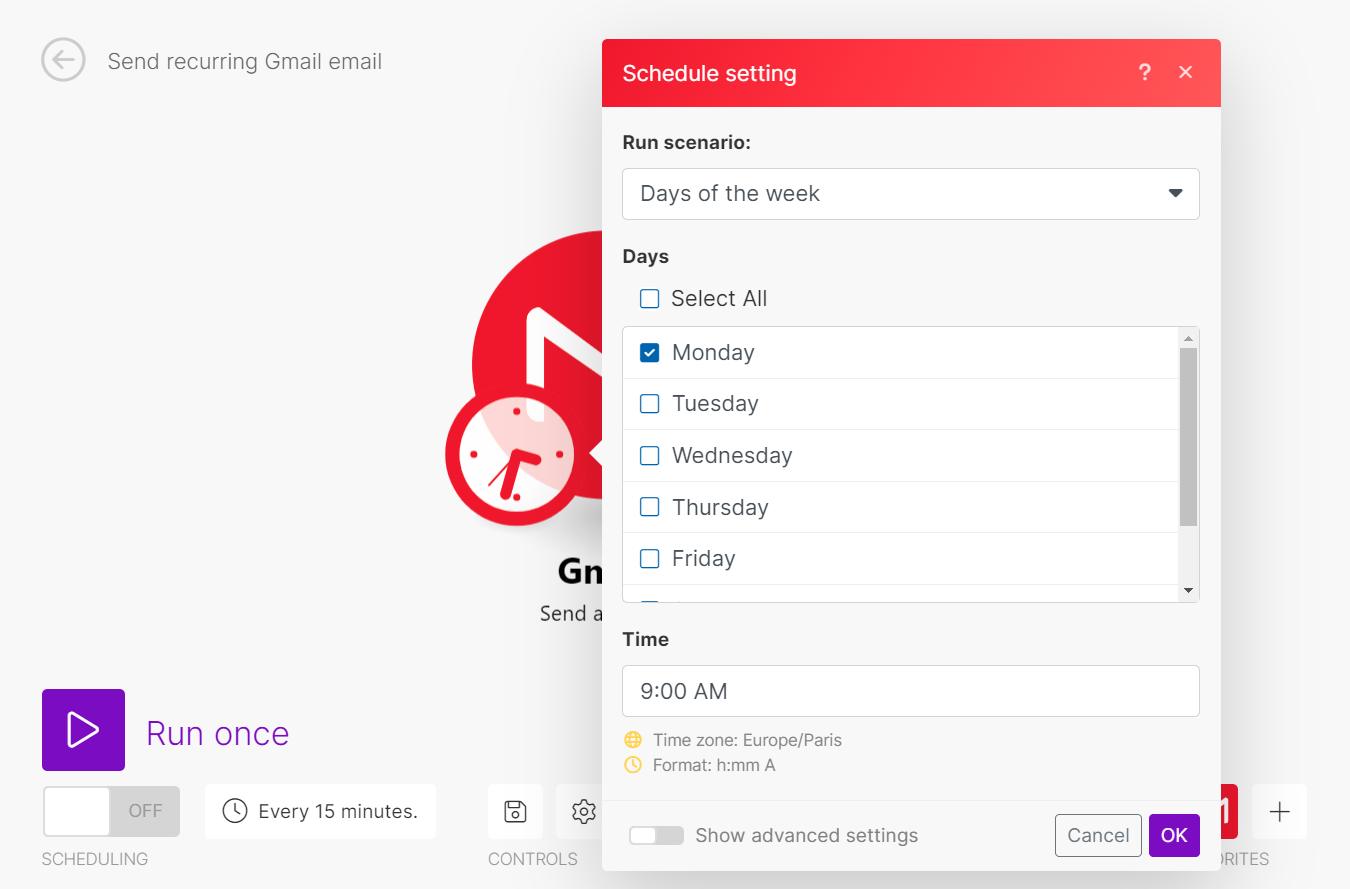
After configuring the schedule, simply turn on your scenario to activate the recurring email. Make.com will then automatically send your emails according to your specified schedule, without any further manual input.
Pro tip: For critical recurring emails, consider adding a notification module (e.g., Slack or email to yourself) to your Make.com scenario. This way, you'll receive an alert if the scenario fails to run for any reason, allowing you to quickly address any issues.
How to Send Recurring Emails Containing Dynamic Content
To truly unlock the power of automation, let's explore how to send recurring emails that include dynamic content. This means your emails will contain placeholders that Make.com automatically populates with real-time data from other applications before sending them.
For example, imagine you want to receive a daily email summarizing your upcoming appointments from Google Calendar. Make.com can fetch this information and automatically compile it into an email sent to you every morning. Here's how to set up such a scenario:
Step 1: Search for all Google Calendar events occurring on the current day
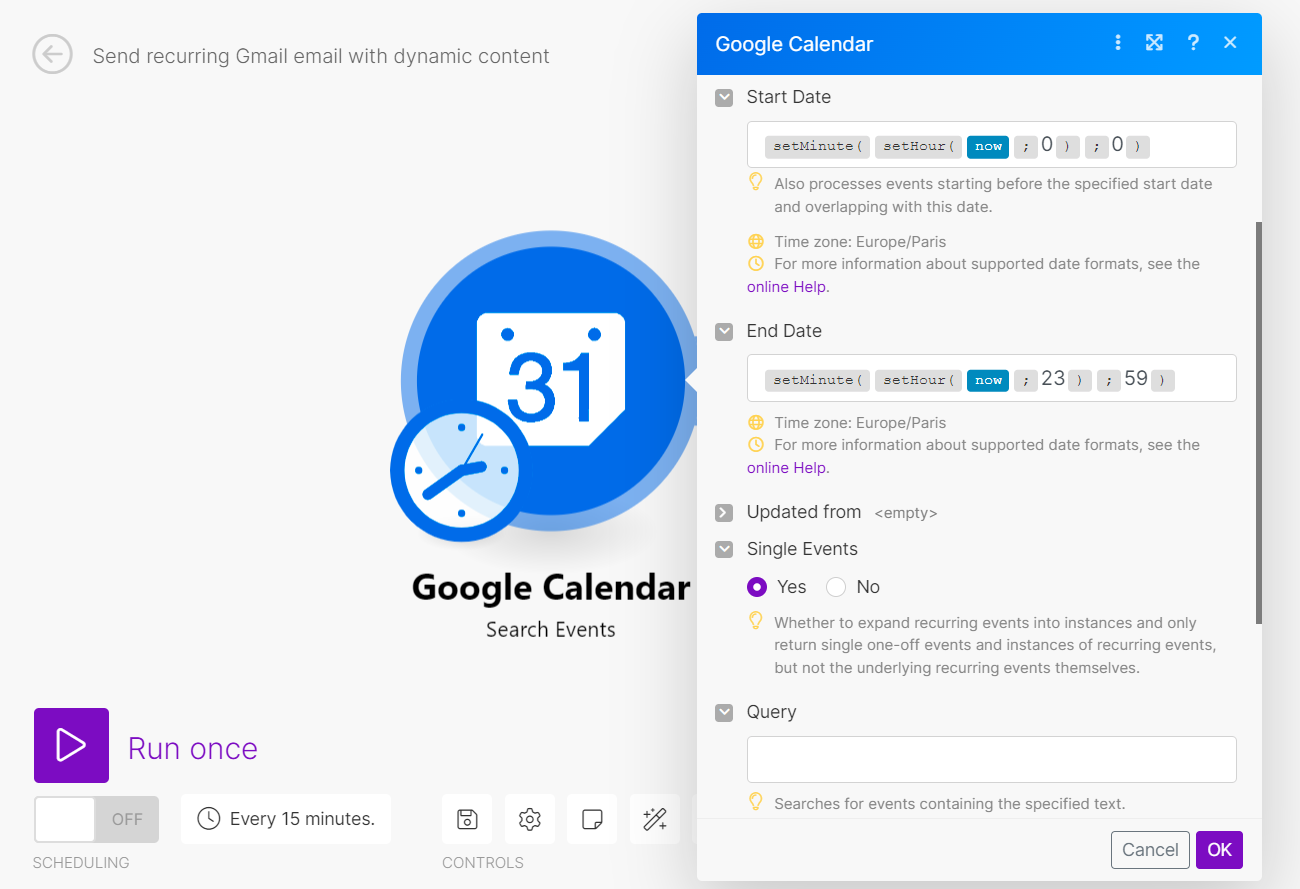
Begin by creating a new Make.com scenario. Add the "Google Calendar > Search Events" module to your scenario. Connect your Google Calendar account to this module, and then select the specific Calendar ID you wish to use for event retrieval.
To ensure the module searches for events happening on the day the scenario runs, configure the "Start Date" and "End Date" fields with the following Make.com expressions:
- Start Date:
{{setMinute(setHour(now; 0); 0)}} - End Date:
{{setMinute(setHour(now; 23); 59)}}
These expressions instruct the module to look for events between 0:00 and 23:59 on the current day. If you have recurring events in your calendar, set the "Single Events" option to "Yes." Leave the "Query" field blank to retrieve all events for the day, regardless of their title.
Step 2: Compile all Google Calendar events into a list
After retrieving the events, you'll want to present them in a readable format within your email. Add the "Tools > Text Aggregator" module to your scenario. This module will gather all the individual event details found by the Google Calendar module and consolidate them into a single, structured list.
Configure the Text Aggregator module as follows:
- Keep the "Source Module" setting as "Google Calendar - Search Events [1]".
- Change the "Row separator" to "New row" to ensure each event appears on its own line.
- In the "Text" field, define how each event's information should be displayed. For example, to show just the event name, use
<li>{{1.summary}}</li>. The<li>tags will format each event as a list item in your email.
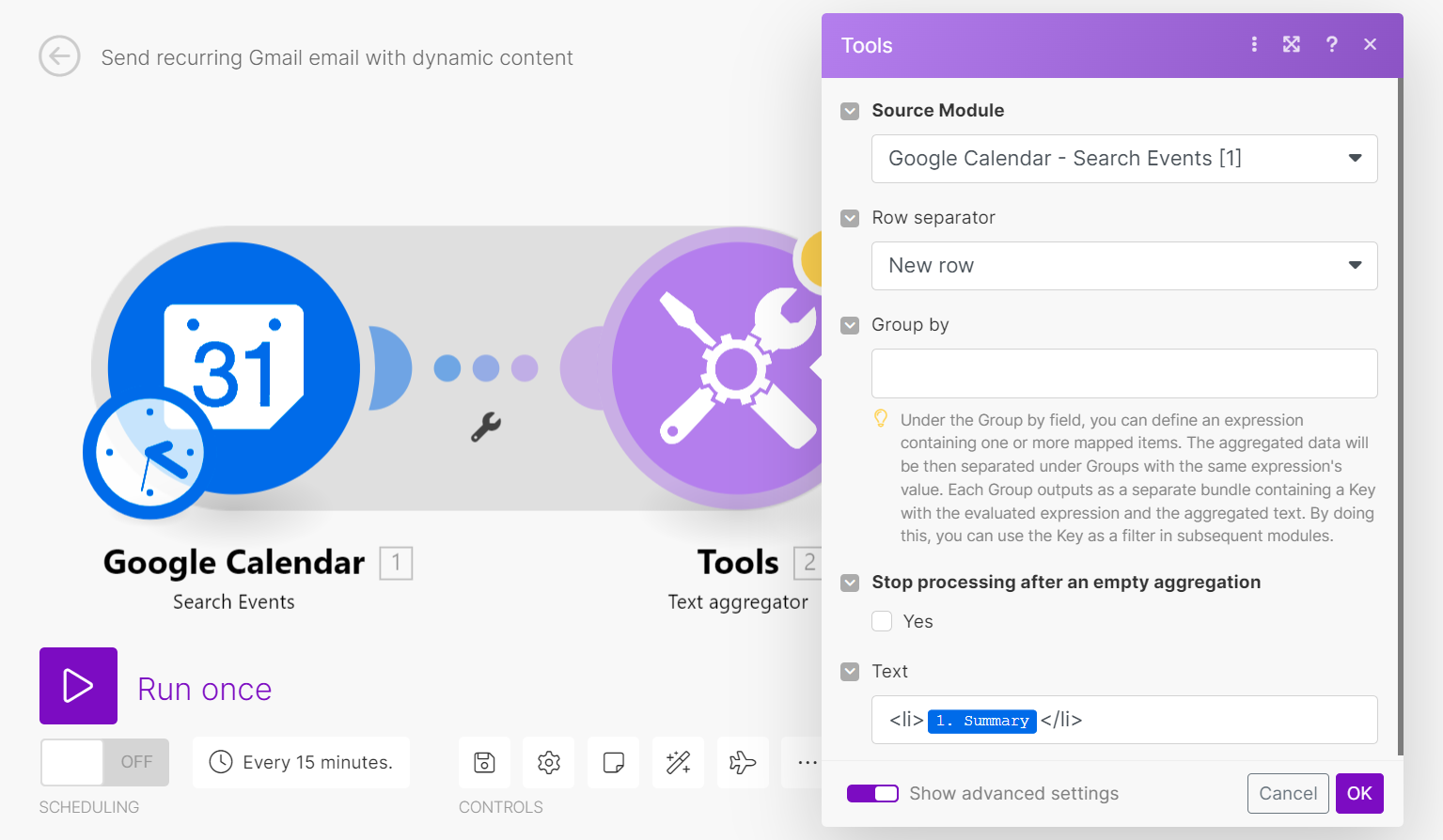
This setup ensures that all relevant event data is neatly organized and ready to be inserted into your email, providing a clear and concise summary of your day's schedule.
Step 3: Prepare the email containing the list of Google Calendar events
Now that Make.com is set to gather and format your calendar data, it's time to compose the email itself. Add another "Gmail > Send an Email" module to your scenario and connect it to your Gmail account, similar to the fixed content example.
Fill in your email address in the "To" field and add a descriptive subject line, such as "Your Daily Appointments." In the "Content" field, you'll type your email body and insert the dynamic placeholder generated by the Text Aggregator module. This placeholder, typically {{2.text}}, represents the compiled list of your daily events.
To ensure your events are displayed as a proper list in the email, surround the placeholder with HTML <ul> and <ul> tags for an unordered (bulleted) list. If you prefer a numbered list, simply use <ol> and <ol> tags instead.
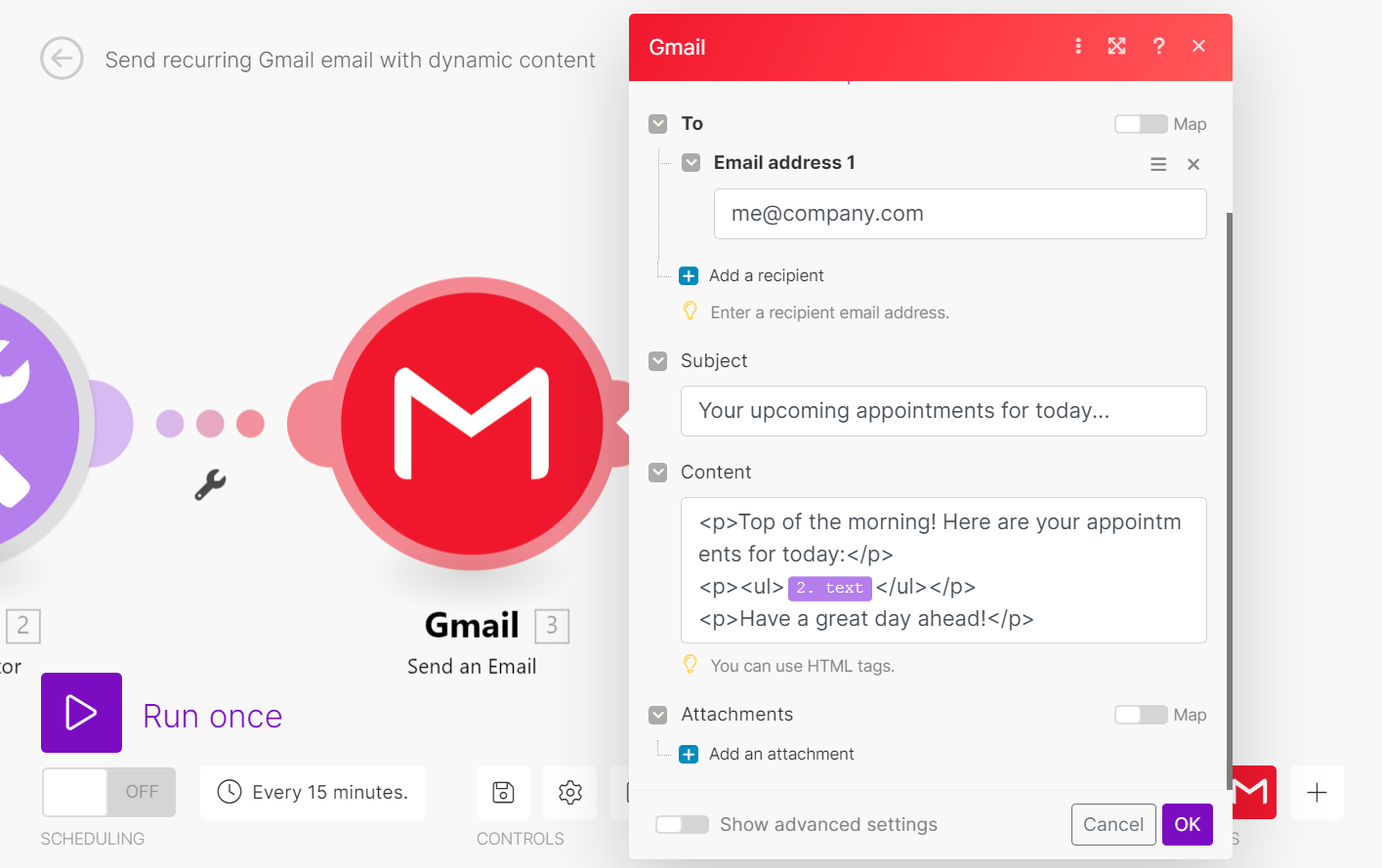
Before scheduling, test your scenario by clicking "Run once" and checking your inbox. Once you're satisfied with the email's appearance and content, you can proceed to schedule the scenario for regular execution.
Pro tip: When working with dynamic content, always test your scenario thoroughly by sending test emails to yourself. This helps ensure that the data is pulled correctly and formatted as intended before it reaches your actual recipients.
Step 4: Schedule the scenario
The final step is to set the schedule for your dynamic recurring email. Since the goal is to receive a daily email with your appointments at 8 AM, you will configure the scenario to run every day at that specific time.
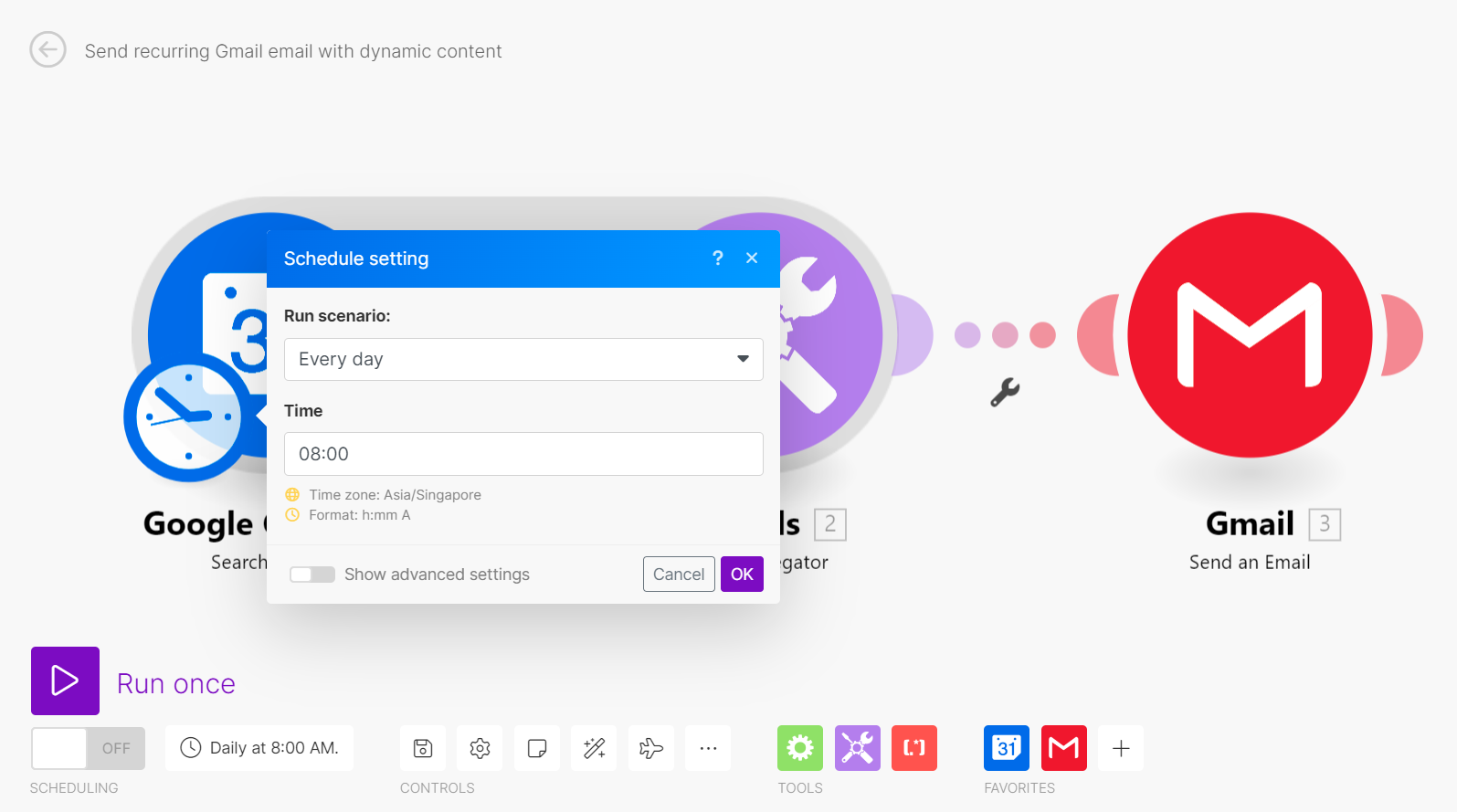
Once the schedule is set, simply turn on the scenario. From this point forward, Make.com will diligently send you an email every morning with your updated list of appointments, completely on autopilot.
Send Recurring Emails More Conveniently and Reliably Than Before with Make
While Gmail's native email template and scheduling features offer a basic workaround for recurring emails, this approach is often time-consuming, lacks scalability, and doesn't support dynamic content. It requires manual effort for each send and can quickly become cumbersome for frequent or varied communications.
Make.com effectively removes these limitations, providing a powerful and flexible platform to effortlessly set up recurring emails that precisely meet your needs. Whether you require simple, standardized messages or complex, personalized communications, Make.com offers a solution.
With Make.com, you can automate basic recurring emails with fixed content, or you can tap into its extensive integrations with over 1,500 applications to personalize your emails with real-time business data. This allows for highly relevant and engaging communications, delivered automatically. The choice and the freedom to optimize your email workflows are yours. All it takes is a Make.com account and the drive to enhance your operational efficiency.