
Calling better shots with AI and Make
The average B2B salesperson makes 35 calls per day, totaling over 8,400 calls annually. This volume makes manual note-taking and analysis impractical. An AI-powered summarizer solves this by automatically extracting key insights from every conversation.
Beyond just summarizing calls, this solution will:
- Identify competitors mentioned during calls
- Analyze strengths/weaknesses in their offerings
- Deliver insights directly to your sales team via Slack
Pro tip: Before starting, ensure you have active accounts with Gong, Make, OpenAI, and Slack. The free tiers of these services are sufficient for testing this workflow.
Step 1: Create a new Make scenario and add the Gong app
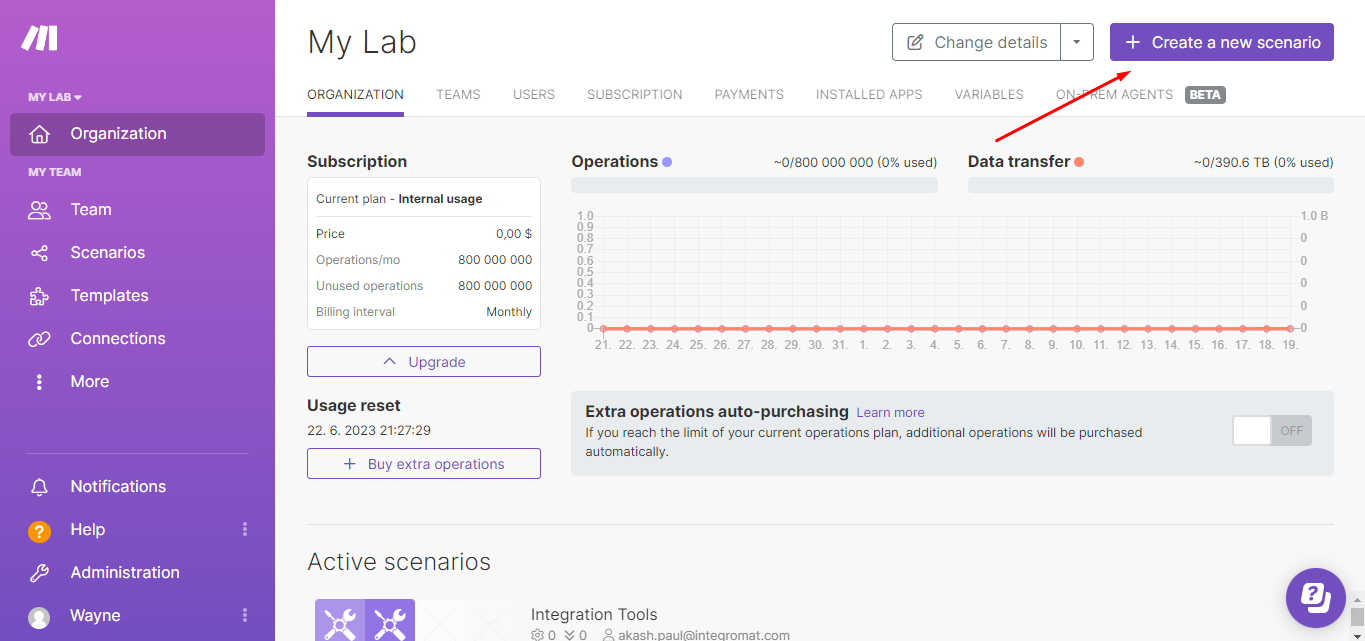
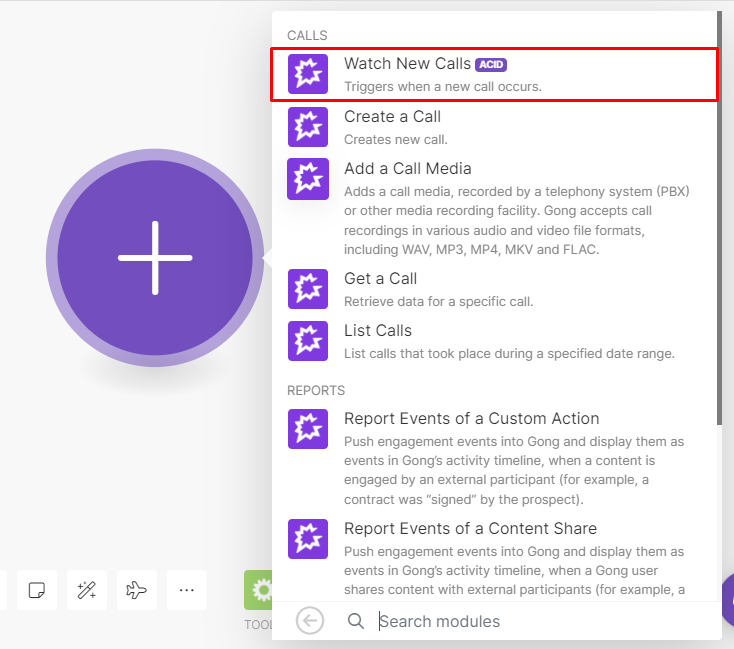
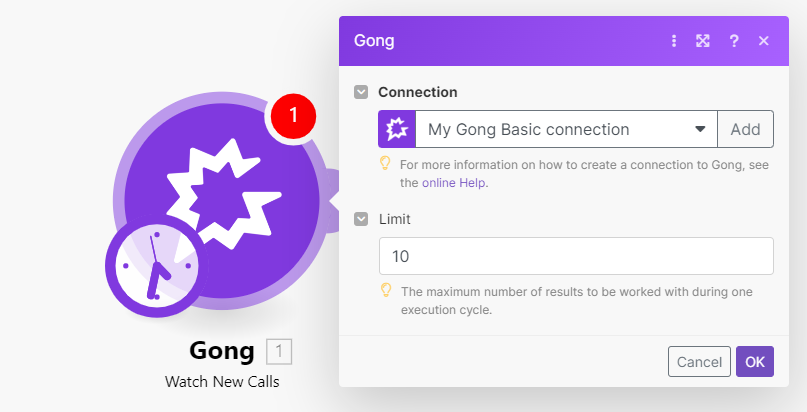
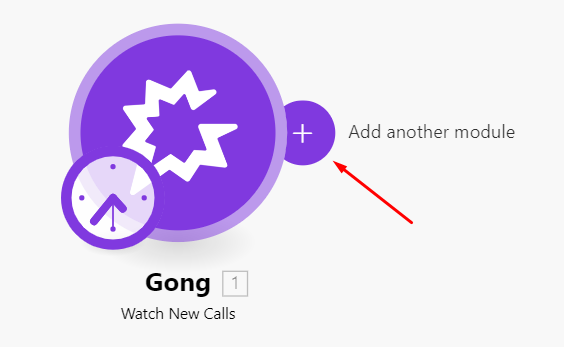
Begin by logging into your Make account and creating a new scenario. Click the purple circle to add your first module and search for the Gong integration. Select the "Watch new calls" module which will trigger your workflow whenever new calls are recorded.
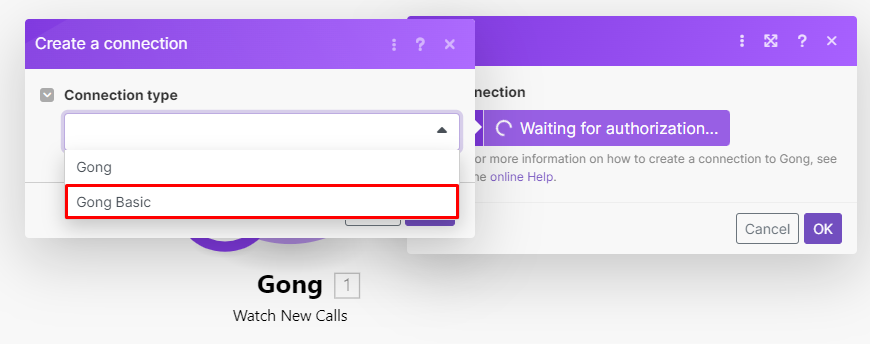
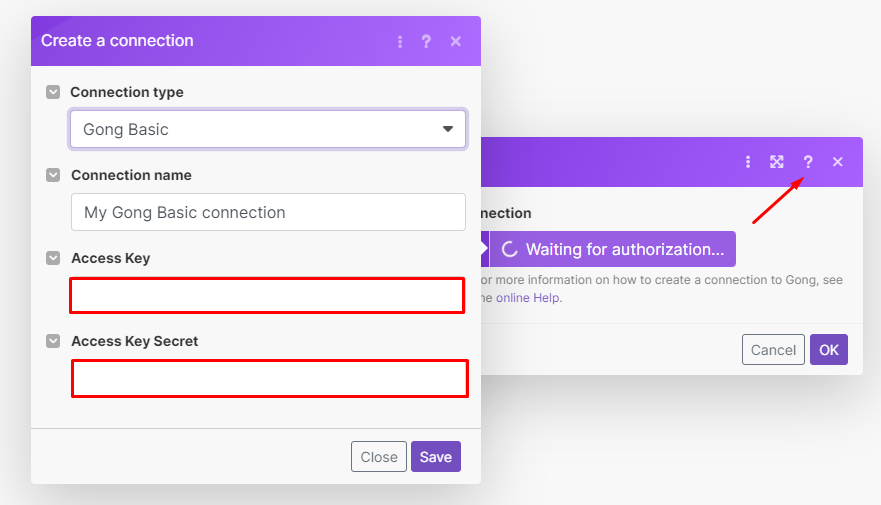
Configure the Gong module by connecting your account using Gong Basic authentication. You'll need your Access Key and Access Key Secret from Gong's developer settings. Set the Limit field to determine how many calls to process per execution - we recommend starting with 5-10.
Step 2: Add the second Gong module
Since Make doesn't have a dedicated transcript module for Gong, we'll use the Make HTTP Request module to fetch call transcripts via Gong's API. Configure it with:
URL: /v2/calls/transcript
Method: POST
Body: A JSON structure that filters for the specific call ID from your trigger module and sets a date range for processing.
The date range in the JSON should cover the past 24 hours by default, but you can adjust this based on how frequently you want the scenario to run. This setup ensures you only process recent calls.
Step 3: Add an iterator and a text aggregator
The transcript comes as an array of sentences. We need to iterate through these using Make's Iterator module to process each sentence individually. Map the Sentences[] array from the transcript module to the Iterator's input field.
Since we can't send sentences one by one to ChatGPT, we'll use Make's Text Aggregator module to combine them back into a single text block. Configure the aggregator to use the Iterator as its source and map the Text data item to the aggregation field.
Step 4: Add the OpenAI app
Now we'll add the AI summarization capability. Search for the OpenAI app in Make and select the "Create a Completion" module. Configure it with:
Method: Create Chat Completion
Model: gpt-3.5-turbo-0301 (for its 16k token limit)
Message Content: "Summarize the text '{text}' and provide bullet points with key insights, competitor mentions, and important facts."
Map the aggregated text from the previous step to the {text} placeholder. This prompt instructs ChatGPT to focus on sales-relevant information while maintaining context from the full conversation.
Step 5: Add the Slack module
The final step delivers the AI-generated summaries to your team. Add the Slack "Create Message" module and configure it to post to your preferred channel or individual team members.
Map the Choices[].Message.Content output from OpenAI as the message content. You can enhance this with formatting, call metadata from Gong, or additional context to help your team quickly understand each summary.
Pro tip: Schedule this scenario to run daily at 8 AM by clicking the clock icon in Make. This ensures your team starts each day with fresh insights from yesterday's calls.