
Why Export Strava Data to Google Sheets?
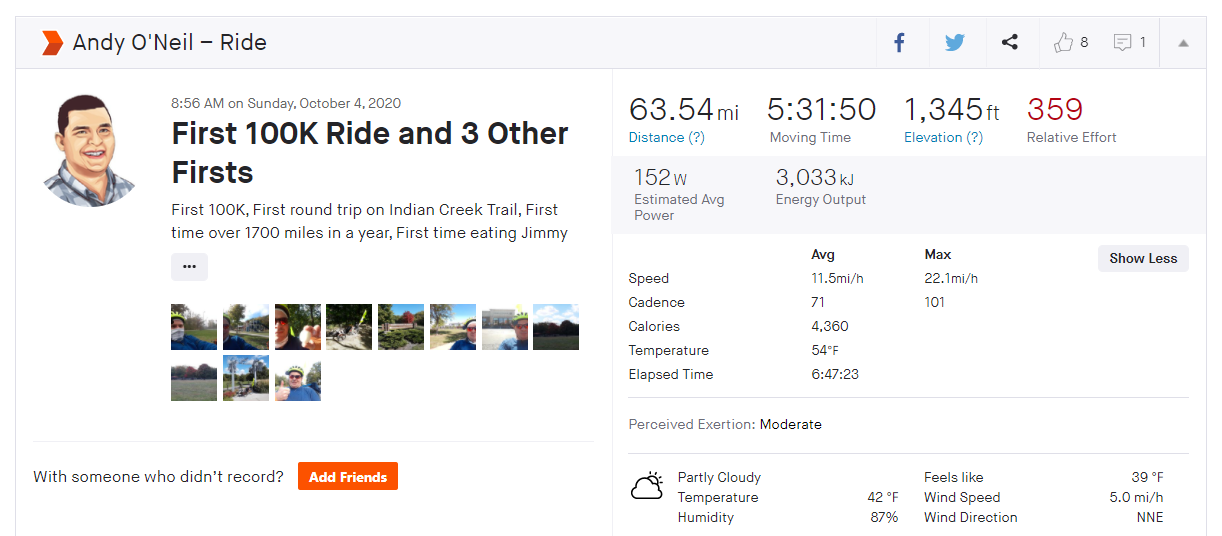
Strava provides excellent social features and basic analytics, but serious athletes often need deeper analysis capabilities. By exporting your workout data to Google Sheets, you unlock powerful customization options for tracking your fitness progress.
Google Sheets allows you to create custom dashboards, perform complex calculations, and visualize trends over time. You can combine your Strava data with other metrics like nutrition, sleep, or heart rate information for comprehensive performance analysis.
Setup Requirements
Before beginning the automation setup, ensure you have these three essential components:
- An active Make.com account (free tier available)
- Strava account with workout history
- Google account with access to Google Sheets
The automation uses Make's visual workflow builder to connect Strava and Google Sheets without coding. You'll need to authenticate both services during setup and have edit permissions for the destination spreadsheet.
Pro tip: Create a dedicated Google Sheet for Strava data before starting the setup. The template includes pre-formatted columns for all activity metrics.
Step-by-Step Configuration
The automation consists of six key steps that work together to transfer your Strava activities securely to Google Sheets. Each component serves a specific purpose in the data flow.
1. Google Sheets Search Module
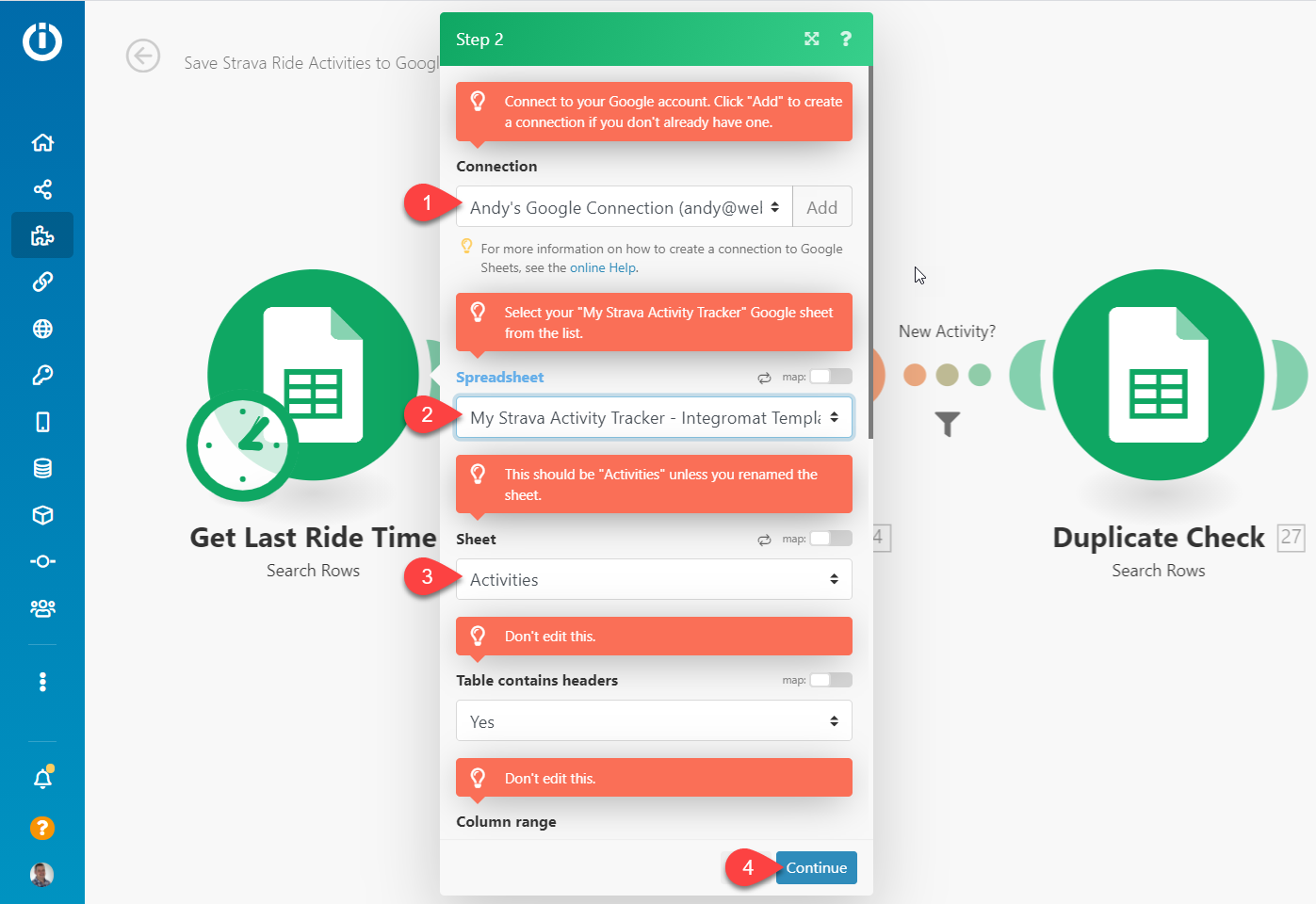
This initial module locates your most recent recorded activity in Google Sheets. It establishes the starting point for checking new Strava activities, preventing redundant data transfers.
When configuring, select your Google account and the specific spreadsheet tab containing your Strava data. The module automatically handles date formatting and lookup logic.
2. Strava List Activities Module
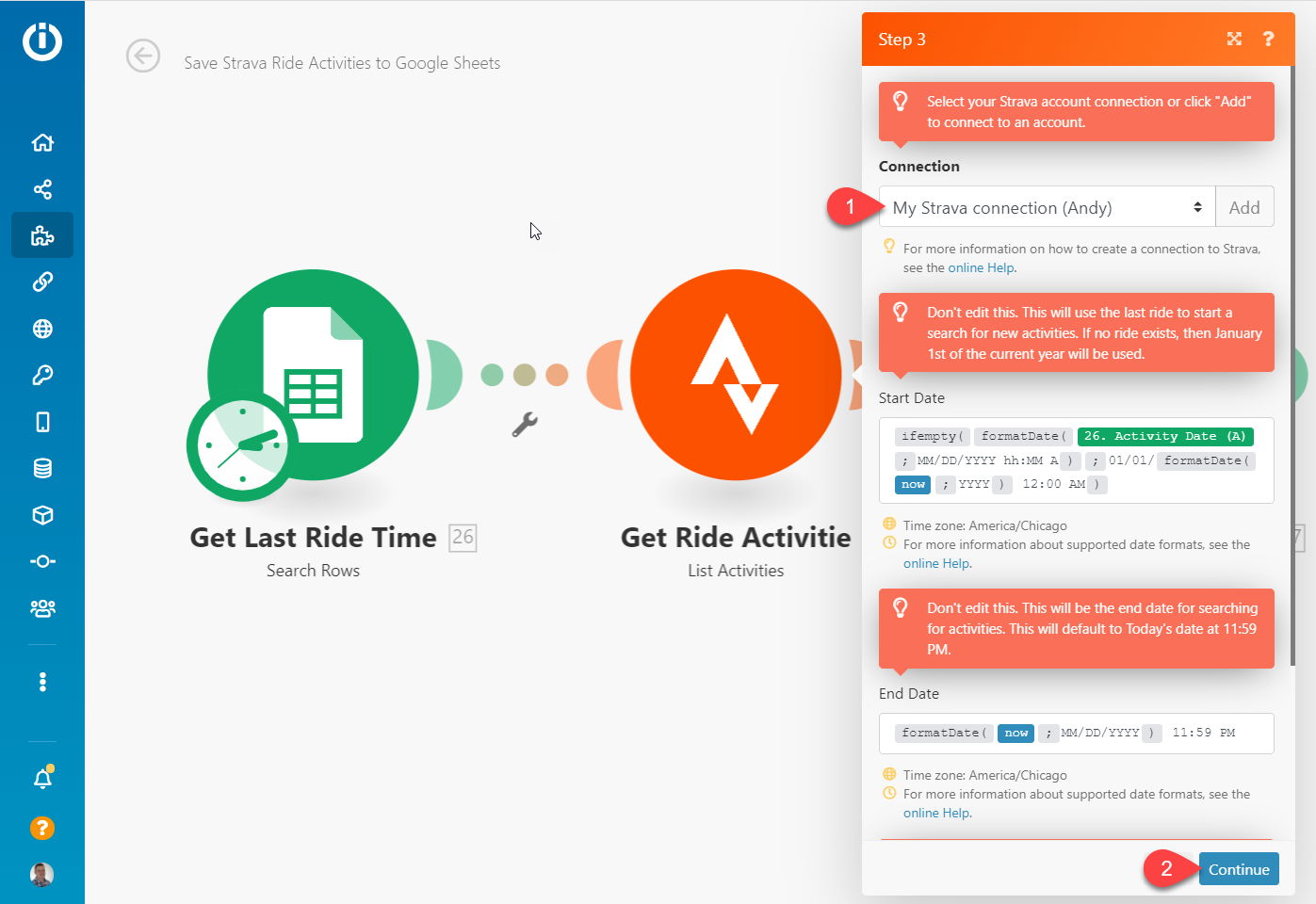
This component retrieves your workout history from Strava's API. It automatically filters activities based on the date range from the previous Google Sheets check.
Authentication requires connecting your Strava account through OAuth. The module handles all API calls and data formatting, returning clean activity records for processing.
3. Duplicate Check Filter
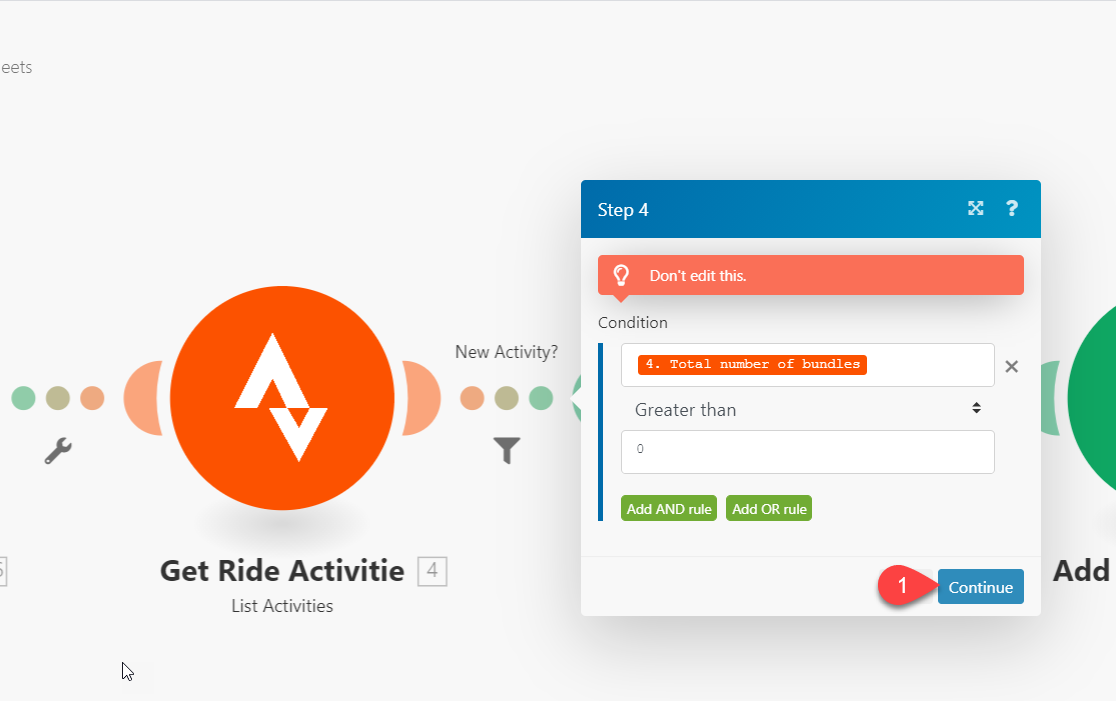
This smart filter prevents duplicate entries by verifying each activity's unique ID against your existing Google Sheets data. It's pre-configured to handle Strava's ID system automatically.
The filter ensures your spreadsheet maintains data integrity while accommodating Strava's occasional activity updates or corrections.
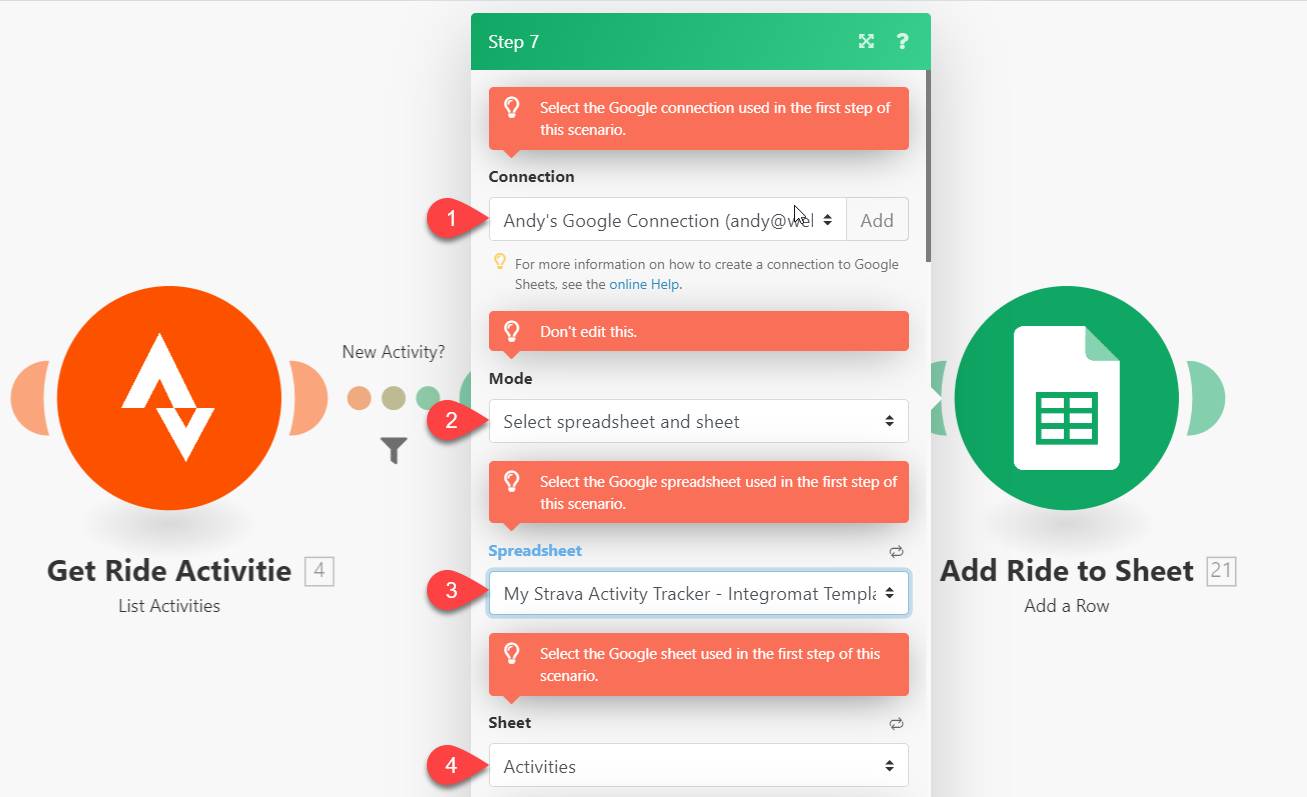
4. Final Google Sheets Export
The last module formats and transfers approved activities to your spreadsheet. It maps all Strava metrics to corresponding columns while maintaining consistent data types.
Configuration involves selecting the same Google Sheet and specifying the destination tab. The module handles unit conversions and timestamp formatting automatically.
Data Points Exported
The automation captures comprehensive workout metrics from Strava, providing both raw and calculated values for analysis:
- Activity date and time
- Workout type (run, ride, swim, etc.)
- Distance in miles/km
- Duration in hours:minutes and total seconds
- Elevation gain in feet/meters
- Average and maximum speed
- Calories burned
- Activity description and gear used
This dataset enables sophisticated performance tracking, from simple mileage logs to advanced power curve analysis.
Pro tip: Use Google Sheets' pivot tables to analyze your Strava data by activity type, time period, or equipment for deeper insights into your training patterns.
Advanced Customization Options
While the template works perfectly as-is, you can enhance it with these optional modifications:
Activity Type Filtering: Modify the Strava module to only capture specific workout types like cycling or running. This creates focused datasets for sport-specific analysis.
Custom Calculations: Add Google Sheets formulas to derive additional metrics like weekly mileage, performance trends, or training load calculations.
Troubleshooting Common Issues
Most setup problems stem from authentication or permission errors. Ensure you've:
- Granted Make access to both Strava and Google Sheets
- Enabled the Strava API for your account
- Set correct sharing permissions on your Google Sheet
For performance issues, check your Make scenario's scheduling settings. Daily or weekly syncs typically provide the best balance of freshness and system load.