
OneNote, a core component of the Microsoft Office suite, is more than just a digital notebook. It's a versatile application designed for creating, editing, and organizing notes in a highly flexible manner. Users can capture thoughts, ideas, and information in various formats, from text and images to audio and video, fostering a dynamic environment for personal and professional use.
This powerful tool excels at promoting collaboration, enabling teams to share and work on notes simultaneously, regardless of their location. Its intuitive interface supports creativity, allowing users to sketch, handwrite, and annotate with a stylus or fingertip. OneNote's ability to sync across devices ensures that your notes are always accessible, whether you're at your desk or on the go.
While OneNote is excellent for capturing ideas, the real challenge often lies in transforming those ideas into actionable steps. As Napoleon Hill wisely noted in "Think and Grow Rich," an intangible impulse of thought must be transmuted into its physical counterpart. This transition from concept to execution is where automation platforms like Make.com become invaluable.
Make.com empowers users to connect OneNote with other applications, creating automated workflows that turn data into action. By setting up "scenarios" in Make, you can bridge the gap between your notes and your daily tasks, project management, and communication tools. This guide explores four practical ways to leverage Make.com to maximize your OneNote experience and become a true power user.
Directly upload pages into your project management software
In today's fast-paced work environment, ideas can strike at any moment, often resulting in scattered notes across various OneNote pages and sections. While these breakthroughs are crucial, manually transcribing and transferring them into a separate project management system can be a time-consuming and error-prone process. This is where automation steps in to streamline your workflow.
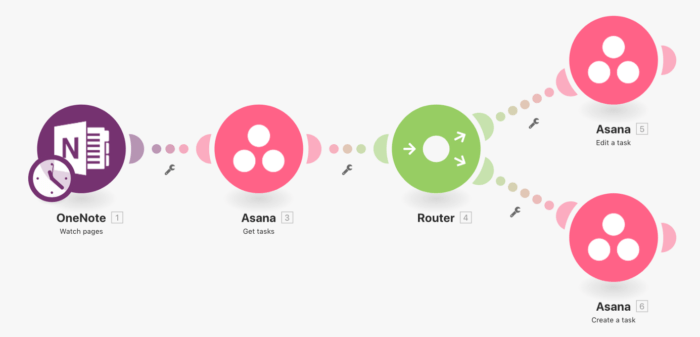
By utilizing Make.com, you can create a seamless integration between OneNote and your preferred project management software, such as Asana. This automation allows Make to continuously monitor specific notebooks or sections within OneNote. When a new page is created or updated, Make automatically triggers a scenario to process this information.
The scenario then connects to Asana, intelligently checking whether the OneNote entry corresponds to an existing task or requires a new one. Based on this assessment, Make will either create a brand-new task in Asana, complete with details pulled directly from your OneNote page, or update an existing task with the latest information. This ensures that your ideas are immediately integrated into your project pipeline, allowing you to focus on developing your projects without interruption.
Pro tip: When setting up your OneNote-to-project management integration, use specific keywords or tags in your OneNote pages (e.g., "#task", "#urgent") to trigger different actions in your project management software. This allows for more granular control over how your notes are converted into tasks.
Transfer your ideas into OneNote to save for later
Often, the best ideas emerge during collaborative brainstorming sessions or casual discussions with your team, not necessarily when you're seated at your desk with OneNote open. These spontaneous insights, especially those shared on communication platforms like Slack, are invaluable but can easily be lost if not captured promptly.
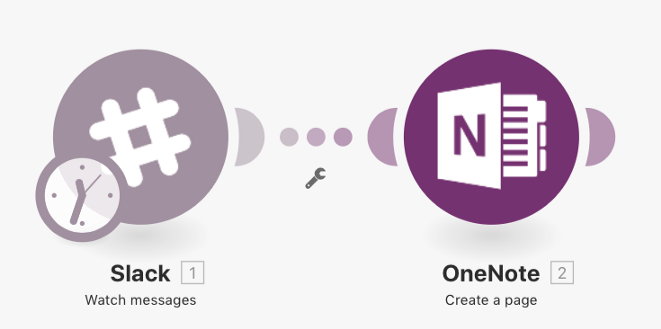
With Make.com, you can ensure that no brilliant idea from your team's Slack channel ever slips through the cracks. By configuring a simple automation scenario, you can connect your Slack workspace directly to OneNote. This setup allows Make to monitor designated Slack channels for new messages or specific keywords.
When a relevant message is posted in Slack, Make automatically captures its content and creates a new page within a specified OneNote notebook. This means that all your team's discussions, links, and shared thoughts are instantly documented and organized in OneNote, ready for you to review and elaborate on when you return to your desk. This integration transforms casual conversations into a structured knowledge base, making it easier to track progress and develop concepts further.
Assign tasks to employees for your OneNote creations
After a productive planning session where ideas are meticulously laid out in OneNote, the next critical step is often task assignment. Manually transferring these tasks to a project management tool and assigning them to individual team members can be a tedious and time-consuming process, prone to human error. Automation can significantly simplify this, ensuring that responsibilities are clearly delegated and projects move forward efficiently.
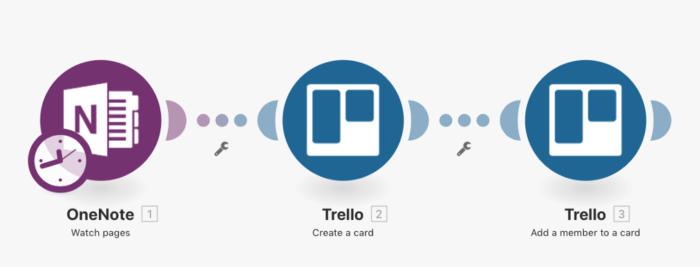
By leveraging Make.com, you can seamlessly connect your OneNote account with project management software like Trello. This integration allows you to transform your detailed OneNote plans into actionable tasks within Trello boards. The automation scenario can be configured to detect specific patterns or sections in your OneNote pages that indicate a task requiring assignment.
Once identified, Make automatically creates new cards on your Trello board, populating them with the relevant details from OneNote. Crucially, it can also assign these cards to specific team members based on predefined rules or keywords within your notes. This ensures that every task from your planning session is accounted for, assigned to the right person, and ready for execution, all without manual intervention.
Collect and archive your OneNote pages
Creating valuable content in OneNote is a significant achievement, but effectively sharing and managing that content, especially with external clients, can present its own set of challenges. When you're ready to present your work or simply need to archive important pages for long-term storage, manual collection and transfer can be cumbersome. Automation offers a streamlined solution to this common problem.
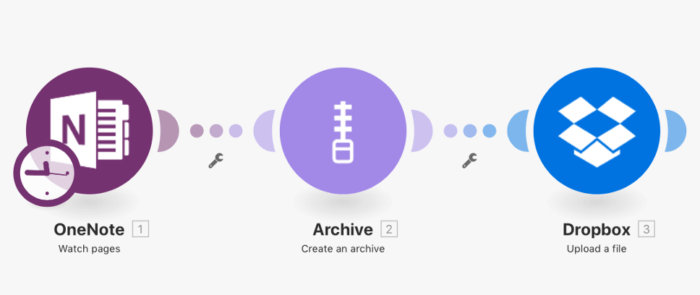
With Make.com, you can automate the process of collecting and archiving your OneNote pages, making them readily available for sharing or secure storage. The automation begins by allowing you to define which OneNote pages or sections you want to include. Make then connects to an "Archive aggregator" module, which efficiently gathers the selected content and bundles it into a single, convenient ZIP file.
Once the archive is created, the scenario automatically uploads this ZIP file to your chosen cloud storage service, such as Dropbox. This entire process ensures that your content is not only securely stored but also easily accessible and ready to be sent to clients or collaborators whenever needed. This automation saves considerable time and effort, allowing you to focus on content creation rather than the logistics of file management.
Pro tip: To maintain an organized archive, include dynamic naming conventions in your Make.com scenario for the ZIP files. For instance, you could automatically name archives with the date and a brief description (e.g., "OneNote_ProjectX_2023-10-26.zip"), making it easier to locate specific archives later.
These four methods are just the beginning of what's possible when you combine the power of OneNote with Make.com. The true strength of automation lies in its flexibility and adaptability to your specific needs. Each of these scenarios can be expanded, customized, and integrated with a multitude of other applications and services to create a workflow that perfectly suits your unique requirements.
By embracing automation, you can significantly reduce manual effort, minimize errors, and free up valuable time to focus on more strategic and creative tasks. Whether you're managing complex projects, collaborating with a team, or simply organizing your personal notes, leveraging platforms like Make.com can transform your OneNote experience and help you achieve greater productivity and efficiency.