Make.com Apple Watch Siri Automation

Supercharge Siri and Apple Watch with Make

Learn how to integrate Make with Siri and Apple Watch for voice-activated automations and wrist-based workflow triggers.

Apple Watch showing Make app interface with automation buttons

Triggering Scenarios with Siri Voice Commands

The Make mobile app brings powerful automation capabilities to your fingertips, and now you can extend that convenience to voice control through Siri integration. This feature allows you to execute Make scenarios simply by speaking a custom phrase, perfect for situations when your hands are occupied or you need quick access to automations.

To set up Siri voice commands, begin by opening the Make mobile app and navigating to the button you want to voice-enable. This can be either an existing button or a new one you create specifically for voice activation. The process works equally well for both simple and complex scenarios.

Pro tip: Choose voice phrases that are natural to say but distinct enough that Siri won't confuse them with other commands. Include the word "Make" or your scenario name for better recognition.

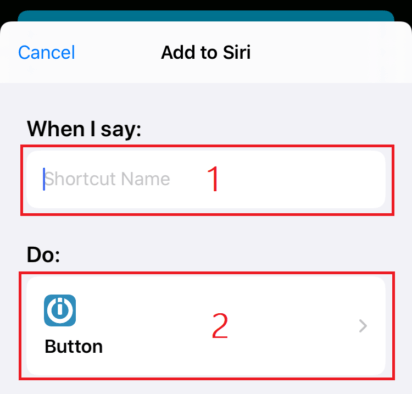
When configuring your Siri command, you'll define both the activation phrase ("When I say") and the specific button action ("Do"). The system provides intuitive prompts to guide you through pairing your voice command with the correct Make button. After setup, test your command to ensure Siri recognizes it clearly and triggers the intended automation.
Make app interface showing Add to Siri button
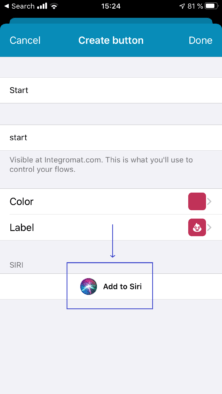
The Add to Siri button in the Make mobile app interface

Voice Command Best Practices

For optimal performance, keep your voice commands concise yet distinctive. Two to four word phrases tend to work best with Siri's recognition algorithms. Avoid generic phrases like "Run scenario" that might conflict with system commands. Instead, incorporate specific identifiers like "Make start inventory check" or "Trigger client follow-up."

Consider your usage environment when choosing phrases. If you'll be using commands in noisy areas, select words with distinct phonetic patterns. Test your commands in different conditions to ensure reliable recognition. Remember you can always edit or recreate commands if the initial phrase isn't working consistently.

Setting Up Make on Apple Watch

Extending Make's automation capabilities to your Apple Watch provides ultimate convenience for triggering scenarios on the go. The Watch app mirrors your mobile buttons, giving you instant access to automations right from your wrist. This is particularly useful for quick actions, reminders, or situations where pulling out your phone isn't practical.

To install Make on your Apple Watch, open the Watch app on your paired iPhone and navigate to the "Available Apps" section. Locate Make in the list and tap "Install." The process typically takes just a minute, after which the Make icon will appear among your Watch apps. No additional configuration is needed - your buttons automatically sync from the mobile app.
Apple Watch app installation screen showing Make app
Installing the Make app through the Apple Watch interface

Optimizing for Apple Watch

While all Make buttons work on Apple Watch, some optimizations can improve your experience. Consider creating dedicated buttons for Watch use with simplified names that display clearly on the smaller screen. Group related automations into separate button sets that you can access by force-pressing the Watch face.

The Watch interface supports both tap triggers and (when combined with Siri integration) voice commands. For frequently used automations, add Make complications to your Watch face for one-tap access. Battery life impact is minimal since the Watch delegates actual scenario execution to your paired iPhone.

Pro tip: Combine Siri and Apple Watch by using "Hey Siri" voice commands on your Watch to trigger Make automations without even touching the device - perfect when your hands are full.

Frequently Asked Questions

Common questions about Siri and Apple Watch automation with Make

To connect Make to Siri, open the Make mobile app and create or edit a button. Tap 'Add to Siri' and define your voice command phrase. Assign the button to this Siri command by entering the button name after 'Press a button called'. This allows you to trigger Make scenarios hands-free using just your voice.

The process takes less than a minute per button. You'll know it's working when Siri confirms the new command and responds appropriately when you use your custom phrase. Test immediately after setup to verify recognition accuracy.

With Siri and Make integration, you can automate any scenario you've built in Make. Common uses include starting workflows, sending notifications, updating databases, or triggering actions across connected apps. The voice command makes it convenient to run automations when your hands are occupied.

Popular applications include inventory checks, client follow-ups, meeting preparations, and data collection workflows. Since Make connects with thousands of apps, your voice-controlled automations can span your entire tech stack with a single command.

Yes, once you install the Make app on your Apple Watch, all your existing Make buttons become available on your wrist. The Watch interface mirrors your mobile app buttons, allowing you to trigger any scenario directly from your wearable device.

The sync happens automatically whenever your Watch connects to your iPhone. New buttons you create on your phone appear on the Watch within moments, with no additional setup required.

Currently, each Make button can only be assigned to one Siri voice command. However, you can create duplicate buttons with different voice triggers if you need multiple phrases to execute the same scenario.

For example, you might create variations like "Start morning routine" and "Begin daily setup" that both trigger the same automation sequence. This workaround effectively gives you multiple voice access points to your most-used scenarios.

If your Apple Watch loses connection to your iPhone, Make buttons will temporarily be unavailable. The Watch needs an active connection to communicate with your phone where the Make app runs. Once reconnected, all functionality resumes automatically.

For critical automations, consider setting up redundant triggers through Siri on other devices or scheduling fallback actions within your Make scenarios to handle potential connection drops.

The main limitation is screen size - complex scenarios with many steps might be harder to monitor on the small display. Also, some resource-intensive automations may run slightly slower when triggered from the Watch compared to the phone app.

Best practice is to reserve Watch triggers for simpler, frequently used automations. For complex workflows, use the Watch to initiate them but monitor progress on your phone or computer if needed.

Yes, our team at GrowwStacks specializes in building custom automation solutions tailored to your specific business needs. We can design advanced Siri and Apple Watch integrations that go beyond basic button triggers, creating seamless voice-controlled workflows for your unique requirements.

Our consultants will assess your workflow, recommend optimal automation strategies, and implement robust solutions that leverage Siri and Apple Watch capabilities to their fullest potential while maintaining reliability and ease of use.

  • Tailored voice command vocabulary
  • Multi-device synchronization
  • Error handling and notifications

Need Custom Automation Help?

This guide is a starting point. Our team builds fully tailored automation systems for your specific workflow needs.