Understanding the Array Aggregator
The Array Aggregator is one of Make.com's most powerful built-in tools, designed to combine multiple bundles of data into a single array containing collections of specified items. Unlike processing items individually, this tool allows you to structure multiple outputs into a format that downstream modules can process as a unified group.
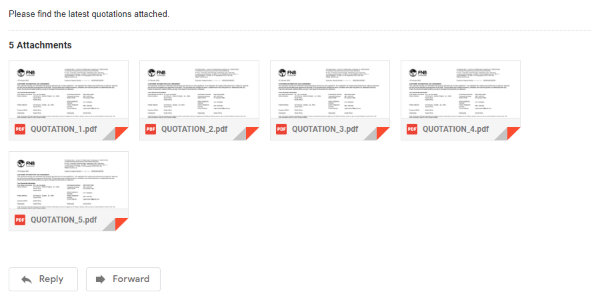
In this specific scenario, we're using the Array Aggregator to solve a common business problem: sending multiple files as email attachments without flooding the recipient's inbox. Without the aggregator, Make would process each file individually, resulting in separate emails for each attachment. The aggregator combines all files into a single structured output that the Gmail module can process as one email with multiple attachments.
Pro tip: The Array Aggregator isn't limited to file attachments. You can use it to combine any type of data bundles - database records, form submissions, or API responses - into structured arrays for batch processing.
Scenario Setup
Our automation scenario consists of three key modules working in sequence. First, the Google Drive module watches a specified folder for new files. The Array Aggregator then combines these files into a structured array. Finally, the Gmail module sends all files as attachments in a single email.
The entire setup takes approximately 15 minutes to configure, assuming you already have Google Drive and Gmail accounts connected to your Make.com account. This is considered a beginner-level automation, but understanding the Array Aggregator's role will help you create more advanced workflows.

Configuring Modules
Google Drive Module
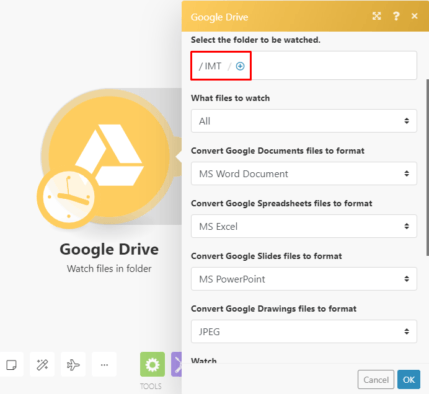
The "Watch files in folder" module from Google Drive serves as our trigger. When configuring this module, you'll select the specific folder to monitor and set the maximum number of files to process in each execution cycle. Setting this to 5 (as recommended in the tutorial) ensures your email won't exceed practical attachment limits while demonstrating the aggregator's capability.
Key configuration points include specifying whether to watch for new files only or process existing files on the first run. For testing purposes, you'll want to select "All files" initially to demonstrate the workflow with content already in your folder.
Array Aggregator Module
Found under Make.com's tools section, the Array Aggregator automatically connects to the preceding Google Drive module. Its configuration becomes more powerful when you add the destination Gmail module first, as this unlocks attachment-specific structure options.
The critical configuration is selecting "Attachments" as the Target Structure Type, which formats the output specifically for Gmail's attachment field. You'll then map the Google Drive module as the Source File, creating the connection between the file source and the structured output.
Pro tip: Always add your destination module before fully configuring the Array Aggregator. The aggregator detects connected modules and provides appropriate structure options for each.
Gmail Module
The "Send an email" module from Gmail receives the aggregated array. After configuring standard fields like recipient, subject, and body content, you'll toggle the map switch for attachments and select the Array[] element from the aggregator's output.
This simple mapping is where the magic happens - the Gmail module understands it's receiving multiple attachments in a structured format rather than individual files. The module handles the rest, creating a single email with all specified attachments.
Testing & Execution
With all modules configured, testing begins by saving the scenario and clicking "Run once." Make.com processes the workflow, and you can examine each module's output by clicking their numbered circles. The Array Aggregator's output shows the transformation from multiple individual bundles to a single structured array.
Successful execution results in one email containing all files from your Google Drive folder as attachments. You can then set the scenario's schedule (how often it checks for new files) and activate it for ongoing automation.