
Overview
This automation scenario provides a reliable way to synchronize files between Dropbox and Google Drive while preventing duplicate uploads. The workflow is designed for businesses and individuals who use multiple cloud storage services and need to maintain backup copies or distribute files across platforms.
The complete process takes approximately 20 minutes to set up and requires basic familiarity with Make's interface. You'll need active accounts with both cloud services and the connections already established in your Make account.
Pro tip: Before starting, create dedicated folders in both Dropbox and Google Drive for this automation. This keeps transferred files organized and makes troubleshooting easier.
Scenario Setup
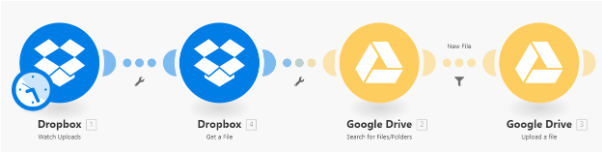
The automation consists of four key modules that work together to monitor, verify, and transfer files between services. Each module serves a specific purpose in the workflow chain.
The modules are arranged in this sequence:
- Dropbox → Watch Uploads (trigger)
- Dropbox → Get a File
- Google Drive → Search for Files/Folders
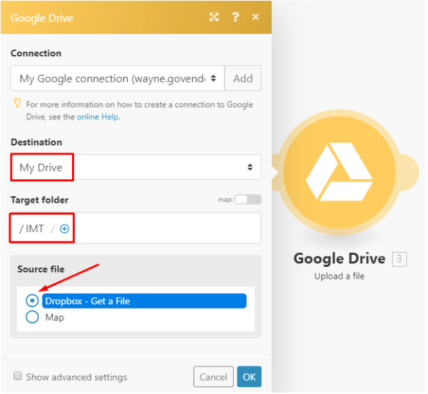
- Google Drive → Upload a File
Module Configuration
The Dropbox trigger module monitors a specific folder for new uploads. When configured correctly, it initiates the workflow whenever a new file is detected in the watched folder.
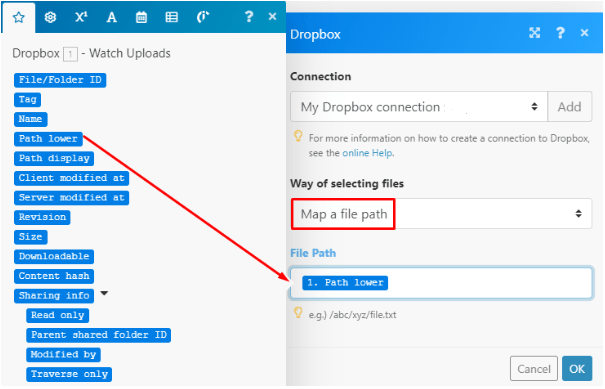
The Get a File module downloads the newly detected file from Dropbox. This module requires mapping the file path from the trigger to ensure it fetches the correct file. Under "Way of selecting files," choose "Map a file path" and connect the "Path lower" element from the trigger module.
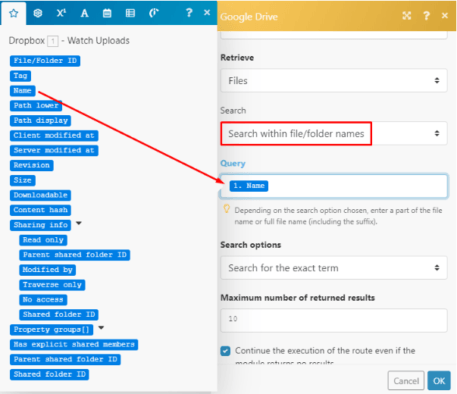
The Google Drive search module checks if the file already exists in the destination folder. Configure this module to search within file/folder names and map the "Name" element from the Dropbox trigger to the "Query" field.
Filter Implementation
The filter between the search and upload modules is critical for preventing duplicates. It checks whether the file already exists in Google Drive before allowing the upload to proceed.
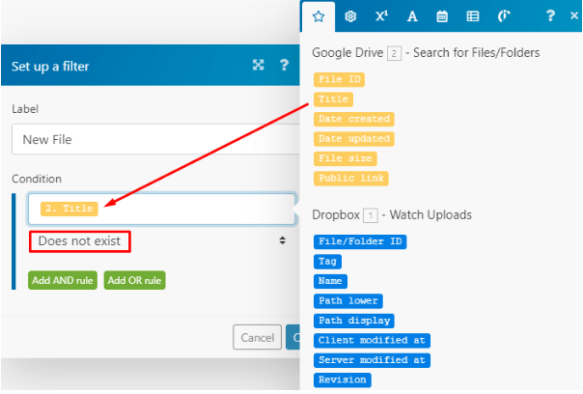
Name the filter "New File" and configure it to check if the "Title" element from the search module "Does not exist." This ensures the workflow only continues for files that aren't already present in the destination folder.
Testing & Execution
After completing the setup, test the automation by uploading a new file to your monitored Dropbox folder. The scenario should detect the file, verify its absence in Google Drive, and complete the transfer.
For testing purposes, you can manually trigger the scenario with existing files to verify the duplicate prevention works correctly. Right-click the Dropbox trigger module and select "Choose manually" to test with specific files.
Pro tip: For large-scale implementations, consider adding error handling modules and notifications to track transfer status and receive alerts for any failed attempts.