Make.com Softr Google Sheets Automation Member Onboarding

Automate Softr User Creation from Google Sheets

Create Softr accounts and send invitations automatically when new spreadsheet rows are added

Get This Workflow → Make.com · Softr · Free Template
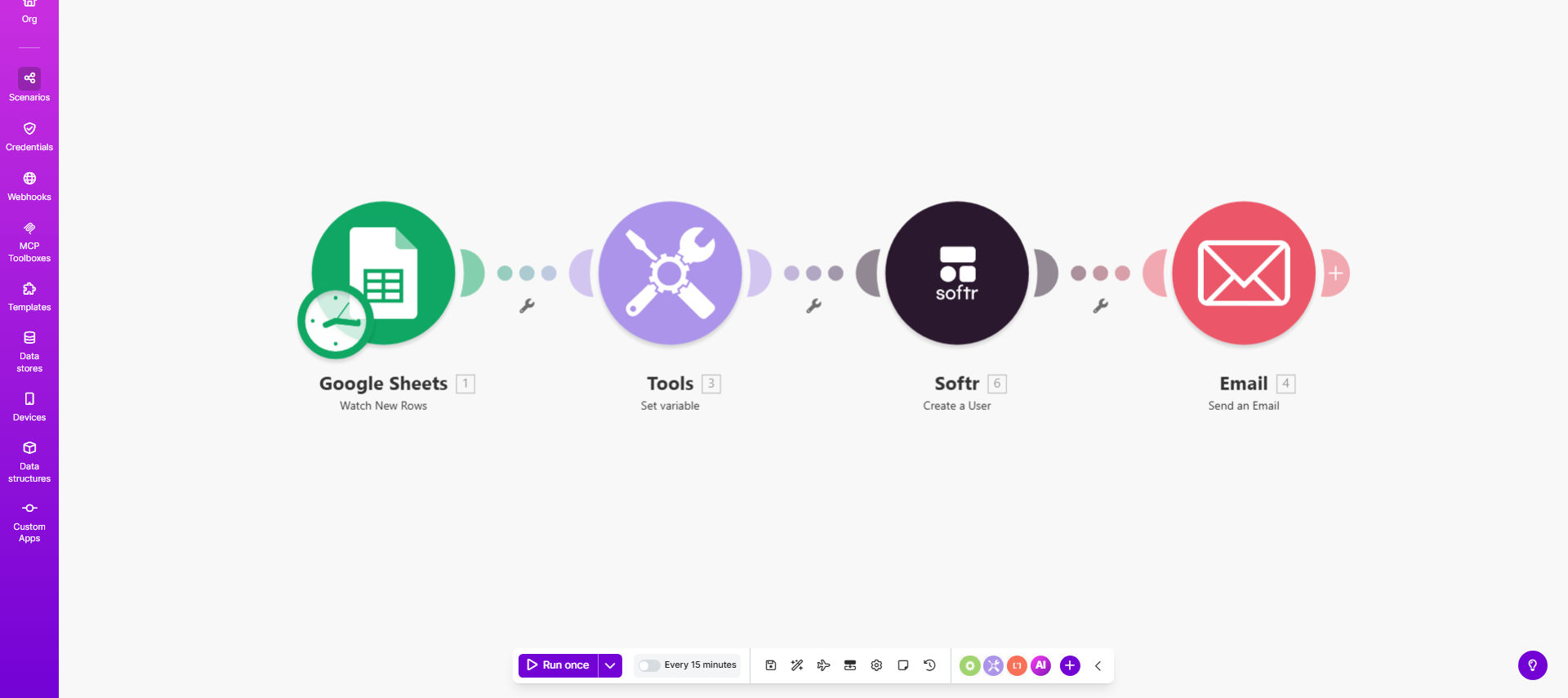
Automated Softr user creation workflow diagram showing Google Sheets to Softr integration

What This Workflow Does

This automation eliminates the manual process of creating Softr user accounts and sending invitation emails. When a new row is added to your Google Sheets spreadsheet (typically containing new member information), the workflow automatically creates a corresponding user account in Softr and sends a customized welcome email with login instructions.

Businesses using membership portals, online communities, or gated content platforms built with Softr can save hours of administrative work each week. The automation ensures consistent onboarding experiences while reducing human errors that often occur with manual data entry between systems.

How It Works

1. New row detection in Google Sheets

The workflow monitors your specified Google Sheet for new rows. You can configure it to watch specific columns that indicate when a record is ready for processing.

2. Data validation and formatting

Before creating the Softr user, the workflow validates required fields (like email format) and formats data to match Softr's API requirements. This prevents API errors from malformed data.

3. Softr user creation

The workflow makes an API call to Softr to create the new user account with all specified attributes from your spreadsheet. This can include custom fields, role assignments, and collection memberships.

4. Email invitation sending

Once the Softr account is successfully created, the workflow triggers an email invitation to the new user. The email template is fully customizable with your branding and messaging.

5. Status logging

The workflow updates your Google Sheet with the creation status (success/failure) and timestamps for complete auditability.

Pro tip: Add a "Welcome Pack" column in your sheet to include personalized resources or attachments in the invitation email based on user type or membership level.

Who This Is For

This workflow is ideal for:

  • Online course platforms needing to onboard students
  • Membership sites with tiered access levels
  • Community managers handling frequent new member registrations
  • SAAS companies using Softr for customer portals
  • Teams managing partner or client access to private resources

What You'll Need

  1. A Softr account with API access enabled
  2. A Google Sheets spreadsheet with your user data
  3. Make.com account (free plan works)
  4. Email service connected to Make (Gmail, Outlook, etc.)
  5. Basic understanding of Softr's user fields and permissions

Quick Setup Guide

  1. Copy this template to your Make.com account
  2. Connect your Google Sheets and Softr accounts
  3. Map spreadsheet columns to Softr user fields
  4. Customize the email invitation template
  5. Test with a few sample records
  6. Activate the workflow for live processing

Key Benefits

Reduce onboarding time by 80%: What previously took minutes per user now happens instantly in the background while your team focuses on higher-value tasks.

Eliminate manual errors: Automated data transfer between systems ensures 100% accuracy in user setup compared to error-prone manual copying.

Improve member experience: New users receive immediate access instead of waiting for manual processing, increasing satisfaction and engagement.

Scale effortlessly: Handle hundreds or thousands of new users without additional staff time or resources.

Full audit trail: Every action is logged in your Google Sheet with timestamps and status markers for complete transparency.

Frequently Asked Questions

Common questions about Softr-GSheets automation and integration

Automating Softr user creation eliminates manual data entry errors and ensures new members receive immediate access. Businesses using this method report 80% faster onboarding and 100% accuracy in user setup compared to manual processes.

The automation also creates a standardized onboarding experience regardless of who manages the process or when new users are added. This consistency improves your brand perception and reduces support requests from confused new members.

Essential fields include email address, name, and any custom fields required by your Softr application. You can also include role assignments, subscription levels, or access permissions depending on your membership structure.

For more advanced implementations, consider adding columns for welcome message personalization, initial password (if not auto-generated), and specific resources to include in the welcome email based on user type.

  • Required: Email, First Name, Last Name
  • Recommended: User Role, Access Level
  • Optional: Custom Fields, Welcome Notes

Yes, the workflow allows full customization of invitation emails. You can include branding, personalized welcome messages, login instructions, and links to important resources in your member portal.

Many businesses use this feature to send different email templates based on user type. For example, premium members might receive additional resources or premium support information that free members don't get.

The workflow can be configured to check for existing Softr users before creating new accounts. Common approaches include checking by email address or implementing deduplication logic in Google Sheets before processing.

For mission-critical applications, we recommend adding a validation step that marks rows as "processed" after successful account creation. This prevents accidental reprocessing if the sheet is modified later.

The workflow includes error handling that can notify administrators of failed attempts. Failed records can be logged in a separate sheet or trigger alerts for manual follow-up.

Common failure reasons include invalid email formats, missing required fields, or API rate limits. The workflow can be enhanced to automatically retry temporary failures or route problematic records to a review queue.

Absolutely. The workflow can assign users to specific collections, groups, or permission levels based on data in your Google Sheet. This enables tiered access control within your Softr application.

For example, you might have columns for "Course Access," "Support Level," and "Resource Library" that map to different Softr collections. The automation handles all these assignments simultaneously during user creation.

Our team specializes in building tailored Softr automation solutions. We can create custom workflows that integrate with your existing systems, handle complex membership structures, and include advanced features like conditional access rules.

Custom implementations often include additional steps like payment verification, multi-step approval processes, or integration with your CRM. We'll design a solution that matches your exact business requirements and member onboarding workflow.

  • Free consultation to understand your needs
  • Custom error handling and notifications
  • Ongoing support and maintenance

Need a Custom Softr Automation?

This free template is a starting point. Our team builds fully tailored automation systems for your specific business needs.