Make.com Dropbox Slack File Sharing Automation

Automatically Upload Dropbox Files to Slack

Streamline team collaboration by instantly sharing new Dropbox files in Slack channels without manual uploads

Get This Workflow Make.com · Dropbox · Free Template
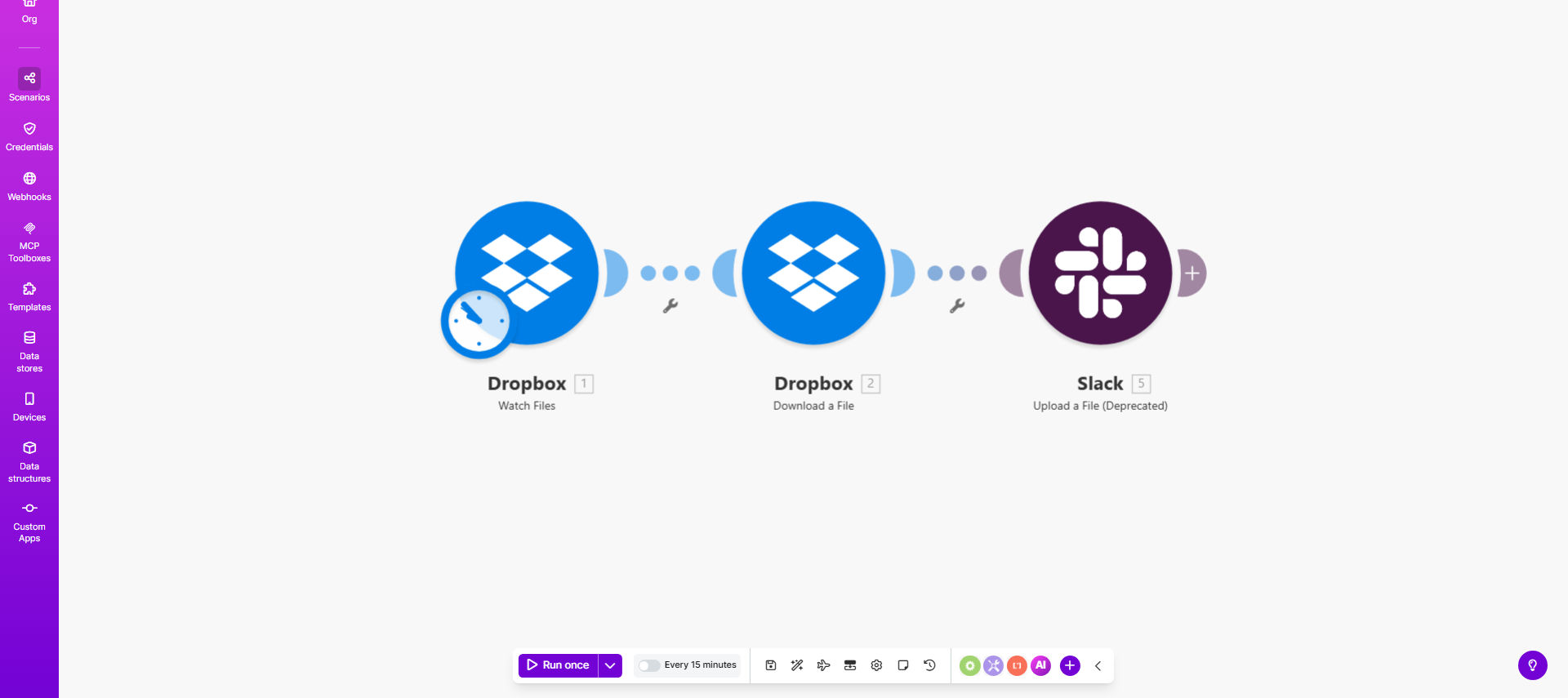
Dropbox to Slack file sharing automation workflow diagram

What This Workflow Does

This automation solves the common problem of team members missing important files because they weren't manually shared in Slack. When files get added to specific Dropbox folders, they often need to be separately uploaded to Slack channels - a repetitive task that wastes time and creates version control issues.

The workflow automatically monitors designated Dropbox folders and instantly uploads any new files to specified Slack channels. This ensures all team members have immediate access to the latest versions of documents, images, or other shared files without manual intervention.

How It Works

1. Dropbox folder monitoring

The workflow continuously watches your specified Dropbox folders for new file additions using Make.com's Dropbox integration.

2. File detection trigger

When a new file appears in the monitored folder, the workflow immediately captures the file details including name, type, size, and direct download link.

3. Slack channel upload

The system then uploads the file directly to your chosen Slack channel while preserving the original filename and format.

4. Optional notifications

You can configure custom messages to accompany each file upload, informing team members about the new shared resource.

Who This Is For

This automation benefits any team that regularly shares files between Dropbox and Slack:

  • Marketing teams sharing campaign assets
  • Design teams collaborating on creative files
  • Development teams distributing documentation
  • Remote teams working with shared resources
  • Project managers coordinating file-based workflows

What You'll Need

  1. A Make.com account (free tier available)
  2. Dropbox Business or Pro account with API access
  3. Slack workspace with appropriate upload permissions
  4. Designated Dropbox folders to monitor
  5. Target Slack channels for file delivery

Quick Setup Guide

  1. Install the template in your Make.com account
  2. Connect your Dropbox account and specify folders to monitor
  3. Connect your Slack workspace and select destination channels
  4. Configure any optional filters or notifications
  5. Activate the scenario and test with sample files

Key Benefits

Eliminate manual uploads: Save 5-15 minutes per file by automating the transfer process, allowing teams to focus on productive work rather than administrative tasks.

Instant file availability: Team members gain immediate access to new files the moment they're added to Dropbox, reducing delays in collaborative workflows.

Version control assurance: Prevent confusion from multiple file versions circulating in different Slack channels by ensuring everyone accesses the same latest file.

Customizable filtering: Share only relevant files by setting rules based on file types, names, or folder locations to prevent channel clutter.

Error handling: Built-in notifications alert administrators if any files fail to transfer, ensuring no important documents get lost in the process.

Frequently Asked Questions

Common questions about Dropbox to Slack automation and integration

Automating file transfers between Dropbox and Slack eliminates manual uploads, ensures all team members instantly access important files, and prevents version control issues from multiple file copies circulating in different channels.

For example, marketing teams can automatically share new campaign assets with their creative team the moment files are finalized in Dropbox, rather than waiting for someone to remember to upload them.

This workflow works with all common file types including documents (PDF, Word, Excel), images, videos, and compressed archives. The automation preserves original file formats and names during transfer.

For optimal performance, we recommend files under 1GB in size to accommodate Slack's upload limits. The system can handle:

  • Design files (PSD, AI, Sketch)
  • Document revisions
  • Presentation decks

While Slack offers basic Dropbox linking, this automation provides instant file transfers without manual sharing, supports multiple monitored folders, and can include custom notifications with each upload.

The native integration requires users to manually share each file, while this solution automatically pushes files to channels based on your configured rules, saving significant time for teams sharing numerous files daily.

Yes, you can set filters by file type, name patterns, folder location, or metadata to control exactly which files trigger the Slack upload, preventing channel clutter from unnecessary files.

Common filtering approaches include:

  • Only share files from specific client folders
  • Exclude temporary working files
  • Share only final approved versions

The workflow includes error handling that retries failed uploads and notifies administrators if files exceed Slack's size limits, ensuring no files get lost in the transfer process.

For files too large for Slack, the system can automatically generate shareable Dropbox links instead while still notifying the team in your designated channel about the available resource.

The automation uses OAuth authentication and maintains the same security levels as manual transfers, with encrypted connections and proper access controls preserved throughout the process.

Files are transferred directly between services without intermediate storage, and you maintain full control over which folders and channels participate in the automated sharing.

Absolutely. Our team at GrowwStacks specializes in building tailored automation solutions that match your specific file sharing workflows, security requirements, and team collaboration needs.

We can create custom versions that integrate with your existing systems, add approval workflows, implement advanced filtering, or combine with other tools like Google Drive or SharePoint.

  • Custom notification templates
  • Multi-step approval workflows
  • Integration with additional platforms

Need a Custom Dropbox to Slack Automation?

This free template is a starting point. Our team builds fully tailored automation systems for your specific business needs.