Make.com Data Transformation Number Formatting Automation Tutorial

Make Academy - Make Basics course 3, unit 5 - formatNumber

Learn how to properly format numbers in your Make.com workflows with this free template

Get This Workflow → Make.com · Data Transformation · Free Template
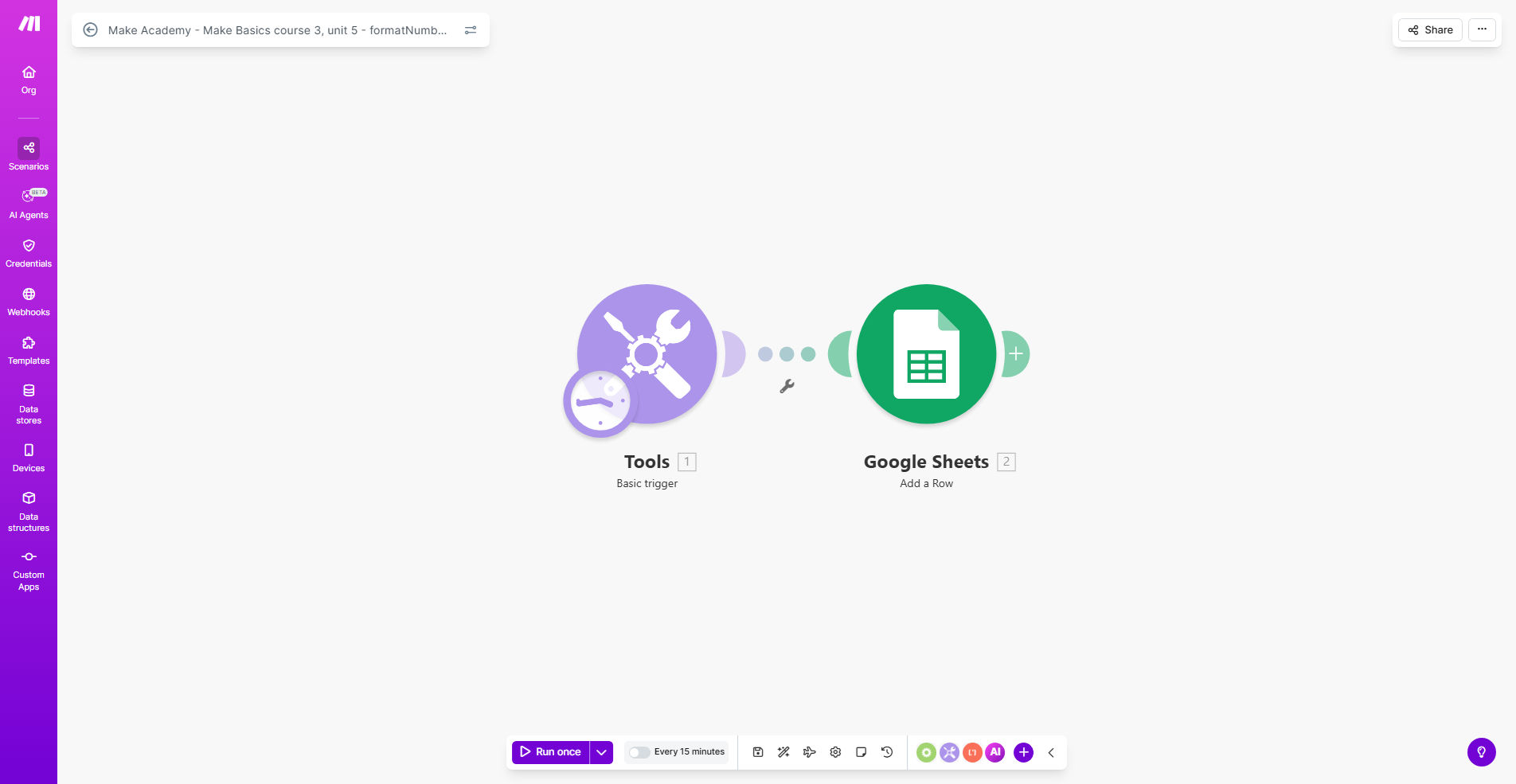
Make.com formatNumber workflow template screenshot

What This Workflow Does

This workflow template demonstrates how to use Make.com's formatNumber function to transform numerical data into properly formatted outputs. Number formatting is essential for creating professional invoices, reports, financial statements, and any business documents where numerical precision and presentation matter.

The template teaches you how to convert raw numbers into standardized formats with proper decimal places, thousand separators, and rounding rules. You'll learn to maintain data integrity while ensuring your outputs meet business presentation standards across different systems and regions.

How It Works

1. Input raw numerical data

The workflow accepts numerical input from any source, whether it's from a spreadsheet, database, or another application in your automation.

2. Apply formatNumber function

The core transformation happens using Make.com's formatNumber function, which lets you specify decimal places, thousand separators, and rounding behavior.

3. Configure formatting options

You can customize the output format to match your business requirements, including:

  • Number of decimal places
  • Use of commas or periods as thousand separators
  • Rounding rules (up, down, or to nearest)
  • Optional currency symbols

4. Output formatted results

The properly formatted numbers can then be sent to any destination system, whether it's an accounting package, CRM, email template, or report generator.

Pro tip: Always format numbers at the last possible step in your workflow to maintain maximum precision during calculations.

Who This Is For

This template is ideal for:

  • Finance teams automating reports and statements
  • E-commerce businesses processing order values
  • Accountants generating client invoices
  • Data analysts preparing datasets
  • Anyone who needs consistent number presentation across systems

What You'll Need

  1. A Make.com account (free or paid)
  2. Numerical data source (spreadsheet, database, etc.)
  3. Destination for formatted numbers (email, report, etc.)
  4. Understanding of your required number format standards

Quick Setup Guide

  1. Copy the template to your Make.com account
  2. Connect your data source module
  3. Configure the formatNumber function with your preferred settings
  4. Test with different number inputs to verify formatting
  5. Connect your output destination
  6. Schedule or trigger the workflow as needed

Key Benefits

Professional presentation: Consistently formatted numbers make your business documents look polished and professional.

Reduced errors: Proper formatting reduces misinterpretation of numerical values in reports and communications.

Time savings: Automate what would otherwise be manual formatting work in spreadsheets or documents.

Global compatibility: Easily adapt number formats for different regional standards when doing business internationally.

Data integrity: Maintain precision in calculations while still presenting clean, formatted outputs.

Frequently Asked Questions

Common questions about number formatting automation and integration

Proper number formatting ensures consistency across reports, invoices, and financial documents. It prevents misinterpretation of values, maintains professional presentation standards, and reduces errors in calculations.

For example, $1,234.56 is clearer than 1234.56 when dealing with financial data. Automated formatting eliminates manual work and ensures every number follows your business standards.

  • Improves document professionalism
  • Reduces data interpretation errors
  • Maintains compliance with financial standards

Businesses often struggle with maintaining consistent number formats when moving data between different systems. Each application might have its own formatting rules, leading to inconsistencies.

A common scenario is when financial data from an accounting system needs to appear differently in customer-facing invoices versus internal reports. Automation helps bridge these formatting gaps.

  • Handling different regional number formats
  • Maintaining calculation precision
  • Adapting formats for different outputs

Make.com provides the formatNumber function to standardize number presentation across your workflows. This powerful tool lets you transform raw numbers into properly formatted outputs with precise control.

You can specify decimal places, choose thousand separators, control rounding behavior, and even prepend currency symbols. The function works seamlessly with data from any connected app in your scenario.

  • Supports various decimal and thousand separator styles
  • Maintains data precision for calculations
  • Integrates with all Make.com modules

The key to effective number formatting is standardization early in your workflow. Document your formatting rules and apply them consistently across all automation outputs.

Always test with edge cases - very large numbers, negative values, and different decimal scenarios. Consider creating a formatting reference table that maps each number type to its required presentation format.

  • Standardize formats at the workflow level
  • Document all formatting rules
  • Test with diverse number inputs

Automated number formatting transforms raw data into professional, easy-to-read reports. Consistent formatting makes trends and outliers more visible, while proper decimal alignment improves readability.

For example, financial reports with uniformly formatted currency values appear more trustworthy. Automated formatting also ensures all stakeholders receive numbers presented the same way every time.

  • Enhances report professionalism
  • Improves data comprehension
  • Ensures consistency across reports

Display formatting focuses on human readability, adding commas, currency symbols, and controlling decimal places. Calculation formatting maintains maximum precision for mathematical operations.

In automation workflows, it's best practice to keep numbers in calculation format during processing steps, then apply display formatting just before output. This preserves accuracy while delivering polished results.

  • Calculation format preserves precision
  • Display format enhances readability
  • Convert at the final output stage

Absolutely! GrowwStacks specializes in creating custom automation solutions tailored to your specific business needs. We can design workflows that format numbers exactly how you need them across all your systems.

Our team will analyze your current processes, identify all number formatting requirements, and build an automation system that maintains data integrity while delivering perfectly formatted outputs every time. We handle complex cases like multi-currency systems and region-specific formatting rules.

  • Tailored to your exact formatting needs
  • Seamless integration with your existing systems
  • Ongoing support and optimization

Need a Custom Number Formatting Automation?

This free template is a starting point. Our team builds fully tailored automation systems for your specific business needs.