Email Marketing Google Sheets List Management Make.com

Add new MailerLite subscribers from new Google Sheets rows

Automatically sync your email list from spreadsheets to MailerLite every 15 minutes

Get This Workflow → Make.com · Email Marketing · Free Template
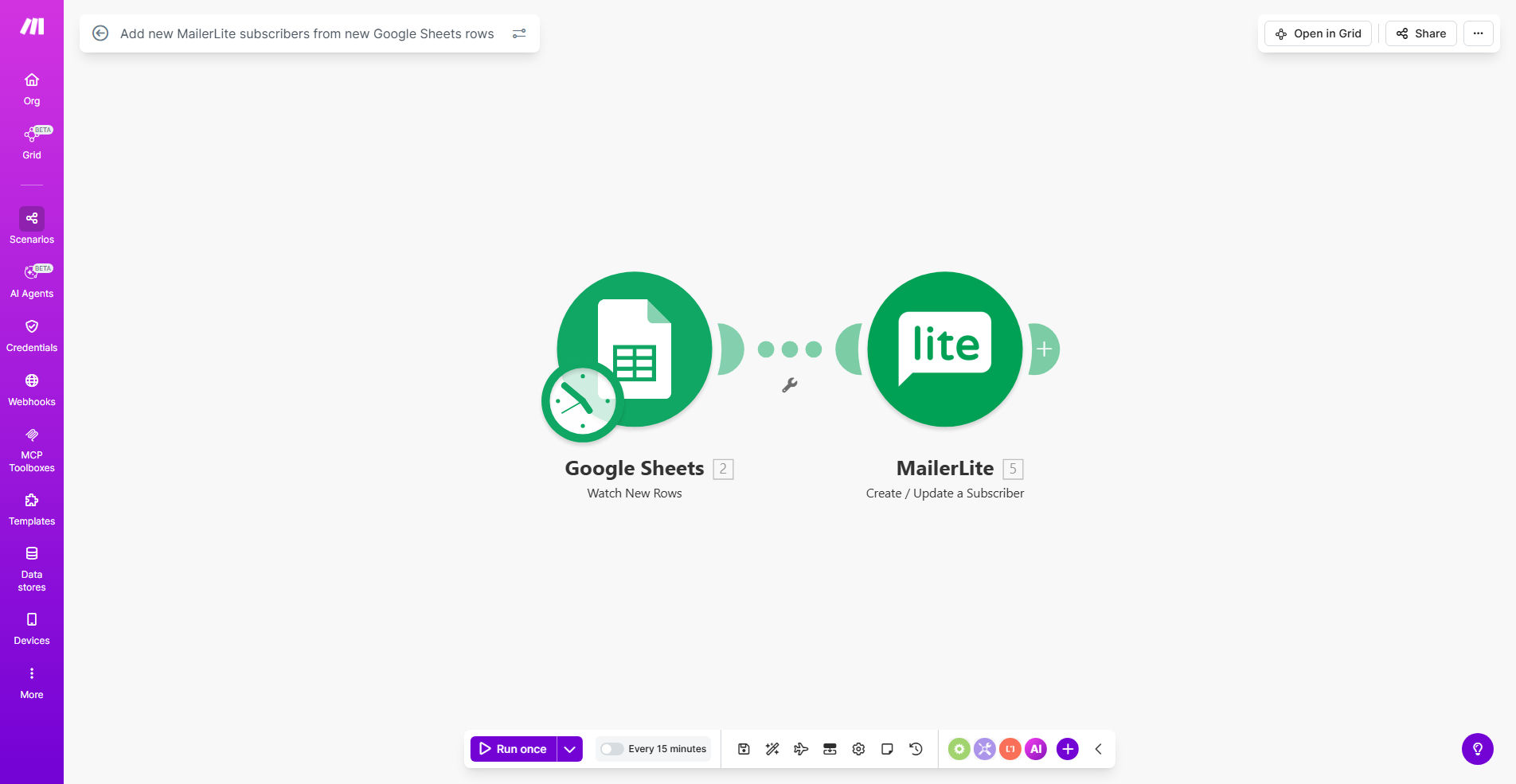
MailerLite and Google Sheets integration workflow diagram

What This Workflow Does

This automation eliminates the tedious manual process of transferring new email subscribers from spreadsheets to your MailerLite account. It continuously monitors your Google Sheet for new rows containing subscriber information, then automatically creates corresponding contacts in MailerLite with all their details.

The workflow runs every 15 minutes by default (configurable to any interval), ensuring your email list stays current without any manual exports or imports. It handles the entire process from data validation to field mapping, while maintaining proper subscriber attribution and timestamps.

How It Works

1. Scheduled Google Sheets check

The scenario starts by checking your specified Google Sheet at regular intervals. It looks for newly added rows since the last run, using timestamp tracking to ensure no duplicates or missed entries.

2. Data validation and formatting

Each new row is validated to ensure required fields (especially email addresses) are present and properly formatted. Invalid entries are flagged for review while valid ones proceed to the next step.

3. MailerLite subscriber creation

Validated contact information is mapped to MailerLite's subscriber fields. The template handles standard fields (name, company) and can be extended for custom fields. Each new subscriber is added with proper attribution as coming from your Google Sheet source.

Who This Is For

This automation is ideal for:

  • Businesses collecting leads through forms that export to Google Sheets
  • Teams managing shared contact lists in spreadsheets
  • Marketers running events or webinars with attendee lists in Sheets
  • Companies transitioning from spreadsheet-based lists to proper email marketing
  • Agencies managing multiple client lists across different sources

What You'll Need

  1. A Google Sheet with subscriber data (columns: Email, First Name, Last Name, Company)
  2. A MailerLite account with API access enabled
  3. A Make.com account (free plan sufficient for basic use)
  4. Editor access to both your Google Sheet and MailerLite account

Quick Setup Guide

  1. Click "Get This Workflow" to copy the template to your Make.com account
  2. Connect your Google Sheets account and select your source spreadsheet
  3. Connect your MailerLite account and verify API permissions
  4. Map your Google Sheet columns to MailerLite fields if different from default
  5. Test with a few sample rows to verify data flows correctly
  6. Adjust the sync frequency if needed (default is every 15 minutes)

Key Benefits

Eliminates manual data entry: Saves 2-5 hours per week typically spent on exporting, formatting, and importing contact lists.

Real-time list updates: New subscribers appear in MailerLite within minutes rather than waiting for batch imports.

Reduces human error: Automated field mapping prevents mistakes common in manual transfers.

Maintains proper attribution: Each subscriber retains their original signup source and timestamp data.

Scalable for growing lists: Handles thousands of new subscribers without additional work.

Frequently Asked Questions

Common questions about email list automation and integration

The template defaults to 15-minute sync intervals, which works well for most businesses. For high-volume lists (500+ new contacts daily), consider syncing every 5 minutes. For smaller lists (under 50 new contacts weekly), daily syncs may suffice to reduce API calls.

We recommend starting with the default 15-minute interval and adjusting based on your list growth patterns and MailerLite's API rate limits. Event-based triggers (like new form submissions) can be added for instant updates when needed.

The workflow requires Email, First Name, Last Name, and Company columns in that order. If your sheet differs, you'll need to remap fields in the Make.com scenario editor. This takes about 2 minutes by dragging data points to match your column headers.

For example, if your sheet uses "Given Name" instead of "First Name", simply connect that column to the First Name field in MailerLite. The template will then use your actual column names while maintaining the proper data flow.

Yes, you can extend the template to include custom fields like phone numbers or preferences. In MailerLite, create the custom fields first, then add corresponding columns in Google Sheets and map them in the Make.com scenario.

This works for any MailerLite field type - text, number, date, or dropdown. For example, you could add a "Lead Source" column in Sheets that maps to a custom dropdown field in MailerLite for better segmentation.

  • Create custom fields in MailerLite first
  • Add matching columns in Google Sheets
  • Map them in the Make.com scenario editor

The template includes duplicate checking by default. If a Google Sheets row contains an email already in MailerLite, it will skip that entry rather than creating duplicates. You can modify this to update existing records if needed.

For businesses that want to update subscriber information (like changed phone numbers), we can configure the workflow to overwrite specific fields while preserving others. This maintains data accuracy without losing valuable engagement history.

Automation provides real-time updates without manual exports/imports, reduces human error in data transfer, and maintains subscriber metadata like signup timestamps. Native imports often overwrite existing data and require CSV formatting.

With automation, your team never has to remember to export and import lists. New contacts flow directly into MailerLite with all their original context intact, enabling more accurate reporting and segmentation.

Absolutely. Add a 'Segment' column in Google Sheets, then configure the template to assign subscribers to matching MailerLite groups. This works for tags, custom fields, or campaign preferences stored in your sheet.

For example, a sheet column with values like "Prospect" or "Customer" can automatically place subscribers in different MailerLite groups for targeted messaging. The template can even trigger different welcome sequences based on these values.

  • Works with groups, tags, and custom fields
  • Enables behavior-based segmentation
  • Triggers different automation flows

Yes! GrowwStacks specializes in tailored email marketing automations. We can build systems that sync multiple data sources, apply complex segmentation rules, and trigger personalized welcome sequences based on your spreadsheet data.

Our custom solutions handle unique requirements like merging duplicate records across sources, applying conditional logic to field mappings, and integrating with CRMs beyond basic email platforms. We'll design a system that fits your exact business processes.

  • Multi-source data consolidation
  • Advanced segmentation logic
  • Custom reporting and error handling

Need a Custom Email List Automation?

This free template is a starting point. Our team builds fully tailored automation systems for your specific business needs.