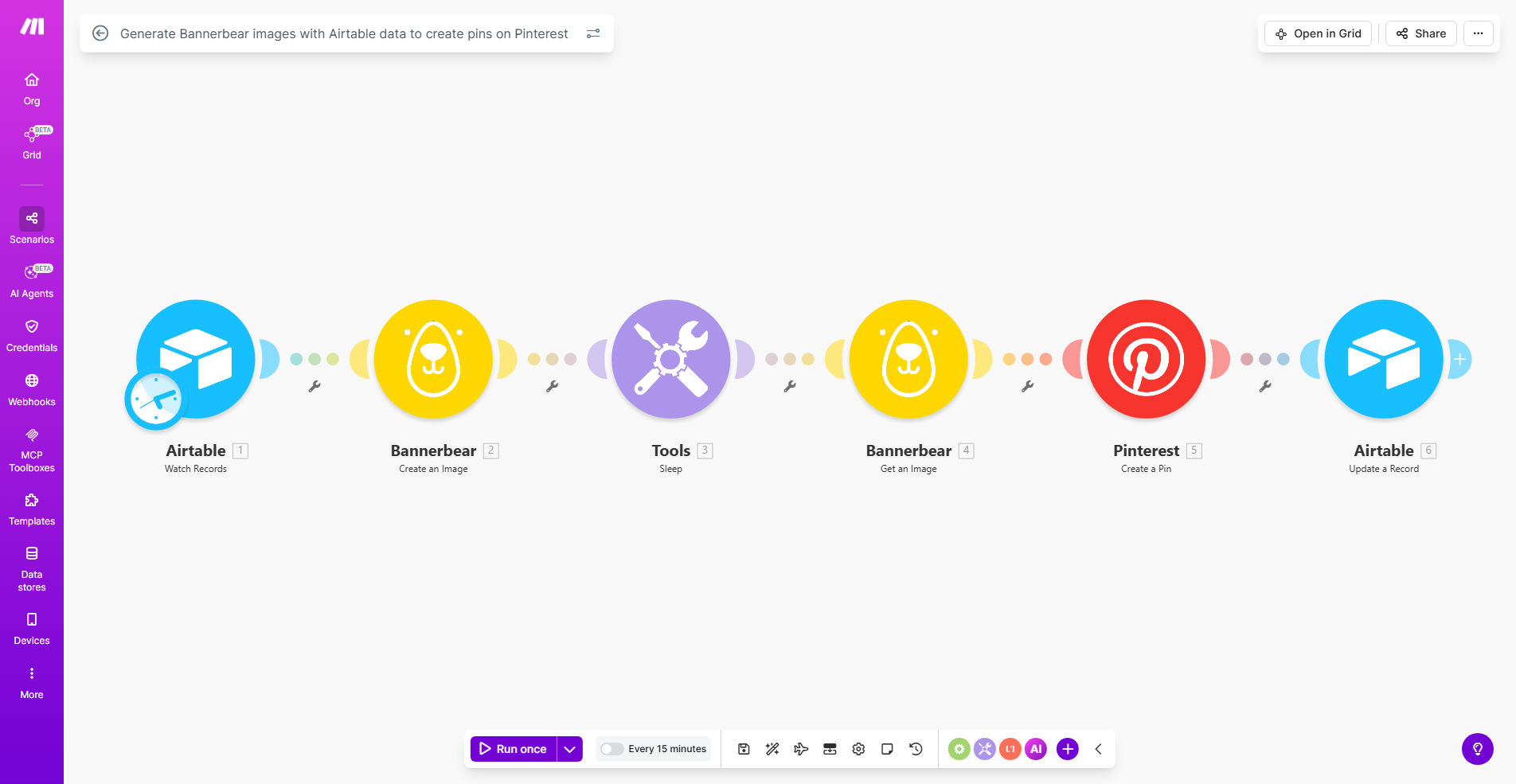
What This Workflow Does
This automation solves the time-consuming process of manually creating Pinterest pins for multiple products or content pieces. By connecting Airtable (your data source) with Bannerbear (image generation) and Pinterest (distribution), it eliminates repetitive design work while ensuring brand consistency across all your pins.
The workflow automatically generates visually appealing pins based on templates you design in Bannerbear, populated with real-time data from your Airtable base. This is particularly valuable for e-commerce businesses, content creators, and marketers who need to maintain an active Pinterest presence with fresh, on-brand content.
How It Works
1. New record triggers the workflow
When a new item is added to your designated Airtable table (or when existing records meet your criteria), the workflow automatically begins processing.
2. Data is prepared for image generation
The relevant fields from your Airtable record (product name, description, price, etc.) are extracted and formatted for Bannerbear's template variables.
3. Bannerbear generates the pin image
Using your pre-designed Bannerbear template, the system creates a customized pin image incorporating all the dynamic data from Airtable.
4. Pin is published to Pinterest
The completed image, along with metadata from Airtable, is automatically posted to your Pinterest account as a new pin.
Pro tip: Create multiple Bannerbear templates with different layouts to automatically generate pin variations for A/B testing.
Who This Is For
This workflow is ideal for:
- E-commerce stores with product catalogs in Airtable
- Content creators managing multiple Pinterest boards
- Marketing agencies handling client Pinterest accounts
- Bloggers who want to promote articles visually
- Any business that needs consistent Pinterest content at scale
What You'll Need
- Airtable account with your product/content database
- Bannerbear account with template(s) configured
- Pinterest business account with API access
- Make.com account (formerly Integromat)
Quick Setup Guide
- Connect your Airtable base in Make.com
- Set up the Bannerbear module with your template ID
- Configure the Pinterest module with your API credentials
- Map Airtable fields to Bannerbear template variables
- Test with a single record before running at scale
Key Benefits
Save 5-10 hours weekly by automating pin creation instead of manual design work for each product or content piece.
Maintain brand consistency across all pins while dynamically incorporating product-specific information.
Scale your Pinterest presence without needing additional design resources as your catalog grows.
React quickly to inventory changes - when Airtable data updates, your pins automatically reflect current information.
Test multiple pin formats by creating variations in Bannerbear and letting the automation handle distribution.