Make.com Notion Microsoft 365 Calendar Sync Automation

Create new Microsoft 365 Calendar events from Notion database items

Automatically sync meeting details from Notion to your calendar for flawless scheduling

Get This Workflow → Make.com · Notion · Free Template
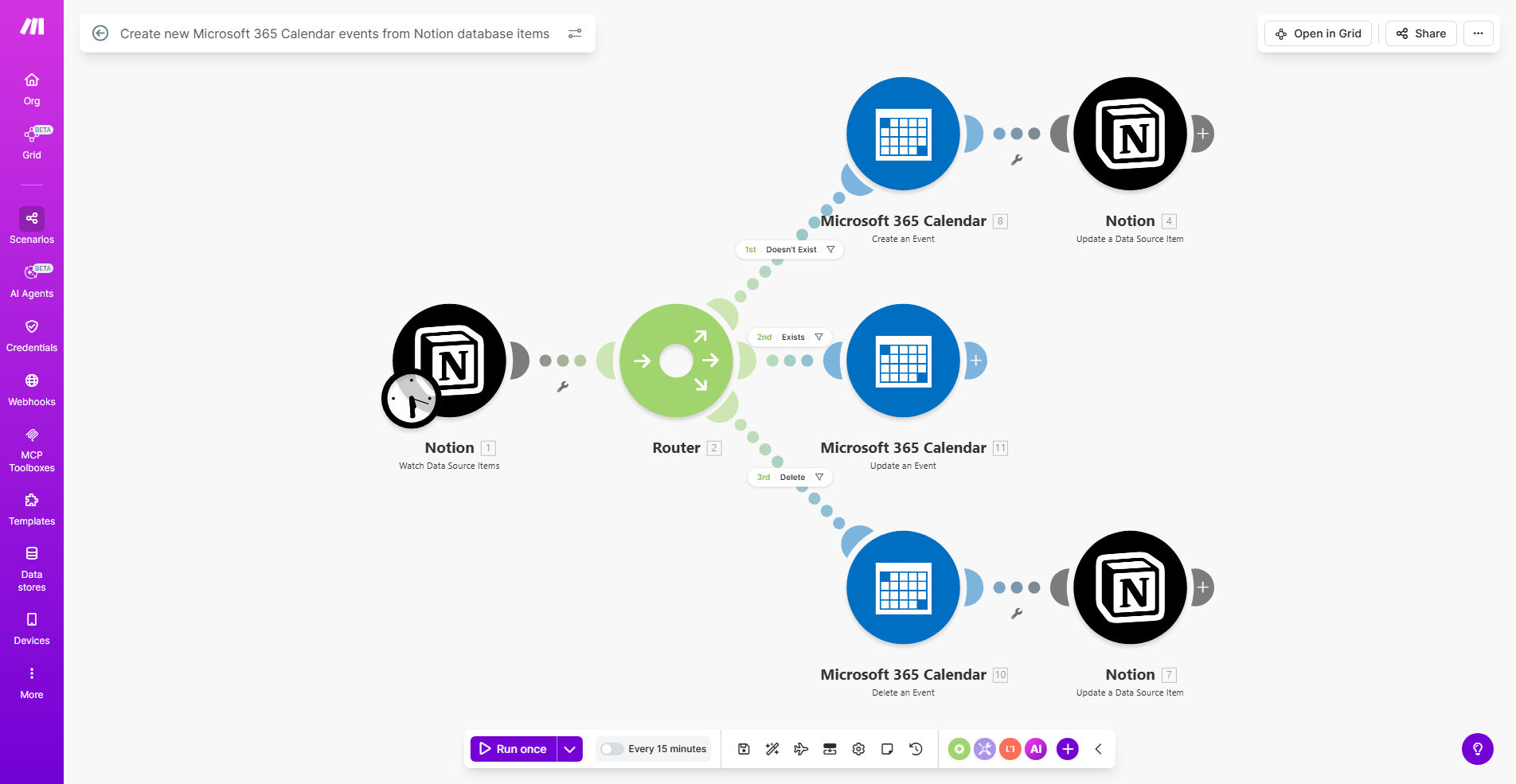
Notion database syncing with Microsoft 365 Calendar automation workflow

What This Workflow Does

This automation solves the tedious process of manually transferring meeting details from Notion databases to your Microsoft 365 Calendar. Every time you create a new meeting item in Notion, the workflow automatically generates a corresponding calendar event with all relevant details - saving time and eliminating scheduling errors.

The integration keeps your calendar perfectly synchronized with your Notion workspace. When meeting times change, locations update, or participants are added in Notion, those changes automatically reflect in Microsoft 365 Calendar. This ensures everyone has the most current information without any manual updates.

How It Works

1. Notion database monitoring

The workflow continuously watches your specified Notion database for new or modified items. Each database entry represents a meeting with properties like date, time, attendees, and agenda.

2. Data extraction and formatting

Key meeting details are extracted from Notion properties and formatted to match Microsoft 365 Calendar's event structure. This includes converting date formats, parsing attendee emails, and organizing agenda items.

3. Calendar event creation

The workflow authenticates with your Microsoft 365 account and creates a new calendar event with all the meeting details. Attendees receive invitations directly from your calendar.

4. Ongoing synchronization

Subsequent changes to the Notion item trigger updates to the corresponding calendar event. The system can also handle cancellations by removing events when Notion items are deleted.

Pro tip: Create a dedicated "Calendar Sync" view in your Notion database filtered to show only meetings ready for scheduling. This prevents duplicate events from being created.

Who This Is For

This automation is ideal for teams and professionals who:

  • Use Notion as their central meeting planning hub
  • Schedule frequent client or team meetings
  • Manage complex calendars with multiple participants
  • Need to keep distributed teams synchronized
  • Want to reduce manual data entry between systems

What You'll Need

  1. A Notion database with meeting items containing:
    • Date and time properties
    • Meeting title/description
    • Participant information (emails preferred)
  2. Microsoft 365 account with calendar access
  3. Make.com account (free tier works)
  4. API connections configured for both Notion and Microsoft 365

Quick Setup Guide

  1. Duplicate the template in your Make.com account
  2. Connect your Notion workspace and select the database to monitor
  3. Authenticate with your Microsoft 365 account
  4. Map Notion properties to corresponding calendar event fields
  5. Test with a sample Notion item to verify event creation
  6. Activate the scenario to begin automatic syncing

Key Benefits

Save 2-3 hours weekly by eliminating manual calendar entry. The automation handles all the repetitive work while you focus on productive tasks.

Reduce scheduling errors by 90%. Automatic syncing ensures calendar events always match the latest details in Notion, preventing outdated information.

Improve team coordination with instant calendar updates. When meeting details change in Notion, all participants receive updated invitations automatically.

Centralize meeting management in Notion while maintaining calendar visibility. Your team can plan in Notion while stakeholders see events in their preferred calendar.

Scale meeting scheduling effortlessly. The system handles hundreds of meetings as easily as a few, perfect for growing teams and busy professionals.

Frequently Asked Questions

Common questions about Notion to Microsoft 365 Calendar automation

Connecting Notion to Microsoft 365 Calendar eliminates manual event creation, reducing scheduling errors and saving 2-3 hours per week. When meeting details change in Notion, they automatically update in your calendar, keeping your schedule perfectly synchronized across both platforms.

For example, when a client reschedules in your Notion CRM pipeline, their meeting automatically moves in your calendar without you lifting a finger. This prevents missed meetings and double-bookings that commonly occur with manual processes.

Meeting databases with date/time fields, participant lists, and agenda items integrate best. Common examples include client meeting trackers, team standup schedules, and event planning boards. The database should have consistent property names for reliable automation.

We recommend creating specific properties for: event title, start/end times, location (virtual or physical), attendees (with email fields), and description/agenda. These map directly to calendar event fields for clean integration.

The sync frequency depends on your workflow configuration. Most businesses set it to check for new Notion items every 15-60 minutes. For critical meetings, you can trigger immediate updates when specific database fields change.

Advanced configurations can prioritize certain meeting types for faster syncing. For instance, client meetings might sync instantly while internal team meetings update hourly to balance system performance with responsiveness.

Yes, the automation can include Notion page links in calendar event descriptions. This helps attendees quickly access meeting agendas, documents, and notes directly from their calendar invitation.

For even better collaboration, configure the workflow to add relevant Notion links as attachments in the calendar event. This ensures participants have one-click access to all meeting materials regardless of which calendar system they use.

With proper configuration, deleted Notion meetings can automatically remove corresponding calendar events. Alternatively, you can set them to mark as canceled in the calendar while preserving the record.

We recommend the cancellation approach for most teams, as it maintains an audit trail while clearly communicating the change to attendees. The automation can even add a "Canceled" prefix to the event title and update the description with the reason.

Yes, the integration can handle recurring events by mapping Notion's date properties to Microsoft 365's recurrence patterns. You'll need to structure your database to clearly identify recurring series versus one-time events.

Create a "Recurrence" property in Notion that specifies frequency (weekly, monthly etc.). The workflow can then generate the appropriate recurrence rule in Microsoft 365 Calendar, including exceptions for canceled instances.

Absolutely. The automation can monitor multiple Notion databases and consolidate all events into a single calendar. You can even color-code events based on which database they originated from for visual organization.

For example, sync your sales pipeline meetings (red), team standups (blue), and client check-ins (green) while keeping them all in your main calendar. The workflow can apply different notification settings and visibility options per database source.

Yes! GrowwStacks specializes in custom Notion-Microsoft 365 integrations tailored to your specific workflow needs. Our team can build advanced automations with conditional logic, attendee management, and bi-directional syncing.

We'll analyze your current Notion setup and calendar requirements to design a solution that saves your team maximum time. Popular customizations include:

  • Approval workflows for high-priority meetings
  • Automatic follow-up task creation
  • Integration with other tools like Slack or Teams
  • Custom reporting on meeting analytics

Need a Custom Notion to Microsoft 365 Automation?

This free template is a starting point. Our team builds fully tailored automation systems for your specific business needs.