Make.com Calendar Sync Microsoft 365 Google Calendar Automation

Sync Microsoft 365 Calendar with Google Calendar

Automatically create Google Calendar events whenever new Microsoft 365 Calendar events are scheduled

Get This Workflow → Make.com · Calendar Sync · Free Template
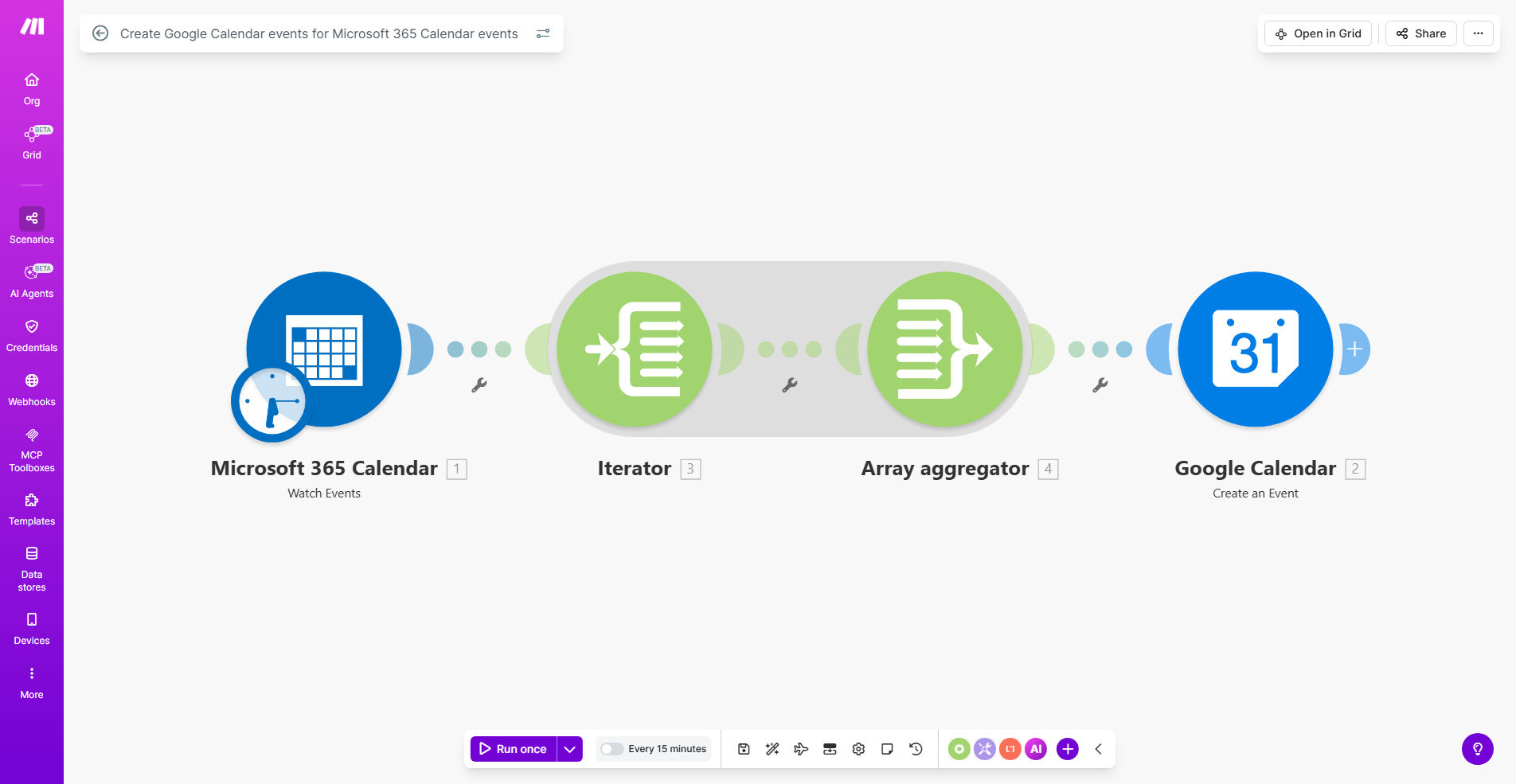
Calendar sync automation workflow diagram showing Microsoft 365 to Google Calendar integration

What This Workflow Does

This automation solves the common challenge of managing events across Microsoft 365 and Google Calendar platforms. Many professionals and teams use both ecosystems, leading to manual double-entry, missed appointments, and scheduling conflicts when events exist in only one calendar.

The workflow automatically creates Google Calendar events whenever new events are added to your Microsoft 365 Calendar. It captures all essential details including event title, time, location, description, and attendees, ensuring your Google Calendar stays perfectly synchronized without any manual effort.

How It Works

1. Monitors Microsoft 365 Calendar

The workflow continuously watches your Microsoft 365 Calendar for new events or changes to existing events using Microsoft Graph API.

2. Captures Event Details

When a new event is detected, the system extracts all relevant information including start/end times, timezone, recurrence patterns, attendees, and meeting details.

3. Creates Google Calendar Event

The workflow then uses Google Calendar API to create a corresponding event in your specified Google Calendar, preserving all the original event details.

4. Handles Updates and Changes

If the Microsoft 365 event is modified or cancelled, the workflow automatically updates or removes the corresponding Google Calendar event.

Pro tip: Configure the workflow to add a "Synced from Microsoft 365" label to Google Calendar events so you can easily identify automated entries.

Who This Is For

This automation is ideal for:

  • Professionals who use Microsoft 365 at work but prefer Google Calendar for personal organization
  • Teams with members using different calendar platforms
  • Executives and assistants managing multiple calendars
  • Companies transitioning between Microsoft and Google ecosystems
  • Freelancers who work with clients using different calendar platforms

What You'll Need

  1. A Make.com account (free plan available)
  2. Microsoft 365 account with calendar access
  3. Google account with Calendar API enabled
  4. Basic understanding of connecting apps in Make.com

Quick Setup Guide

  1. Click "Get This Workflow" to copy the template to your Make.com account
  2. Connect your Microsoft 365 account in the first module
  3. Connect your Google account in the Calendar module
  4. Specify which Microsoft 365 calendar to monitor
  5. Select the target Google Calendar for new events
  6. Test with a sample Microsoft 365 calendar event
  7. Activate the scenario for automatic syncing

Key Benefits

Eliminates manual calendar entry - Save 5-10 minutes per meeting by avoiding double data entry across platforms.

Reduces scheduling errors - Maintain 100% consistency between your Microsoft and Google calendars automatically.

Works in real-time - New Microsoft 365 events appear in Google Calendar within seconds of creation.

Preserves all event details - Transfers complete meeting information including attachments, video links, and attendee lists.

Handles complex events - Supports recurring meetings, all-day events, and timezone conversions automatically.

Frequently Asked Questions

Common questions about calendar sync automation and integration

Syncing both calendars eliminates manual double-entry, reduces scheduling conflicts, and ensures all team members see the same availability regardless of which platform they use. This is particularly valuable for hybrid teams where some members use Microsoft products while others prefer Google Workspace.

For example, when an executive schedules a meeting in Outlook, their assistant who uses Google Calendar will immediately see the appointment without needing to check multiple systems or receive separate notifications.

The workflow runs in real-time, creating Google Calendar events immediately when new Microsoft 365 Calendar events are added or modified. You can configure the sync frequency in Make.com to match your needs, from instant updates to periodic syncs.

Most users keep the default instant sync setting, which typically processes new events within 15-30 seconds. For high-volume calendars, you might set a 5-minute interval to balance responsiveness with system load.

The automation primarily handles new events created after setup. For bulk migration of existing events, you may need to export/import or run a one-time sync process. The template focuses on ongoing synchronization of future calendar entries.

If you need historical event migration, we can customize the workflow to backfill past events up to any date range you specify, though very old events may require special handling due to API limitations.

Yes, the workflow handles recurring Microsoft 365 Calendar events by creating corresponding recurring events in Google Calendar. All recurrence patterns (daily, weekly, monthly) are preserved during the sync process.

The automation maintains the recurrence rules exactly as defined in Microsoft 365, including exceptions to patterns when specific instances are modified. This ensures your standing meetings and regular appointments transfer accurately.

The automation detects changes to Microsoft 365 events (time, location, attendees) and updates the corresponding Google Calendar event automatically. This ensures both calendars remain synchronized without manual intervention.

For example, if you reschedule a meeting in Outlook, the Google Calendar event will move to the new time slot, and all attendees will receive updated notifications through Google's system.

Yes, with minor modifications to the template, you can map specific Microsoft 365 calendars to designated Google Calendars. This is useful for separating work/personal calendars or managing multiple team calendars.

Our customization services can extend the template to handle complex calendar routing scenarios, such as syncing department-specific Microsoft 365 calendars to corresponding shared Google Calendars while maintaining appropriate permissions and visibility settings.

Absolutely. Our team at GrowwStacks specializes in building custom calendar integration solutions tailored to your specific workflow requirements, including advanced features like two-way sync, conditional logic, and integration with other business tools.

We've helped organizations implement sophisticated calendar systems that sync across multiple platforms while incorporating business rules like approval workflows, automatic room booking, and conflict resolution. Our solutions scale from individual professionals to enterprise deployments with thousands of users.

  • Two-way calendar synchronization
  • Custom field mapping between systems
  • Integration with CRM and project tools

Need a Custom Calendar Sync Automation?

This free template is a starting point. Our team builds fully tailored automation systems for your specific business needs.