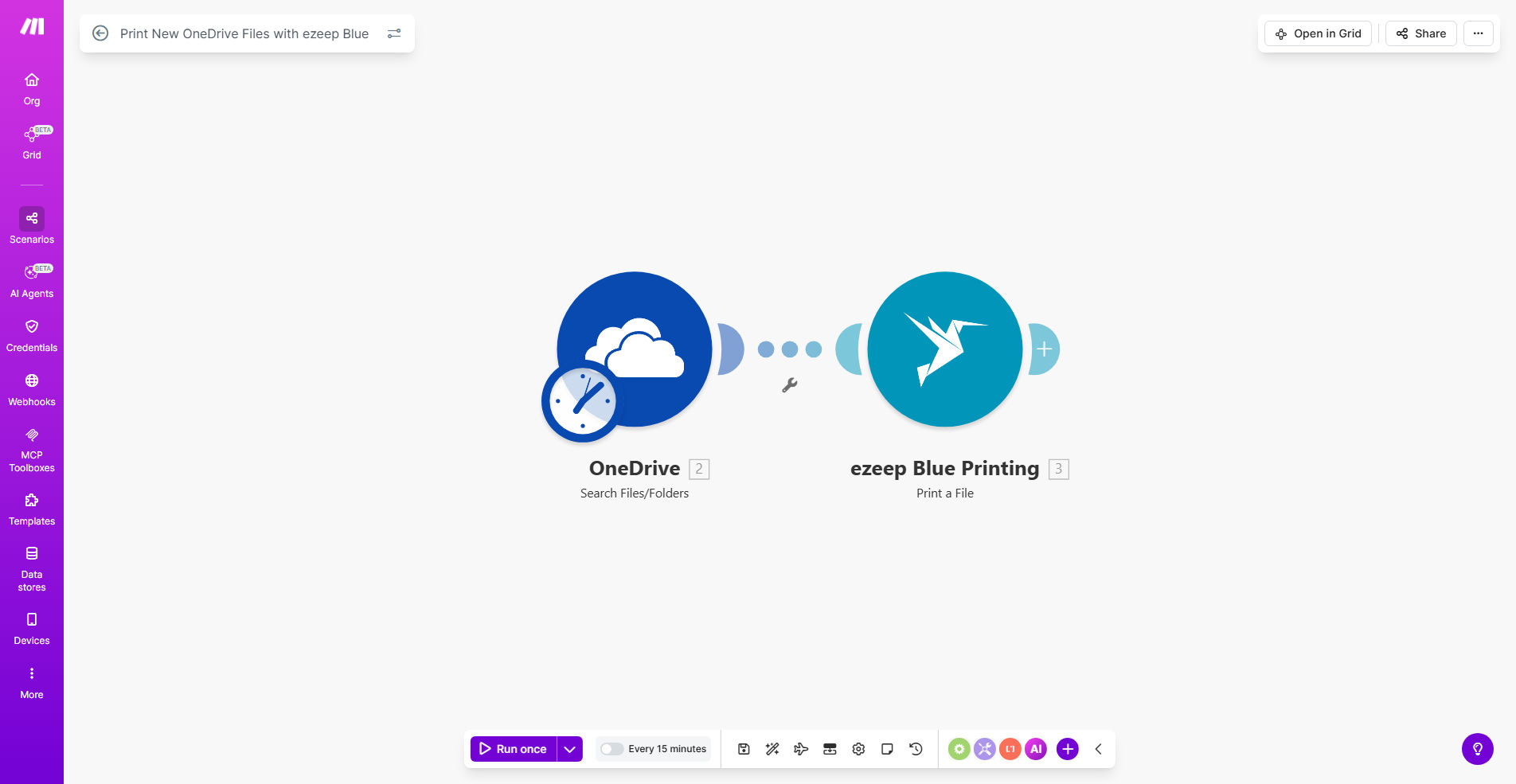
What This Workflow Does
This automation solves the tedious process of manually checking for new documents in OneDrive and sending them to print. Many businesses still rely on employees to download files and manually print them, which wastes time and creates bottlenecks in document workflows.
The template automatically monitors your specified OneDrive folder for new files every 15 minutes (configurable). When it detects a new document, it securely sends the file to your ezeep Blue cloud printing service, which routes it to the appropriate printer based on your organization's rules. This eliminates manual steps while maintaining security and control over document printing.
How It Works
1. Scheduled OneDrive Monitoring
The workflow begins by checking your connected OneDrive account at regular intervals. It looks for files added since the last check, focusing on the folder(s) you specify during setup.
2. New File Detection
When the system identifies new files, it captures key details like filename, file type, size, and folder location. This information helps with routing decisions and provides audit trails.
3. Secure File Transfer
Each new document is securely transferred from OneDrive to ezeep Blue's cloud printing platform. The connection uses Microsoft's authentication protocols to maintain security.
4. Automated Printing
ezeep Blue receives the file and processes it according to your organization's printing rules. This can include specific printer selection, duplex settings, color preferences, and other print parameters.
Pro tip: Configure different OneDrive folders to route to different printers. For example, send contracts to your legal department printer and invoices to accounting automatically.
Who This Is For
This automation benefits any business that regularly prints documents stored in OneDrive. It's particularly valuable for:
- Legal firms processing contracts and court documents
- Accounting departments handling invoices and financial reports
- Sales teams that need physical copies of proposals and contracts
- Educational institutions distributing materials to campus printers
- Remote teams needing to print documents at central office locations
What You'll Need
- A Make.com account (free or paid)
- Microsoft 365/OneDrive business account
- ezeep Blue subscription
- Network-connected printers set up in ezeep
- Admin access to configure both OneDrive and ezeep integrations
Quick Setup Guide
- Click "Get This Workflow" to copy the template to your Make.com account
- Connect your OneDrive account in the first module
- Connect your ezeep Blue account in the printing module
- Specify which OneDrive folder to monitor
- Set your preferred printer in ezeep
- Adjust the schedule interval if needed (default: 15 minutes)
- Test with a sample document
- Activate the scenario
Key Benefits
Eliminates manual printing tasks - Save 5-15 minutes per document by removing the download-upload-print workflow. Employees can focus on value-added work instead of printer management.
Reduces printing errors - Automated workflows follow consistent rules, preventing mistakes like wrong printer selection or incorrect page ranges that often occur with manual printing.
Enables remote printing - Team members can "print" to office locations from anywhere by simply adding files to OneDrive, perfect for hybrid work environments.
Provides document tracking - The system creates logs of all printed documents, helping with compliance and cost allocation across departments.
Scales with your business - The workflow handles increasing document volumes without additional staff time, supporting business growth efficiently.