Make.com ChatGPT Excel Automation AI Content Productivity

Automate ChatGPT Completions from Excel Data

Transform spreadsheet rows into AI-generated content at scale with this Make.com workflow template

Get This Workflow → Make.com · ChatGPT · Free Template
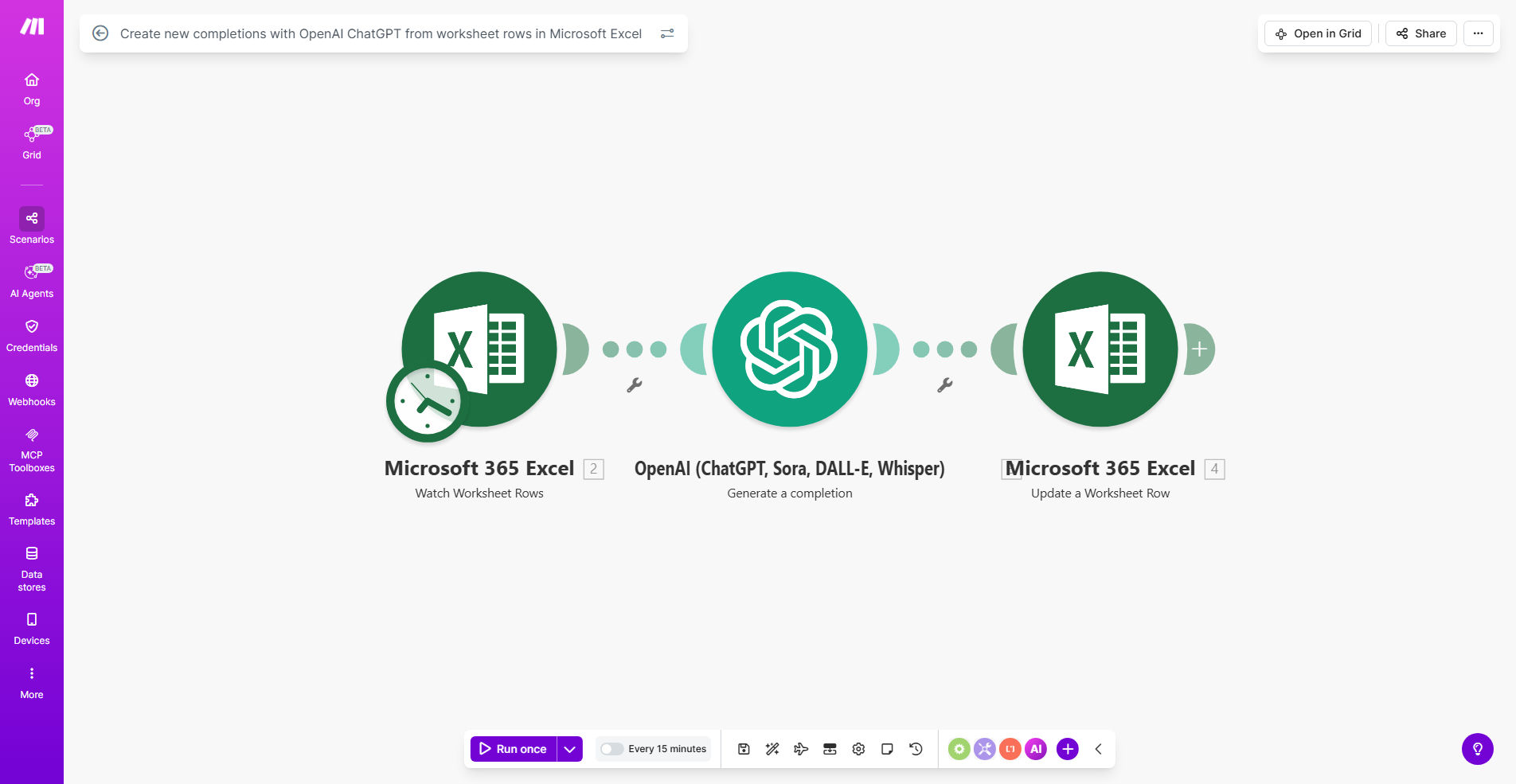
Make.com workflow diagram showing Excel to ChatGPT automation

What This Workflow Does

This automation bridges Microsoft Excel and OpenAI's ChatGPT to generate AI-powered completions from your spreadsheet data. It reads each row in your worksheet as a prompt, sends it to ChatGPT via API, and returns the AI-generated response back to your Excel file or another destination.

Businesses use this to automate content creation at scale - turning product specs into marketing copy, generating SEO keywords from topics, creating customer service responses from FAQs, or brainstorming creative variations. What typically takes hours of manual work can be completed in minutes with consistent quality.

How It Works

1. Excel Data Preparation

Your Excel file serves as the input source, with each row containing the prompt for ChatGPT. Common structures include product IDs with attributes, topic lists for content generation, or customer inquiry templates.

2. Automated API Connection

The workflow authenticates with both Microsoft 365 (for Excel access) and OpenAI API (for ChatGPT). Make.com handles the secure connection between these platforms without requiring custom code.

3. Batch Processing

The system reads your Excel data row by row, sending each as a ChatGPT prompt with your predefined instructions. You can control parameters like creativity level (temperature), response length, and format requirements.

4. Output Management

Generated completions are written back to your Excel file in a designated column, sent to another app like Google Docs, or posted directly to platforms like your CMS or help desk software.

Pro tip: Structure your Excel prompts with clear instructions upfront (e.g., "Write a 50-word product description highlighting these features in a friendly tone"). This yields more consistent results than vague prompts.

Who This Is For

This workflow delivers the most value for:

  • Ecommerce teams generating hundreds of product descriptions
  • Content marketers creating SEO metadata and blog outlines
  • Support teams building knowledge base articles from tickets
  • Product managers brainstorming feature descriptions
  • Researchers summarizing datasets into readable reports

What You'll Need

  1. Microsoft 365 Business account with Excel access
  2. OpenAI API key (ChatGPT Plus not required)
  3. Make.com account (free tier sufficient for testing)
  4. Structured Excel data with clear column headers
  5. Basic understanding of ChatGPT prompt engineering

Quick Setup Guide

  1. Download the template from Make.com
  2. Connect your Microsoft 365 and OpenAI accounts
  3. Map your Excel columns to the workflow inputs
  4. Configure ChatGPT parameters (temperature, max tokens)
  5. Test with a small dataset before full processing
  6. Schedule runs or trigger manually as needed

Key Benefits

Scale content production 10x faster by automating the bulk of creative work while maintaining quality standards. Teams report generating 100+ product descriptions in the time it previously took to write one.

Ensure brand consistency across all AI-generated content by embedding your style guide directly in the Excel prompts. The system applies your voice uniformly across thousands of outputs.

Reduce creative fatigue by letting ChatGPT handle repetitive content tasks while your team focuses on strategy and refinement. Marketers using this workflow report 70% less burnout from content production.

Dynamic response improvement as you refine prompts based on initial results. Unlike static templates, ChatGPT adapts to your evolving requirements with each batch process.

Frequently Asked Questions

Common questions about ChatGPT and Excel automation

ChatGPT can analyze, summarize, and generate new content from your Excel data automatically. For example, it can turn product descriptions into marketing copy, generate SEO keywords from topics, or create customer service responses from FAQs. This saves hours of manual work while maintaining consistent quality.

A retail company might process 500 product SKUs overnight, with ChatGPT generating unique descriptions for each based on their technical specs in Excel. The automation handles the bulk work while humans review and polish the outputs.

Structured data like product catalogs, content calendars, keyword lists, customer feedback, and FAQ databases work best. The automation reads each row as a prompt, letting ChatGPT generate completions like descriptions, summaries, or responses. Avoid highly technical or confidential data that requires human judgment.

For best results, organize your Excel data with clear column headers and consistent formatting. Include any context or instructions ChatGPT needs in dedicated columns that your workflow combines into final prompts.

Accuracy depends on your prompt engineering. Clear instructions in your Excel prompts yield better results. For critical applications, include validation steps in your workflow. Most users achieve 80-90% usable content on first pass, with the automation handling bulk work while humans refine exceptional cases.

Implement quality checks by:

  • Sampling outputs before full processing
  • Setting character limits for responses
  • Flagging potentially sensitive content

Absolutely. Include brand guidelines, tone examples, and style preferences in your Excel prompts or workflow configuration. The automation can maintain consistent voice across thousands of generated responses. Many users create template prompts in Excel that ChatGPT populates with product-specific details.

For example: "Write a [friendly/professional/enthusiastic] 75-word product description highlighting [features from Column C] for [audience from Column D]. Use active voice and include one playful metaphor. Avoid technical jargon."

This automation transforms hours of creative work into minutes. Marketing teams generate 100+ product descriptions overnight. Support teams auto-reply to common questions. Content teams brainstorm hundreds of headline variations. The ROI comes from scaling quality content production without proportional staffing increases.

Early adopters report:

  • 80% faster content production cycles
  • 60% reduction in freelance writing costs
  • 3x more A/B test variations

Implement data filtering before sending to ChatGPT. Remove PII, confidential figures, or proprietary details from prompts. Many workflows first anonymize data in Excel or use placeholder tags. For maximum security, process sensitive data through private AI instances instead of public ChatGPT API.

Best practices include:

  • Redacting customer names and IDs
  • Using generic job titles instead of names
  • Setting up approval workflows for sensitive outputs

Yes! GrowwStacks specializes in tailored AI automation solutions. We'll analyze your Excel data structure, design optimal prompts, build validation steps, and integrate with your existing systems. Custom solutions typically deliver 5-10x ROI by automating your specific content workflows.

Our clients achieve:

  • Fully branded content generation systems
  • Seamless CMS or CRM integrations
  • Automated quality control checks
  • Ongoing prompt optimization

Need a Custom ChatGPT Automation?

This free template is a starting point. Our team builds fully tailored automation systems for your specific business needs.