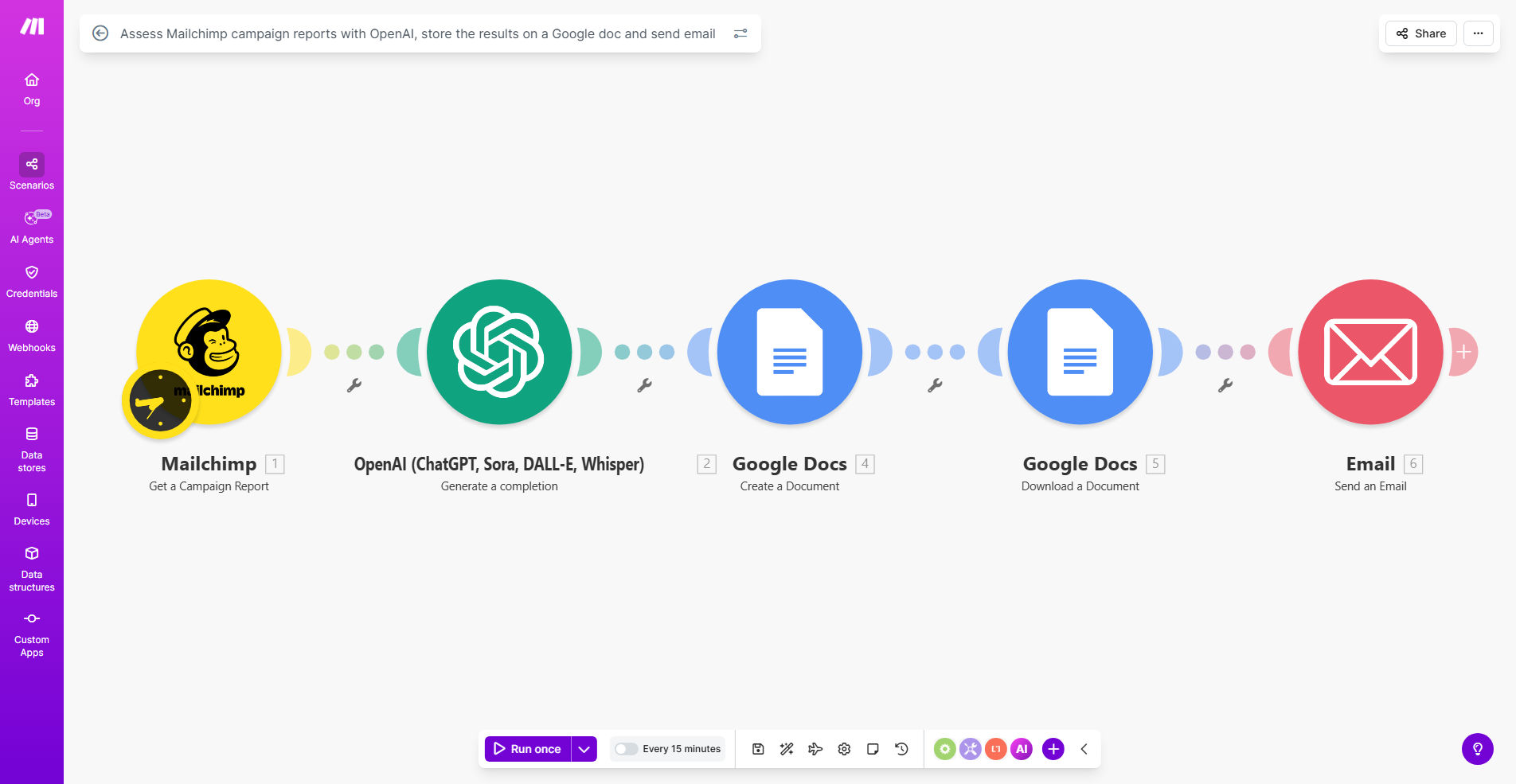
What This Workflow Does
For marketers and business owners, understanding email campaign performance is crucial but time-consuming. Manually sifting through Mailchimp reports to find trends, diagnose problems, and plan improvements can eat up hours every week. This automation solves that by turning raw data into intelligent, actionable insights automatically.
The workflow connects Mailchimp, OpenAI, Google Docs, and your email in a seamless pipeline. After a campaign ends, it pulls the report, sends the key metrics to OpenAI for analysis, saves the AI's findings and improvement suggestions into a structured Google Doc, and then emails that document to you or your team. It transforms a reactive reporting task into a proactive strategic tool.
How It Works
The automation runs on a schedule or is triggered by a new Mailchimp report, executing a precise series of steps to deliver insights.
Step 1: Fetch Campaign Data from Mailchimp
The workflow connects to your Mailchimp account and retrieves the performance data for a specified campaign. This includes metrics like open rate, click-through rate, unsubscribe count, bounce rate, and engagement over time.
Step 2: Analyze Performance with OpenAI
The raw metrics are sent to OpenAI (like ChatGPT) with a tailored prompt. The AI acts as a marketing analyst, interpreting the numbers. It doesn't just summarize; it identifies strengths, weaknesses, potential causes for drops in engagement, and generates specific, testable suggestions for improvement.
Step 3: Create a Structured Report in Google Docs
The AI's analysis is then formatted and sent to Google Docs. The workflow creates a new document or appends to an existing one, organizing the insights with clear headings, bullet points, and data highlights. This builds a permanent, searchable library of campaign learnings.
Step 4: Share Insights via Email
Finally, the workflow sends an email (via your preferred service like Gmail or Outlook) to designated recipients. The email contains a summary and a direct link to the newly created Google Doc, ensuring the right people see the insights immediately without having to go looking for them.
Pro tip: Use this workflow on a weekly schedule to analyze your last 5 campaigns. This gives the AI more data to work with, allowing it to identify longer-term trends and provide even more valuable strategic advice.
Who This Is For
This template is ideal for digital marketers, e-commerce managers, small business owners, and agency teams who rely on email marketing. It's perfect for anyone who wants to move beyond basic analytics and leverage AI to gain a competitive edge without adding hours to their workweek. If you send regular newsletters, promotional blasts, or onboarding sequences, this automation will become an indispensable part of your marketing toolkit.
What You'll Need
- A Make.com account (free tier available).
- A Mailchimp account with at least one sent campaign.
- An OpenAI API key (requires a paid account for API access).
- A Google account with access to Google Docs.
- An email service (like Gmail) connected to Make.com for sending the final report.
Quick Setup Guide
You can be up and running in under 15 minutes by following these steps:
- Clone the Template: Click "Get This Workflow" and duplicate the scenario into your Make.com account.
- Connect Your Apps: In the Make.com scenario editor, establish connections for Mailchimp, OpenAI, Google Docs, and your email service.
- Configure the Trigger: Set the workflow to run on a schedule (e.g., every Monday at 9 AM) or trigger it manually for specific campaigns.
- Customize the AI Prompt: Adjust the prompt sent to OpenAI to focus on the metrics and suggestions most relevant to your business goals.
- Set Document & Email Details: Specify the Google Drive folder for reports and enter the email addresses of your report recipients.
- Test & Activate: Run a test with a past campaign to ensure the document is created and the email sends correctly, then turn the scenario on.
Key Benefits
Save 3–5 hours per week on manual reporting. Eliminate the tedious process of exporting data, creating summaries, and writing analysis. The automation handles it all, freeing you to act on the insights instead of compiling them.
Gain deeper, AI-driven insights beyond surface-level metrics. Move from knowing "what" happened to understanding "why" it happened and "what to do next." The AI can spot correlations and suggestions a human might miss.
Build an institutional knowledge base in Google Docs. Every campaign analysis is saved, creating a valuable historical record. This is perfect for onboarding new team members, preparing quarterly reviews, or tracking progress against marketing KPIs.
Ensure consistent and timely reporting for your team. Reports are generated and distributed automatically on your schedule. No more delays or forgotten updates, keeping everyone aligned with campaign performance.
Scale your marketing intelligence without scaling your team. This system acts as a force multiplier, providing expert-level analytical support at a fraction of the cost of a full-time hire, making it ideal for growing businesses.