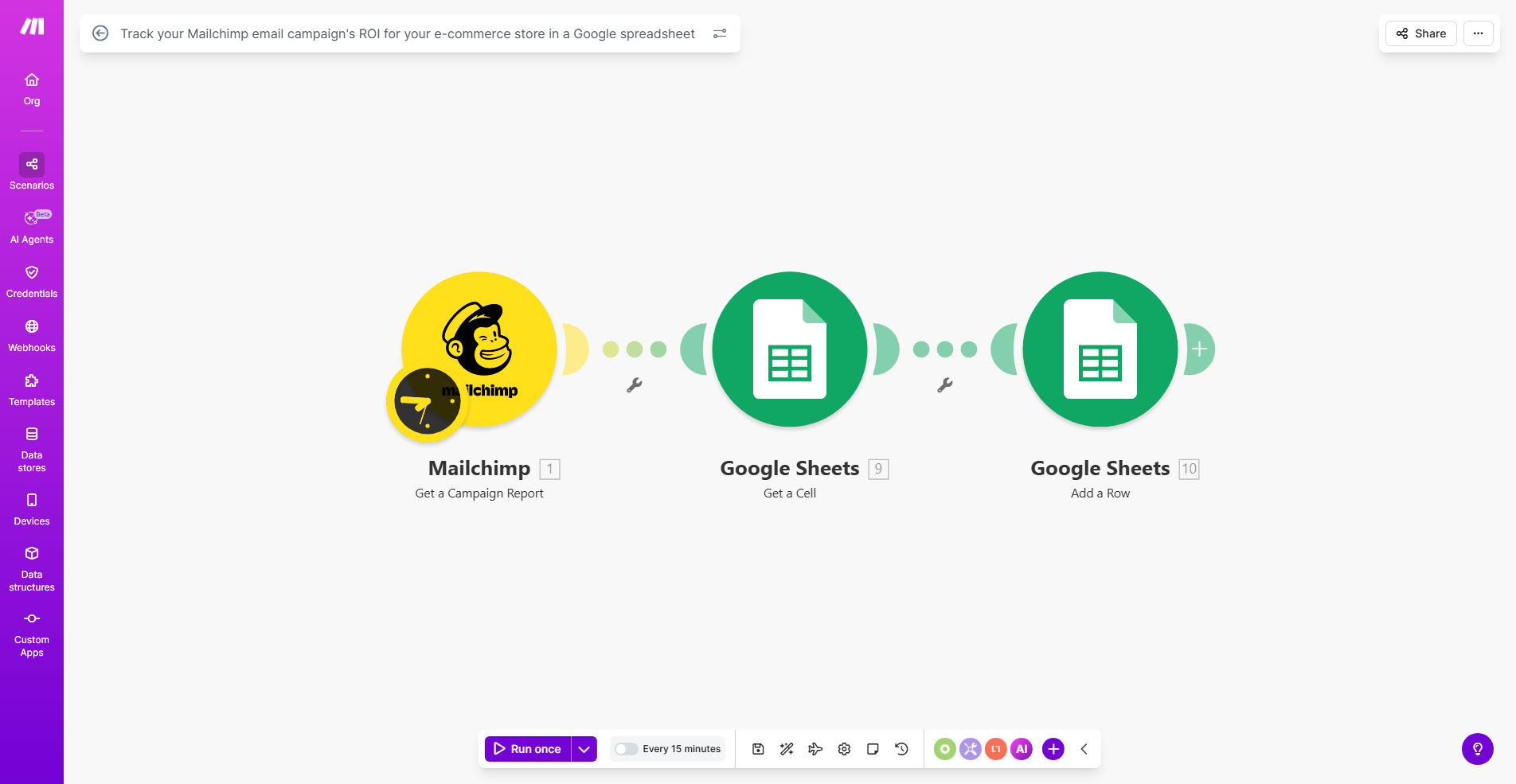
What This Workflow Does
For e-commerce businesses, email marketing is a powerful sales channel, but its true financial impact is often a mystery. You know a campaign got clicks, but did it actually drive purchases? How much revenue did that holiday promo email generate? What's the real return on investment (ROI) after accounting for design costs and platform fees? Manually answering these questions involves exporting data from Mailchimp, cross-referencing with orders from your store, and performing complex calculations—a process that's tedious, error-prone, and often skipped.
This automation workflow solves that by creating a seamless bridge between your Mailchimp campaigns and your e-commerce sales data. It automatically pulls campaign performance metrics (sends, opens, clicks) and matches them with customer purchase records, attributing revenue to specific emails. The result is a live Google Sheets dashboard that shows not just engagement stats, but actual dollars earned, cost per acquisition, and ROI percentage for every campaign you run.
By automating this connection, you move from guessing to knowing. You can identify which email themes, product highlights, or discount strategies genuinely boost sales, allowing you to optimize your marketing budget and focus on what truly works.
How It Works
Step 1: Trigger on Campaign Completion
The workflow is triggered whenever a Mailchimp email campaign ends or when scheduled reporting is needed. Make.com watches your Mailchimp account for these events, ensuring data is captured fresh without manual intervention.
Step 2: Fetch Campaign Performance Data
It retrieves key metrics from Mailchimp: campaign name, send time, open rate, click rate, unique clicks, and total recipients. This data forms the engagement side of the equation.
Step 3: Retrieve Corresponding E-commerce Orders
Next, the automation queries your e-commerce platform (like Shopify, WooCommerce, or a custom database) for orders placed within a defined period after the campaign send. It uses filters like customer email addresses or order timestamps to associate purchases with the campaign.
Step 4: Calculate Revenue Attribution
For each matched order, the workflow sums the revenue. It can apply logic to handle partial attribution (e.g., if a click led to a later purchase) or direct attribution. It also factors in campaign costs if you input them.
Step 5: Update Google Sheets Dashboard
All calculated data—campaign stats, attributed revenue, cost, and final ROI—is written into a structured Google Sheets spreadsheet. The sheet can be formatted to show visual charts, trend lines, and comparative tables, giving you an instant performance overview.
Pro tip: Set up this automation to run daily or weekly for ongoing campaigns. This gives you a rolling view of ROI, allowing you to pause underperforming campaigns early and double down on winners.
Who This Is For
This workflow is ideal for any business that uses email marketing to drive online sales and wants to measure its financial effectiveness.
- E-commerce Marketing Managers: Who need to report on campaign profitability and justify budget allocations.
- Small & Medium Online Retailers: Who run frequent promotional emails but lack the time for manual data analysis.
- Digital Agencies: Managing client email campaigns and needing concrete ROI proof to demonstrate value.
- Founders & Solo Entrepreneurs: Who wear many hats and need automated insights to make quick, informed marketing decisions.
- Data-Driven Teams: Looking to integrate marketing and sales data for holistic business intelligence.
What You'll Need
- A Mailchimp account with active email campaigns.
- An e-commerce platform (Shopify, WooCommerce, BigCommerce, etc.) or a database with order records accessible via API.
- A Google Sheets spreadsheet prepared with columns for Campaign Name, Date, Opens, Clicks, Attributed Revenue, Cost, and ROI.
- A Make.com account (free tier can handle this workflow).
- API access or connection credentials for Mailchimp and your e-commerce system.
Quick Setup Guide
- Duplicate the Template: Click "Get This Workflow" to copy the template into your Make.com account.
- Connect Your Apps: In Make.com, add your Mailchimp and e-commerce platform as modules. Authorize the connections using your account credentials.
- Configure the Trigger: Set the trigger module to watch for "Campaign ends" events in Mailchimp or use a schedule module for periodic updates.
- Map Your Data Fields: Adjust the data mapping to match your e-commerce order fields (like order total, customer email, purchase date).
- Set Up Your Google Sheet: Create or identify your target Google Sheet. Connect the Google Sheets module in Make.com and specify the exact sheet and cell ranges for data output.
- Test with a Past Campaign: Run the scenario once using a completed campaign to verify data flows correctly and calculations are accurate.
- Activate & Monitor: Turn on the scenario. Your ROI dashboard will now update automatically after each campaign.
Key Benefits
Save 5–10 hours monthly on manual data compilation and reporting. This automation eliminates the need to export, match, and calculate data across systems, freeing up your marketing team for strategic work.
Make budget decisions with confidence by knowing exact campaign profitability. You'll see which emails generate positive ROI and which are cost centers, allowing you to allocate spend effectively.
Improve campaign effectiveness through data-backed insights. By analyzing ROI alongside engagement metrics, you can refine subject lines, content, and targeting to boost conversion rates.
Create a scalable reporting system that grows with your business. As you run more campaigns, the automated sheet handles the increased data load without additional manual effort.
Enhance stakeholder communication with clear, financial metrics. Share the ROI dashboard with team members or investors to transparently demonstrate the value of your email marketing efforts.