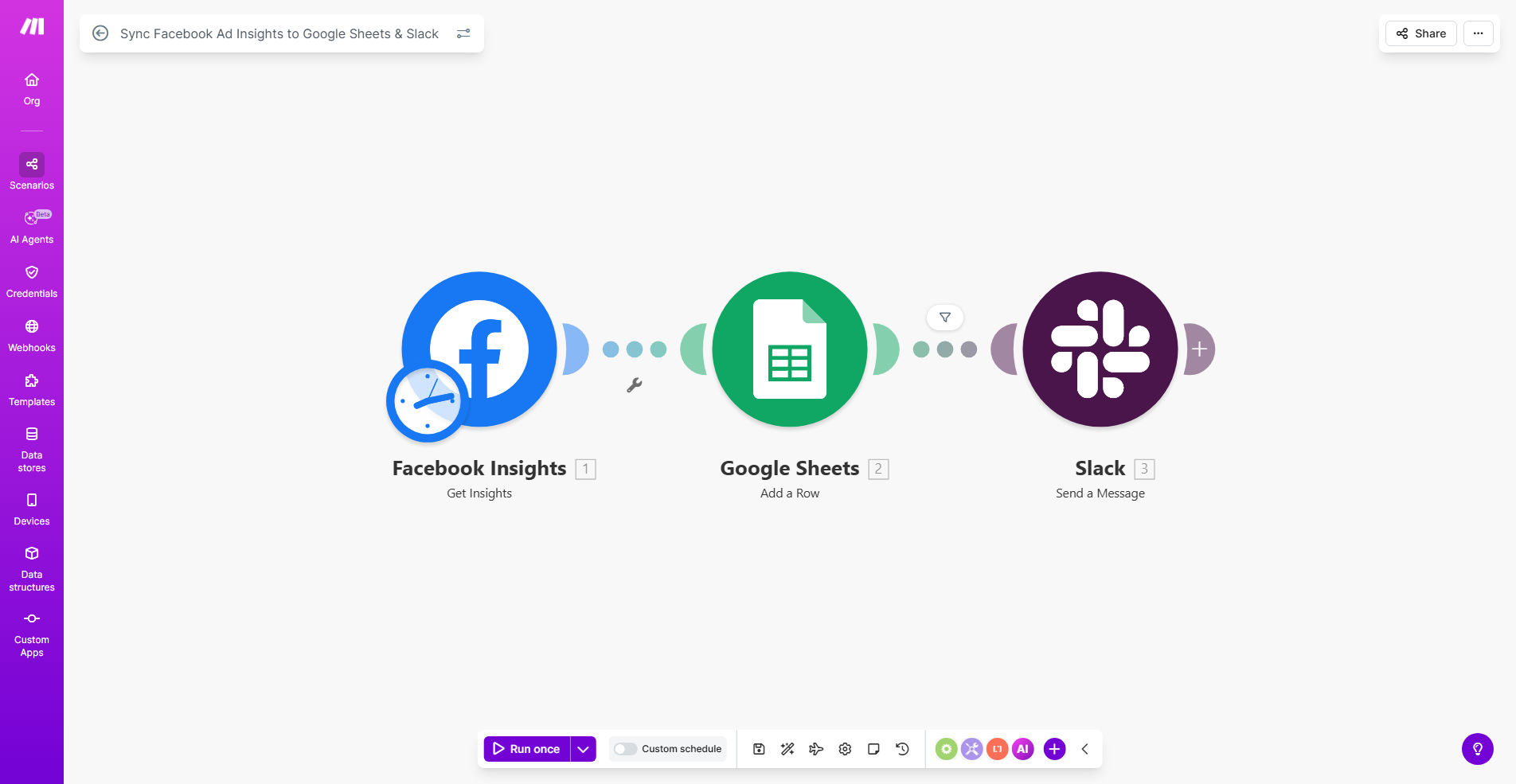
What This Workflow Does
Marketing teams waste valuable hours every week manually downloading Facebook Ads reports, copying numbers into spreadsheets, and summarizing findings for team meetings. This fragmented process leads to outdated data, human errors, and delayed insights, ultimately hindering your ability to optimize ad spend and improve campaign performance in real time.
This automation solves that problem by creating a seamless pipeline between your Facebook Ads account, Google Sheets, and Slack. It automatically extracts key performance indicators (KPIs) like impressions, clicks, conversions, and cost-per-result on a scheduled basis, populates a structured Google Sheet for historical analysis, and posts a digest of critical insights directly to your designated Slack channel. This ensures your entire marketing team starts each week with accurate, actionable data at their fingertips.
The workflow is designed as a "set-and-forget" system. Once configured, it runs reliably every Friday (or on any schedule you choose), transforming a tedious administrative task into a strategic asset. You move from reactive data gathering to proactive performance management.
How It Works
The automation follows a logical three-step process to move data from source to insight without manual intervention.
Step 1: Scheduled Data Fetch from Facebook Ads
The scenario is triggered on a schedule, typically every Friday morning. It connects to the Facebook Marketing API using your secure credentials and requests performance data for a specified date range (e.g., the previous week). It can pull data at the campaign, ad set, or ad level, capturing all the metrics you need for analysis.
Pro tip: Configure the Facebook module to fetch only the metrics that matter to your business. This keeps your data clean and avoids API rate limits. Focus on ROAS, CPC, CTR, and conversion volume.
Step 2: Structuring & Appending Data to Google Sheets
The raw data from Facebook is then mapped and formatted into a clear structure. The automation appends this new data as a row (or set of rows) to a master Google Sheet. Each execution adds a timestamped record, building a historical database perfect for tracking trends, calculating weekly performance changes, and generating monthly reports.
Step 3: Generating & Sharing Insights on Slack
Finally, the workflow analyzes the freshly fetched data to highlight what's important. It identifies top-performing campaigns, flags any significant cost increases, or calculates week-over-week changes in key metrics. A formatted message with these insights is then automatically posted to a Slack channel, prompting immediate team discussion and action.
Who This Is For
This template is ideal for any business or team that runs Facebook or Instagram ads and values data-driven decision making.
- Marketing Agencies: Manage multiple client accounts and streamline reporting deliverables.
- E-commerce Brands: Quickly assess the ROI of product campaigns and sales initiatives.
- In-House Marketing Teams: Eliminate manual reporting and foster better cross-team collaboration with shared data.
- Startups & Growth Teams: Maintain a lean operation by automating a critical yet time-consuming process.
- Freelancers & Consultants: Provide added value to clients with automated, professional performance reports.
What You'll Need
To implement this automation, you will need active accounts and the appropriate access for the following:
- A Facebook Business Manager account with an active ad campaign and access to the Facebook Marketing API (typically via a System User token).
- A Google Sheets spreadsheet where you want the data to live. You'll need edit permissions to allow Make.com to append rows.
- A Slack workspace and a specific channel (e.g., #marketing-performance) where you want the insights posted. You'll need to install the Make.com app to your Slack workspace.
- A Make.com account (free or paid plan) to host and run the automation scenario.
Quick Setup Guide
Getting this workflow live in your environment takes about 20-30 minutes. Follow these steps:
- Clone the Template: Click "Get This Workflow" and duplicate the scenario into your own Make.com account.
- Connect Facebook Ads: In the first module, create a connection to Facebook Ads using your Business Manager credentials. Select the specific Ad Account you want to report on.
- Configure Your Google Sheet: Update the Google Sheets module with the URL of your target spreadsheet. Map the incoming Facebook data fields to the correct column headers in your sheet.
- Set Up Slack: Authorize the Slack module to access your workspace and specify the exact channel name for notifications.
- Customize the Message: Adjust the Slack message text to highlight the metrics and insights most relevant to your team.
- Set the Schedule: The template is pre-set to run weekly. Click the clock icon to adjust the timing—you can run it daily, weekly, or monthly based on your needs.
- Test & Activate: Run the scenario once manually to ensure data flows correctly to both Sheets and Slack. Then, turn on the schedule to let it run automatically.
Key Benefits
Save 3-5 Hours Per Week on Manual Reporting. Eliminate the tedious process of logging into Facebook Ads Manager, exporting CSVs, and manipulating data in spreadsheets. This time can be reinvested into strategic analysis and campaign optimization.
Ensure Data Accuracy and Consistency. Automated data pulls directly from the API remove the risk of human error from manual entry. Every week's data is structured identically, making trend analysis and comparison reliable and straightforward.
Foster Faster, More Informed Team Decisions. By having fresh data automatically summarized and pushed to Slack, your team can discuss performance and make budget or creative adjustments at the start of the week, not days later after reports are compiled.
Build a Historical Performance Database. Your Google Sheet becomes a living, queryable record of all campaign performance. This is invaluable for quarterly reviews, forecasting, and proving marketing ROI to stakeholders.
Scale Your Marketing Operations Effortlessly. As you add more ad accounts or campaigns, the same automation can be extended to include them, providing a unified view of all your paid social efforts without increasing manual workload.