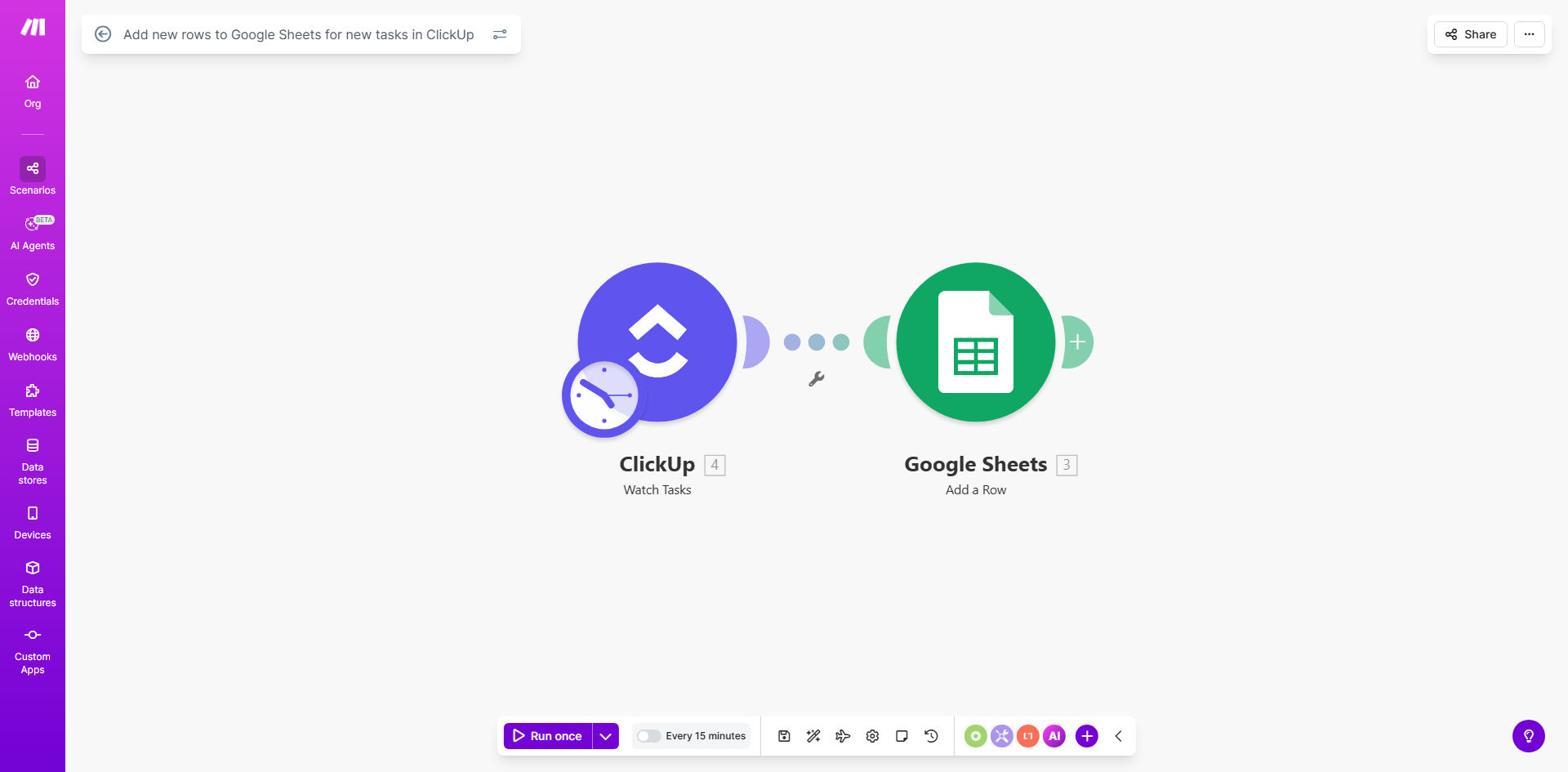
What This Workflow Does
This automation solves the common problem of manually copying task data between ClickUp and Google Sheets. Many teams need their ClickUp tasks available in Sheets for reporting, analysis, or sharing with stakeholders who don't have ClickUp access.
The workflow automatically detects new tasks created in your ClickUp workspace and adds them as new rows in your specified Google Sheet. This creates a real-time sync between your project management system and spreadsheet environment without any manual data entry.
How It Works
1. Trigger: New task detection
The workflow constantly monitors your ClickUp account for newly created tasks using Make.com's polling mechanism. When a new task appears, it triggers the automation.
2. Data extraction
The workflow collects all relevant task details including name, description, status, due date, assignees, priority level, and any custom fields you've configured in ClickUp.
3. Google Sheets formatting
The task data is formatted to match your Google Sheet's column structure. You can customize which fields are included and how they're mapped to your spreadsheet columns.
4. Row creation
Make.com adds a new row to your specified Google Sheet with all the extracted task data. The sheet acts as a running log of all tasks created in your ClickUp workspace.
Who This Is For
This workflow is ideal for:
- Project managers who need to share task data with executives or clients in spreadsheet format
- Teams using Google Sheets for resource planning or capacity management
- Companies that require backup records of their ClickUp tasks
- Analysts who need to perform calculations or visualizations on task data
What You'll Need
- A ClickUp account with tasks you want to sync
- A Google Sheets spreadsheet ready to receive the task data
- A Make.com account (free plan sufficient for basic usage)
- API access enabled for both ClickUp and Google Sheets
Quick Setup Guide
- Copy this template to your Make.com account
- Connect your ClickUp account in the first module
- Connect your Google account and select your target spreadsheet
- Map the ClickUp task fields to your Google Sheet columns
- Test with a new ClickUp task to verify the sync works
- Activate the scenario to run automatically
Pro tip: Create a dedicated "ClickUp Tasks Archive" sheet with frozen headers and proper formatting to receive the synced data cleanly.
Key Benefits
Eliminates manual data entry: Save 2-3 hours per week typically spent copying task details between systems.
Creates a task audit trail: Your Google Sheet becomes a timestamped record of all tasks created, useful for reporting and compliance.
Enables advanced analysis: Use Sheets formulas, pivot tables, and charts to gain insights from your task data that ClickUp's native reporting can't provide.
Improves cross-team visibility: Share task data with stakeholders who don't need full ClickUp access but require task visibility.