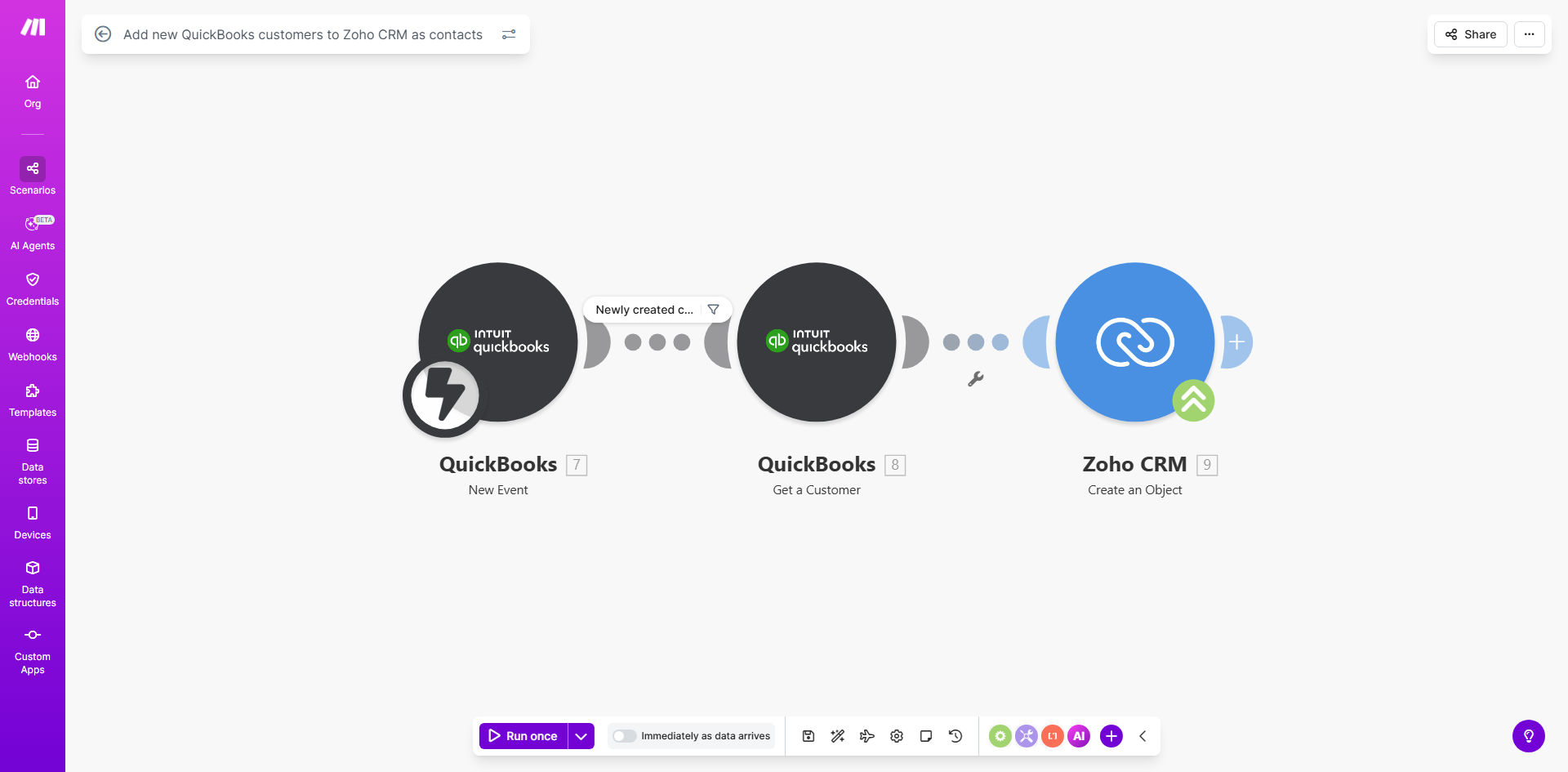
What This Workflow Does
This automation bridges the gap between your accounting and sales teams by automatically creating Zoho CRM contacts whenever new customers are added in QuickBooks. It eliminates the manual data entry that often leads to errors, delays, and inconsistent customer information across departments.
The workflow triggers instantly when a new customer record appears in QuickBooks, capturing all relevant contact details and transferring them to Zoho CRM with proper field mapping. This ensures your sales team has immediate access to new customer information without waiting for accounting to notify them.
How It Works
1. New customer detection
The workflow monitors QuickBooks for new customer additions using webhooks or scheduled checks. When a new customer appears, it captures the complete record including contact details, billing address, and custom fields.
2. Data transformation
Customer data is reformatted to match Zoho CRM's expected structure. This includes mapping QuickBooks fields to corresponding Zoho fields, handling address formatting differences, and applying any business rules for data standardization.
3. Contact creation in Zoho
The transformed data creates a new contact in Zoho CRM, automatically assigning it to the correct account owner and tagging it with relevant categories. The workflow can also link to existing accounts or companies in Zoho when matches are found.
4. Error handling and logging
If any issues occur during the sync, the workflow logs detailed error information and can notify administrators via email. Failed syncs are automatically retried according to your configured rules.
Who This Is For
This automation is ideal for businesses that use QuickBooks for accounting and Zoho CRM for sales management, particularly those experiencing:
- Delays between customer onboarding and sales follow-up
- Errors from manual data entry between systems
- Sales teams working with outdated customer information
- Growing customer bases that make manual syncs impractical
- Need for complete customer financial histories in CRM
What You'll Need
- Active QuickBooks Online account with admin access
- Zoho CRM subscription with API access enabled
- Make.com account (formerly Integromat)
- List of field mappings between QuickBooks and Zoho
- Approved data sharing permissions between departments
Quick Setup Guide
- Install the template in your Make.com account
- Connect your QuickBooks account using OAuth
- Authenticate with your Zoho CRM instance
- Map QuickBooks customer fields to Zoho contact fields
- Configure error handling and notification preferences
- Test with sample customer data
- Activate the workflow for live operation
Key Benefits
Eliminate duplicate data entry - Save 5-15 minutes per customer by automatically syncing information instead of manual transfers between departments.
Improve sales response times - Sales teams get new customer information immediately rather than waiting for accounting updates.
Reduce errors by 90%+ - Automated field mapping prevents typos and missing information common in manual processes.
Maintain data consistency - All teams work from the same customer information instead of separate silos.
Scalable customer onboarding - Handle growing customer volumes without adding administrative staff.
Pro tip: Add a secondary workflow to sync updated customer information from QuickBooks to Zoho, not just new customers. This maintains data accuracy over time.