Make.com Google Contacts QuickBooks CRM Sync Accounting Automation

Add new Google contacts to QuickBooks as customers

Automatically sync your CRM contacts with accounting records - eliminate manual data entry between systems

Get This Workflow → Make.com · Google Contacts · Free Template
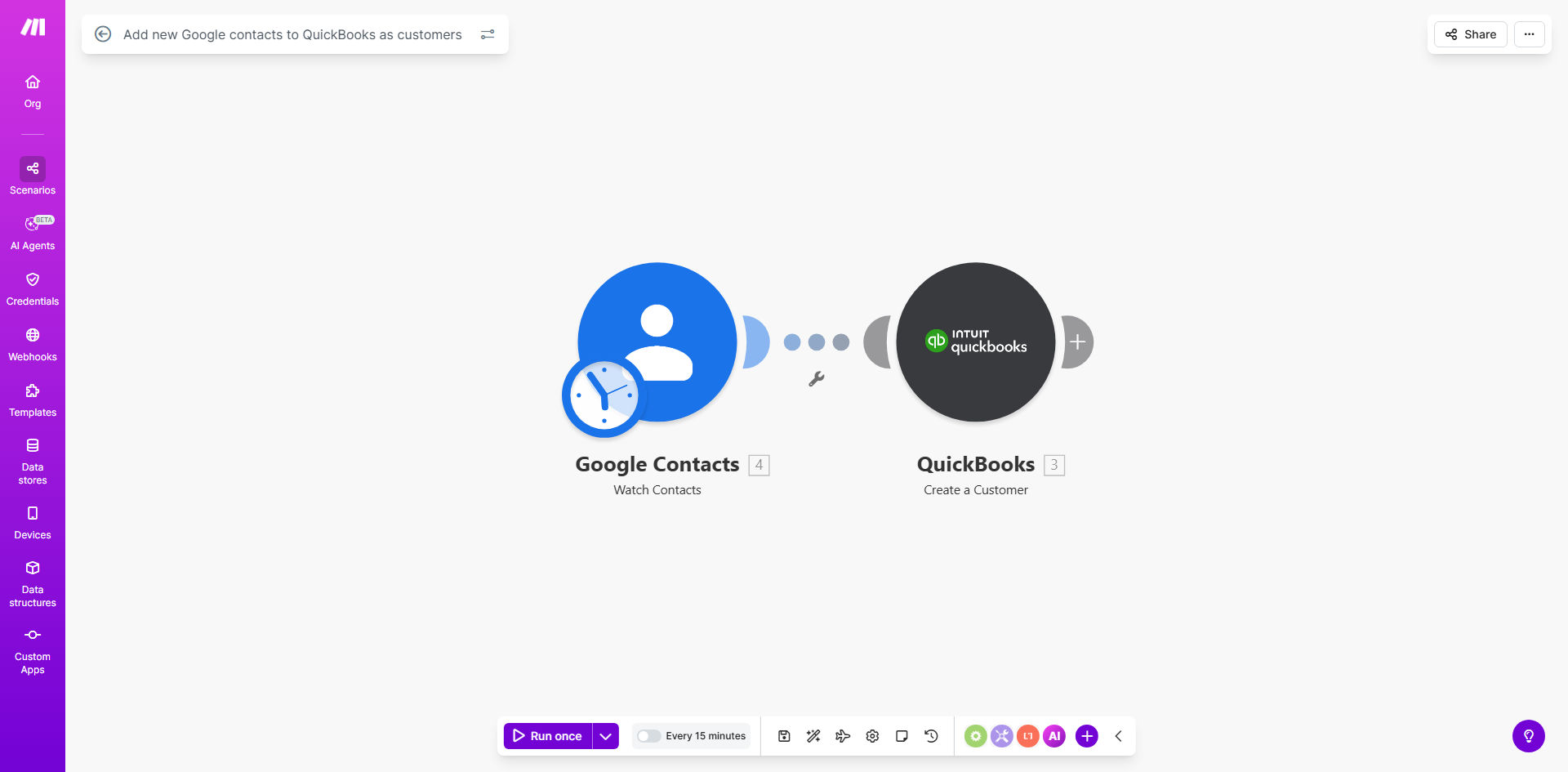
Make.com workflow interface showing Google Contacts to QuickBooks integration

What This Workflow Does

This automation solves a common pain point for businesses using Google Contacts alongside QuickBooks - maintaining duplicate customer records across systems. Every time sales or support teams add a new contact in Google, accounting teams traditionally had to manually recreate that entry in QuickBooks, leading to errors, delays, and inconsistent data.

The workflow automatically creates a corresponding customer record in QuickBooks whenever a new contact gets added to Google Contacts. It maps standard fields like name, email, company, and phone numbers between the systems while maintaining each platform's required data structure. The sync happens in real-time, ensuring your accounting records always reflect current client relationships.

How It Works

1. Trigger on new Google Contact

The workflow monitors your Google Contacts for new additions using Make.com's instant trigger. No polling delays - it detects changes the moment they occur.

2. Extract contact details

Key information gets pulled from the new contact entry, including name fields, email addresses, phone numbers, company details, and any custom fields you've configured to sync.

3. Format for QuickBooks

The data gets transformed to match QuickBooks' customer record structure. This includes proper name parsing (separating first/last names), address formatting, and field mapping adjustments.

4. Create QuickBooks customer

Make.com authenticates with your QuickBooks account via OAuth and creates a new customer record using the prepared data. The system includes duplicate checking by default.

Pro tip: Add a conditional filter to only sync contacts tagged as "Clients" or with specific email domains. This prevents personal contacts from appearing in QuickBooks.

Who This Is For

This integration delivers the most value for:

  • Service businesses tracking clients in Google Contacts but billing through QuickBooks
  • Sales teams who onboard new customers in Google Workspace while finance uses QuickBooks
  • Freelancers and consultants managing contacts in Google but needing proper customer records for invoicing
  • Businesses tired of manual data entry errors between CRM and accounting systems

What You'll Need

  1. A Make.com account (free tier works for basic syncs)
  2. Google Workspace account with Contacts access
  3. QuickBooks Online subscription with admin permissions
  4. OAuth access configured between Make.com and both systems

Quick Setup Guide

  1. Click "Get This Workflow" to copy the template to your Make.com account
  2. Connect your Google account and grant contacts read access
  3. Connect your QuickBooks Online account with customer write permissions
  4. Test with a sample contact to verify field mapping
  5. Turn on the scenario - it will now process all new contacts automatically

Key Benefits

Eliminate duplicate data entry - Save 2-5 hours per week typically spent copying contact information between systems. Staff can focus on higher-value work instead of administrative tasks.

Improve accounting accuracy - Automated syncs prevent manual entry errors that lead to billing mistakes or client communication issues. Your financial records stay perfectly aligned with current relationships.

Faster client onboarding - New customers appear in QuickBooks within seconds of being added to Google Contacts, enabling immediate invoicing and payment processing.

Centralized contact management - Sales teams can continue using familiar Google tools while ensuring finance has accurate customer data without extra steps.

Scalable client tracking - The system handles hundreds of new contacts per month with zero additional effort from your team.

Frequently Asked Questions

Common questions about Google Contacts to QuickBooks automation

Automating contact syncing eliminates manual data entry errors and saves 2-5 hours per week typically spent copying information between systems. It ensures your accounting records always reflect your latest client relationships without requiring staff to remember cross-system updates.

For example, a marketing agency reduced billing errors by 30% after implementing this automation, as their project managers could add clients in Google Contacts while knowing the accounting team would instantly have accurate records.

The workflow maps standard fields like name, email, phone, and company details. You can configure it to include custom fields like billing addresses or tax IDs. Basic contact info transfers by default while maintaining each system's required data structure.

Field mapping is flexible - you might choose to combine Google's "Given Name" and "Family Name" into QuickBooks' "Customer Name" field, or split a company's department contacts into separate QuickBooks customer records.

The integration runs in real-time - whenever a new contact gets added to Google Contacts. There's no scheduling delay. Make.com processes each new entry immediately, typically completing the QuickBooks customer creation within 10-30 seconds.

Unlike batch processing that runs hourly or daily, this instant sync means your accounting system stays current even during rapid client onboarding periods.

Yes, you can add conditional logic to only sync contacts meeting specific criteria like having a business email domain or being tagged as 'Client' in Google. This prevents personal contacts from appearing in your accounting system.

Common filters include:

  • Email domain whitelist (only @clientcompany.com)
  • Contact group membership
  • Custom field values
  • Company name presence

The workflow includes duplicate checking by default. It compares email addresses and names before creating new records. You can configure it to either skip duplicates or update existing customer records with new information from Google.

For businesses with changing client details, the update option ensures QuickBooks always has current contact information even if the relationship predates your Google Contacts record.

Make.com uses OAuth 2.0 authentication and encrypts all data in transit. No financial information gets transferred - only contact details. The connection maintains each platform's native security protocols while automating the data flow between them.

The integration operates under the same permission model as manual data entry, just without human involvement in the transfer process.

Absolutely. The template provides standard field mapping, but you can modify which Google fields correspond to which QuickBooks customer fields. Common customizations include adding custom fields or adjusting address formatting between systems.

For international businesses, you might configure special handling for VAT numbers or regional address formats. Service businesses often add custom fields for project types or billing preferences.

Yes! GrowwStacks specializes in building tailored integrations between Google Workspace and accounting systems. We can create custom workflows with advanced filtering, field transformations, and multi-system sync logic specific to your business processes.

Our engineers will analyze your current contact management and accounting workflows to design an automation that saves your team maximum time while maintaining data integrity across all systems.

  • Custom field mapping for your unique data structure
  • Multi-system syncs (Google → QuickBooks → CRM)
  • Advanced error handling and notifications
  • Ongoing maintenance and support

Need a Custom Contact Sync Automation?

This free template is a starting point. Our team builds fully tailored automation systems for your specific business needs.