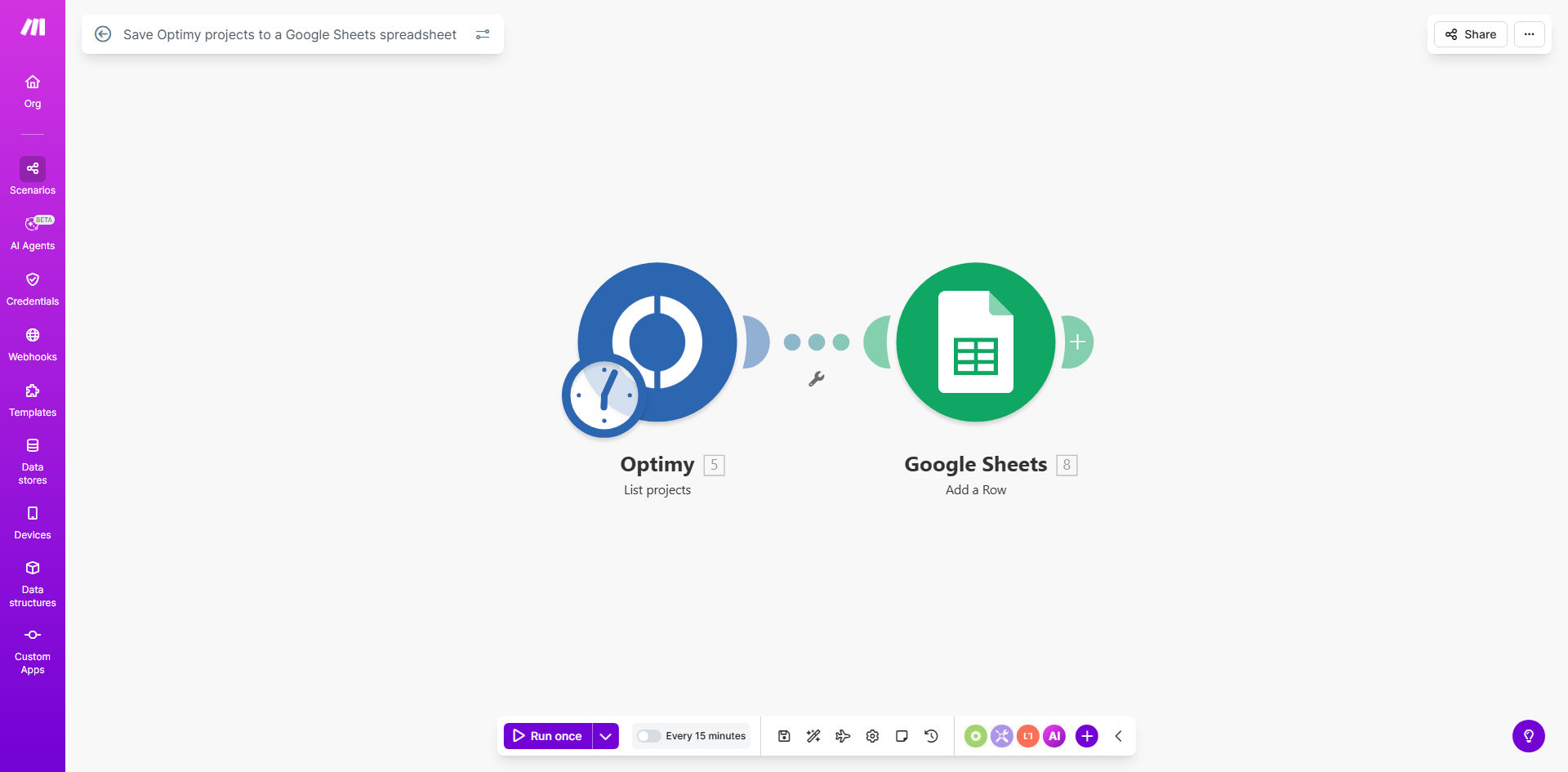
What This Workflow Does
This automation solves the challenge of manually exporting project data from Optimy to spreadsheets for reporting and analysis. Teams often waste hours each week copying project details into Google Sheets to create status reports, budget trackers, or approval workflows.
The workflow automatically transfers Optimy project records to your specified Google Sheet based on customizable filters. You can set criteria like project status (active/completed), specific forms, owners, or custom fields. The template maintains data consistency while eliminating manual data entry errors.
How It Works
Step 1: Configure Optimy Connection
The workflow starts by authenticating with your Optimy account using API credentials. You'll specify which projects to include based on your filter criteria.
Step 2: Retrieve Project Data
Make.com queries Optimy's API to fetch all projects matching your filters, including custom form responses, status changes, and assigned team members.
Step 3: Format for Google Sheets
The workflow transforms the Optimy API response into spreadsheet-friendly columns, handling nested data structures and converting timestamps to readable formats.
Step 4: Update Google Sheet
Finally, the processed data gets appended to your specified Google Sheet, with options to overwrite existing data or add new rows while preserving historical records.
Pro tip: Create separate Sheets tabs for different project categories (e.g., "Active Projects" vs "Completed") by duplicating the workflow with different filters.
Who This Is For
This automation benefits:
- Grant managers needing centralized reporting across multiple Optimy forms
- Program administrators tracking project approval workflows
- Finance teams monitoring budget allocations and spending
- Cross-functional teams requiring read-only access to project status
- Nonprofits generating impact reports for board members
What You'll Need
- An active Optimy account with API access
- Google Sheets edit permissions
- Make.com account (free plan works)
- Spreadsheet template prepared with desired column headers
- Clear filtering criteria for which projects to export
Quick Setup Guide
- Duplicate the template spreadsheet (or create your own with required columns)
- Click "Get This Workflow" to copy the scenario to your Make.com account
- Connect your Optimy account in Make.com's settings
- Specify your project filters (status, form type, date range, etc.)
- Connect your Google Sheet and select the destination tab
- Run a test with a small project subset to verify the output
- Schedule automatic runs (daily recommended)
Key Benefits
Save 5+ hours weekly by eliminating manual data exports between Optimy and Sheets. The automation handles transfers in minutes.
Improve data accuracy with consistent formatting and automated updates, reducing human error in manual copying.
Enable better reporting with always-current project data available for dashboards, charts, and stakeholder updates.
Customize your exports with flexible filtering to create specialized views for different teams and purposes.
Preserve historical records by maintaining complete project timelines without manual archiving.