Email Automation Google Sheets Data Logging Make.com

Add New Incoming Emails to Google Sheets Automatically

Transform your inbox into structured data by automatically logging emails to spreadsheet rows

Get This Workflow → Make.com · Email · Free Template
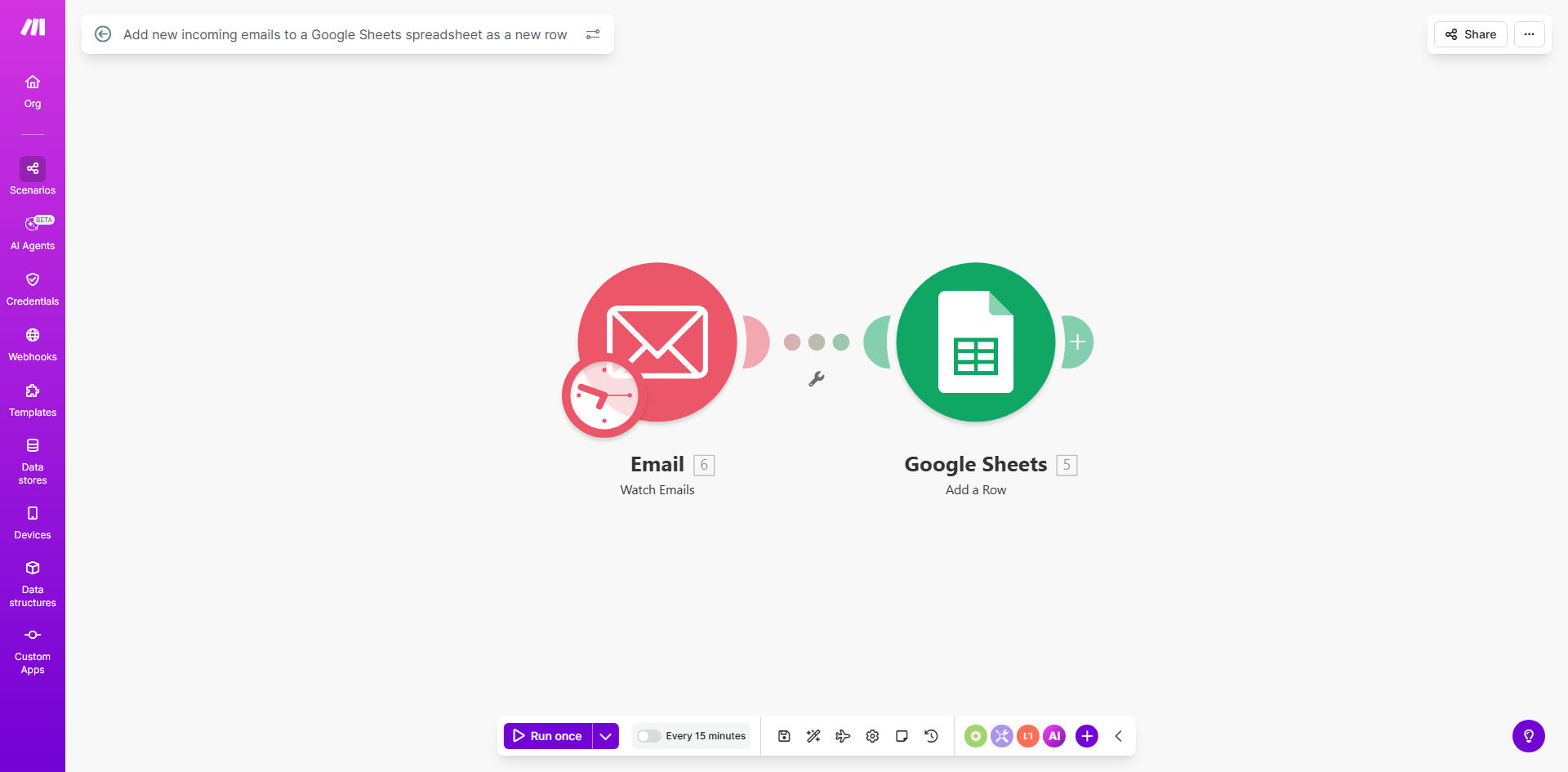
Make.com workflow diagram showing email to Google Sheets automation

What This Workflow Does

This automation solves the common business challenge of manually tracking important emails and their contents. Every time you receive a new email, the workflow automatically extracts key information and adds it as a new row in your Google Sheets spreadsheet.

The template eliminates hours of tedious copy-pasting while creating a searchable database of your communications. You can capture sender details, subject lines, message content, timestamps, and any other relevant metadata - all organized in structured columns for easy analysis and reporting.

How It Works

1. Trigger: New Email Arrives

The workflow activates whenever a new email hits your inbox. You can configure it to watch specific folders or apply filters to only process relevant messages.

2. Data Extraction

Make.com parses the email to extract the fields you want to log - from basic headers to full message content and attachment details.

3. Google Sheets Update

The selected data gets formatted and appended as a new row in your designated spreadsheet, with each piece of information in its proper column.

Pro tip: Add conditional formatting in Google Sheets to highlight important messages or flag emails from key contacts automatically.

Who This Is For

This workflow benefits any professional or team that needs to:

  • Maintain records of customer communications
  • Track support requests or inquiries
  • Log important project correspondence
  • Create audit trails for compliance
  • Centralize team email visibility

What You'll Need

  1. A Make.com account (free plan available)
  2. Google Workspace/Gmail account
  3. Google Sheets spreadsheet set up with column headers
  4. Approximately 10 minutes for initial configuration

Quick Setup Guide

  1. Click "Get This Workflow" to copy the template to your Make.com account
  2. Connect your email account and authorize access
  3. Select or create your Google Sheets destination
  4. Map email fields to spreadsheet columns
  5. Test with sample emails and activate the workflow

Key Benefits

Save 2-5 hours weekly by eliminating manual email logging and data entry tasks.

Never miss important messages with automatic recording of all designated communications.

Enable team visibility by centralizing email records in a shared Google Sheet.

Create structured data from unstructured email content for better analysis and reporting.

Build automation foundations by turning emails into trigger events for other workflows.

Frequently Asked Questions

Common questions about email to spreadsheet automation

Logging emails to Google Sheets creates a searchable database of communications that can be analyzed, shared with team members, or integrated with other business tools. It eliminates manual copying while providing structured data for reporting and workflow automation.

For example, a sales team can track all prospect communications in one place, while customer support can maintain organized records of client issues and responses.

You can capture sender details, subject lines, message content, timestamps, attachments info, and custom metadata. The template lets you select which fields to include, creating structured columns for each data point in your spreadsheet.

Advanced configurations can even extract specific information from email bodies using patterns or keywords, like order numbers or support ticket references.

Automating email logging eliminates manual copy-pasting, reduces human error, and ensures no messages are missed. Businesses save 2-5 hours weekly while gaining instant access to organized communication records without additional staff effort.

One accounting firm automated their client correspondence logging and reduced administrative work by 75%, allowing staff to focus on higher-value tasks.

Yes, the workflow can be configured to only process emails matching specific criteria like sender domains, keywords in subjects, or labels. This prevents spam or irrelevant messages from cluttering your spreadsheet.

Common filters include only logging emails from known clients, those marked as important, or messages containing specific project codes in the subject line.

Make.com uses OAuth 2.0 for secure connections between your email and Google Sheets. Data remains encrypted in transit, and you control access permissions through your Google account settings.

For added security, you can limit which email fields are shared and implement Google Sheets protections like restricted sharing and version history.

Yes, since the data lands in Google Sheets, you can share access with team members while controlling editing permissions. This creates a centralized communication log visible to authorized personnel.

Teams often set up different permission levels - view-only for most members, with editing rights limited to managers or designated record-keepers.

Beyond email and Sheets, you can extend the workflow to notify teams via Slack, create tasks in Asana, update CRM records, or trigger invoice processing - all based on incoming email content.

Popular integrations include creating support tickets from customer emails, adding sales leads to HubSpot, or generating calendar events from meeting requests.

Absolutely! GrowwStacks specializes in tailored email automation solutions that match your specific workflows, security requirements, and integration needs with other business systems.

Our team can design custom solutions that:

  • Connect to your existing tech stack
  • Implement advanced filtering rules
  • Add conditional processing logic
  • Include compliance features for regulated industries

Need a Custom Email Automation?

This free template is a starting point. Our team builds fully tailored automation systems for your specific business needs.