Google Drive Coda File Tracking Automation

Add info about new Google Drive files to a table in a Coda doc

Automatically sync file details from Google Drive to your Coda documentation system

Get This Workflow → Make.com · Google Drive · Free Template
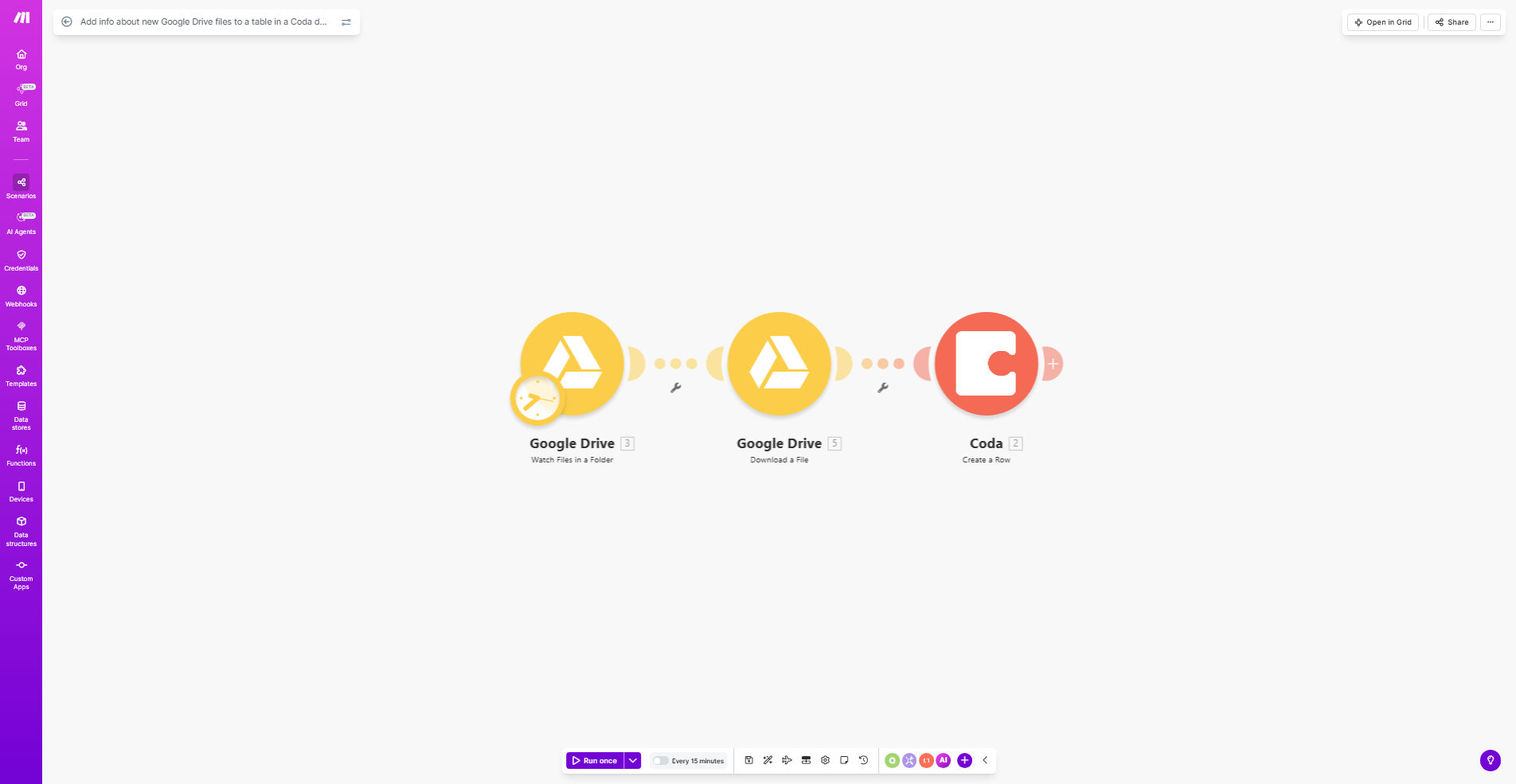
Google Drive to Coda automation workflow interface

What This Workflow Does

This automation solves the common problem of losing track of files added to shared Google Drive folders. Instead of manually updating documentation every time someone uploads a new file, this workflow automatically adds the file details to a specified table in your Coda doc.

The moment any team member adds a file to your monitored Google Drive folder, Make.com detects the change and populates your Coda doc with key file information including the file name, creation date, owner, and direct link. This creates a searchable, organized record of all project files alongside your other documentation.

How It Works

1. Monitoring Google Drive for new files

The workflow continuously watches your specified Google Drive folder for new file additions using Make.com's Google Drive trigger. It detects uploads instantly without polling delays.

2. Extracting file metadata

For each new file, the workflow collects comprehensive metadata including the file name, type, size, creation date, last modified date, owner email, and sharing permissions.

3. Formatting data for Coda

The raw file data is transformed into a structured format that matches your Coda table columns, with proper date formatting and hyperlinks created for easy access.

4. Updating your Coda doc

Make.com authenticates with your Coda account and adds a new row to your specified table with all the file details. The connection uses Coda's API for reliable updates.

Who This Is For

This workflow is ideal for:

  • Project managers who need to track all project files in one place
  • Teams collaborating on shared Google Drive folders
  • Documentation specialists maintaining centralized knowledge bases
  • Businesses transitioning from manual file tracking to automated systems
  • Remote teams needing visibility into file updates across timezones

What You'll Need

  1. A Google Drive account with files to monitor
  2. A Coda account with a doc containing your target table
  3. Make.com account (free plan sufficient for basic usage)
  4. Editor access to the Google Drive folder
  5. Edit permissions on the Coda doc

Quick Setup Guide

  1. Click "Get This Workflow" to duplicate the template in Make.com
  2. Connect your Google Drive account and select the folder to monitor
  3. Connect your Coda account and specify the target doc and table
  4. Map the Google Drive fields to your Coda table columns
  5. Test with a new file upload to verify the connection
  6. Turn on the scenario to begin automatic tracking

Key Benefits

Save 5+ hours per month by eliminating manual file tracking and documentation updates. The automation handles this tedious work instantly.

Reduce errors by 90% compared to manual data entry. Automated transfers ensure metadata is always accurate and complete.

Improve team collaboration with real-time visibility into file additions. Team members always know what's available without checking Drive directly.

Create searchable archives of all project files with Coda's powerful filtering and sorting capabilities.

Maintain documentation consistency with standardized file records that include all relevant metadata.

Pro tip: Add a "Status" column in Coda and set up additional automations to notify team members when new files require review. This creates a complete file management system.

Frequently Asked Questions

Common questions about Google Drive to Coda automation and integration

Tracking Google Drive files in Coda creates a centralized documentation system that combines file metadata with project notes, task assignments, and other collaborative content. This eliminates the need to switch between multiple apps to find file information.

For example, a marketing team can see all campaign assets alongside their project briefs and deadlines. The connection between files and contextual information dramatically improves workflow efficiency.

You can track file names, creation dates, last modified dates, owner information, file types, sharing status, and direct links. The workflow can also extract custom metadata you've added to files in Google Drive.

The automation captures the full context of each file. For creative teams, this might include design versions. For legal teams, it could track document expiration dates alongside the files themselves.

The automation runs in real-time whenever a new file is added to your monitored Google Drive folder. Make.com instantly detects changes and updates your Coda doc without manual intervention.

This immediate synchronization means your documentation is always current. There's no polling delay like with some other automation tools - changes appear in Coda within seconds of the Drive update.

Yes, you can set up filters to only include specific file types, files from certain collaborators, or files matching naming patterns. This prevents your Coda doc from becoming cluttered with irrelevant files.

For instance, an accounting team might only track spreadsheet files from the finance department. The template includes examples of these filters, which you can customize for your needs.

  • Filter by file extension (.xlsx, .pdf, etc.)
  • Filter by collaborator email domains
  • Filter by filename prefixes or keywords

Automated file tracking saves hours of manual data entry, reduces human error in documentation, improves team visibility into file updates, and creates searchable archives of all project files.

A real-world example: A construction firm reduced project setup time by 40% by automatically tracking all blueprint revisions in their Coda project hub. Superintendents could instantly see which plans were current without calling the office.

The connection uses OAuth authentication and only accesses the specific folders you authorize. File contents aren't transferred - only metadata. You maintain full control over access permissions.

Security features include:

  • Encrypted API connections
  • Limited permission scopes
  • No file content transfer
  • Revocable access at any time

Yes, GrowwStacks specializes in building custom integrations between Google Drive and Coda tailored to your specific workflows. We can add advanced filtering, notifications, and connections to other tools in your stack.

Our automation consultants will analyze your current file management processes and design a solution that saves your team maximum time while meeting all your security and compliance requirements.

  • Custom field mappings
  • Multi-step approval workflows
  • Integration with your CRM or project tools
  • Advanced error handling and alerts

Need a Custom Google Drive Automation?

This free template is a starting point. Our team builds fully tailored automation systems for your specific business needs.