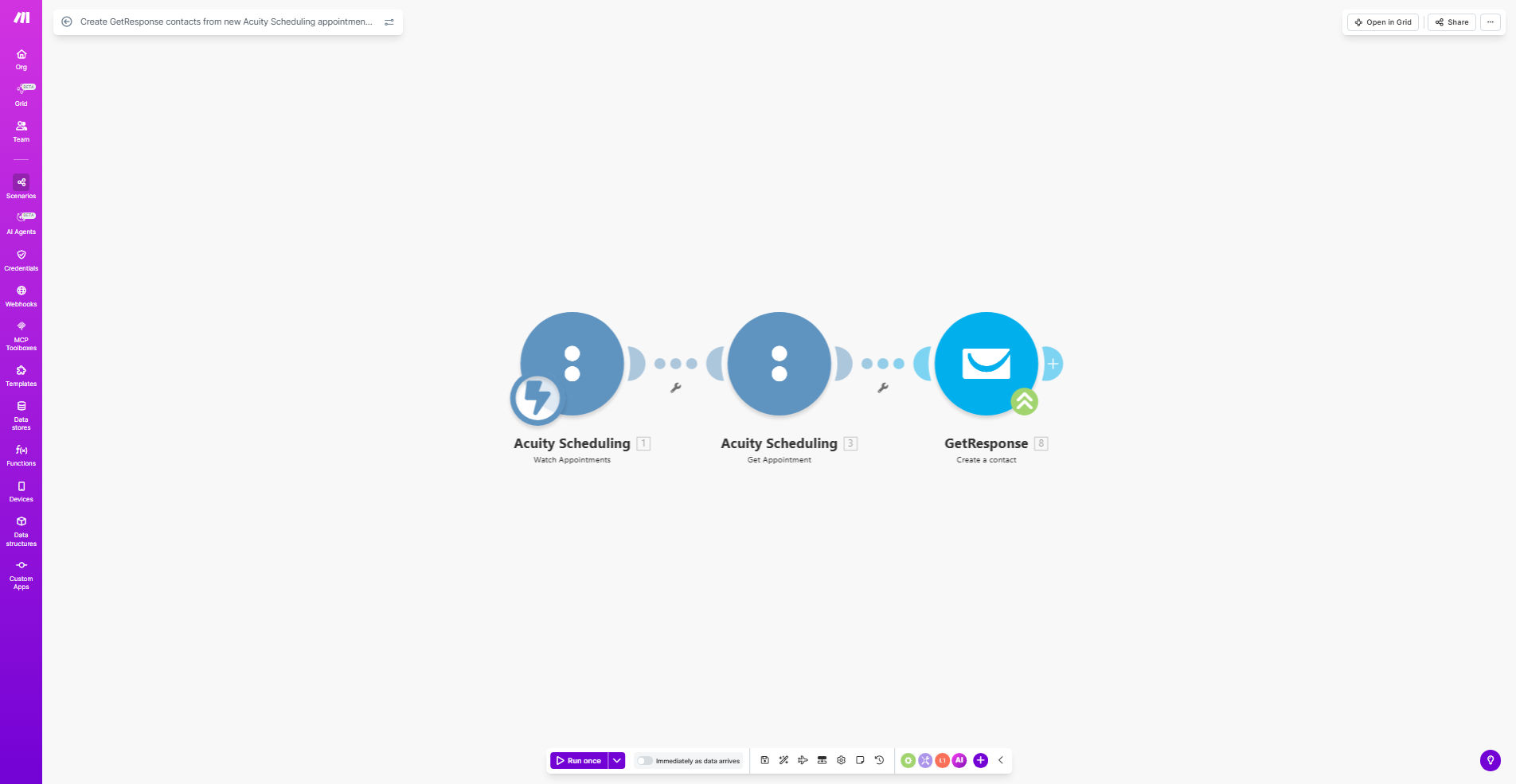
What This Workflow Does
This automation solves a common problem for service businesses using Acuity Scheduling: missed marketing opportunities when new clients book appointments. Without automation, staff must manually copy-paste client information from Acuity into GetResponse, wasting valuable time and often resulting in incomplete or delayed follow-ups.
The workflow automatically creates a new GetResponse contact whenever someone books an appointment in Acuity Scheduling. It captures all relevant client information including name, email, phone number, and appointment details, ensuring your marketing system stays perfectly synced with your booking system.
How It Works
1. New appointment trigger
The workflow monitors your Acuity Scheduling account for new appointments. As soon as a client books a session, the automation is triggered.
2. Data extraction
Key client information is pulled from the Acuity appointment, including contact details and any custom form fields you've set up in your scheduling system.
3. Contact creation
The workflow checks if the client already exists in GetResponse. If not, it creates a new contact with all relevant details. Existing contacts are updated with the latest appointment information.
4. List assignment
The new contact is automatically added to your specified GetResponse list and tagged based on the type of appointment booked for targeted follow-up.
Who This Is For
This automation is ideal for:
- Coaches and consultants using Acuity for client bookings
- Health and wellness practitioners with recurring appointments
- Service businesses that want to automate their email marketing
- Teams looking to eliminate manual data entry between systems
- Marketers who want to trigger campaigns based on appointment types
What You'll Need
- An active Acuity Scheduling account
- A GetResponse account with API access enabled
- A Make.com account (free plan works for basic usage)
- Your Acuity API credentials
- Your GetResponse API key
Quick Setup Guide
- Clone the template in your Make.com account
- Connect your Acuity Scheduling account via API
- Connect your GetResponse account via API
- Specify which GetResponse list to add new contacts to
- Test with a new appointment booking
- Activate the scenario for continuous automation
Pro tip: Set up a welcome email sequence in GetResponse that triggers when new contacts are added. This can include appointment reminders, preparation instructions, and service information.
Key Benefits
Save 3-5 hours weekly by eliminating manual contact imports between systems. Staff can focus on client service instead of data entry.
Improve marketing conversion by ensuring 100% of booking clients enter your email funnel immediately, rather than waiting for manual processing.
Reduce no-shows by triggering timely automated reminders and follow-ups based on the exact appointment details.
Enhance personalization with appointment-specific email content that references the exact service booked.
Maintain data accuracy by eliminating human error in contact information transfer between systems.