Make.com Gmail Pipefy Email Automation Email automation

Create Pipefy cards from new labeled emails in Gmail

Automatically convert important emails into trackable tasks your Pipefy boards

Get This Workflow → Make.com · Email automation · Free Template
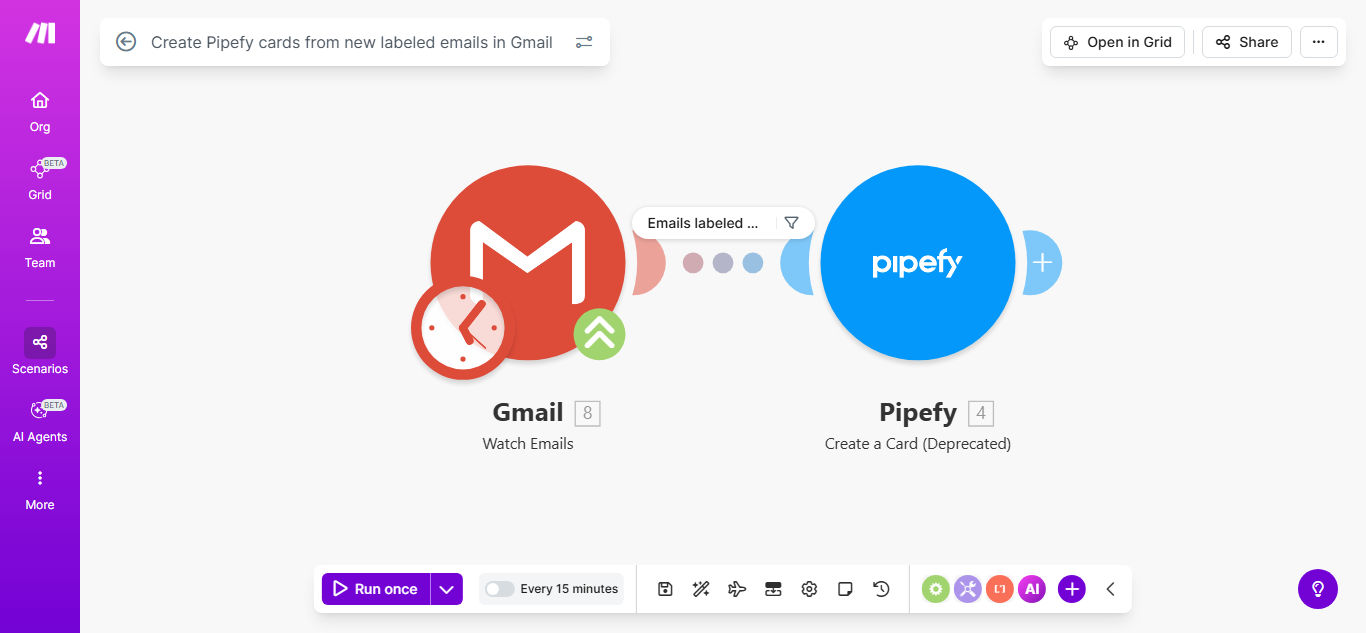
Gmail to Pipefy automation workflow diagram

What This Workflow Does

This automation solves the common problem of important client requests or support issues getting lost in email inboxes. When team members label specific emails in Gmail, workflow automatically creates corresponding cards in your Pipefy boards, turning unstructured email communication into properly tracked work items.

The solution eliminates manual copying and pasting between systems, reducing human error and saving 10-15 minutes per task. It ensures critical email content becomes immediately visible to your entire team in Pipefy boards, with all relevant context preserved.

How It Works

1. Trigger: New labeled email detection

Make.com monitors your Gmail account for new emails tagged with your specified label. This could be "To Process" or "Client Request" depending on your workflow.

2. Email content extraction

The system extracts key email elements including the subject line, sender information, body content, and any attachments.

3. Pipefy card creation

The workflow creates a new card in your designated Pipefy board, populating fields with the extracted email data. You can be configured to map specific email elements to particular Pipefy card fields.

4. Optional notifications

The system can notify team members via Slack or email when new cards are created from important emails, ensuring prompt attention.

Who This Is For

This automation is ideal for:

  • Support teams converting customer emails into tracked support tickets
  • Agency teams turning client emails into project tasks
  • Operations teams managing requests from internal stakeholders
  • Any team using Pipefy that receives work requests via email

What You'll Need

  1. A Gmail account with admin access
  2. A Pipefy account with board set up
  3. Make.com account (free tier works)
  4. A specific Gmail label to trigger the automation

Quick Setup Guide

  1. Connect your Gmail account to Make.com using OAuth
  2. Connect your Pipefy account
  3. Specify which Gmail label should trigger the workflow
  4. Map email fields to Pipefy card fields
  5. Test with a sample email
  6. Activate the automation

Key Benefits

Eliminate manual data entry - No more copying information from emails to Pipefy, saving hours per week.

Reduce missed requests - Important emails automatically become tracked items before they get lost in inboxes.

Standardize processes - Ensures all email requests are processed consistently according to your workflow.

Improve response times - Team members get notified immediately when new requests come in.

Maintain full context - All email content including attachments is preserved in the Pipefy card.

Frequently Asked Questions

Common questions about Gmail to Pipefy automation and integration

Automating Gmail to Pipefy transfers email content directly into your project management system, eliminating manual entry. This reduces human error and saves 10-15 minutes per task by removing the copy-paste process.

For example, a support team handling 50 email requests daily could save over 8 hours per week just on data transfer time, allowing them to focus on resolving issues rather than administrative tasks.

The main benefit is creating actionable items directly from emails without switching between applications. This ensures important client requests or support issues don't get lost in inboxes and are immediately tracked in your workflow system.

This creates a seamless handoff between communication (email) and execution (Pipefy), particularly valuable for teams managing multiple concurrent projects or client accounts.

Service businesses, agencies, and support teams benefit most as they frequently receive task requests via email. The automation helps convert unstructured email requests into structured work items with proper tracking and assignments.

Marketing agencies, for instance, can automatically turn client feedback emails into actionable tasks for their content production boards, ensuring nothing falls through the cracks.

Make.com uses OAuth2 authentication for both Gmail and Pipefy connections, ensuring enterprise-grade security. Data transfer between services occurs through encrypted API calls without storing sensitive data.

The automation only accesses email data you specifically configure it to access, and permissions can be revoked at any time through your Google account settings.

Yes, the workflow can be configured to transfer specific email elements like subject lines, sender information, attachments, or only selected portions of the email body to Pipefy cards.

You can set up different mappings for different email labels, creating specialized workflows for various types requests coming into your inbox.

The automation can be configured to either create duplicate Pipefy cards or check if cards already exist for that email thread, preventing duplication based on your preference.

Most teams choose the duplication prevention option, which checks the email subject or message ID before creating new cards, maintaining clean workflow.

Yes, GrowwStacks specializes in building custom connections between email systems and project management tools. Our team can design workflows that match your specific business processes and Pipefy board structures.

We've helped dozens of teams create tailored automations that handle complex scenarios like priority routing based on sender, automatic assignment rules, and integration with other tools your existing CRM systems.

  • Custom field mapping your Pipefy boards
  • Multi-step approval workflows for different email types
  • Advanced duplication checking

Need a Custom Gmail to Pipefy Automation?

This free template is a starting point. Our team builds fully tailored automation systems for your specific business needs.