Make.com Pipefy Google Calendar Automation Project Management

Create Google Calendar Events from New Pipefy Cards

Automatically sync your project deadlines with your calendar in real-time

Get This Workflow → Make.com · Pipefy · Free Template
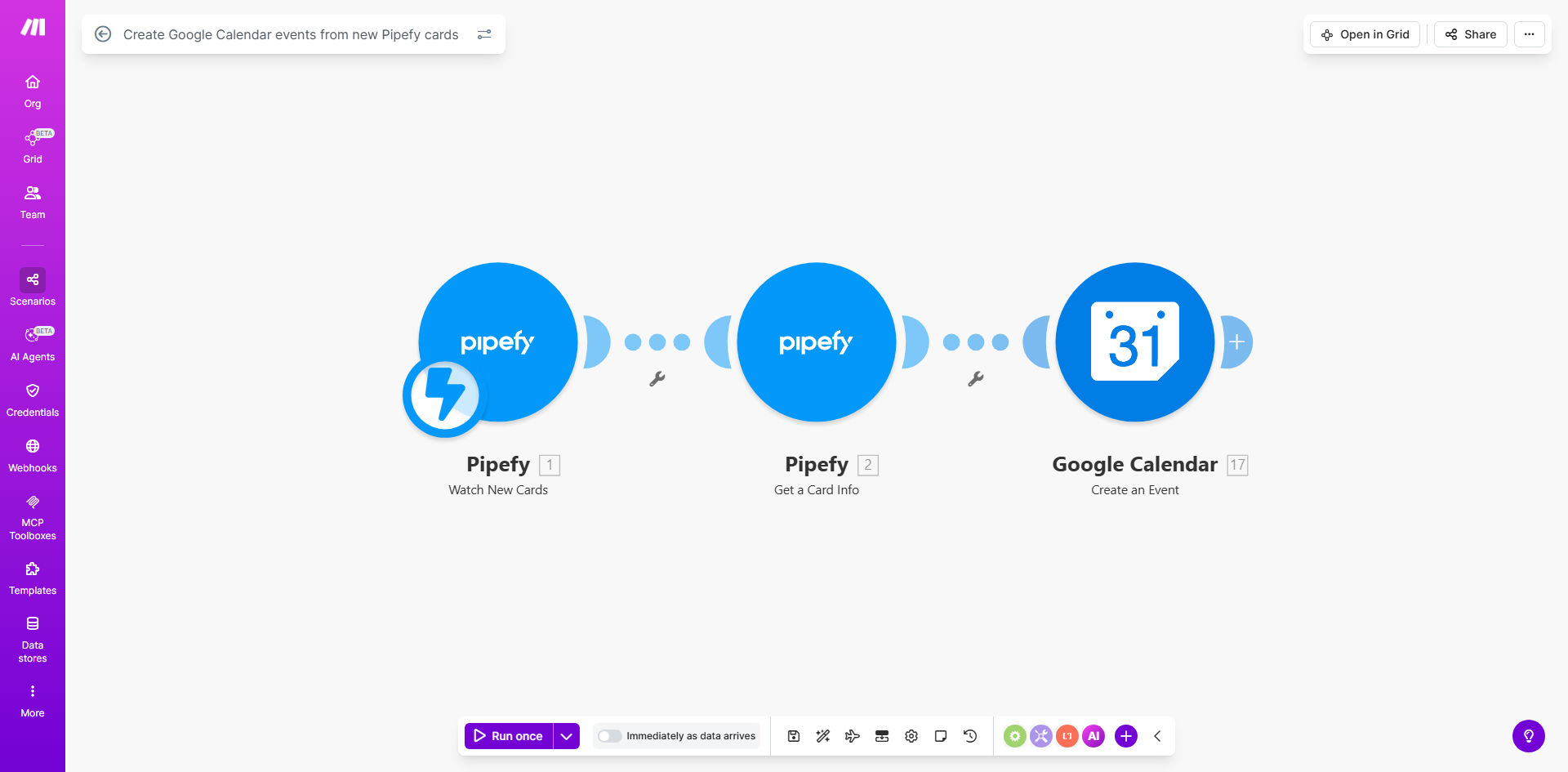
Pipefy to Google Calendar automation workflow diagram

What This Workflow Does

This automation bridges the gap between your project management in Pipefy and your scheduling in Google Calendar. Every time a new card is created in your Pipefy board, the workflow automatically generates a corresponding event in your Google Calendar with all the relevant details.

For teams juggling multiple projects and deadlines, this eliminates the manual work of transferring due dates and task details between systems. The automation ensures your calendar always reflects your current project commitments, reducing scheduling conflicts and missed deadlines.

How It Works

1. Pipefy triggers the workflow

The workflow activates whenever a new card is created in your specified Pipefy board. Make.com detects the new card and collects all its details including title, description, due date, and custom fields.

2. Data is formatted for Google Calendar

The workflow maps Pipefy card fields to Google Calendar event properties. The card title becomes the event name, the due date becomes the event date/time, and additional details populate the event description.

3. Event is created in Google Calendar

Make.com connects to your Google Calendar account and creates a new event with all the mapped details. You can specify which calendar the events should be added to during setup.

Pro tip: Add conditional logic to only create calendar events for cards with specific labels or in certain phases of your Pipefy pipeline.

Who This Is For

This workflow is ideal for:

  • Project managers who need to track deadlines across multiple tools
  • Teams using Pipefy for task management but Google Calendar for scheduling
  • Companies that want to improve visibility of project deadlines across departments
  • Remote teams needing better synchronization between task assignments and availability

What You'll Need

  1. A Make.com account (free plan works for basic usage)
  2. Admin access to a Pipefy board
  3. Google Calendar account with create/edit permissions
  4. Basic understanding of Pipefy card structure

Quick Setup Guide

  1. Click "Get This Workflow" to open the template in Make.com
  2. Connect your Pipefy account and select the board to monitor
  3. Connect your Google Calendar account and choose the target calendar
  4. Map Pipefy card fields to Google Calendar event properties
  5. Test the workflow with a sample card
  6. Activate the scenario to start automatic syncing

Key Benefits

Saves 2-3 hours per week by eliminating manual calendar entry for every new Pipefy card. The automation handles the transfer instantly.

Reduces scheduling conflicts by ensuring all project deadlines automatically appear in your calendar alongside other commitments.

Improves team alignment when using shared calendars, as everyone sees the same project deadlines without extra communication.

Maintains accuracy by directly transferring data between systems, eliminating human error in manual entry.

Frequently Asked Questions

Common questions about Pipefy-Google Calendar automation and integration

Connecting Pipefy with Google Calendar ensures all your project deadlines and tasks automatically appear in your schedule. This eliminates manual calendar entry, reduces scheduling conflicts, and keeps your team aligned on deadlines.

For example, marketing teams can see content deadlines alongside campaign meetings, while development teams can track sprint tasks with their daily standups.

Typically the card title becomes the event name, due dates become calendar dates, and card descriptions become event details. You can customize which fields map to calendar properties in the workflow setup.

The workflow can also include custom Pipefy fields like priority level, assigned team member, or project phase as part of the calendar event description for additional context.

Yes, with advanced automation you can route cards from different Pipefy boards to separate Google Calendars. This helps organize events by department, project type, or priority level.

For instance, HR onboarding tasks could go to an HR team calendar while product development tasks sync to an engineering calendar, all from different Pipefy boards.

The automation runs in near real-time, typically creating calendar events within seconds of card creation in Pipefy. The exact timing depends on your Make.com plan and workflow complexity.

For most business needs, the delay is negligible - cards appear in calendars fast enough to prevent any scheduling conflicts or missed deadlines.

With proper configuration, the workflow can update existing calendar events when card details change. This requires additional automation steps to match and modify existing events.

For complete two-way sync, you would need a more advanced workflow that also detects changes in Google Calendar and updates Pipefy accordingly.

Yes, if you create events in a shared Google Calendar, all members with access to that calendar will see the Pipefy-generated events according to their permissions.

This visibility helps distributed teams stay aligned without requiring status meetings or manual updates about deadline changes.

Absolutely! Our team specializes in building tailored Pipefy-Google Calendar integrations that match your specific workflow requirements, including custom field mapping, conditional routing, and multi-calendar sync.

We can create solutions that handle complex scenarios like syncing only specific card types, adding buffer times before deadlines, or integrating with additional apps like Slack for notifications.

  • Custom field mapping for your unique Pipefy setup
  • Multi-calendar routing logic
  • Advanced error handling and notifications

Need a Custom Pipefy-Calendar Automation?

This free template is a starting point. Our team builds fully tailored automation systems for your specific business needs.