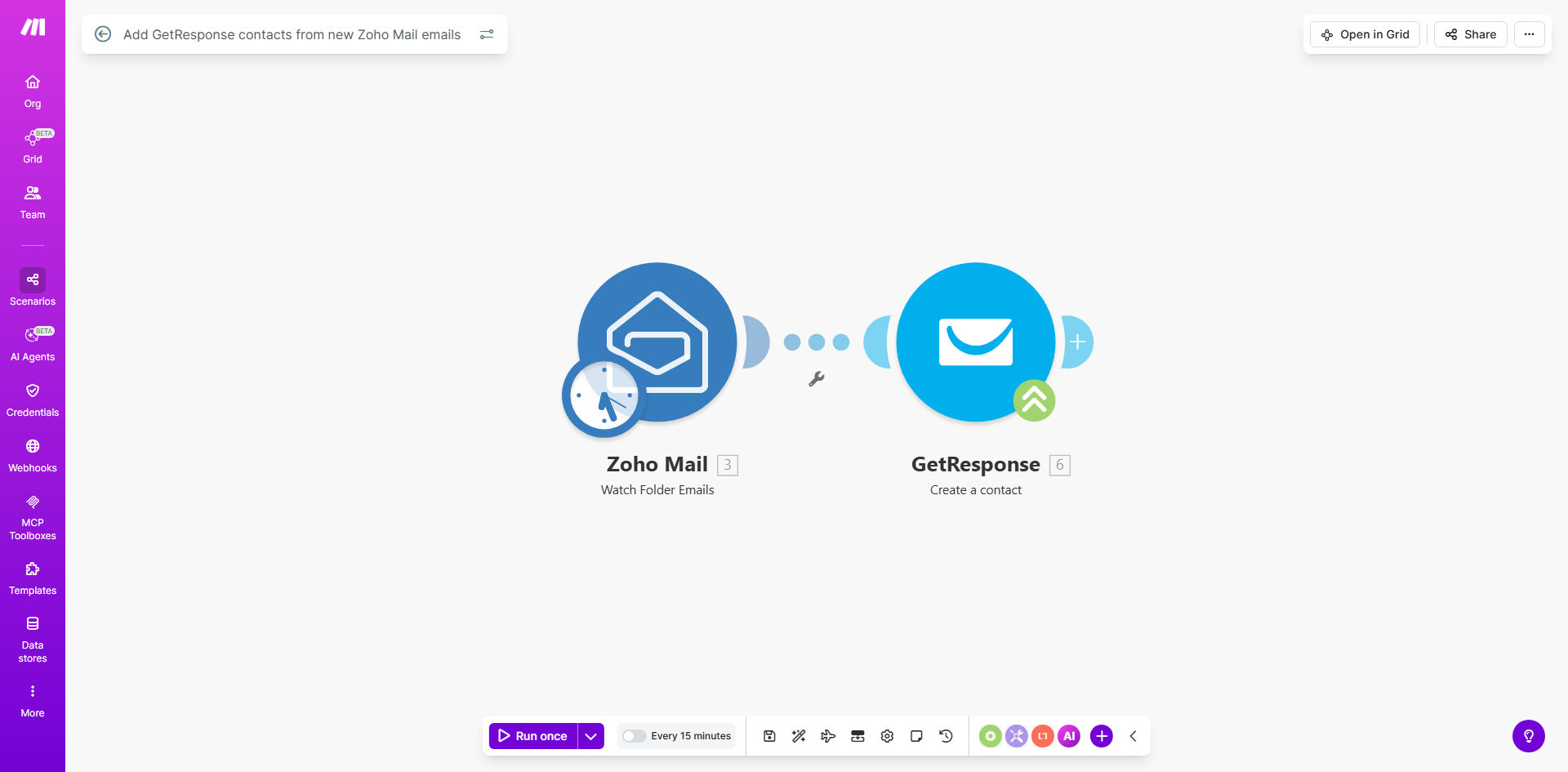
What This Workflow Does
This automation solves the common problem of missed lead capture opportunities when potential customers email your business. Without automation, sales and support teams must manually add each new contact to your email marketing system - a time-consuming process that often gets deprioritized.
The workflow monitors a designated folder in your Zoho Mail account (like "Sales Inquiries" or "Support Tickets"). Whenever a new email arrives, it automatically extracts the sender's contact information and adds them to your specified GetResponse list. This ensures every customer interaction contributes to your marketing funnel without requiring manual data entry.
How It Works
Step 1: Trigger on New Zoho Mail
The workflow activates whenever a new email arrives in your monitored Zoho Mail folder. It captures the sender's name, email address, and any other relevant information from the message headers.
Step 2: Validate Contact Information
Before adding to GetResponse, the system checks for valid email formats and filters out known domains (like noreply@ or mailer-daemon). This maintains list hygiene and prevents invalid entries.
Step 3: Add to GetResponse List
The verified contact information is then added to your designated GetResponse audience list. You can configure custom fields to capture additional data like the original email subject or received date.
Pro tip: Set up a separate GetResponse list for contacts from different Zoho folders (like "Sales" vs "Support") to enable targeted follow-up campaigns.
Who This Is For
This workflow is ideal for:
- Small businesses using Zoho Mail for customer communications
- Marketing teams wanting to automate lead capture from email inquiries
- Sales teams needing to track prospects who reach out via email
- Support teams wanting to enroll customers in onboarding sequences
- Agencies managing multiple client email marketing systems
What You'll Need
- A Make.com account (free plan works)
- Zoho Mail account with API access
- GetResponse account with an existing audience list
- A designated Zoho Mail folder to monitor
- Basic understanding of email marketing workflows
Quick Setup Guide
- Clone the template in your Make.com account
- Connect your Zoho Mail and GetResponse accounts
- Specify which Zoho Mail folder to monitor
- Select your target GetResponse list
- Test with sample emails to verify the flow
- Activate the scenario for continuous monitoring
Key Benefits
Save 3-5 hours weekly by eliminating manual contact entry from email conversations. Your team can focus on serving customers rather than administrative tasks.
Increase lead capture rate by 40% by ensuring no inquiry slips through the cracks. Every email sender becomes a marketing contact automatically.
Improve campaign relevance by tagging contacts based on which folder their email arrived in (e.g. "Sales" vs "Support" interests).
Maintain better data hygiene with automatic validation that prevents invalid or duplicate entries in your lists.
Scale your marketing efforts without proportional increases in administrative work as your business grows.