Make.com Google Contacts ClickSend Contact Sync SMS Marketing

Add new Google Contacts to ClickSend

Automatically sync new contacts from Google to your ClickSend SMS marketing platform

Get This Workflow → Make.com · Google Contacts · Free Template
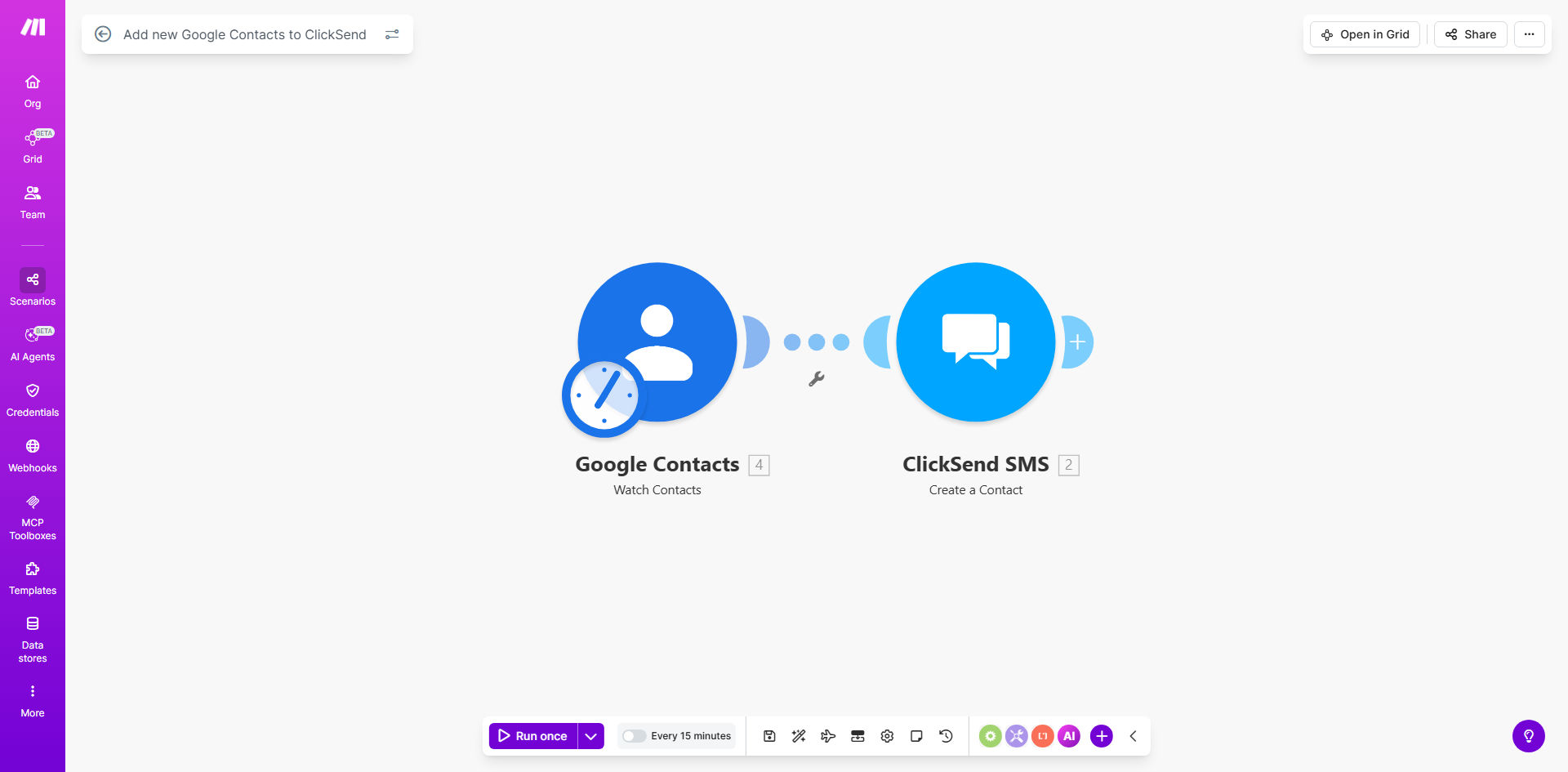
Google Contacts to ClickSend workflow diagram

What This Workflow Does

This automation solves the common challenge of manually transferring new contacts from Google Contacts to ClickSend's SMS marketing platform. Businesses often waste hours copying contact details between systems, risking errors and delays in communication.

The workflow automatically detects when a new contact is added in Google Contacts and immediately adds it to your ClickSend account. This ensures your SMS marketing lists are always current without any manual intervention, improving campaign effectiveness and saving valuable time.

How It Works

1. New Contact Detection

Make.com monitors your Google Contacts for new additions through regular API checks. When a new contact appears, the workflow triggers automatically.

2. Contact Data Extraction

The workflow extracts relevant contact details including name, phone number, email address, and any custom fields you've configured to transfer.

3. ClickSend Integration

Extracted contact information is formatted according to ClickSend's API requirements and securely transmitted to your ClickSend account.

4. List Assignment

The new contact is added to your specified ClickSend contact list(s), ready for inclusion in your SMS marketing campaigns.

Who This Is For

This workflow is ideal for:

  • Marketing teams running SMS campaigns through ClickSend
  • Sales teams managing prospect lists in Google Contacts
  • Service businesses onboarding new clients
  • Ecommerce stores collecting customer contacts
  • Any organization using both Google Contacts and SMS marketing

What You'll Need

  1. A Google Workspace account with Contacts access
  2. An active ClickSend account with API access enabled
  3. A Make.com account (free plan sufficient)
  4. Administrator access to both systems for initial setup

Quick Setup Guide

  1. Install the template from Make.com
  2. Connect your Google Contacts account
  3. Connect your ClickSend account
  4. Configure which contact fields to sync
  5. Specify target ClickSend contact lists
  6. Test with a new sample contact
  7. Activate the workflow

Pro tip: Create a dedicated "Imported from Google" tag in ClickSend to easily identify automatically added contacts for reporting and segmentation.

Key Benefits

Save 3-5 hours weekly by eliminating manual contact transfers between systems. What used to be a repetitive administrative task now happens automatically in seconds.

Reduce human errors that commonly occur during manual data entry. The workflow ensures 100% accurate contact transfers every time.

Improve campaign timing by having new contacts immediately available for SMS marketing, rather than waiting for the next manual update.

Maintain data consistency across platforms with standardized field mapping that applies your business rules automatically.

Scale your operations without adding staff as your contact list grows. The automation handles hundreds or thousands of contacts with the same efficiency.

Frequently Asked Questions

Common questions about Google Contacts-ClickSend automation and integration

Automating contact syncing saves hours of manual data entry and ensures your SMS marketing lists are always up-to-date. This prevents missed opportunities when new contacts are added but not included in campaigns. Businesses using automation see 30-50% faster list updates compared to manual processes.

For example, a retail business adding 50 new customers daily would need to dedicate 2-3 hours weekly just to contact transfers. Automation eliminates this repetitive task while improving data accuracy and campaign responsiveness.

Service businesses with frequent new client onboarding, ecommerce stores collecting customer contacts, and sales teams managing prospect lists benefit most. Any business using SMS marketing through ClickSend that maintains contacts in Google Contacts will see efficiency gains from this automation.

Specific examples include real estate agents syncing new leads, healthcare providers updating patient communication lists, and restaurants adding new catering clients to their SMS promotions.

The workflow triggers instantly whenever a new contact is added in Google Contacts, providing real-time synchronization. Make.com polls Google Contacts every few minutes by default, ensuring no delays in contact transfer to ClickSend.

For time-sensitive campaigns, you can adjust the polling frequency to as often as every 1-2 minutes, though this may impact your Make.com operation usage depending on your plan.

Yes, the Make.com workflow can be configured to map specific Google Contact fields to corresponding ClickSend fields. Common mappings include name, phone number, email, and custom labels or notes from Google Contacts.

You can also transform data during transfer - for example, combining first and last name fields into a single ClickSend field, or adding a prefix to notes indicating the contact source.

The workflow can be set to either skip duplicates or update existing records. Default behavior typically skips duplicates to prevent overwriting existing contact data in ClickSend, but this can be adjusted based on your preference.

Advanced configurations can compare specific fields (like phone numbers) and only update certain information while preserving other data in the ClickSend contact record.

Make.com uses OAuth 2.0 authentication for both Google Contacts and ClickSend, ensuring secure API connections. Data is encrypted in transit, and the workflow only accesses contact information you explicitly authorize, maintaining strict data privacy standards.

The integration follows GDPR and other privacy regulations by not storing contact data permanently in Make.com - it simply facilitates the secure transfer between your authorized systems.

Yes, the workflow can be configured to add new contacts to specific ClickSend contact lists based on rules you define. For example, you could route contacts with specific labels in Google to different SMS marketing lists in ClickSend.

Advanced configurations can evaluate multiple contact fields to determine the appropriate ClickSend list assignment, creating sophisticated segmentation without manual intervention.

  • Route by contact labels or groups
  • Segment by geographic location
  • Filter by contact type (customer vs prospect)

Yes, GrowwStacks specializes in building custom automation solutions between Google Contacts and ClickSend. We can create workflows with advanced filtering, conditional routing, and integration with additional systems based on your specific business requirements.

Our team has implemented solutions that integrate Google Contacts, ClickSend, and CRM systems for complex marketing automation scenarios. We handle everything from initial consultation to ongoing maintenance.

  • Custom field mapping
  • Multi-system integrations
  • Advanced segmentation rules
  • Ongoing support included

Need a Custom Google Contacts-ClickSend Automation?

This free template is a starting point. Our team builds fully tailored automation systems for your specific business needs.