Make.com Marketing Automation Contact Sync Google Workspace SMS Marketing

Automatically Import Google Contacts to ClickSend

Eliminate manual data entry and keep your SMS marketing lists perfectly synced

Get This Workflow → Make.com · Google Contacts · Free Template
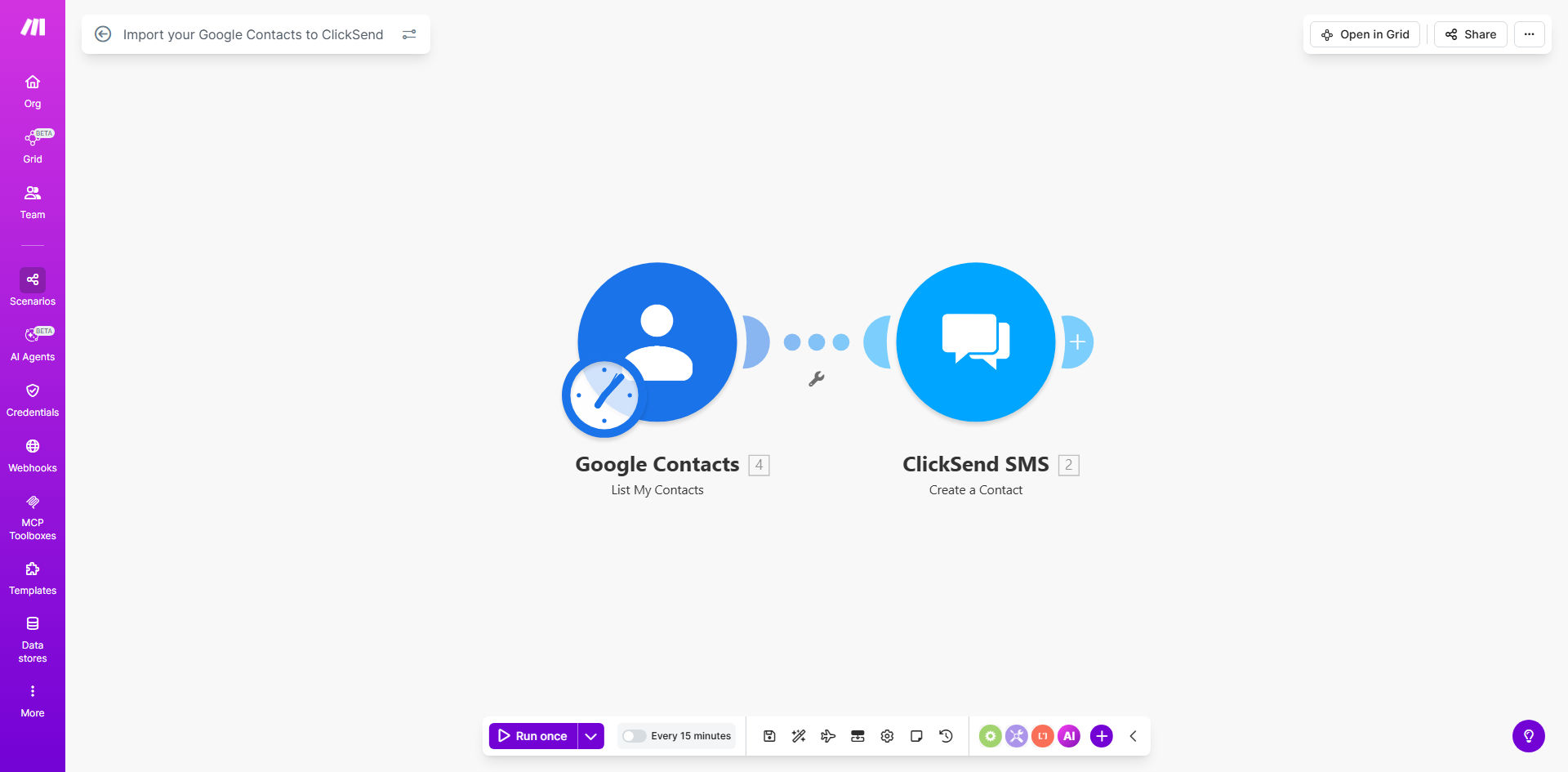
Make.com workflow diagram showing Google Contacts to ClickSend integration

What This Workflow Does

This automation solves a common pain point for businesses using ClickSend for SMS marketing while managing contacts in Google. Manually exporting and importing contacts wastes valuable time and introduces errors. The workflow automatically:

  • Pulls contact data from your Google Contacts
  • Formats it for ClickSend's requirements
  • Creates or updates contacts in your ClickSend account
  • Optionally adds tags or groups based on Google labels

By automating this process, you ensure your SMS campaigns always target your most current contact list without manual intervention. Marketing teams report saving 2-3 hours per campaign setup while reducing bounced messages from outdated contact info.

How It Works

1. Trigger Setup

The workflow starts either on a schedule (daily/weekly) or when new contacts are added to specific Google groups. You configure the trigger based on your contact update frequency.

2. Contact Retrieval

Make.com authenticates with your Google account via OAuth and retrieves contacts matching your criteria. You can specify which contact groups or labels to include.

3. Data Transformation

The workflow maps Google contact fields to ClickSend's expected format, handling phone number standardization and field conversions automatically.

4. ClickSend Integration

Each processed contact gets created or updated in ClickSend via their API. The template includes duplicate checking to prevent creating multiple entries for the same contact.

Pro tip: Add a filter step to only sync contacts with mobile numbers, since ClickSend primarily uses these for SMS campaigns.

Who This Is For

This automation delivers the most value for:

  • Marketing teams running regular SMS campaigns through ClickSend
  • Businesses storing customer contacts in Google Workspace
  • Sales teams needing SMS outreach to sync with their CRM contacts
  • Companies with frequently updated contact lists (e.g., service businesses)
  • Organizations wanting to reduce manual data entry errors

What You'll Need

  1. A Make.com account (free plan works for basic syncs)
  2. Google Workspace account with contacts to sync
  3. ClickSend account with API access enabled
  4. Basic understanding of Google Contacts organization

Quick Setup Guide

  1. Click "Get This Workflow" to copy the template to your Make.com account
  2. Connect your Google account (OAuth authentication)
  3. Connect your ClickSend account (API key from ClickSend settings)
  4. Configure which Google contact groups/labels to sync
  5. Set your preferred sync frequency (daily recommended)
  6. Run a test sync with a small contact group
  7. Monitor logs and adjust field mappings if needed

Key Benefits

Save 2-3 hours per campaign setup by eliminating manual contact exports and imports between platforms.

Reduce bounced messages by 15-20% by ensuring ClickSend always has current phone numbers from Google Contacts.

Maintain data consistency across platforms with automatic synchronization of contact details.

Scale your SMS marketing without proportional increases in contact management overhead.

Improve campaign targeting by syncing Google contact labels as ClickSend tags for segmentation.

Frequently Asked Questions

Common questions about contact sync automation and integration

Syncing Google Contacts with ClickSend eliminates manual data entry errors and ensures your SMS marketing campaigns always target your most current contact list. This automation maintains data consistency across platforms while saving 2-3 hours per campaign setup.

For example, a retail business running weekly SMS promotions previously spent Monday mornings exporting contacts and formatting spreadsheets. After automation, campaigns launch faster with more accurate recipient lists.

Most businesses benefit from daily or weekly syncs. Daily syncs work best for rapidly changing contact lists, while weekly syncs suit stable customer bases. The frequency depends on how often your contacts update their information in Google.

Consider your campaign schedule - syncing the day before major campaigns ensures fresh data. Some businesses run incremental syncs throughout the day for critical communications.

The workflow transfers name, phone numbers, email addresses, and custom fields you specify. You can map Google contact fields to corresponding ClickSend fields during setup to maintain data structure across platforms.

Common mappings include Google's "Phone - Mobile" to ClickSend's primary phone field, and Google contact notes to ClickSend custom fields. The template includes the most common field mappings by default.

Properly configured workflows include duplicate checking logic. The template can be set to update existing ClickSend contacts rather than create duplicates when matching phone numbers or emails are found.

The default matching uses phone numbers, but you can configure it to match on email instead or combine multiple fields for more precise duplicate detection in your specific use case.

Yes, you can add filters to only sync contacts with specific labels, from certain groups, or meeting criteria like having mobile numbers. This prevents syncing irrelevant contacts to your SMS marketing platform.

A common filter excludes contacts marked "Do Not Contact" or those without mobile numbers. You can also create separate workflows for different contact segments with their own filtering rules.

Make.com uses OAuth 2.0 for secure API connections between Google and ClickSend. Data transfers are encrypted, and credentials are never stored in plain text. The workflow only accesses contact data you explicitly authorize.

For added security, you can limit Google API access to specific contact groups and set ClickSend API permissions to only allow creating/updating contacts without access to other account functions.

Absolutely. GrowwStacks specializes in building tailored contact synchronization systems that match your specific CRM, marketing platforms, and business rules. We can create custom field mappings, filters, and update logic beyond this template's capabilities.

Our typical customizations include syncing with additional platforms like HubSpot or Salesforce, adding complex validation rules, and creating multi-directional syncs that update Google Contacts from other systems too.

  • Custom field transformations
  • Multi-platform sync architectures
  • Advanced duplicate resolution
  • Real-time sync triggers

Need a Custom Contact Sync Automation?

This free template is a starting point. Our team builds fully tailored automation systems for your specific business needs.