Make.com Help Scout Trello Customer Support Automation

Create Trello Cards from Help Scout Conversations Assigned to a Specific User

Automatically convert assigned customer conversations into actionable Trello cards for better task management

Get This Workflow → Make.com · Help Scout · Free Template
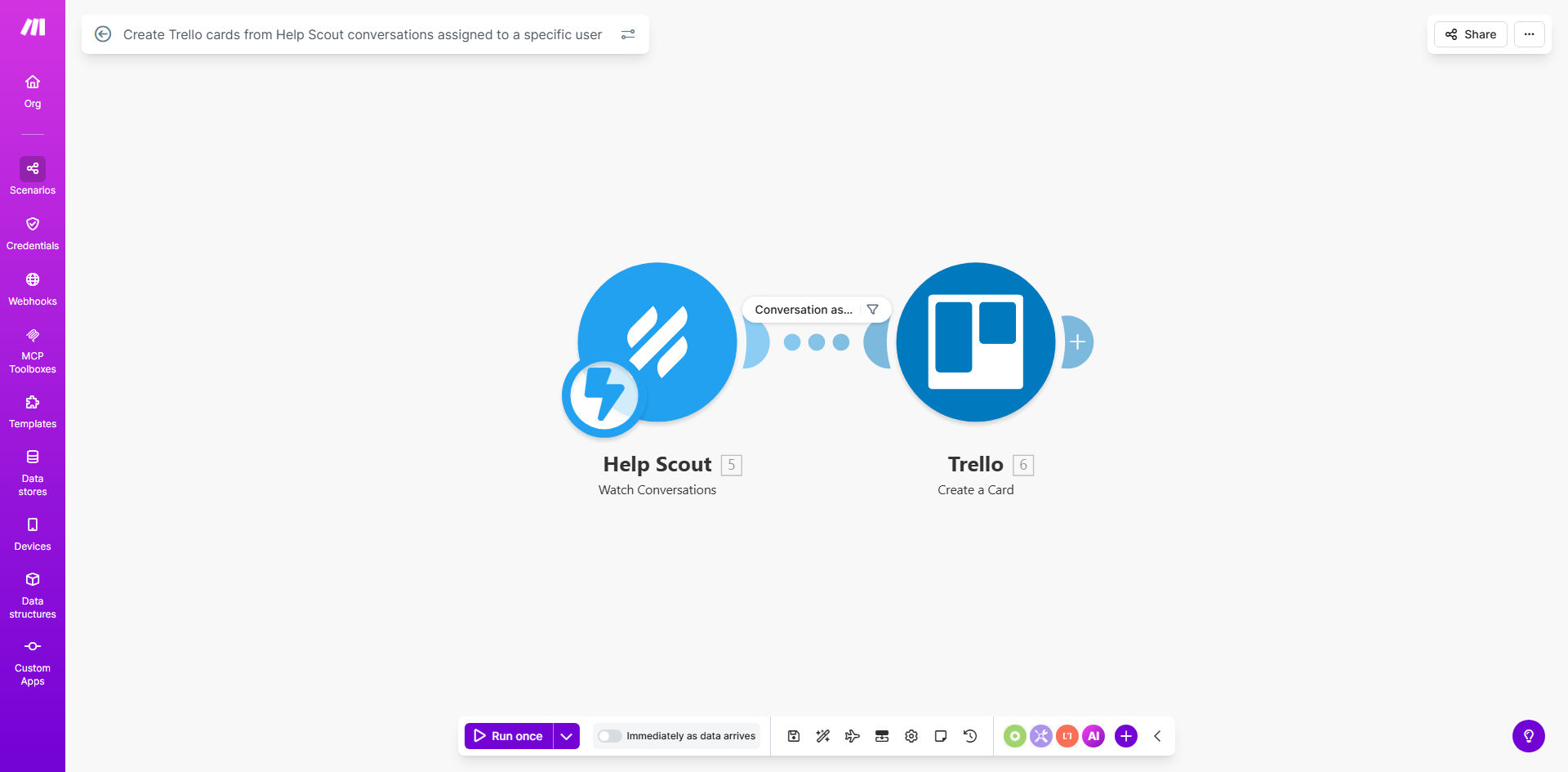
Visualization of Help Scout conversations being converted to Trello cards

What This Workflow Does

This automation bridges the gap between Help Scout (your customer support inbox) and Trello (your task management system). Whenever a conversation is assigned to a specific team member in Help Scout, the workflow automatically creates a corresponding card in your designated Trello board.

The solution eliminates manual data transfer between systems, reducing errors and saving valuable time for your support team. Each Trello card contains relevant conversation details, creating a visual workflow that helps teams prioritize and track support tickets more effectively.

How It Works

1. Trigger: New assignment in Help Scout

The workflow monitors Help Scout for conversations assigned to your specified team member. This could be your support lead, technical specialist, or any role that needs task-based follow-up.

2. Data extraction

Key details are pulled from the Help Scout conversation including customer name, subject line, tags, and any custom fields you've configured. The system can also capture conversation excerpts or important notes.

3. Card creation in Trello

The workflow creates a new card in your selected Trello board with all extracted information. You can customize which fields appear on the card and how they're formatted.

Pro tip: Add Trello labels based on Help Scout tags to automatically categorize cards by priority, ticket type, or department.

Who This Is For

This workflow is ideal for:

  • Support teams using Help Scout who need better task visibility
  • Businesses transitioning conversations to specialists for resolution
  • Teams that collaborate across departments on customer issues
  • Managers who want to monitor workload distribution
  • Companies implementing standardized support processes

What You'll Need

  1. A Help Scout account with admin or API access
  2. A Trello account with create card permissions
  3. A Make.com account (free plan available)
  4. The email address of the Help Scout user you want to monitor
  5. The ID of your destination Trello board

Quick Setup Guide

  1. Connect your Help Scout account in Make.com
  2. Specify the user email to monitor for assignments
  3. Connect your Trello account and select the destination board
  4. Map Help Scout fields to Trello card properties
  5. Test with sample assignments to verify the flow
  6. Activate the automation

Key Benefits

Save 5-10 minutes per ticket by eliminating manual card creation. Multiply this by hundreds of conversations for significant time savings.

Reduce missed assignments with automatic conversion of conversations into trackable tasks.

Improve collaboration by bringing support conversations into Trello where teams can comment, assign, and track progress.

Maintain context with all relevant conversation details automatically transferred to each card.

Scale your support with consistent processes that don't rely on individual team members' organizational habits.

Frequently Asked Questions

Common questions about Help Scout and Trello automation

Connecting Help Scout with Trello creates a visual workflow for tracking customer conversations. When conversations are assigned to specific team members, they automatically become Trello cards with all relevant details. This helps teams manage support tickets more efficiently, prioritize tasks, and maintain visibility across departments.

For example, a technical support ticket assigned to your lead developer would instantly appear on your engineering board with all context preserved, eliminating the need for manual forwarding or status updates.

The automation transfers conversation details like subject line, customer name, assigned team member, and any tags or custom fields you specify. You can configure exactly which information appears on the Trello card, including adding conversation excerpts or links back to the original Help Scout ticket.

Common configurations include transferring priority levels as Trello labels, due dates based on SLAs, and custom fields like "Product Version" or "Account Type" that help with ticket routing.

This automation eliminates manual data entry between systems, reducing errors and saving 5-10 minutes per ticket. Support teams can focus on resolving issues rather than administrative tasks. Managers gain better visibility into workload distribution, and teams can use Trello's collaboration features to discuss complex cases.

A real-world example: An e-commerce company reduced their average ticket resolution time by 22% after implementing this automation because specialists could immediately see and act on assigned tickets without waiting for manual handoffs.

Yes, you can set filters to only create Trello cards for conversations matching specific criteria. Common filters include assignment to certain team members, specific mailboxes, tags, or custom fields. This ensures only relevant conversations become actionable Trello cards.

For instance, you might configure the automation to only create cards for conversations tagged "Bug" assigned to your development team, while routing "Billing" questions directly to your finance department through a different workflow.

Create separate lists for different statuses (New, In Progress, Resolved) and use labels for priority levels or ticket types. Many teams add due dates based on SLA timelines and use Trello's checklist feature for standard resolution steps. This creates a clear visual workflow for your support process.

Effective organization strategies include:

  • Color-coded labels for different products
  • Checklists for troubleshooting steps
  • Custom fields for tracking time spent

The automation is highly reliable when properly configured. Make.com provides error handling and retry mechanisms. For mission-critical support, we recommend implementing notifications for failed transfers and maintaining a backup process for the first few weeks until you confirm everything works smoothly with your specific setup.

Best practices include:

  • Setting up email alerts for failed transfers
  • Regularly reviewing automation logs
  • Having a manual backup process during initial rollout

Absolutely! GrowwStacks specializes in building custom automation solutions tailored to your specific support workflows. Our team can create advanced integrations with custom field mapping, conditional logic, and additional features like Slack notifications or CRM updates. Book a free consultation to discuss your requirements.

We've built customized versions of this integration for businesses with unique needs such as:

  • Multi-tiered escalation paths
  • Integration with internal knowledge bases
  • Automated customer status updates

Need a Custom Help Scout to Trello Automation?

This free template is a starting point. Our team builds fully tailored automation systems for your specific business needs.