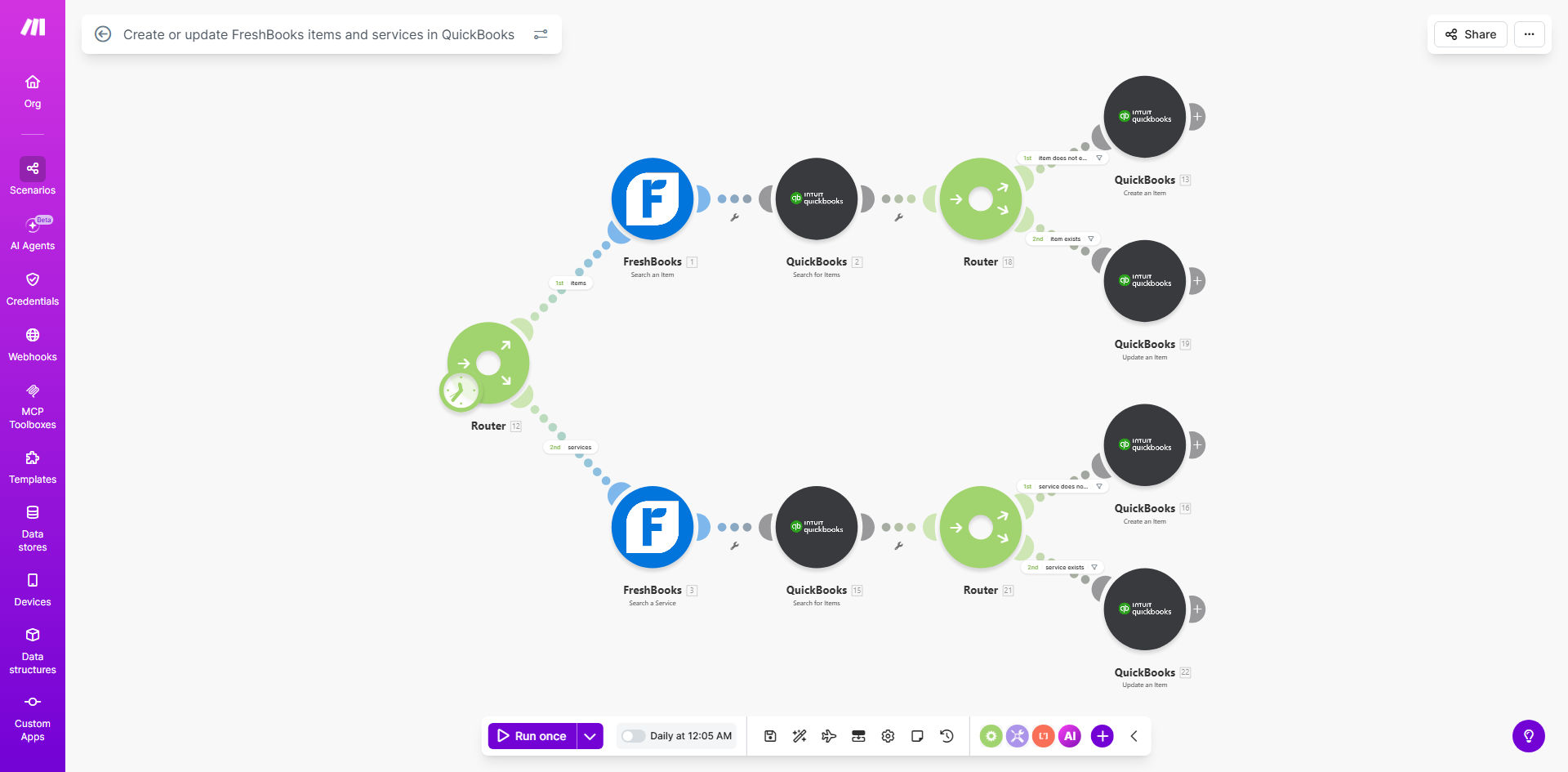
What This Workflow Does
For service-based businesses and freelancers using FreshBooks for invoicing and QuickBooks for accounting, maintaining two separate lists of items and services is a constant headache. Every time you add a new service package, update a hourly rate, or create a new product, you must remember to manually enter it into both systems. This duplication is not only time-consuming but also a major source of errors—imagine invoicing a client with an old price that doesn't match your updated books.
This free Make.com workflow solves that problem permanently. It automatically detects new or updated items and services in your FreshBooks account and syncs them over to QuickBooks. The automation runs on a schedule you set (daily by default), ensuring your financial systems are always aligned without you lifting a finger. It checks if an item already exists to avoid duplicates and updates the details if changes are found, creating a single source of truth for your service catalog.
How It Works
The workflow acts as a reliable bridge between FreshBooks and QuickBooks, handling the data transfer intelligently.
Step 1: Scheduled Trigger
The automation is initiated by a schedule module, set to run daily shortly after midnight. This timing ensures it processes any changes made during the previous business day. You can easily modify this schedule to run hourly, weekly, or on-demand based on how frequently your item list changes.
Step 2: Fetch Items from FreshBooks
The workflow connects to your FreshBooks account via its secure API and retrieves a list of all your active items and services. This includes crucial details like item name, description, unit cost, and associated income account.
Step 3: Check for Existing Items in QuickBooks
For each item pulled from FreshBooks, the automation then queries your QuickBooks Online account to see if an item with the same name or SKU already exists. This intelligent check prevents the creation of messy duplicate entries in your accounting software.
Step 4: Create or Update Accordingly
Based on the check, the workflow performs the appropriate action. If the item is new to QuickBooks, it creates a new item record with all the details mapped over from FreshBooks. If the item already exists, it updates the QuickBooks record with any new information (like a changed price or description) from FreshBooks, keeping everything current.
Pro tip: Use a consistent naming convention for your items and services in FreshBooks. This makes the matching logic between the two systems foolproof and ensures updates happen correctly every time.
Who This Is For
This automation is a game-changer for any business or professional that relies on both FreshBooks for client-facing invoicing and QuickBooks for back-office accounting and tax preparation. It's ideal for:
- Freelancers & Consultants: Who bill by project or hour and need their service rates perfectly synced.
- Digital Agencies & Marketing Firms: With complex service packages and retainers that are frequently updated.
- Small Business Owners: Wearing multiple hats who can't afford time-consuming data entry or costly billing mistakes.
- Bookkeepers & Accountants: Managing clients' books who need to ensure invoice data flows accurately into the general ledger.
What You'll Need
- A Make.com Account: A free or paid plan to host and run the automation scenario.
- FreshBooks Account: An active FreshBooks subscription with administrator access to connect the API.
- QuickBooks Online Account: A subscription to QuickBooks Online (Simple Start, Essentials, or Plus) with admin permissions.
- API Connections: You'll need to authorize Make.com to access both your FreshBooks and QuickBooks Online accounts via their secure OAuth processes during setup.
Quick Setup Guide
Getting this sync up and running takes about 10 minutes.
- Clone the Template: Click "Get This Workflow" to copy the scenario into your own Make.com account.
- Connect FreshBooks: In the first FreshBooks module, click the padlock icon to authenticate and connect your FreshBooks account.
- Connect QuickBooks: Do the same for the QuickBooks Online module, granting the necessary permissions.
- Review Field Mapping (Optional): Glance through the modules to see how item fields (name, price, description) are mapped from FreshBooks to QuickBooks. You can adjust these if needed.
- Set Your Schedule: The trigger is set to daily. Click the clock icon to change the run frequency if desired.
- Turn it On: Toggle the scenario to "ON" and run it once to test. Check QuickBooks to confirm a test item synced correctly.
Key Benefits
Eliminate 2–5 hours of manual data entry per month. No more switching between apps to copy-paste item details. This time can be redirected to client work or business development.
Ensure 100% pricing and catalog consistency. Automatically sync updates so the price on an invoice always matches the cost recorded in your accounting books, eliminating reconciliation headaches.
Scale your service offerings without operational friction. Add new packages or products in FreshBooks with the confidence they will instantly be available and correctly accounted for in QuickBooks.
Improve financial accuracy and reporting. With synchronized items, your profit margins, sales reports, and tax calculations in QuickBooks are based on accurate, real-time data from your actual invoicing.
Create a bulletproof audit trail. Every sync is logged by Make.com, providing a clear record of when items were added or updated, which is invaluable for troubleshooting or financial reviews.