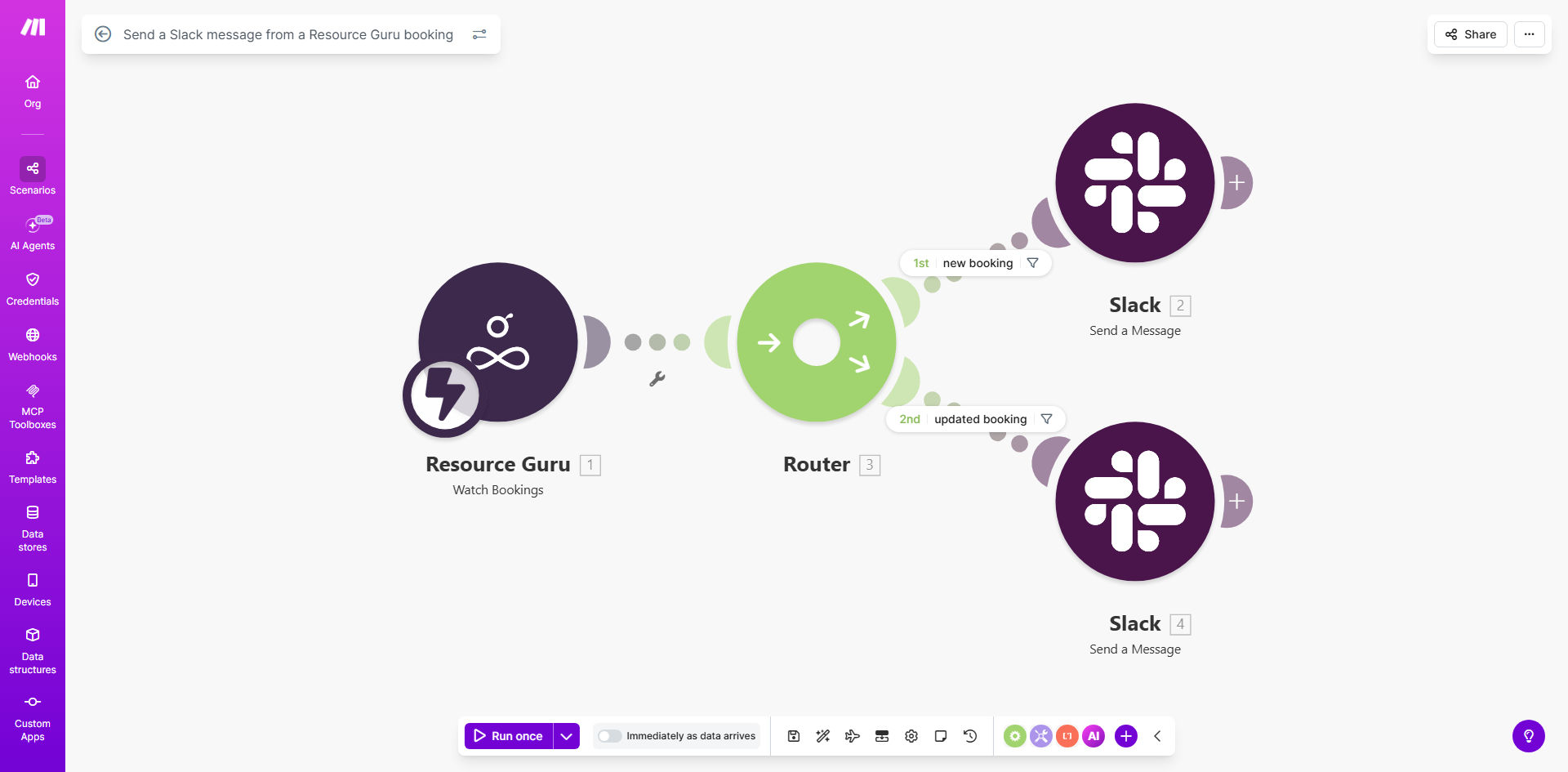
What This Workflow Does
In project-driven businesses, resource scheduling is critical. When a team lead books a person in Resource Guru, that information needs to reach the assigned team member and relevant stakeholders quickly. Manual processes—like sending a Slack message or an email—are slow, forgettable, and create communication gaps.
This automation solves that by creating a direct, real-time bridge between your resource planning and team communication tools. Every time a booking is created or updated in Resource Guru, this Make.com workflow triggers instantly. It fetches the booking details and posts a formatted, informative message directly into a designated Slack channel or as a direct message.
The result is immediate visibility. Your team knows who is working on what, and when, the moment it's scheduled. This eliminates confusion, reduces the need for status meetings, and ensures everyone is operating from the same, up-to-date information.
How It Works
The workflow is an elegant, three-step process that runs silently in the background, turning scheduling events into team notifications.
Step 1: Monitor Resource Guru for Changes
The workflow starts with a "Watch Bookings" module in Make.com, connected to your Resource Guru account. It sits idle until a specific event occurs: a new booking is created, or an existing booking's details (like dates, project, or person) are modified. This trigger is the starting pistol for the entire automation.
Step 2: Structure the Notification Message
Once triggered, the workflow collects all relevant data from the booking: the project name, the assigned person, the booking dates, allocated hours, and any notes. This raw data is then passed through a message formatting step. Here, you can design a clear, actionable Slack message using variables (e.g., {project_name}, {assigned_to}).
Pro tip: Use Slack's formatting options in your message. Add emojis for visual cues (👨💻 for development, 📅 for scheduling), and structure the message with bullet points for easy scanning.
Step 3: Post to the Correct Slack Destination
The final step uses Make.com's Slack module to send the crafted message. You can configure it to post to a public channel like #team-resources, a private channel for leadership, or even send a direct message to the assigned person themselves. The message appears in Slack as if sent by a dedicated bot, providing a clean, official record of the scheduling action.
Who This Is For
This automation is a game-changer for any team that relies on Resource Guru for capacity planning. It's ideal for Project Managers and Team Leads who need to communicate schedule changes efficiently. Resource Managers in agencies or consultancies benefit from reduced administrative overhead. Remote and hybrid teams gain crucial visibility into who is available and when, fostering better collaboration. Even department heads can use it to get a high-level feed of resource allocations across their teams.
What You'll Need
- A Make.com account (free tier is sufficient to start).
- An active Resource Guru subscription with admin or API access.
- A Slack workspace where you have permission to create and configure apps/incoming webhooks.
- The API credentials (or OAuth tokens) for both Resource Guru and Slack to connect them to Make.com.
Quick Setup Guide
You can have this automation running in under 15 minutes by following these steps.
- Clone the Template: Click the "Get This Workflow" button above. This will copy the template into your Make.com account.
- Connect Your Apps: In the Make.com scenario editor, click on the Resource Guru module and authenticate your account. Repeat the process for the Slack module.
- Configure the Trigger: Ensure the "Watch Bookings" module is set to monitor the correct Resource Guru account and is set to trigger on both "Created" and "Updated" events.
- Customize the Message: Edit the message router or text parser module to format the Slack notification exactly how your team prefers it. Include the most important details first.
- Set the Slack Destination: In the final Slack "Send a Message" module, choose whether to send to a channel or a user, and select the specific destination from the dropdown.
- Test and Activate: Turn on the scenario and create a test booking in Resource Guru. Within seconds, check your designated Slack channel for the automated notification. Once confirmed, your automation is live.
Key Benefits
Eliminate manual communication overhead. Project managers save 5-10 hours per month by not having to manually announce every schedule change via email or chat.
Improve project visibility and accountability. With bookings announced publicly in Slack, team members are immediately aware of their assignments, and stakeholders can see resource allocation in real time.
Reduce scheduling errors and double-booking. Instant notifications allow for quick corrections if a booking was made in error, preventing costly resource conflicts down the line.
Create a searchable audit trail. Every booking notification is posted in Slack, creating a chronological, searchable record of all resource decisions and changes for future reference.
Enhance remote team collaboration. For distributed teams, this automation acts as a virtual watercooler for resource planning, keeping everyone aligned regardless of location or time zone.