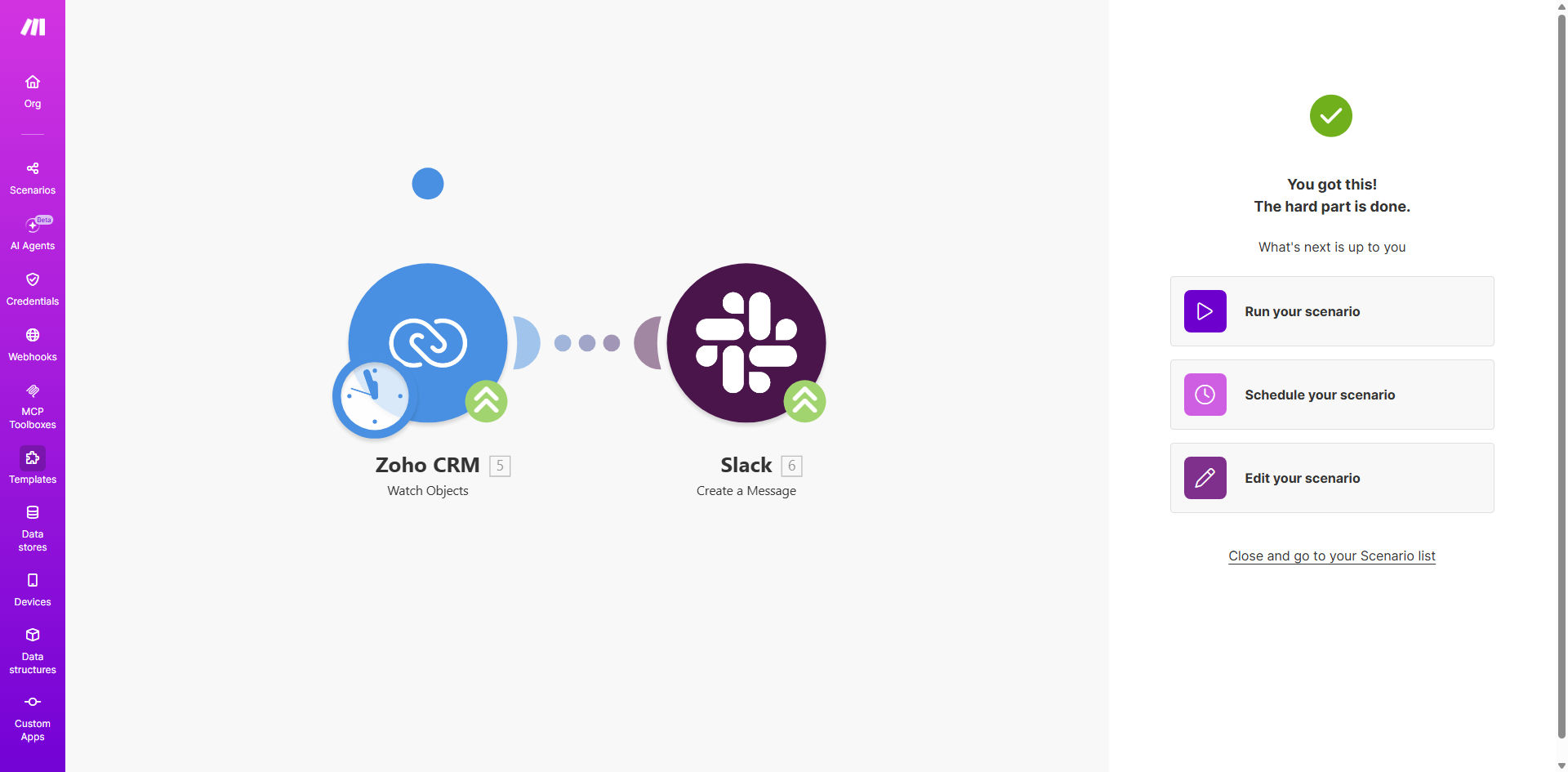
What This Workflow Does
For teams using Zoho CRM, task management is critical but often inefficient. New tasks are created for deals, support cases, or projects, but team members might not check the CRM immediately, leading to delays, missed deadlines, and communication gaps. Manually sending emails or Slack messages about each new task is a repetitive, time-consuming chore that distracts from actual work.
This automation solves that by creating a seamless bridge between Zoho CRM and Slack. Every time a task is logged in Zoho CRM—whether it’s a follow-up call, a proposal deadline, or a support ticket action item—this workflow instantly posts a formatted notification to a designated Slack channel. It turns your team chat into a real-time activity feed for your CRM, ensuring everyone is aware of their responsibilities the moment they are assigned.
The business value is clear: reduced administrative overhead, faster response times, improved accountability, and a significant decrease in missed tasks. Teams can focus on execution instead of coordination, leading to better customer experiences and smoother internal operations.
How It Works
The workflow is a straightforward, trigger-based automation built on Make.com. It listens for events in Zoho CRM and performs actions in Slack without any manual intervention.
Step 1: Monitoring Zoho CRM for New Tasks
The scenario starts with a "Watch Tasks" module in Make.com, connected to your Zoho CRM account. It continuously monitors a specific Zoho CRM module (like Tasks, Leads, or Deals) for the creation of new records. You can set filters to watch for specific criteria, such as tasks assigned to a particular team or with a certain priority level.
Step 2: Extracting and Formatting Task Details
Once a new task is detected, Make.com captures all relevant data: the task subject, due date, assigned user, related record (like a contact or deal name), and any custom fields. This data is then structured into a clear, readable format suitable for a Slack message.
Step 3: Posting the Notification to Slack
The formatted data is sent to the "Send Channel Message" module in Make.com, connected to your Slack workspace. The notification is posted to a channel you specify (e.g., #sales-tasks, #team-updates). The message can include @mentions for the assigned person, buttons linking directly back to the task in Zoho CRM, and priority indicators.
Pro tip: Use Slack's message formatting and Make's text aggregator to create rich, actionable notifications. Include a direct "View Task" link to Zoho CRM to drive immediate action.
Who This Is For
This automation is ideal for any business using Zoho CRM that relies on swift, coordinated team action. Sales teams can ensure follow-ups happen on time. Customer support managers can alert agents to new ticket-related tasks instantly. Project managers can keep distributed teams updated on action items. Marketing teams can coordinate campaign tasks. Essentially, any team where tasks in Zoho CRM require prompt awareness and collaboration will benefit massively.
What You'll Need
- A Make.com account (free tier available).
- A Zoho CRM account with active tasks being created.
- A Slack workspace where you have permission to create apps and post messages.
- API connections set up between Make.com and both Zoho CRM and Slack (Make provides guided setup).
- Decide on the Slack channel where notifications should appear (e.g., #general, #tasks, or a team-specific channel).
Quick Setup Guide
You can have this automation running in under 15 minutes.
- Clone the Template: Click the "Get This Workflow" button above to open the template in your Make.com account.
- Connect Zoho CRM: In the Make scenario, click the Zoho CRM module and authorize the connection by logging into your Zoho account. Select the specific module you want to watch (e.g., "Tasks").
- Connect Slack: Authorize the Slack connection in the corresponding module. Choose the Slack channel you want the messages to be sent to.
- Customize the Message: Edit the "Create a Message" text aggregator to include the task details you want to see (Subject, Due Date, Assigned To, Link). You can format it using Slack's markdown.
- Test and Activate: Create a test task in Zoho CRM and run the scenario once to ensure the notification appears correctly in your Slack channel. Then, turn on the scheduler to run the scenario automatically (e.g., every 5 minutes).
Key Benefits
Eliminate Manual Task Alerts: Save 1-2 hours per week per manager previously spent copying task details from CRM into chat or email. This time is reinvested into high-value coaching or strategic work.
Accelerate Task Initiation: Notifications arrive in seconds, not hours. This can reduce the time from task creation to action by over 90%, directly improving customer response times and project velocity.
Improve Team Accountability & Visibility: With tasks broadcast to a public channel, everyone knows what's assigned and when it's due. This transparency reduces follow-up emails and meetings about task status by an estimated 30%.
Centralize Communication: Keep all task-related discussion in the Slack thread attached to the notification. This creates a searchable history of context and decisions, eliminating information silos.
Never Miss a Critical Task: Automated alerts ensure that even if someone forgets to check Zoho CRM, high-priority items are surfaced where the team is already active—in Slack. This can virtually eliminate missed deadlines due to oversight.