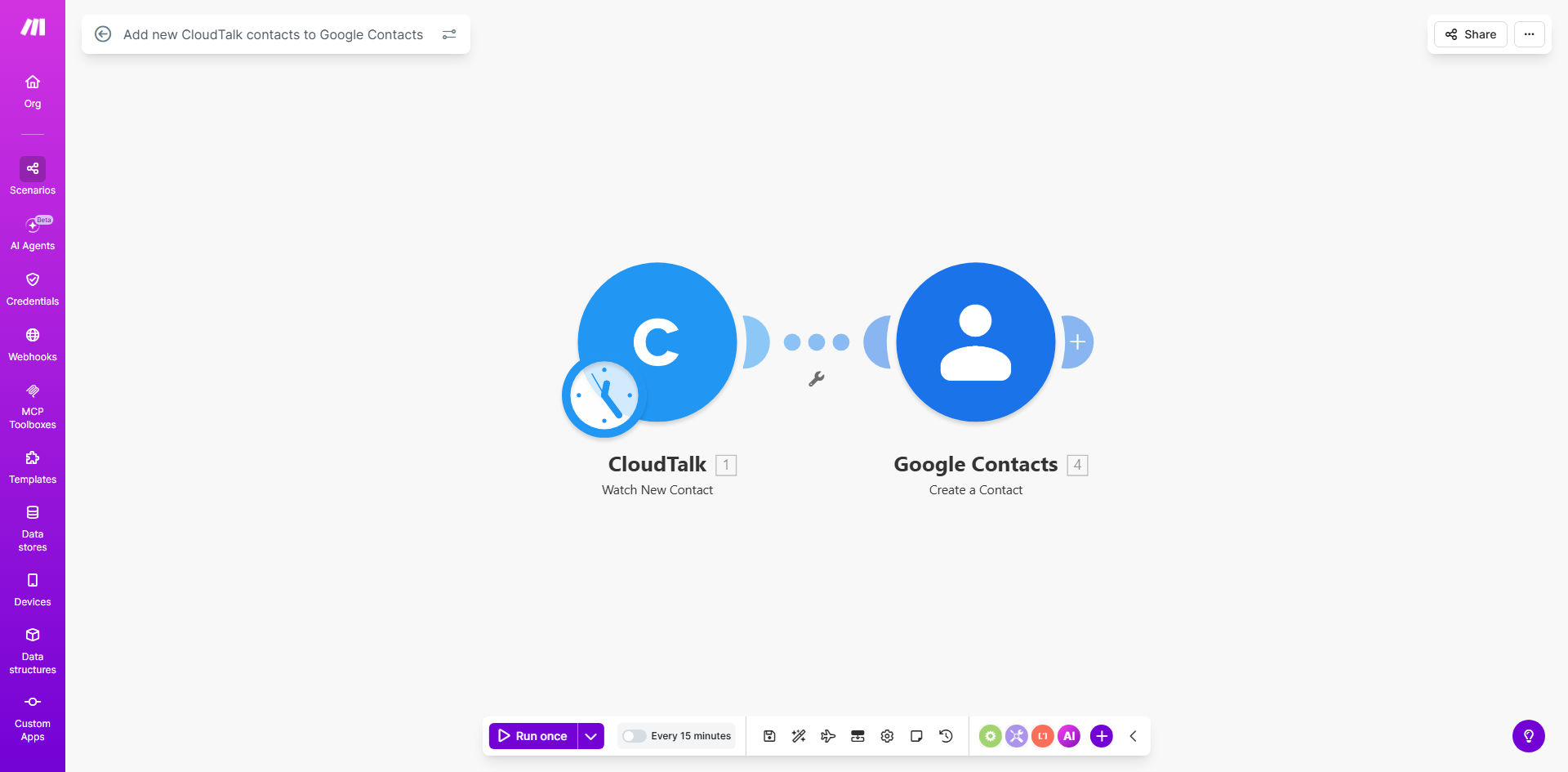
What This Workflow Does
For sales and support teams using CloudTalk as their calling platform, a critical challenge is keeping their central address book—often Google Contacts—updated with every new prospect or customer. Manually copying contact details from CloudTalk to Google is a repetitive, time-consuming task that is prone to errors and delays. This friction slows down follow-up emails, calendar scheduling, and team collaboration, ultimately costing deals and degrading customer experience.
This automated workflow solves that problem instantly. It acts as a seamless bridge between CloudTalk and Google Contacts. Every time a new contact is created in your CloudTalk account—whether from an inbound call, a manually added lead, or an imported list—this Make.com scenario triggers automatically. It captures the contact's details and creates a corresponding, fully formatted entry in your specified Google Contacts list. The result is a perfectly synchronized, always-up-to-date contact database accessible across Gmail, Google Calendar, and your entire team.
The business value is clear: eliminate a low-value administrative task, reclaim hours per week for your sales team, and ensure no lead falls through the cracks due to outdated or missing contact information. Your team can focus on conversations and closing, not data entry.
How It Works
The automation is built on a simple, reliable "trigger-action" logic within Make.com. Here is a step-by-step breakdown of the process:
Step 1: A New Contact is Added to CloudTalk
The workflow is initiated the moment a new contact record appears in your connected CloudTalk account. Make.com watches for this event continuously, ready to act instantly.
Step 2: Make.com Captures the Contact Data
Make.com receives a webhook or fetches the new contact data from CloudTalk's API. This data includes key fields like the contact's name, phone number, email address, company, and any custom notes or tags assigned in CloudTalk.
Pro tip: You can configure the workflow to only sync contacts that meet certain criteria, such as those tagged as "Hot Lead" or from a specific campaign, preventing your Google Contacts from becoming cluttered.
Step 3: Data is Formatted for Google Contacts
The raw data from CloudTalk is processed and mapped to the correct field structure required by the Google Contacts API. For example, the CloudTalk "Mobile" number field is mapped to the "Mobile phone" field in Google. This step ensures clean, consistent data transfer.
Step 4: A New Contact is Created in Google
Make.com uses your authorized Google account to create a new contact in your specified Google Contacts list or label. The contact is instantly available across Google Workspace. The workflow can also include logic to check for duplicates before creating an entry, updating existing contacts instead.
Step 5: Optional Notifications & Logging
You can add modules to send a confirmation Slack message, log the sync to a Google Sheet, or trigger a follow-up email sequence—all based on the successful creation of the Google contact.
Who This Is For
This automation is a game-changer for any business that relies on phone sales and uses CloudTalk alongside Google Workspace. It's ideal for:
- Sales Teams: Reps who need immediate access to new lead details for email outreach and calendar invites without switching apps.
- Customer Support Teams: Agents who add new client contacts during support calls and need them instantly available for future communication.
- Small Business Owners: Solopreneurs and small teams wearing multiple hats who can't afford to waste time on manual data transfer between tools.
- Agencies & Consultancies: Firms managing multiple clients' CloudTalk instances who need to keep each client's Google Contacts organized and updated automatically.
- Operations Managers: Professionals looking to streamline onboarding processes and eliminate data silos between communication and productivity platforms.
What You'll Need
To implement this workflow, you'll need the following accounts and access:
- A Make.com account (free tier available).
- An active CloudTalk subscription with admin or API access.
- A Google Workspace or personal Google account with Contacts enabled.
- Basic understanding of how to connect apps (via OAuth) in Make.com.
- (Optional) A specific Google Contact "Label" or group where you want new contacts to be placed.
Quick Setup Guide
Getting started with this template is straightforward. Follow these steps to deploy it in your Make.com account:
- Clone the Template: Click the "Get This Workflow" button above. This will open the template in your Make.com account where you can create a copy.
- Connect Your Apps: In the Make.com scenario editor, authorize the CloudTalk and Google Contacts modules. This is a secure OAuth process—you'll log into each service to grant Make.com permission.
- Configure the Trigger: Point the CloudTalk module to watch for "New Contact" events in your specific CloudTalk account.
- Map the Data Fields: Review the data mapping between CloudTalk fields (like name, phone, email) and the corresponding Google Contact fields. Adjust if your CloudTalk uses custom field names.
- Set the Destination: Choose the Google account and the specific Contacts list or label where new contacts should be created.
- Test and Activate: Run a single test operation by manually adding a dummy contact in CloudTalk. Verify it appears correctly in Google Contacts. Once confirmed, activate the scenario to run automatically.
Pro tip: Start by running the scenario in "Test Mode" or with a limited filter (e.g., only contacts with a specific tag) to ensure it works perfectly before syncing your entire contact history.
Key Benefits
Eliminate Manual Data Entry & Reduce Errors: Automating this process removes the need for sales reps to copy-paste contact details, saving 2-5 minutes per lead and virtually eliminating typos or missing information that can derail follow-ups.
Accelerate Sales Cycles: New leads become instantly actionable. The moment a call ends, their contact information is already in Google, ready for an immediate email follow-up or calendar invite, significantly improving response times and conversion rates.
Maintain a Single Source of Truth: Keep your customer data synchronized across your calling platform and your primary address book. This ensures everyone on the team is working from the same, up-to-date information, improving collaboration and client communication.
Scale Your Processes Effortlessly: Whether you add 10 or 1000 new contacts a month, the automation handles the workload instantly and consistently without any additional effort from your team, allowing you to grow without proportional administrative overhead.
Enhance Data Hygiene: By configuring deduplication checks and standardized field mapping, this workflow actively improves the quality and organization of your Google Contacts, making it easier to segment and target your audience.