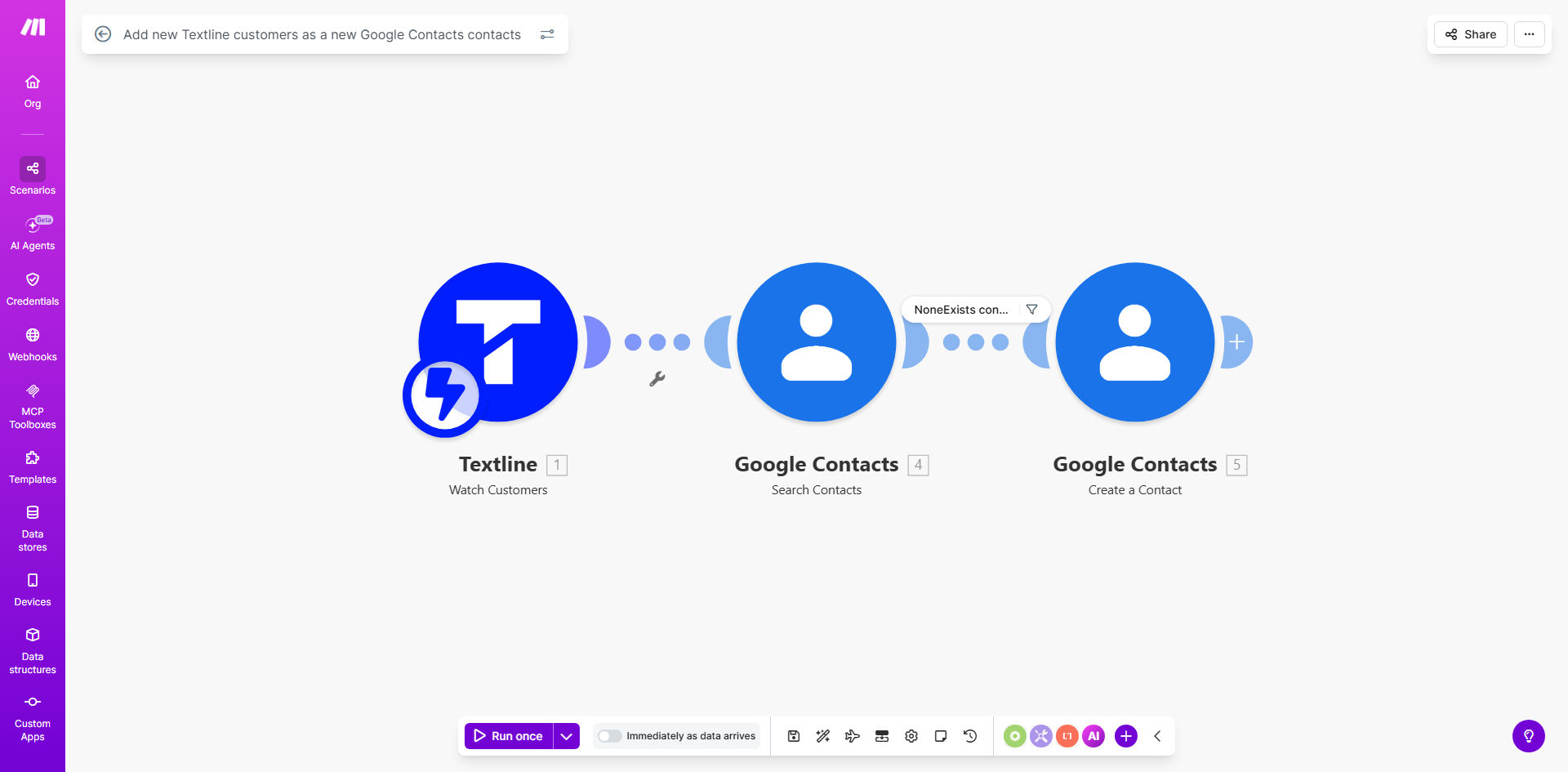
What This Workflow Does
If your business uses Textline for SMS conversations, you know how valuable each new customer lead is. But the process of taking a phone number or name from a text conversation and manually adding it to your Google Contacts is tedious, error-prone, and wastes precious time that could be spent engaging with customers. This disconnect creates data silos, missed follow-up opportunities, and a fragmented view of your audience.
This automated workflow solves that problem completely. It acts as a silent bridge between Textline and Google Contacts. Every time a new customer is created within your Textline account—whether they texted in, were added from a campaign, or imported from a list—the workflow triggers instantly. It captures the customer's details and seamlessly creates a corresponding contact in your specified Google Contacts list. This ensures your sales, marketing, and support teams always have the most up-to-date contact information at their fingertips, directly within the tools they already use daily.
The result is a unified contact database that grows automatically with your business. You eliminate the risk of human error from manual entry, ensure no lead falls through the cracks, and free up your team to focus on building relationships instead of administrative data entry.
How It Works
The automation follows a simple, reliable sequence. Once set up, it runs continuously in the background, requiring zero ongoing maintenance.
Step 1: Monitor Textline for New Customers
The workflow starts by watching your Textline account. It uses the "Watch Customers" trigger module, which polls Textline at regular intervals (e.g., every 15 minutes) or uses webhooks for instant detection. The moment a new customer record appears, the automation captures the event and prepares to process the data.
Step 2: Extract and Map Customer Data
Make.com retrieves all available information for the new customer. This typically includes their first name, last name, phone number, email address (if provided in Textline), and any custom notes or tags. The workflow maps these data points to the corresponding fields in Google Contacts, such as given name, family name, phone, and email.
Pro tip: You can add a filter step here to only process customers who meet specific criteria, like having an email address or being tagged as a "Hot Lead." This keeps your Google Contacts list clean and relevant.
Step 3: Create or Update the Contact in Google
The mapped data is sent to Google Contacts via the "Create a Contact" action. The workflow can be configured to add the contact to a specific contact group (like "Textline Leads") for better organization. Optionally, you can add a step to check for duplicates first, updating an existing contact if a match is found based on phone or email.
Step 4: Logging and Error Handling
The final stage involves logging the action. The scenario can send a notification to a Slack channel, add a row to a Google Sheet log, or simply mark the task as complete within Make.com's history. If an error occurs—like a missing required field—the workflow can be set to retry or send an alert, ensuring you never lose track of a failed sync.
Who This Is For
This automation is a game-changer for any business or team that relies on Textline for customer communication and uses Google Workspace for daily operations.
Sales Teams: Immediately add new SMS leads to your Google Contacts to trigger email sequences or for sales reps to follow up without switching between apps.
Support & Customer Success: Ensure every person you help via text is logged in your central contact system for future reference and personalized support.
Marketing Agencies: Automatically grow your client's contact lists from SMS opt-in campaigns, ensuring leads are captured for email marketing funnels.
Small Business Owners: Perfect for solopreneurs who wear many hats. Automate this repetitive task to save time and ensure no potential customer is forgotten after a text conversation.
What You'll Need
To implement this template, you'll need a few simple accounts and permissions:
- A Make.com account (free tier is sufficient to start).
- An active Textline account with customer data.
- A Google Workspace or personal Google Account with access to Google Contacts.
- Permission to create API connections (OAuth) between Make.com and both Textline and Google Contacts. This is a standard, secure login process.
- (Optional) A designated Google Contact Group where you want new contacts to be placed.
Quick Setup Guide
You can have this automation live in under 10 minutes by following these steps:
- Clone the Template: Click the "Get This Workflow" button above to open the template in your Make.com account and create a copy.
- Connect Your Apps: In the Make.com scenario editor, click on the Textline module and connect your Textline account. Repeat the process for the Google Contacts module, signing in with your Google account.
- Configure the Trigger: Ensure the "Watch Customers" trigger is set to the correct Textline phone number or inbox you want to monitor.
- Map the Data Fields: In the Google Contacts "Create a Contact" action, map the data from Textline (like
firstName,phone) to the corresponding Google Contact fields. - Set a Contact Group (Optional): In the same action, specify the name of an existing Google Contact group to add new contacts to.
- Test and Activate: Run a single test execution by creating a dummy customer in Textline. Verify the contact appears correctly in Google Contacts. Once confirmed, turn the scenario "ON."
Key Benefits
Save 2-5 hours per week on manual data entry. Eliminate the repetitive task of copying and pasting contact information between platforms. This time can be redirected to high-value activities like customer engagement or strategy.
Achieve 100% data capture accuracy. Automated syncing removes human error. No more typos in phone numbers or missed email addresses. Your contact list is always accurate and reliable.
Speed up lead response time by 90%. When a lead texts in, they are instantly added to your contact system. Your sales team can initiate an email follow-up or add them to a sequence within minutes, dramatically increasing conversion chances.
Centralize customer data effortlessly. Break down silos between your SMS platform and your contact management. Having all information in Google Contacts provides a single source of truth for your entire team.
Scale your processes without adding overhead. As your volume of Textline conversations grows, this automation scales with you. You can handle 10 or 10,000 new customers per month with the same zero-effort reliability.