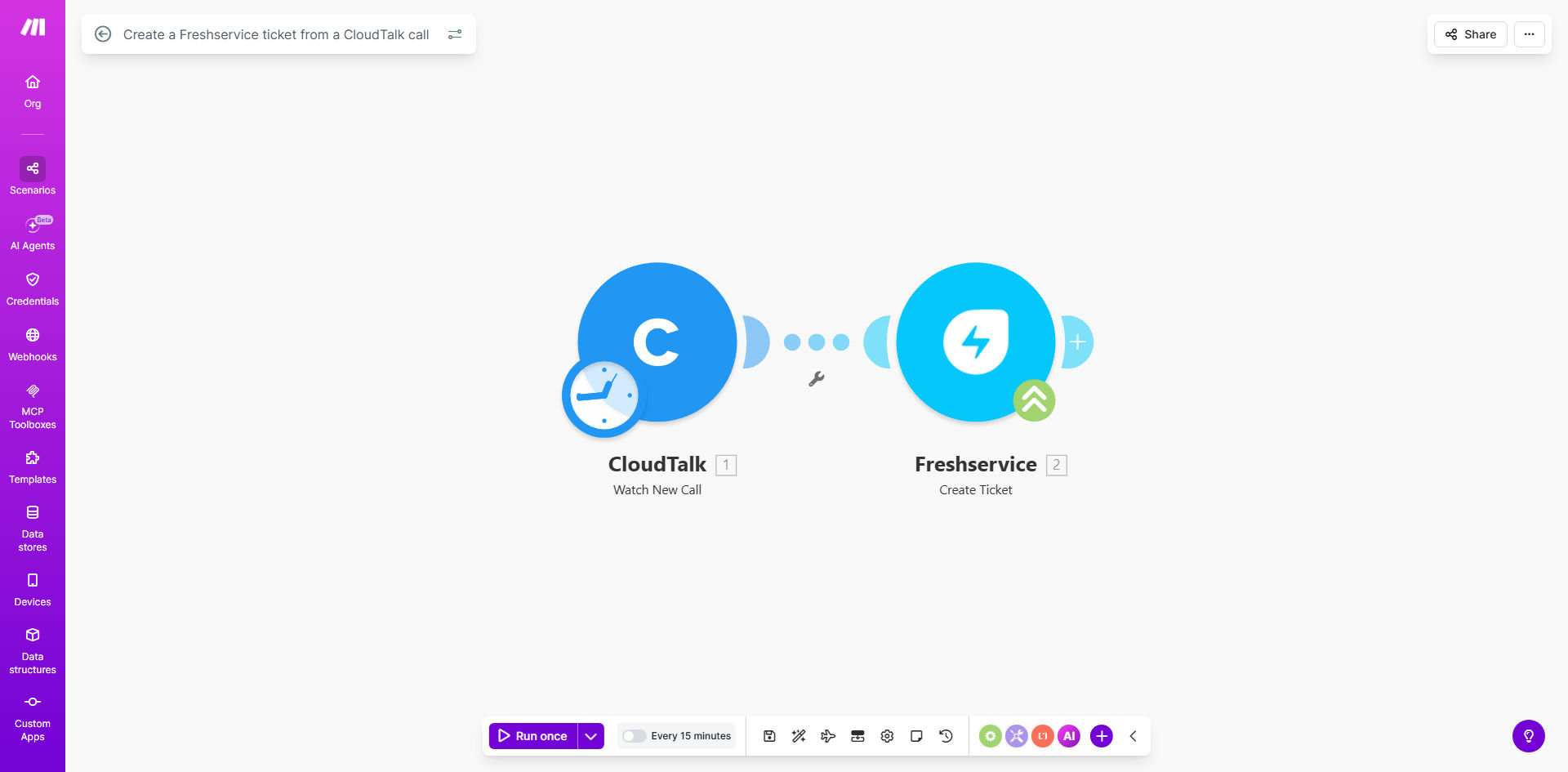
What This Workflow Does
For support teams using CloudTalk for phone communications and Freshservice for ticketing, a critical gap often exists: the manual, error-prone process of creating a support ticket after every customer call. Agents must switch between systems, copy-paste caller details, and summarize the conversation, leading to delays, missed tickets, and inconsistent data.
This automated workflow solves that by acting as a seamless bridge between your phone system and your help desk. Every time a new call is registered in CloudTalk—whether answered, missed, or voicemail—this automation instantly triggers and creates a corresponding, fully detailed ticket in Freshservice. It captures essential metadata like caller ID, call duration, recording link, and timestamps, turning a voice conversation into an actionable, trackable support item without any human intervention.
The result is a closed-loop system where customer voice interactions are never lost. Support managers gain complete visibility into call volume and ticket correlation, while agents can prioritize follow-ups based on accurate, automatically logged information.
How It Works
The automation follows a clean, event-driven sequence to transform a call log into a support ticket.
Step 1: Monitor for New CloudTalk Calls
The workflow starts by watching CloudTalk for new call events. It can be configured to trigger on specific call types, such as all inbound calls, only missed calls, or calls tagged by your team. The moment a call ends and its data is available in CloudTalk, the automation captures the entire call object.
Step 2: Map Call Data to Ticket Fields
Next, the automation parses the call data and maps it to the relevant fields in a Freshservice ticket. The caller's phone number becomes the requester email or a custom field. The call start time becomes the ticket creation date. The call duration and recording URL are added to the ticket description or as private notes, providing full context for the support agent.
Pro tip: Use the call direction (inbound/outbound) to automatically set the ticket priority or type. An inbound customer call could be 'High' priority, while an outbound call might be logged as a 'Follow-up'.
Step 3: Create the Ticket in Freshservice
With all data prepared, the workflow uses the Freshservice API module to create a new ticket. It populates the subject (e.g., "Call from [Phone Number]"), the description with call details, and assigns it to the appropriate group, agent, or service category based on your predefined rules. The ticket is now live in your help desk queue.
Step 4: Optional Notification & Logging
Finally, the automation can send a confirmation to a Slack channel, email the assigned agent, or log the action in a Google Sheet. This provides an audit trail and ensures the team is aware of new, call-generated tickets that may require immediate attention.
Who This Is For
This automation is ideal for any business that relies on phone support and uses Freshservice (or any Freshworks product) as its help desk. It's particularly valuable for:
- Customer Support Teams: Who need to ensure every phone request is tracked and met with SLA-driven follow-up.
- IT Help Desks: Where internal employees call for tech support, and each request must be logged for resolution and reporting.
- Small to Medium Businesses: That are scaling their support operations and need to eliminate manual processes to maintain efficiency.
- Managers & Supervisors: Who require accurate data on call-to-ticket conversion rates for performance analysis and staffing decisions.
What You'll Need
- A Make.com account (free tier sufficient to run this workflow).
- An active CloudTalk account with API access enabled.
- A Freshservice subscription (any plan that provides API access).
- API credentials for both CloudTalk and Freshservice (typically an API key).
- Basic understanding of your Freshservice ticket fields (like group IDs, priority levels) to configure the mapping correctly.
Quick Setup Guide
You can have this automation running in under 20 minutes.
- Clone the Template: Click "Get This Workflow" and duplicate the scenario into your Make.com account.
- Connect Your Apps: In the first module, authorize your CloudTalk account by entering your API key. Then, authorize your Freshservice account in the ticket creation module.
- Configure the Trigger: Set the CloudTalk module to watch the "Call Finished" or "New Call" event. You can add a filter here if you only want to create tickets for specific call types.
- Map the Data: In the Freshservice "Create Ticket" module, map the CloudTalk fields (like
caller_number,duration) to the corresponding Freshservice ticket fields (likerequester,description). - Test and Activate: Make a test call to your CloudTalk number. Check that a ticket appears in Freshservice with the correct details. Once confirmed, turn the scenario on.
Key Benefits
Guaranteed 100% Ticket Capture: No more forgotten call logs or post-it notes. Every customer phone interaction is automatically converted into a trackable ticket, ensuring no request falls through the cracks.
Save 5–10 Minutes Per Call: Eliminate the manual work of switching apps, copying information, and typing summaries. This reclaims hours per week for your support team to focus on actual problem-solving.
Improve First Response Time (FRT): Tickets are created the moment a call ends, instantly entering your support queue. This can shave valuable minutes or even hours off your average FRT, a key customer satisfaction metric.
Full Context for Agents: Support agents have the call recording link, duration, and caller info directly in the ticket. They can quickly understand the issue without asking the customer to repeat themselves.
Accurate Reporting & Analytics: With all calls logged as tickets, you gain clean data for analyzing call volume, support demand patterns, and agent performance based on phone interactions.