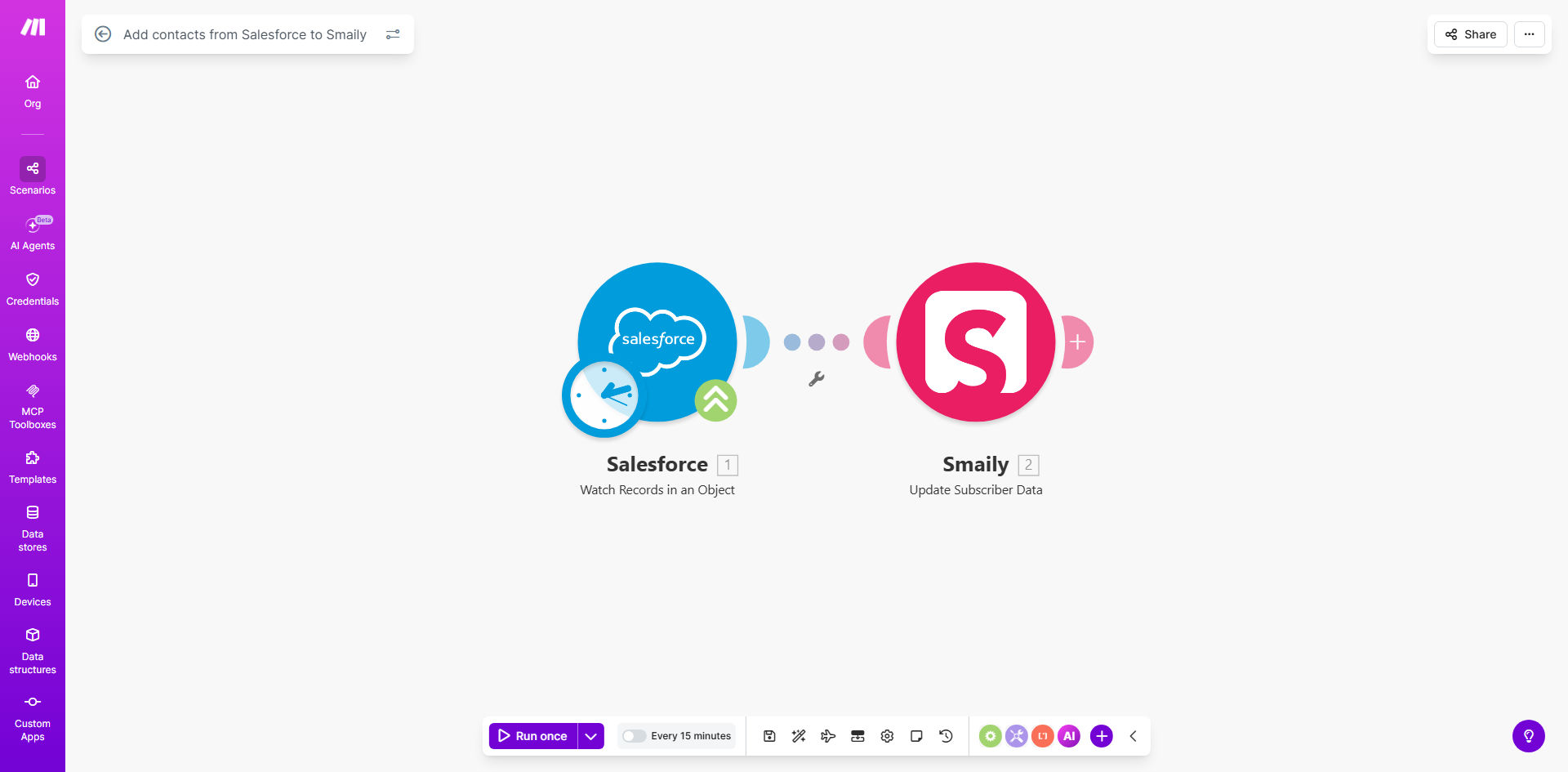
What This Workflow Does
For marketing and sales teams, maintaining a single source of truth for customer data is a constant challenge. Contacts are added, qualified, or updated in Salesforce by the sales team, but email marketing campaigns run in Smaily. The manual process of exporting CSV files, cleaning data, and importing lists is not only time-consuming—it creates delays, errors, and missed opportunities. Leads might not receive timely nurture emails, or campaigns might target outdated segments.
This automated workflow solves that by creating a live bridge between Salesforce and Smaily. Whenever a new contact is created or an existing one is modified in Salesforce, the workflow instantly triggers. It retrieves the contact details, formats them correctly, and either adds them as a new subscriber or updates their information in the corresponding Smaily list. This ensures your email marketing engine is always fueled by the most current and accurate data from your CRM, aligning sales activity with marketing communication seamlessly.
How It Works
The automation operates on a simple but powerful trigger-action principle, managed entirely within Make.com. No coding is required.
Step 1: Monitor Salesforce for Changes
The workflow starts by watching your Salesforce instance for specific events. You can configure it to trigger on new contact creation, updates to key fields (like email, status, or company), or both. Make.com polls Salesforce at regular intervals or uses webhooks for near real-time updates.
Step 2: Retrieve and Format Contact Data
Once a change is detected, the workflow fetches the complete set of data for that contact from Salesforce. It then maps the relevant fields (e.g., Email, First Name, Last Name, Lead Source, Custom Fields) into a format that Smaily expects. This step often includes data transformation, like combining first and last names or assigning default values for empty fields.
Pro tip: Use this step to add segmentation tags in Smaily based on Salesforce data. For example, automatically tag contacts as "MQL" if their Lead Status in Salesforce is "Marketing Qualified."
Step 3: Add or Update in Smaily
The workflow sends the formatted contact data to Smaily. It first checks if a contact with that email address already exists in the specified Smaily list. If not, it creates a new subscriber. If the contact exists, it updates their profile with the new information from Salesforce, ensuring records are always synchronized.
Step 4: Handle Errors and Log Results
The final module manages exceptions. If an update fails (e.g., invalid email format, Smaily API limit reached), the workflow can log the error to a spreadsheet, send a notification to your team, or retry the operation. Successful syncs are also logged for auditing and peace of mind.
Who This Is For
This automation is ideal for any business using Salesforce as its CRM and Smaily for email marketing. It's particularly valuable for:
- Marketing Teams: Who need real-time lists for campaigns without waiting for manual data exports from sales.
- Sales Operations: Managers who want to ensure every qualified lead is instantly added to nurture sequences.
- Small Business Owners: Wearing multiple hats, who can't afford the time for manual data transfers between systems.
- Agencies: Managing client marketing who need reliable, hands-off data syncing between the client's CRM and email platform.
What You'll Need
To implement this template successfully, ensure you have the following ready:
- A Make.com account (free tier available).
- Admin or API access to your Salesforce organization to create a connected app and obtain API credentials (Consumer Key and Secret).
- An active Smaily account with API access enabled. You'll need your subdomain, username, and API token.
- Clear identification of which Salesforce object (e.g., Contact, Lead) and which Smaily list you want to sync.
- A basic understanding of the contact fields you wish to map between the two systems (e.g., email, name, custom attributes).
Quick Setup Guide
Follow these steps to configure the template after importing it into your Make.com account:
- Import the Template: Click the "Get This Workflow" button above to open the template on Make.com and clone it to your own account.
- Connect Salesforce: In the first module, click to add your Salesforce account. Authenticate using OAuth with your Salesforce credentials to grant Make.com the necessary permissions.
- Connect Smaily: In the Smaily module, add a new connection by entering your Smaily subdomain, username, and API token. Test the connection to ensure it's successful.
- Configure the Trigger: Set the Salesforce module to watch the correct object (Contacts or Leads). Define if it should trigger on new records, updates, or both.
- Map Your Fields: In the data transformation step, map the Salesforce fields (like `Email`, `FirstName`) to the corresponding input fields expected by Smaily's API.
- Select the Target List: Specify the exact Smaily list ID or name where contacts should be added or updated.
- Test and Activate: Run a single test execution with a known contact. Verify the contact appears correctly in Smaily. Once confirmed, activate the scenario to run automatically.
Key Benefits
Save 5–10 hours per month on manual list management. Eliminate the repetitive task of exporting, formatting, and importing contact data. Your team can focus on strategy and creative work instead of data admin.
Improve email campaign relevance and conversion by 20–30%. With contacts synced in real-time, your nurture sequences and targeted campaigns are based on live sales data, not yesterday's spreadsheet.
Ensure 100% data accuracy between sales and marketing. Remove the human error factor from manual entry. Every field update in Salesforce is reflected in Smaily, maintaining perfect list hygiene.
Accelerate lead response time from days to minutes. The moment a sales rep marks a lead as qualified, they can be automatically added to a "Welcome" or "Nurture" email sequence in Smaily, dramatically improving engagement.
Gain a scalable foundation for marketing automation. This sync is the critical first step in building a sophisticated, triggered marketing system that reacts to customer behavior and sales pipeline movements.