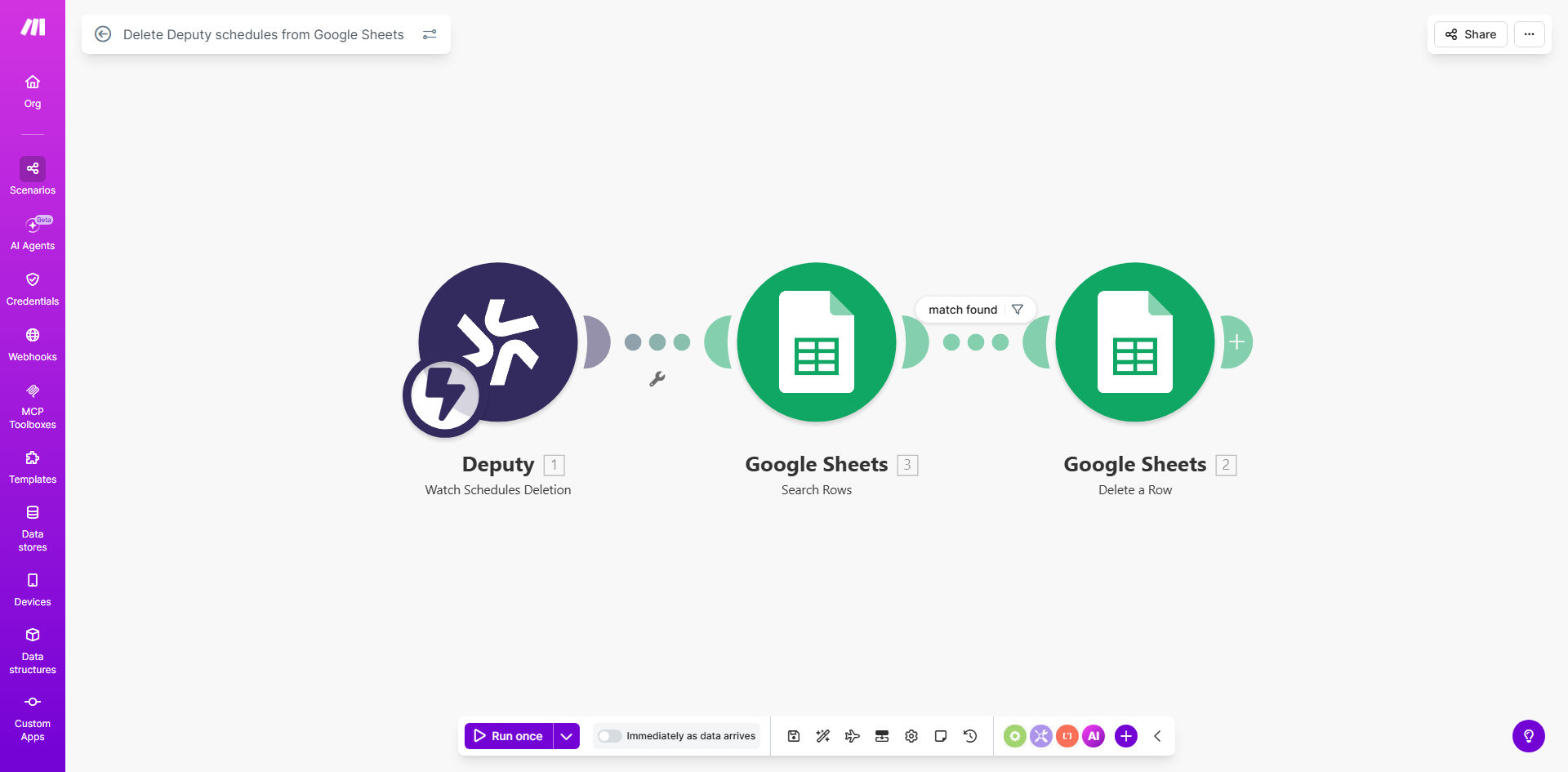
What This Workflow Does
Managing employee schedules across multiple platforms creates a common headache: data drift. When a manager deletes a shift in Deputy because an employee called in sick or an event was canceled, that outdated information often lingers in your Google Sheets reports. This leads to payroll discrepancies, inaccurate labor cost forecasts, and hours wasted on manual reconciliation.
This automation solves that problem by creating a real-time, one-way sync from Deputy to Google Sheets for deletions. It acts as a silent cleanup crew. The moment a schedule is removed in your Deputy account, the workflow is triggered. It searches your designated Google Sheet for the matching entry (using a unique identifier like a Schedule ID) and deletes the entire row. Your spreadsheet instantly reflects the current, accurate state of your workforce, without you lifting a finger.
This template is the essential counterpart to the schedule creation/update template. Together, they form a complete synchronization system, ensuring your Google Sheets is a live, reliable mirror of your Deputy scheduling data for reporting, payroll processing, and strategic planning.
How It Works
The workflow follows a simple, reliable sequence to maintain data integrity.
Step 1: Monitor Deputy for Deleted Schedules
The automation starts with a "Watch Schedules" trigger in Deputy. It continuously monitors your Deputy account for any schedule deletion events. This is a passive, real-time watch that doesn't interfere with your normal Deputy operations.
Step 2: Capture the Deleted Schedule's Data
When a deletion is detected, the workflow captures key details about that removed schedule. The most critical piece of data is the unique Schedule ID. This ID is the fingerprint that will be used to find the correct row in Google Sheets. Other details like employee name, date, and time may also be passed along for logging purposes.
Step 3: Find the Matching Row in Google Sheets
The workflow then accesses your specified Google Sheets spreadsheet. It searches through the designated column (typically the first column where you store the Deputy Schedule ID) to find the row that contains the exact same ID as the deleted schedule.
Pro tip: Structure your spreadsheet with the Deputy Schedule ID in column A. This makes the search fast and foolproof, preventing accidental deletion of the wrong row if an employee has multiple shifts.
Step 4: Delete the Row & Confirm
Once the matching row is found, the automation executes a "Delete a Row" action in Google Sheets. The entire row is removed, cleaning your data set. The workflow can then be configured to send a simple confirmation log to another app (like Slack or email) or simply complete silently, knowing the job is done.
Who This Is For
This automation delivers immense value to any business that uses Deputy for scheduling and relies on Google Sheets for analysis, payroll, or reporting.
HR & Payroll Managers: Ensure the data sent to payroll providers is 100% accurate, eliminating costly overpayment errors due to ghost shifts in spreadsheets.
Operations & Retail Managers: Maintain real-time labor cost reports. Deleted shifts immediately reflect in your budget forecasts, allowing for agile resource reallocation.
Multi-location Franchises or Chains: Synchronize schedule data from all locations into a central, clean master spreadsheet for corporate oversight and compliance auditing.
Small Business Owners: Free yourself from the tedious manual task of updating spreadsheets every time a schedule changes. This automation acts as your virtual assistant for data hygiene.
What You'll Need
- A Make.com account (free tier is sufficient to run this workflow).
- An active Deputy account with admin or API access.
- A Google Sheets spreadsheet that is populated with schedule data from Deputy (ideally using the companion "export" template).
- The spreadsheet must have a unique identifier column, like the Deputy Schedule ID, to allow for accurate row matching.
- API connection credentials for both Deputy and Google Sheets (Make.com guides you through this simple, one-time setup).
Quick Setup Guide
You can have this automation running in under 15 minutes.
- Clone the Template: Click "Get This Workflow" to open the template in your Make.com account and create a copy.
- Connect Deputy: In the first module, click to add your Deputy connection. Follow the prompts to authorize Make.com to access your Deputy account.
- Connect Google Sheets: In the Google Sheets module, authorize access to the Google account that owns your target spreadsheet.
- Configure the Spreadsheet: Select the exact Google Sheets file and worksheet name where your schedule data lives.
- Map the Identifier: Ensure the workflow is configured to search for the "Schedule ID" from Deputy in the correct column of your sheet (usually column A).
- Test It: Turn on the scenario. Go to Deputy, delete a test schedule, and watch the corresponding row vanish from your sheet.
- Activate: Once tested, let it run. The automation will now handle all future deletions automatically.
Key Benefits
Eliminate Payroll Errors: Ghost shifts in spreadsheets lead to overpayments. This automation ensures your payroll data is precise, potentially saving hundreds or thousands per month.
Save 5–10 Hours Monthly on Manual Cleanup: No more weekly spreadsheet audits. Managers reclaim time for strategic work instead of administrative data pruning.
Create a Reliable Single Source of Truth: Your Google Sheets reports become a trusted, real-time dashboard for labor costs, compliance, and staffing levels, enabling confident decision-making.
Improve Compliance and Audit Readiness: Maintain a perfect digital paper trail. Accurate records of scheduled vs. actual work are crucial for labor law compliance and financial audits.
Scale Seamlessly with Your Business: The automation works just as efficiently for 10 employees or 10,000. It handles the volume so your team doesn't have to.