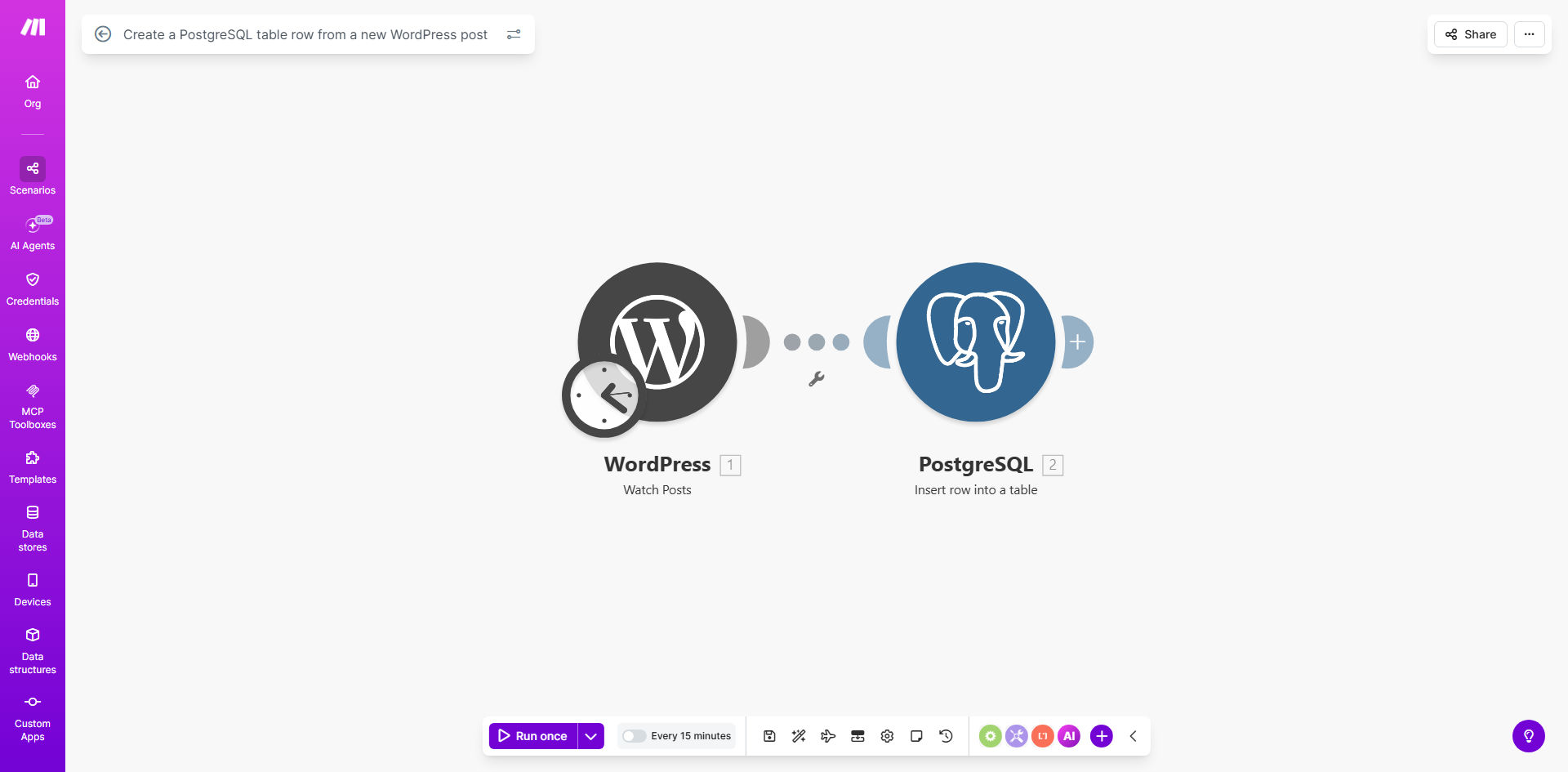
What This Workflow Does
For content-driven businesses, a WordPress site is the publishing engine, but the valuable data it produces often gets trapped inside the CMS. Manually copying post details into a database for reporting, analysis, or feeding other applications is a tedious, error-prone task that wastes valuable time.
This automation solves that by creating a seamless bridge between your WordPress website and your PostgreSQL database. Every time a new post is published (or updated), this workflow triggers instantly. It captures the post's title, content, author, categories, publication date, and other metadata, then formats and inserts it as a new, structured row in your specified PostgreSQL table.
The result is a live, queryable archive of your content that exists independently of your website's front-end. This unlocks powerful possibilities for business intelligence, custom application development, and ensuring your valuable content is backed up in a durable, structured format.
How It Works
The workflow operates on a simple trigger-action principle, orchestrated by Make.com to ensure reliability and speed.
Step 1: The WordPress Trigger
The scenario watches your WordPress site using the WordPress module. It is configured to monitor for a specific event: the creation of a new post. The moment a post transitions to "published" status, the workflow is activated, and all the post's data is passed to the next step.
Step 2: Data Parsing & Mapping
Make.com receives the raw post data from WordPress's REST API. In this step, the workflow maps the relevant fields from the WordPress post object to the corresponding columns in your target PostgreSQL table. You can choose to include the full HTML content, just the excerpt, the featured image URL, tags, custom fields, and more.
Pro tip: Use this mapping step to clean or transform data. For example, you could extract a plain-text summary from the HTML content or combine the first name and last name of the author into a single "author_full_name" database column.
Step 3: PostgreSQL Insert Operation
The final step uses the PostgreSQL module to establish a secure connection to your database. It executes an "INSERT" command with the mapped data, adding a complete new row to your designated table. The workflow can be configured to handle errors gracefully, logging any issues for review without interrupting your publishing process.
Who This Is For
This template is ideal for any business or individual that views their content as a strategic data asset. This includes:
- Content Marketing Teams: Who need to audit performance, track author output, or analyze topic trends in a structured way.
- Digital Agencies: Managing multiple client blogs and requiring a centralized reporting database outside of individual WordPress installs.
- Developers & Product Teams: Building custom applications (like mobile apps or internal tools) that need to pull structured content from a reliable API or database, not directly from WordPress.
- Business Analysts: Who want to connect content data to other business metrics in data warehouses or BI platforms for holistic reporting.
What You'll Need
- A WordPress website with the REST API enabled (standard for all modern WordPress sites).
- Administrator or Editor credentials to create an Application Password in WordPress for secure API access.
- A PostgreSQL database (cloud-based like AWS RDS, Google Cloud SQL, or a self-hosted instance).
- Connection details for your PostgreSQL database: Host, Port, Database Name, Username, and Password.
- A pre-created table in your PostgreSQL database with a schema (columns) designed to receive the WordPress post data.
- A free or paid Make.com account to host and run the automation scenario.
Quick Setup Guide
- Get the Template: Click "Get This Workflow" to copy the template into your Make.com account.
- Configure WordPress: In your WordPress admin, go to Users > Your Profile and generate a new Application Password. Note this down securely.
- Connect WordPress in Make: In the first module of the scenario, add your WordPress site URL and the Application Password you created.
- Prepare Your PostgreSQL Table: Ensure your database table exists with columns like id, title, content, author, publish_date, etc.
- Connect PostgreSQL in Make: In the database module, enter your PostgreSQL host, database name, username, and password.
- Map the Data: In the PostgreSQL module, map the fields from the WordPress trigger (like `Post Title`, `Post Content`) to the correct columns in your table.
- Test & Activate: Run a test by publishing a draft post in WordPress. Check your PostgreSQL table for the new row. Once confirmed, activate the scenario to run automatically.
Key Benefits
Eliminate 2-3 hours of manual data entry per week. For teams publishing regularly, the time spent copying and pasting post information into spreadsheets or other systems adds up quickly. This automation reclaims that time instantly.
Create a 100% accurate, real-time content archive. Human error in manual transcription is eliminated. Your PostgreSQL database reflects exactly what was published, the moment it goes live, serving as a perfect system of record.
Unlock advanced content analysis and BI. With your content in a structured SQL database, you can run complex queries, join with other data sources, and build dashboards to understand content ROI, author performance, and audience engagement trends.
Future-proof your content utility. Your posts become portable data. This setup allows you to easily feed content to a new mobile app, an internal wiki, or any future platform without being locked into WordPress's presentation layer.
Improve team visibility and operations. Marketing, sales, and leadership can access content reports directly from the database without needing WordPress admin access, streamlining communication and planning.