Make.com Cloudinary Google Photos Media Backup Automation

Automatically Save New Cloudinary Media to Google Photos

Never lose a digital asset again. This free workflow template automatically backs up every new tagged image or video from Cloudinary to your Google Photos library.

Get This Workflow → Make.com · Cloudinary · Free Template
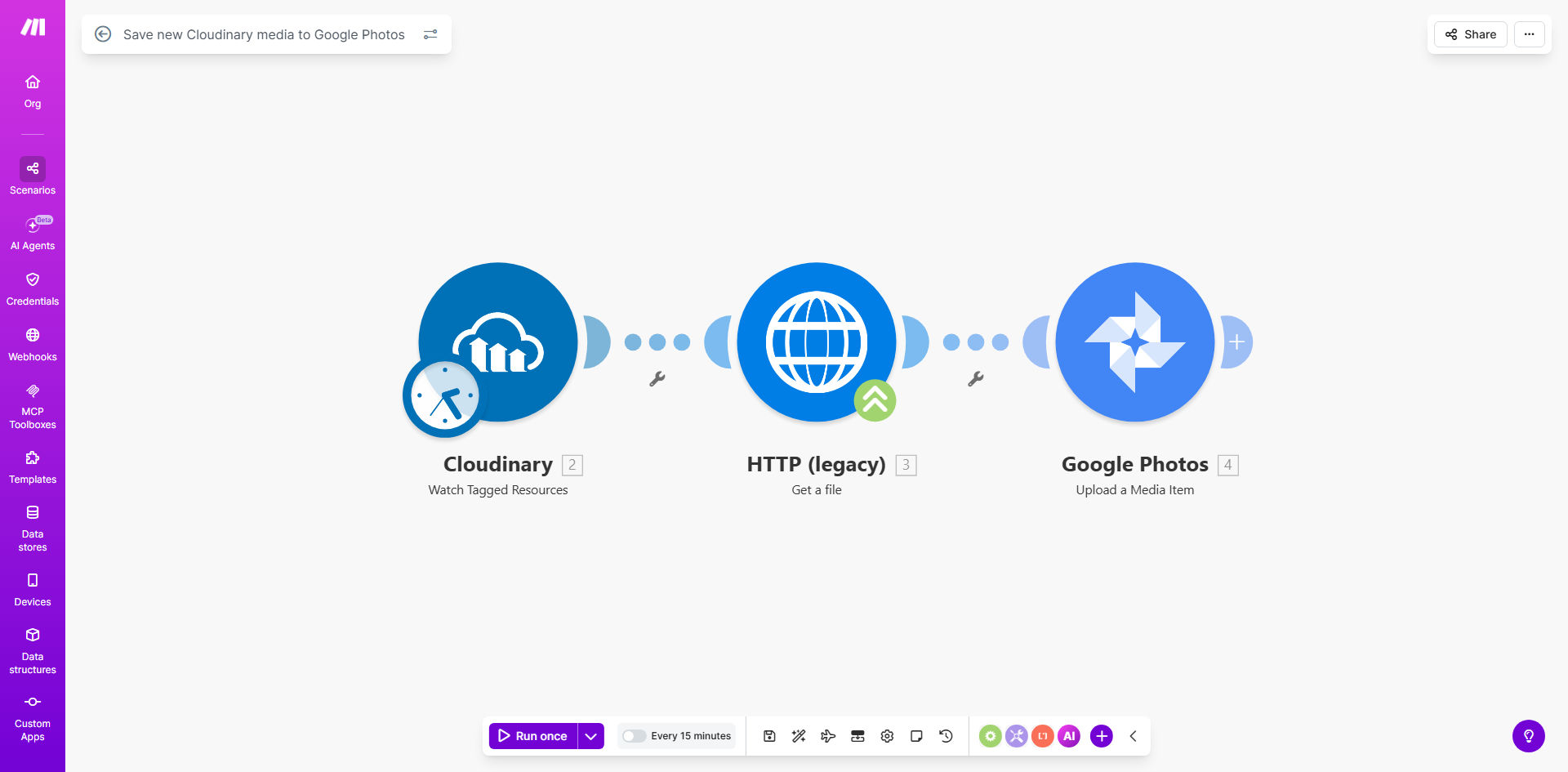
Diagram showing automation flow from Cloudinary to Google Photos using Make.com

What This Workflow Does

For creative teams, agencies, and e-commerce businesses, Cloudinary is a powerhouse for managing, transforming, and delivering digital media. However, relying on a single platform for storage poses a risk. Accidental deletion, service changes, or the simple need for a searchable, personal archive are real concerns. This automation solves that by creating a seamless, automatic bridge between your professional media management in Cloudinary and the universal accessibility of Google Photos.

The workflow monitors your Cloudinary account for new media assets that match specific tags you define. The moment a new image or video is uploaded and tagged, Make.com detects it, retrieves the file, and automatically uploads it to a designated album in your Google Photos. It turns a manual, error-prone backup task into a silent, reliable background process that ensures every piece of content is securely duplicated.

How It Works

The automation runs on a simple yet powerful trigger-action principle, orchestrated by Make.com.

Step 1: Monitoring Cloudinary

The scenario starts by watching your Cloudinary account. You configure it to check for new assets at regular intervals (e.g., every 15 minutes, hourly). It can filter specifically for assets with certain tags, such as "final_edit," "website_ready," or "client_project_x," ensuring only relevant media is backed up.

Step 2: Retrieving the Media File

When a new, tagged asset is found, Make.com fetches the file URL from Cloudinary. It can handle various formats—JPEG, PNG, GIF, MP4, and more. The module securely accesses the file using your Cloudinary API credentials without storing the media on Make.com's servers.

Step 3: Uploading to Google Photos

The retrieved file is then passed to the Google Photos module. Here, it authenticates with your Google account via secure OAuth and uploads the media directly into your library. You can choose to place it in a specific album (like "Cloudinary Backup - Q3") or upload it to your general photo library, maintaining organization.

Pro tip: Use descriptive tags in Cloudinary (e.g., "backup_essential," "project_alpha") to act as your filter. This way, the automation only syncs the most critical final assets, preventing your Google Photos from being cluttered with every working draft or test upload.

Who This Is For

This template is ideal for any business or individual who uses Cloudinary as a primary media hub and values data redundancy. Marketing agencies can safeguard client deliverables. E-commerce stores can back up product images and videos. Photographers and designers can automatically archive final edits. Development teams can ensure website assets are always backed up. If you manage digital content that would be costly or impossible to recreate, this automation provides essential insurance.

What You'll Need

  1. A Make.com account (free tier available).
  2. A Cloudinary account with API access enabled.
  3. Your Cloudinary API Key and Secret (found in the Dashboard).
  4. A Google account with Google Photos accessible.
  5. Basic understanding of how to apply tags to assets in Cloudinary (or a process that already does this).

Quick Setup Guide

You can have this backup system running in under 10 minutes.

  1. Clone the Template: Click "Get This Workflow" and duplicate the scenario into your Make.com account.
  2. Connect Cloudinary: In the first module, create a connection using your Cloudinary API Key and Secret.
  3. Set Your Trigger: Configure the "Watch Assets" module to check your desired resource type (images/videos) and enter the specific tag you want to monitor (e.g., "to_backup").
  4. Connect Google Photos: Authorize the Google Photos module with your Google account when prompted.
  5. Test the Flow: Upload a test image to Cloudinary and apply the tag you configured. The scenario should run and upload the image to your Google Photos library.
  6. Activate: Turn the scenario schedule to "On" and set your preferred polling interval (e.g., every hour).

Key Benefits

Eliminate Manual Backup Drudgery: Save 2-5 hours per week that your team would otherwise spend downloading and re-uploading files between platforms. The automation works 24/7 without supervision.

Guarantee Zero Data Loss: Create an instant, off-platform copy of every important asset. If an asset is accidentally deleted in Cloudinary or you need to migrate services, your content is safely preserved in Google Photos.

Improve Team Accessibility: Google Photos serves as a user-friendly, searchable archive that can be easily shared with stakeholders, clients, or other team members who may not have direct access to your Cloudinary account.

Maintain Organizational Control: By using tags as triggers, you maintain precise control over what gets backed up. This keeps your backup library clean, organized, and relevant, unlike a blanket sync of all media.

Scale with Your Business: The workflow handles one asset or ten thousand with the same reliability. As your media library grows, your automated backup system scales effortlessly, providing consistent protection without additional overhead.

Frequently Asked Questions

Common questions about Cloudinary and Google Photos automation and integration

Syncing Cloudinary to Google Photos creates a secure, searchable backup of your digital assets. It protects your media from accidental deletion, makes it accessible from any device via Google Photos, and provides a long-term archive separate from your primary cloud storage. This is crucial for businesses managing large volumes of images and videos, ensuring business continuity and content preservation.

For example, a marketing agency can lose weeks of work if a client project folder is mistakenly cleared in Cloudinary. An automatic sync to Google Photos acts as a safety net, allowing them to restore assets instantly without impacting project deadlines or client relationships.

Automating media backup eliminates manual uploads, saving hours of repetitive work each week. It ensures no new asset is ever missed, provides peace of mind with instant redundancy, and frees up your team to focus on creative tasks instead of administrative file management. This reduces human error and ensures a consistent, reliable backup process.

The key benefit is operational efficiency. An e-commerce business uploading 50 new product images daily would require an employee to manually handle backups. Automation removes this bottleneck, allowing the team to concentrate on merchandising and sales, while knowing all assets are securely archived.

Yes, you can filter backups using Cloudinary tags, folders, or asset types. For example, you can set the automation to only sync images tagged 'client_deliverable' or videos from a specific project folder. This selective syncing prevents clutter in Google Photos and ensures only the most important or final assets are archived.

This filtering capability keeps your backup organized and relevant. A photographer might tag only "Final_Edit" shots for backup, while leaving "Selects" or "Proofs" in Cloudinary alone. This creates a clean, curated archive in Google Photos that contains only the best, ready-to-deliver work.

Yes, when using a trusted automation platform like Make.com, connections are secured via OAuth and API keys, with data transferred over encrypted channels. Neither service stores your login credentials. You maintain control over permissions, and the automation only performs the specific actions you authorize, such as reading new assets and uploading them.

The security model is based on limited access. The Cloudinary connection only has permissions to list and fetch resources, while Google Photos only has permission to upload. The media files pass through Make.com's servers transiently during the transfer but are not stored there, ensuring a secure integration pipeline.

Make.com includes error handling and logging. If a transfer fails—for example, due to a network issue—the scenario can be configured to retry, send an alert, or pause for review. This prevents data loss. You can monitor the scenario's history to see every execution, successful or not.

This built-in resilience is critical. If Google Photos is temporarily unavailable, the automation will log the error and can be set to retry the upload after a delay. You can also receive an instant notification via email or Slack if a failure occurs, allowing for immediate manual intervention if needed.

It creates a centralized, company-wide media archive in Google Photos. When marketing, design, and sales teams all upload to Cloudinary, the automation backs everything up to a shared Google Photos library. This gives everyone instant access to the latest approved assets without needing direct Cloudinary access.

This streamlines collaboration and brand consistency. A salesperson can quickly find the latest product shot in the shared Google Photos album to send to a prospect, while the design team continues to manage and transform the originals in Cloudinary. It decouples asset access from asset management, making workflows smoother.

Absolutely. GrowwStacks specializes in building custom automation solutions for media management. We can design a system that syncs multiple Cloudinary accounts, applies complex filtering logic, organizes assets into specific Google Photos albums by project, and integrates with other tools like Slack for notifications or Airtable for asset tracking.

Our team will work with you to understand your specific workflow, pain points, and goals. We then build a tailored automation that fits seamlessly into your operations, saving you time and reducing risk. Whether you need multi-step approval before backup or syncing to multiple destinations, we can create the perfect solution for your business.

  • Sync across multiple Cloudinary sub-accounts or folders.
  • Add conditional logic based on asset metadata or size.
  • Integrate with project management tools to update task status.

Need a Custom Media Sync Automation?

This free template is a starting point. Our team builds fully tailored automation systems for your specific business needs.