What This Workflow Does
For businesses that use PayPal for receiving payments and QuickBooks for accounting, manually transferring invoice data is a tedious, error-prone task. Every time you create an invoice in PayPal, you must re-enter the customer details, items, amounts, and taxes into QuickBooks to keep your financial records accurate. This duplication wastes valuable hours each week and introduces the risk of typos, missed invoices, and reconciliation errors that can distort your profit picture.
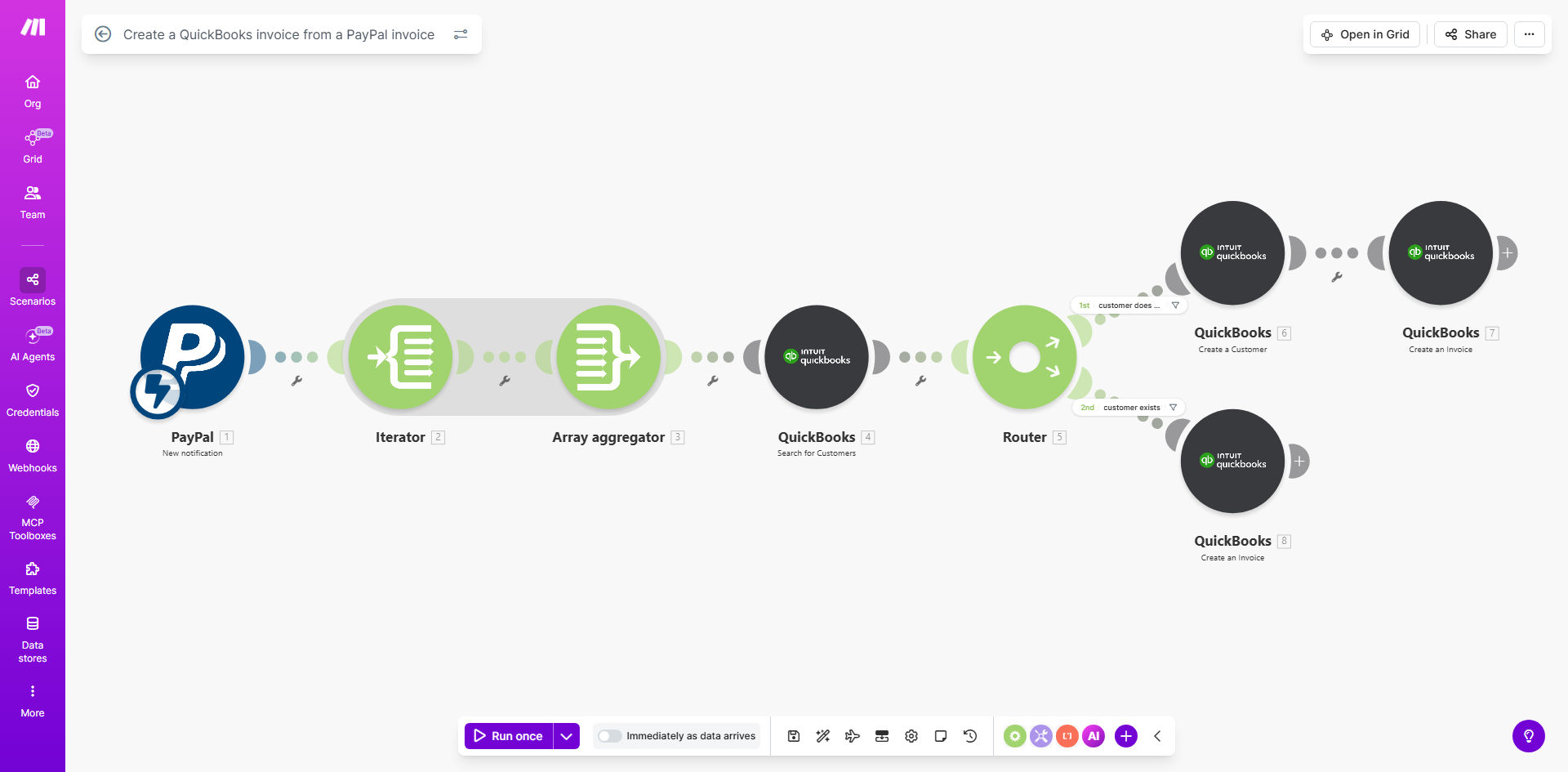
This automation workflow solves that problem completely. It acts as a digital bridge between PayPal and QuickBooks Online. Whenever a new invoice is created in your PayPal Business account, this Make.com scenario instantly captures all the relevant data and uses it to create a corresponding invoice in QuickBooks. The process is fully automatic, running 24/7 in the background, ensuring your books are always synchronized with your sales activity without any manual intervention.
The result is a seamless financial operations pipeline. You maintain your existing workflow in PayPal for billing clients, while your accounting system stays perfectly updated. This not only saves administrative time but also provides real-time visibility into your accounts receivable and revenue, enabling better cash flow management and more confident financial decision-making.
How It Works
The automation follows a logical sequence to ensure data is transferred accurately and reliably from one platform to the other.
Step 1: Trigger on New PayPal Invoice
The workflow is initiated by the "PayPal" module in Make.com, which monitors your PayPal Business account for new invoices. You can set it to watch for all invoices or filter for specific criteria, such as invoices over a certain amount or for specific customers. The moment a new invoice is generated, the workflow wakes up and collects all its data.
Step 2: Extract and Map Invoice Data
Make.com then parses the incoming PayPal invoice. It extracts key information like the invoice number, issue date, due date, customer name and email, line item descriptions, quantities, unit prices, taxes, and the total amount. This data is structured and prepared for the next step.
Pro tip: Use Make.com's data transformation tools to ensure consistency. For example, you can format the date to match QuickBooks' preference or concatenate first and last name fields from PayPal into a single "Customer Name" field for QuickBooks.
Step 3: Create the Invoice in QuickBooks Online
The prepared data is sent to the "QuickBooks Online" module. The workflow uses the official QuickBooks API to create a new sales invoice. It maps the PayPal data to the correct QuickBooks fields: it finds or creates the customer, adds the line items with proper accounts, applies the correct tax settings, and sets the invoice status. The new QuickBooks invoice will mirror the PayPal one exactly.
Step 4: Error Handling & Logging (Optional)
A robust automation includes error handling. The workflow can be configured to send you an alert via email or Slack if an invoice fails to create (e.g., if a customer isn't found in QuickBooks). It can also log each successful transaction to a Google Sheet for audit purposes, giving you a clear history of all automated actions.
Who This Is For
This automation is ideal for freelancers, consultants, small to medium-sized e-commerce businesses, and any service-based company that uses PayPal for billing and QuickBooks for accounting. It's particularly valuable for:
- Solopreneurs & Freelancers: Who need to minimize admin time and avoid bookkeeping mistakes.
- E-commerce Sellers: Who generate numerous PayPal invoices for custom orders or wholesale clients.
- Digital Agencies & Consultants: Who bill clients via PayPal and need clean records for project-based accounting.
- Businesses with Virtual Assistants: Who want to eliminate the manual task of invoice data entry from their VA's workload.
What You'll Need
To clone and use this template successfully, ensure you have the following prerequisites in place:
- A Make.com account (free or paid plan).
- Admin access to a PayPal Business account where invoices are created.
- An active QuickBooks Online subscription (Simple Start, Essentials, or Plus).
- Your customer and product/service lists should be reasonably consistent between both systems to minimize data mismatches.
- Basic understanding of how to navigate Make.com's interface to update connection settings.
Quick Setup Guide
Getting your automation live is straightforward. Follow these steps after clicking "Get This Workflow".
- Clone the Template: Click the link to open the template on Make.com and create a copy in your own workspace.
- Connect Your Apps: In the cloned scenario, click on the PayPal module and authorize Make.com to access your PayPal account. Repeat the process for the QuickBooks Online module, logging into your QBO account to grant permissions.
- Review Data Mapping: Examine how the PayPal invoice fields are mapped to QuickBooks. Check key fields like "Customer", "Item", and "Tax". Adjust any mappings if your business uses custom fields.
- Test with a Live Invoice: Turn the scenario ON and create a test invoice in PayPal (you can mark it as a test or use a small amount). Watch the scenario run in Make.com's history to confirm a corresponding invoice is created in QuickBooks.
- Go Live: Once testing is successful, the automation is ready. It will now run automatically for every new PayPal invoice you create.
Key Benefits
Save 5-10 hours per month on manual data entry. Eliminate the repetitive task of copying information from PayPal to QuickBooks, freeing up your time or your team's time for higher-value activities like business development or customer service.
Reduce accounting errors to near zero. Automated data transfer removes the risk of human typos, transposed numbers, or missed invoices, leading to more accurate financial statements and easier tax filing.
Improve cash flow visibility with real-time sync. Your QuickBooks accounts receivable will always reflect your current PayPal invoicing activity, giving you an up-to-the-minute view of expected revenue and making cash flow forecasting more reliable.
Streamline the month-end close process. With invoices already recorded in your accounting system, reconciliation becomes faster and less stressful, allowing you to close your books in a fraction of the time.
Enhance professionalism with consistent records. Customers and items are recorded uniformly, making it easier to run sales reports, analyze profitability by client or project, and maintain a clean, audit-ready chart of accounts.