What This Workflow Does
Managing a consistent social media presence is a time-consuming task that often involves juggling between a content calendar, image assets, and the Instagram app itself. For small businesses, marketers, and content creators, this manual process eats into valuable hours that could be spent on strategy, creation, or community engagement. The constant context-switching also increases the risk of errors, like posting the wrong image or missing a scheduled time slot.
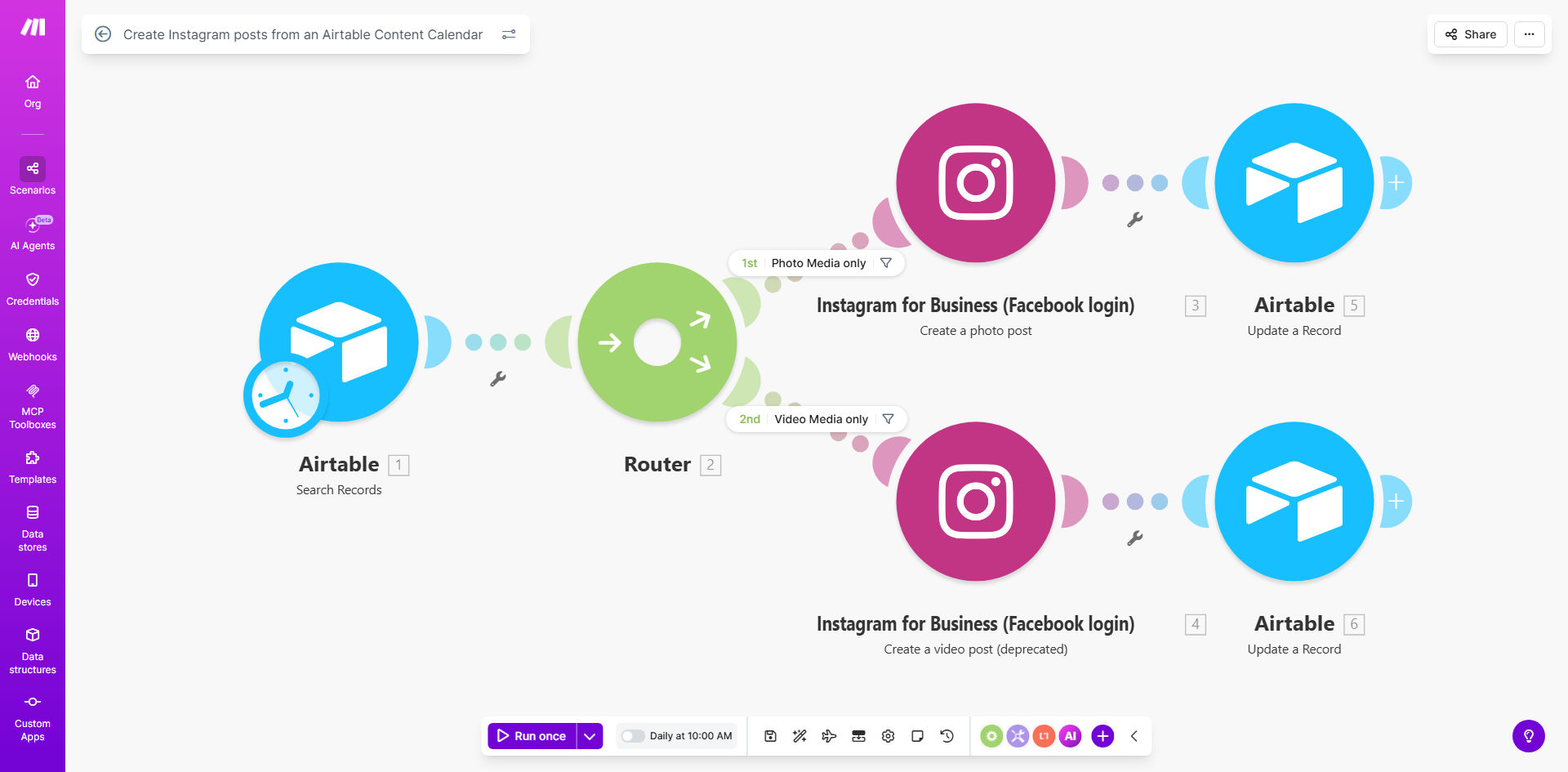
This automation solves that by creating a seamless bridge between your planning hub (Airtable) and your publishing platform (Instagram). Once set up, it acts as your reliable social media assistant. Every day, it checks your Airtable content calendar for posts scheduled for that date, retrieves the caption and image, publishes it to your Instagram account, and then marks the item as "Posted" in your calendar. This eliminates the entire manual posting routine, ensuring your content goes live consistently without you having to lift a finger.
Pro tip: Use this automation to maintain a "always-on" social media presence even during holidays, weekends, or busy periods, keeping your audience engaged without burning out your team.
How It Works
The workflow runs on a scheduled trigger, orchestrating data between Airtable and Instagram's API.
Step 1: Scheduled Check of Airtable
The automation is triggered on a schedule you set (e.g., daily at 9 AM). It immediately queries your designated Airtable base, searching for records where the "Post Date" is today and the "Status" is "Scheduled".
Step 2: Data Retrieval and Preparation
For each post found, the workflow retrieves the necessary data: the image URL (hosted on a service like Dropbox or Google Drive), the caption, relevant hashtags, and any other metadata like location tags. It formats this data to meet Instagram's API requirements.
Step 3: Publishing to Instagram
The formatted data is sent securely to Instagram via the official connection. The workflow handles the upload of the image media and the publishing of the caption. You can configure it for a single image post, which is the foundation for this template.
Step 4: Updating the Source
Immediately after a successful post, the workflow returns to your Airtable base and updates the corresponding record. It changes the "Status" field to "Posted" and can optionally log the time of posting and the direct URL to the published post. This provides real-time tracking and prevents duplicate posts.
Who This Is For
This template is ideal for any individual or team that uses Airtable for planning and needs to maintain an active Instagram feed.
- Social Media Managers: Who manage multiple clients or accounts and need to scale their posting efficiency.
- Small Business Owners: Wearing multiple hats who can't afford to manually post every day but understand the value of consistent social engagement.
- Content Creators & Influencers: Who batch-create content and want to schedule it for automatic release to focus on creation.
- Marketing Teams: That use Airtable as a collaborative content calendar and need a direct, error-free pipeline to Instagram.
What You'll Need
- A Make.com account (free or paid plan) to host and run the automation.
- An Airtable account with a base set up as a content calendar. You can use the linked template or your own structure.
- An Instagram Business or Creator Account connected to a Facebook Page. This is required for API access.
- A Facebook Developer App with the Instagram Basic Display API configured to generate long-lived access tokens for Make.com to use.
- Your post images hosted on a publicly accessible URL (e.g., via Dropbox, Google Drive, or a CDN) that Instagram's servers can fetch.
Quick Setup Guide
Follow these steps to deploy this automation for your business.
- Clone the Template: Click "Get This Workflow" to copy the scenario into your Make.com account.
- Connect Your Apps: In the Make.com scenario, update the connections for the Airtable and Instagram modules with your own account credentials and API tokens.
- Configure Airtable: Map the module fields to the correct table and column names in your Airtable base (e.g., 'Posts' table, 'Status' column, 'Image URL' column).
- Set the Schedule: Adjust the Schedule module to run at the time you want your daily posts to be checked (e.g., 8:00 AM local time).
- Test in a Sandbox: Run the scenario once manually with a test post scheduled for "today" in Airtable. Use a private Instagram account or a post you don't mind publishing to verify the flow works end-to-end.
- Activate: Once testing is successful, turn on the scenario. It will now run automatically on its schedule.
Key Benefits
Save 5+ hours per week by eliminating the daily task of manually copying, pasting, and publishing content from your calendar to Instagram. This time can be reinvested into content creation or audience engagement.
Eliminate human error and missed posts with a system that never forgets a scheduled item. Your content calendar becomes an executable plan, not just a reminder list.
Improve team collaboration and visibility by using Airtable as the single source of truth. Everyone can see the posting schedule and real-time status updates, reducing communication overhead.
Ensure brand consistency by having all posts flow through the same automated process, guaranteeing that your planned captions and hashtags are published exactly as intended.
Scale your social media efforts without scaling your manual labor. This automation handles the repetitive task, allowing you to manage more accounts or post with higher frequency without additional strain.