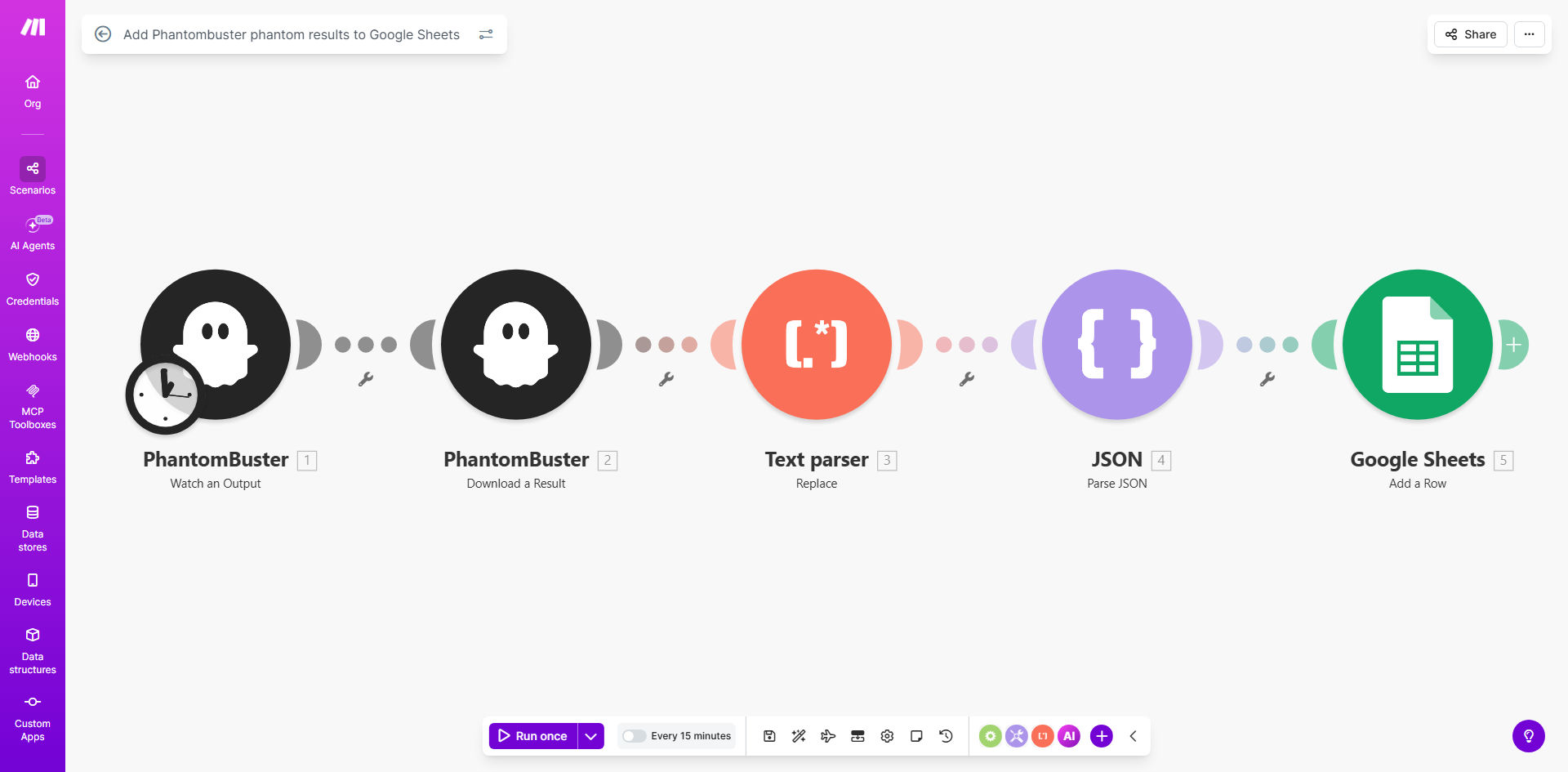
What This Workflow Does
For marketing, sales, and research teams, valuable data is often scattered across the web—LinkedIn profiles, website contact pages, e-commerce listings, or social media. Phantombuster is a powerful tool to collect this data, but the process usually ends with a manual download: you get a CSV or JSON file, then must open it, clean it up, and copy-paste it into Google Sheets. This is repetitive, error-prone, and steals time from strategic work.
This automation solves that by creating a direct pipeline from Phantombuster to Google Sheets. Whenever a phantom finishes running and generates new results, this workflow automatically triggers, fetches the data, formats it correctly, and appends it as new rows in your designated spreadsheet. It turns a multi-step manual task into a seamless, hands-off process, ensuring your data is always current and centralized.
How It Works
The workflow acts as an intelligent bridge between two powerful platforms. Here’s the step-by-step process:
Step 1: Trigger on New Phantom Results
The automation is configured to watch your Phantombuster account. It can be set to check for new results on a schedule (e.g., every hour) or can be triggered via a webhook when a phantom completes. This ensures no new data is missed.
Step 2: Fetch and Parse the Data
The workflow retrieves the latest result file from the specified phantom. It then parses the data structure, whether it's a JSON array or a CSV file, extracting individual records like names, companies, emails, and profile URLs.
Step 3: Transform and Map Fields
This is where the magic happens. The automation maps the raw data fields from Phantombuster to the corresponding column headers in your Google Sheet. It can also clean the data—formatting dates, trimming whitespace, or combining fields—to ensure consistency.
Step 4: Add Rows to Google Sheets
Finally, each processed record is added as a new row at the bottom of your chosen Google Sheet. The automation can be set to avoid duplicates by checking for existing entries, maintaining a clean and accurate database.
Pro tip: Use this automation to create a "master lead list" sheet. Run multiple different phantoms (e.g., LinkedIn search, website scraper) and have them all feed into the same Google Sheet, giving you a unified view of all your captured prospects.
Who This Is For
This template is a game-changer for any professional or team that relies on web data. Sales and Business Development Reps can automate lead list building from LinkedIn or industry directories. Marketing Agencies can aggregate campaign data, social mentions, or competitor intelligence for client reports. Researchers and Analysts can automatically compile market data, product details, or public sentiment into a structured format for analysis. Recruiters can streamline candidate sourcing by automatically pooling profiles from various job boards into one sheet.
What You'll Need
- A Make.com account (free tier available).
- A Phantombuster account with at least one active phantom configured to output results.
- A Google account with access to Google Sheets (create a new sheet or use an existing one).
- Basic information: your Phantombuster API key and the ID of the phantom you want to monitor.
Quick Setup Guide
You can have this automation running in under 15 minutes by following these steps:
- Get the Template: Click "Get This Workflow" to copy the template into your Make.com account.
- Connect Phantombuster: In the Make.com scenario, click the Phantombuster module and authenticate by entering your API key (found in your Phantombuster account settings).
- Connect Google Sheets: Authenticate your Google account to grant Make.com access to your spreadsheets.
- Configure the Phantom: Select the specific phantom you want to monitor from the dropdown list in the Phantombuster module.
- Map Your Sheet: In the Google Sheets module, select your target spreadsheet and worksheet. Map the data fields from Phantombuster (e.g., `fullName`, `company`) to your column headers.
- Schedule It: Set the scenario to run on a schedule that matches your phantom's execution frequency (e.g., "Every day at 9 AM").
- Test and Activate: Run the scenario once to test. Check your Google Sheet for new rows. If successful, turn the scenario on.
Key Benefits
Save 5–10 hours per week on manual data entry and formatting. Eliminate the tedious download-open-copy-paste cycle, freeing your team to focus on analysis and action.
Ensure 100% data accuracy and eliminate human error. Automated data transfer removes the risk of missed rows, incorrect copy-pasting, or formatting mistakes that happen with manual work.
Maintain a real-time, centralized database. Your Google Sheet becomes a live dashboard of your web data, always updated and ready for the team to use for outreach, reporting, or decision-making.
Scale your data collection efforts effortlessly. You can run multiple phantoms and feed them all into one or multiple sheets, dramatically increasing the volume of data you can process without additional manual overhead.
Improve campaign agility with faster data access. Leads and insights land in your sheet minutes after being scraped, allowing for quicker follow-up and more timely campaign adjustments.