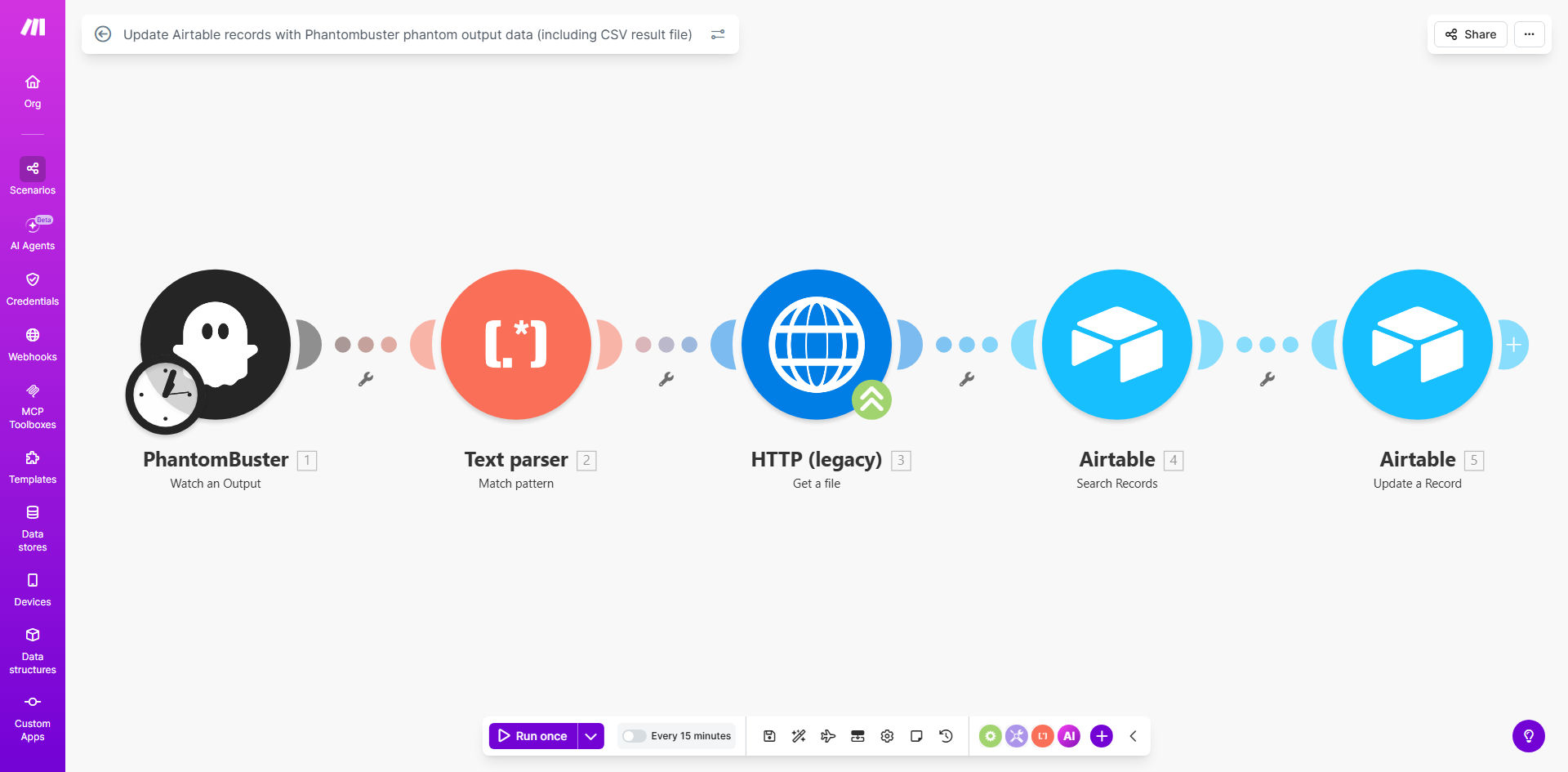
What This Workflow Does
Manual data entry is a silent productivity killer. Businesses that rely on web data for lead generation, market research, or competitor analysis often waste hours copying information from browser tabs into spreadsheets. This process is not only slow but also prone to errors, leading to outdated or incorrect records in your primary database.
This Make.com workflow solves that by creating a seamless bridge between Phantombuster, a powerful web automation and data extraction tool, and Airtable, your flexible database. Whenever a Phantombuster "phantom" finishes running—whether it's scraping LinkedIn profiles, extracting e-commerce prices, or collecting contact details—this automation instantly takes the output. It updates a specific record in your Airtable base with the new data and, critically, attaches the full CSV result file as a reference. This turns a multi-step manual task into a fully automated, reliable data pipeline.
How It Works
The workflow acts as the intelligent middleman, processing data from Phantombuster and preparing it for Airtable.
Step 1: Trigger on Phantom Completion
The scenario is triggered as soon as a Phantombuster phantom execution finishes. Make.com receives a webhook or checks the Phantombuster API for the completed job, capturing all the output data and the URL of the generated CSV file.
Step 2: Process and Map the Data
The workflow parses the JSON output from Phantombuster. You configure it to map specific data points (like `email`, `companyName`, `profileUrl`) to corresponding field names in your target Airtable table. This step ensures clean, structured data enters your base.
Step 3: Retrieve and Prepare the CSV File
It then fetches the CSV result file from Phantombuster's storage. The file is downloaded into the workflow, ready to be attached. This preserves the raw, comprehensive data from the scrape.
Step 4: Update the Airtable Record
Finally, the workflow performs an "Update Record" action in your specified Airtable base. It updates the record (identified by a Record ID from a previous automation or a search) with the new field data and attaches the CSV file to the record's attachment field. The record is now enriched with the latest information and has the source file for backup.
Pro tip: Use this template as an extension to a "launch phantom" workflow. Chain them together for a complete hands-off system: Airtable triggers a phantom, and this workflow automatically processes the results back into Airtable.
Who This Is For
This automation is a game-changer for any role or business that depends on externally sourced data. Sales and Business Development teams can automate lead list building and enrichment. Market Researchers and Competitive Intelligence analysts can keep pricing or feature comparison tables up-to-date automatically. Recruiters and Talent Acquisition specialists can streamline candidate sourcing from professional networks. E-commerce and DTC brands can monitor competitor prices and product assortions. Essentially, if you're currently using Phantombuster and manually moving data to Airtable (or a spreadsheet), this workflow is for you.
What You'll Need
- A Make.com account (free tier available).
- An Airtable account with a base and table set up to receive the data.
- A Phantombuster account with at least one configured phantom.
- (Recommended) The Record ID of the Airtable entry you want to update, often provided by a preceding workflow that launched the phantom.
- Clear understanding of which data fields your phantom outputs and which columns they should map to in Airtable.
Quick Setup Guide
- Clone the Template: Click "Get This Workflow" and clone the template into your Make.com account.
- Connect Your Apps: In the Make.com scenario editor, authorize the connections to your Phantombuster and Airtable accounts.
- Configure the Trigger: Set up the module that receives data from Phantombuster. This might be a webhook or a "Watch Phantom" module. Use your Phantom ID and API key.
- Map Your Data Fields: In the "Update Airtable Record" module, select your base, table, and the specific record (by Record ID or by searching). Map the data items from Phantombuster's output to the correct Airtable columns.
- Set Up the File Attachment: In the same Airtable module, add the CSV file URL from Phantombuster's output to the attachment field. Ensure your Airtable table has a field of the "Attachment" type.
- Test and Activate: Run a test execution with a recent phantom result. Verify the Airtable record updates correctly and the file attaches. Once confirmed, activate the scenario.
Key Benefits
Save 5–15 hours per week on manual data entry. This automation completely eliminates the need to download, open, copy, and paste data from CSV files into your database. That time is reclaimed for high-value analysis and outreach.
Eradicate human error in data transfer. Manual entry leads to typos, misplaced data, and skipped records. An automated pipeline ensures 100% accurate data transfer from source to destination every single time.
Maintain a complete audit trail with attached source files. By automatically attaching the raw CSV to each Airtable record, you create a verifiable paper trail. Anyone can reference the original source data, which is crucial for compliance and quality checks.
Enable real-time data-driven operations. When your database updates within minutes of a phantom finishing, your team can act on fresh information. Sales can reach out to new leads immediately, and pricing teams can react to market changes faster.
Scale your data collection efforts effortlessly. Manual processes don't scale. This workflow does. You can run dozens of phantoms daily, and the system will process all results without any additional effort from your team.