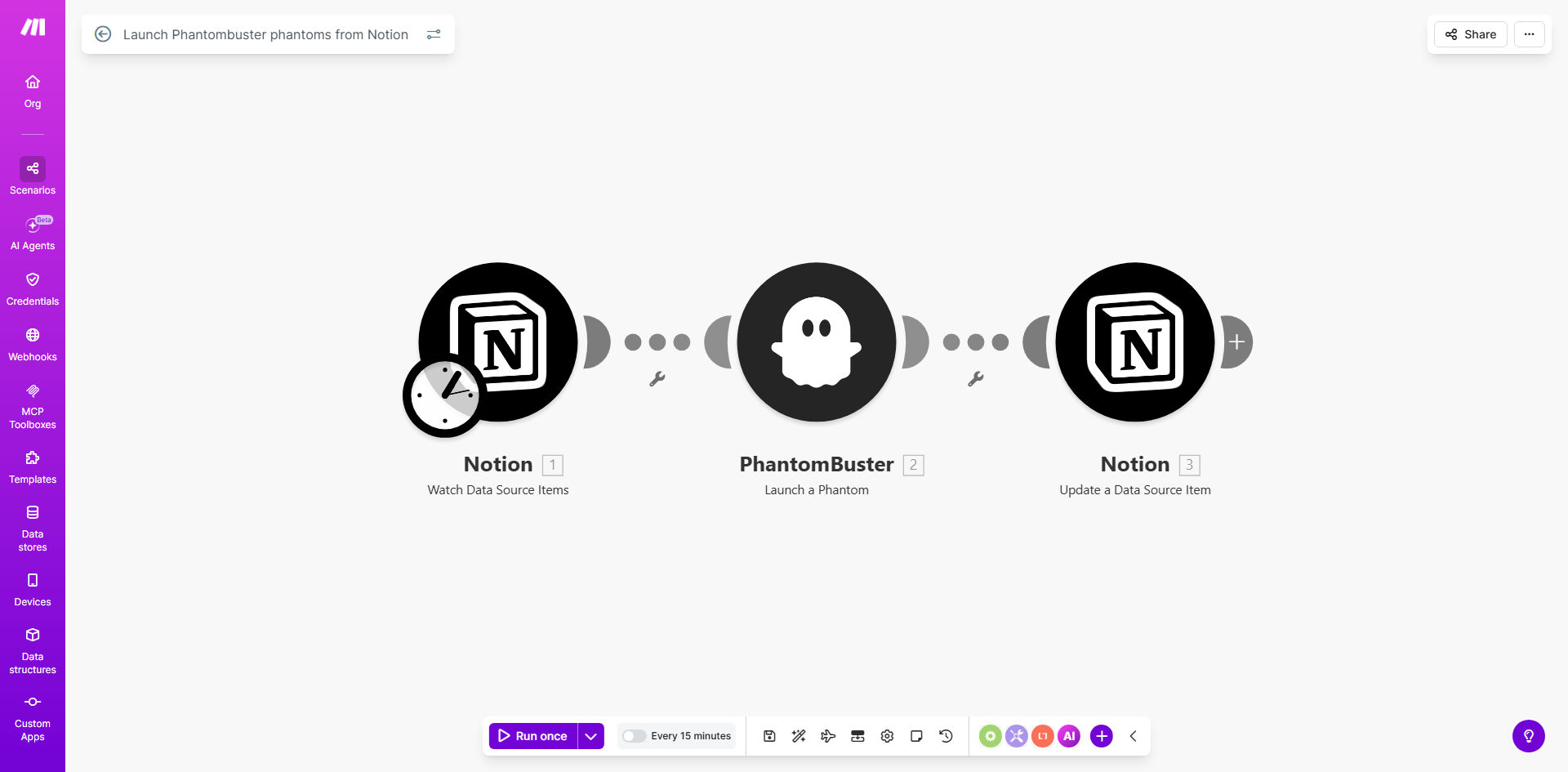
What This Workflow Does
Manually launching web scraping or automation tasks every time you add new information to a spreadsheet or project board is a tedious, error-prone process. It creates bottlenecks in sales prospecting, market research, and competitive intelligence gathering. Teams waste time switching between Notion, Phantombuster, and other tools, copying data and clicking buttons.
This automation solves that by creating a direct pipeline between your central knowledge base in Notion and your powerful automation engine in Phantombuster. Whenever you or your team creates a new item in a designated Notion database—like a new lead, a competitor to track, or a research topic—this workflow automatically triggers the relevant Phantombuster phantom to start working. It can scrape LinkedIn profiles, collect website data, monitor social media, or perform any other automated task, then bring the results back to update the original Notion page.
The result is a closed-loop system: you add an entry, and minutes later, it's enriched with fresh, actionable data—all without a single manual step. This transforms Notion from a static database into a dynamic command center for your data operations.
How It Works
The workflow acts as an intelligent bridge, listening for changes in Notion and executing commands in Phantombuster.
Step 1: Monitoring Your Notion Database
The Make.com scenario watches a specific Notion database for new pages. You can configure it to trigger on creation or when a specific property (like a "Status" dropdown) changes. This instant detection ensures your automation starts the moment new information arrives.
Step 2: Preparing and Sending the Launch Command
Once a new page is detected, the workflow extracts key data from its properties—such as a company URL, a person's name, or a search query. It formats this data into a precise API request for Phantombuster, specifying exactly which phantom to launch and with what parameters.
Step 3: Executing the Phantom and Handling the Response
Make.com sends the launch command to Phantombuster's API. The phantom starts its run—scraping, automating, or collecting data as programmed. The workflow then waits for the phantom to complete and retrieves its output, which could be text, numbers, or even files.
Step 4: Updating Notion with Fresh Data
Finally, the workflow takes the results from Phantombuster and updates the original Notion database item. It can populate specific properties with the scraped data, attach files, or log the completion status and timestamp. This creates a perfect audit trail and makes the enriched data immediately available to your team.
Pro tip: Use a dedicated "Automation Status" property in your Notion database (e.g., "Ready," "Running," "Complete," "Error"). Have the workflow update this property at each stage. This gives your team full visibility into the automation's progress directly within Notion.
Who This Is For
This automation is a game-changer for any role or team that relies on external data and uses Notion as a hub.
Sales & Business Development Teams: Automatically enrich new lead entries with LinkedIn data, company details, and news. Turn a simple list of names into a rich prospect profile instantly.
Marketing & Competitive Intelligence: Track competitors, keywords, or brand mentions. Add a new competitor name to Notion and trigger a phantom to scrape their pricing page, blog, or social media activity.
Researchers & Consultants: Streamline data collection for reports. Input a research topic and automatically gather relevant statistics, articles, or public data sets from across the web.
Recruiters & Talent Teams: Build candidate profiles by triggering phantoms to pull public portfolio information from GitHub, Behance, or other platforms when a new candidate is logged.
What You'll Need
- A Notion account with a database you want to use as the trigger. You'll need admin access to create a Notion integration.
- A Phantombuster account with at least one phantom created and ready to launch via API. You'll need your API key and the specific phantom's ID or alias.
- A Make.com account (free or paid plan) to host and run the automation scenario.
- Connection Tokens: Your Notion internal integration token (from the Notion Developers portal) and your Phantombuster API key.
- Clear Process: A defined use case. Know what data in Notion should trigger which phantom and what data you expect to get back.
Quick Setup Guide
Follow these steps to get your automation live in under 30 minutes.
- Duplicate the Template: Click "Get This Workflow" to open the template on Make.com. Sign in and create a copy in your own workspace.
- Connect Your Apps: In the Make.com scenario, update the connection modules for Notion and Phantombuster with your respective API keys and tokens.
- Configure the Notion Trigger: Select the specific Notion database you want to monitor. Test the connection to ensure it can retrieve a sample page.
- Map Your Data: In the Phantombuster module, input the ID of the phantom you want to launch. Then, map the input fields for that phantom (e.g., "url," "searchString") to the correct properties from the incoming Notion page.
- Set Up the Notion Update: Configure the final module to update the original Notion page. Map the output from Phantombuster (like `result.text` or `output.csvUrl`) to the properties in your Notion database where you want the data saved.
- Test and Activate: Turn on the scenario and create a test item in your Notion database. Watch the logs in Make.com to confirm the phantom launches and successfully updates the page. Once verified, your automation is ready for real use.
Key Benefits
Save 5–10 hours per week per team member by eliminating the manual process of copying data, logging into Phantombuster, launching phantoms, and copying results back. This time can be redirected to analysis and action.
Improve data accuracy and timeliness by ensuring scraping and automation tasks begin within seconds of a new entry. This means your intelligence is always fresh, and you never forget to run a critical data collection job.
Scale your operations effortlessly from handling a few manual tasks per day to processing hundreds automatically. The system works consistently 24/7, allowing you to manage larger datasets and more complex research without adding headcount.
Centralize your workflow in Notion, reducing app-switching fatigue and creating a single source of truth. Your team can see the trigger, the automation status, and the final results all in one familiar place.
Gain process visibility and control with built-in logging and status updates. You can easily audit what was automated, when, and what the outcome was, making it simple to troubleshoot and optimize your processes.