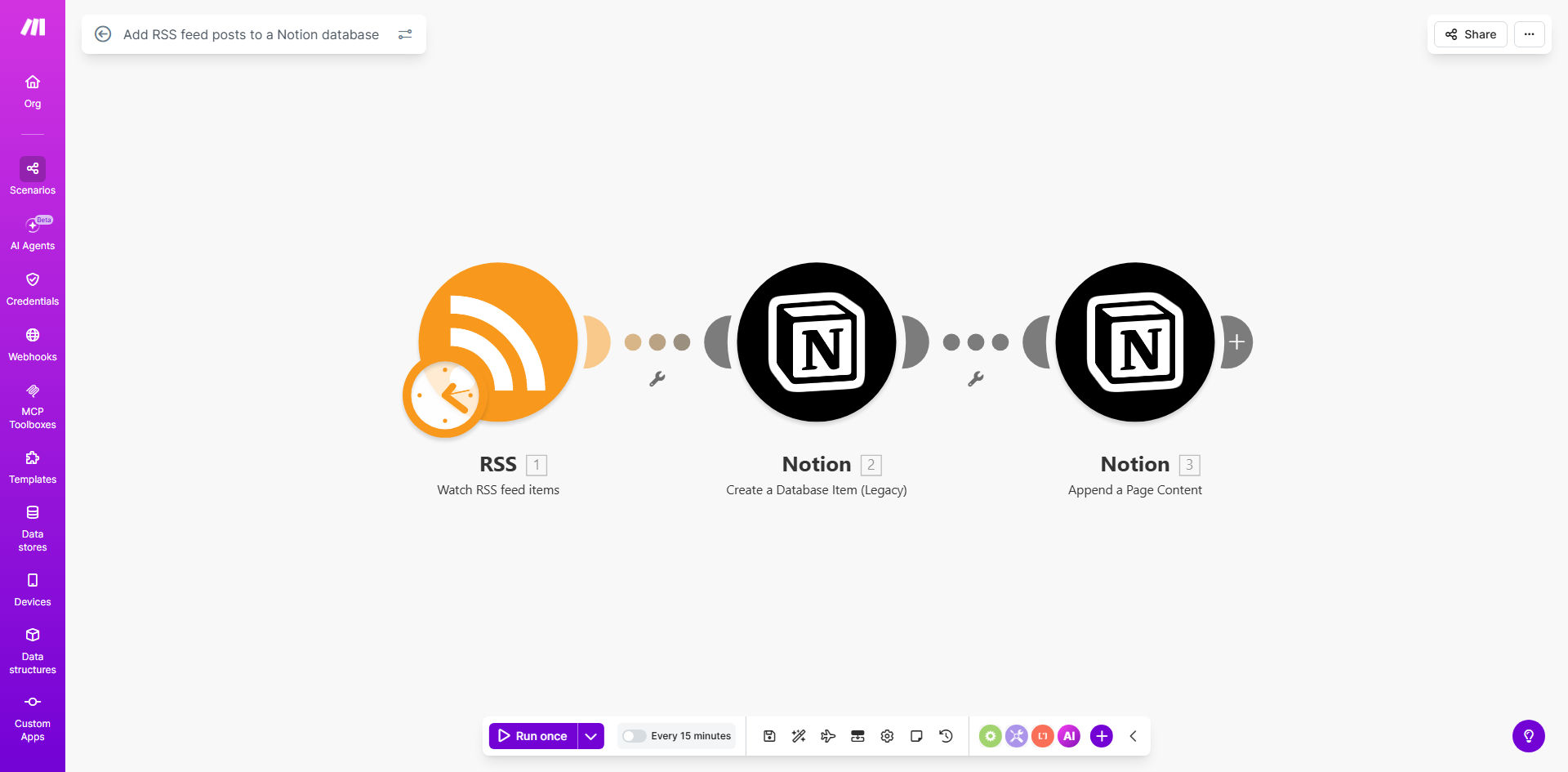
What This Workflow Does
Manually checking websites, blogs, or news feeds and copying interesting articles into Notion is a repetitive, time-consuming task. It’s easy to miss important updates, and the process fragments your research across bookmarks, emails, and notes. This inefficiency slows down content curation, competitive analysis, and personal knowledge management.
This automation solves that by creating a direct pipeline from any RSS feed to your Notion database. Every time a new item is published—be it a blog post, news article, or journal entry—the workflow instantly captures its title, link, description, and publication date, creating a new, formatted page in your designated Notion database. It turns a manual chore into a seamless, automatic process that runs 24/7.
The result is a constantly updated, centralized repository of information that you and your team can search, tag, and build upon. It’s like having a personal research assistant who never sleeps, ensuring your Notion workspace always reflects the latest insights from your chosen sources.
How It Works
The workflow acts as a bridge between the dynamic world of RSS feeds and the structured environment of Notion. It checks for updates and transfers data with precision.
Step 1: Monitoring the RSS Feed
The scenario is triggered on a schedule (e.g., every hour). It connects to the RSS feed URL you provide and fetches the latest items. Make.com’s RSS module identifies new entries since the last check by comparing publication dates or GUIDs, ensuring no duplicate posts are processed.
Step 2: Processing Feed Data
Each new RSS item is parsed. Key data points like the post title, full content or summary, direct link, author name, and publication date are extracted and prepared for Notion. You can add filters here to only proceed with items containing specific keywords, avoiding irrelevant content.
Step 3: Creating the Notion Page
The workflow then connects to your Notion integration. It locates your target database and creates a new page. The RSS item’s title becomes the page name, and the description or content is added to the page body. Additional properties in your Notion database—like “Category,” “Status,” or “URL”—are automatically populated with the corresponding data from the feed.
Pro tip: Use Notion’s “Relation” and “Rollup” properties to link these new pages to other databases in your workspace. For example, automatically relate news articles to a specific client or project database for supercharged context.
Who This Is For
This automation is a powerhouse for anyone who relies on curated information. Content marketers and SEO specialists can track competitor blogs and industry news to fuel their content strategy. Researchers and academics can build literature reviews by automatically aggregating new papers from journal feeds.
Founders and product managers can monitor user feedback forums, product launch news, and market trends. Consultants and agencies can keep client-facing knowledge bases updated with the latest regulations or industry reports. Essentially, if you use Notion as a knowledge hub and RSS as an information source, this workflow is for you.
What You'll Need
- A Make.com account (free tier is sufficient to start).
- A Notion account and a dedicated database ready to receive the RSS items.
- The URL of an RSS feed you want to monitor (most blogs and news sites have one).
- A Notion Integration (API Key) created through Notion’s developer settings, and that integration must be shared with the database you intend to use.
Quick Setup Guide
You can be up and running in under 10 minutes by following these steps.
- Clone the Template: Click “Get This Workflow” and duplicate the provided Make.com scenario into your own account.
- Connect Your RSS Feed: In the first module, replace the sample RSS feed URL with the one you want to monitor.
- Authorize Notion: In the Notion module, click to add a connection. Log in to your Notion account and authorize the Make.com integration when prompted.
- Select Your Database: Choose the specific Notion database where new pages should be created. The workflow will map RSS data to your database properties.
- Test and Activate: Run a single test cycle to ensure a new page is created correctly in your Notion database. Once verified, turn the scenario on. It will now run automatically based on your chosen schedule.
Key Benefits
Save 2–5 hours per week on manual research and data entry. Eliminate the tedious process of switching tabs, copying, and pasting. This time can be reinvested in analysis, strategy, or creative work.
Build a comprehensive, searchable knowledge base without effort. Every piece of content is captured consistently in Notion, making it instantly searchable and usable for reports, brainstorming, or client deliverables.
Never miss a critical update from key sources. Automation provides reliable, 24/7 monitoring, ensuring you’re always informed about product launches, competitor moves, or breaking industry news.
Improve team collaboration with a single source of truth. Share your automated Notion database with your team to ensure everyone has access to the same curated information, reducing silos and misalignment.
Scale your information intake effortlessly. You can easily add more RSS feeds to the same workflow, scaling your curated knowledge hub as your interests or business grows, without any additional manual overhead.