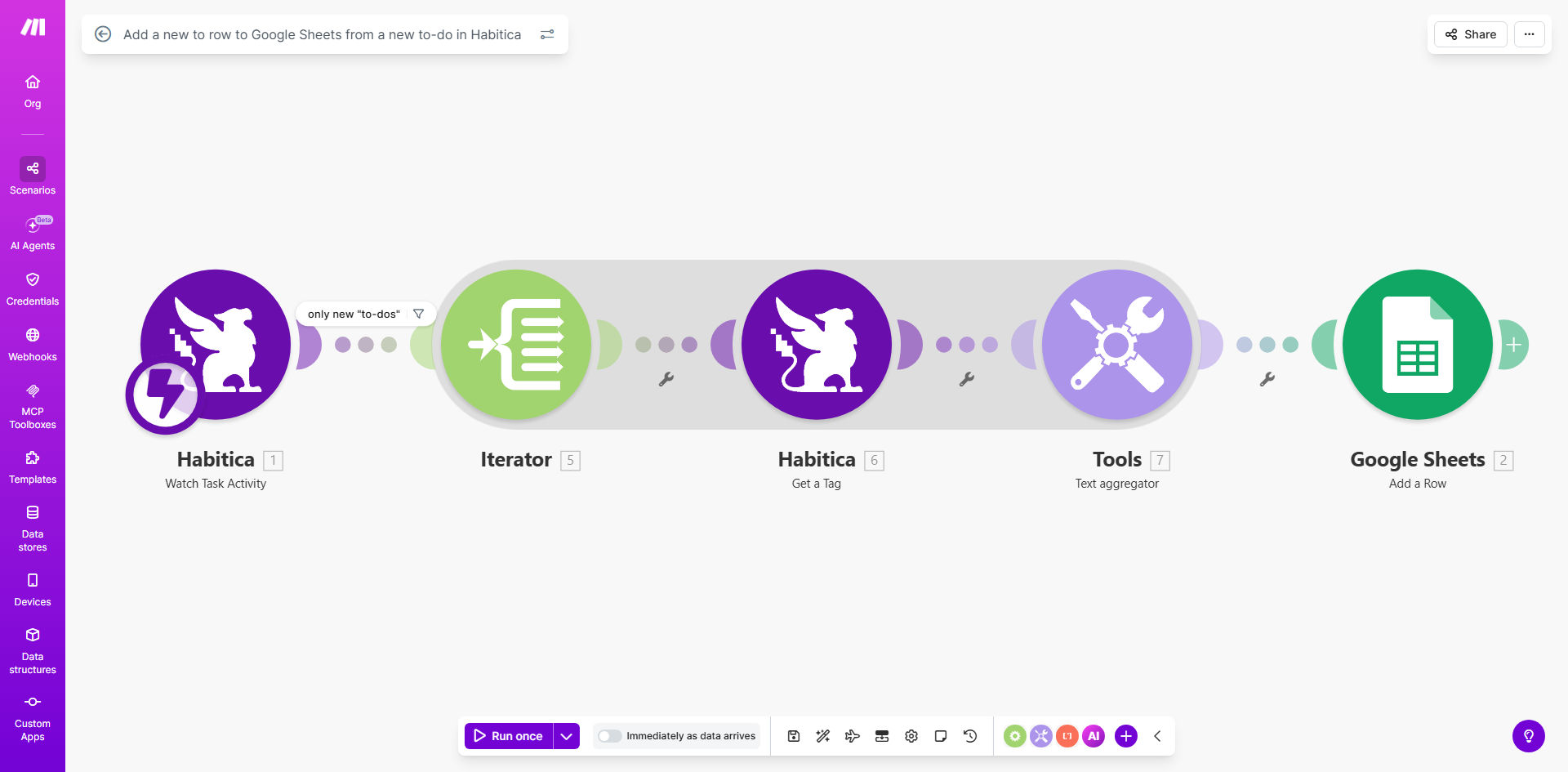
What This Workflow Does
Habitica is a fantastic tool for gamifying your to-do lists and habits, but its data lives inside the app. For deeper analysis, long-term record-keeping, or sharing progress with others, you need that data in a more flexible environment. Manually copying tasks from Habitica to a spreadsheet is tedious, error-prone, and easy to forget.
This automation solves that problem by creating a seamless bridge between Habitica and Google Sheets. Every time you or your team creates a new to-do in Habitica, this workflow instantly captures the task details—like title, notes, due date, and tags—and adds them as a new, timestamped row in your designated Google Sheet. It turns your dynamic task list into a structured, searchable database without you lifting a finger.
The business value is clear: it transforms subjective task management into objective data. You can now track completion rates, analyze productivity trends over weeks or months, and create custom reports. For teams using Habitica for project sprints or accountability, it provides an automatic audit trail and a central source of truth that’s accessible to everyone.
How It Works
The workflow is a straightforward, reliable automation built on Make.com. It acts as an intelligent middleman, listening for new events in Habitica and writing data to Google Sheets.
Step 1: Trigger on New Habitica To-Do
The scenario starts by monitoring your Habitica account. The moment you create a new to-do item, Habitica sends a notification to Make.com. This trigger is the starting pistol for the entire automation.
Step 2: Capture and Structure the Task Data
Make.com receives the raw data about the new to-do. The workflow then maps this data into a clean, consistent format. It pulls out the key pieces of information you want to log, such as the task name, description, difficulty, due date, and any custom tags you’ve applied.
Pro tip: You can customize which Habitica fields are captured. If you use custom tags for project codes or priorities, make sure to include them in the data mapping for powerful filtering later in Sheets.
Step 3: Add a New Row to Google Sheets
Finally, the formatted data is sent to your pre-configured Google Sheet. The workflow uses the Google Sheets module to append a new row at the bottom of your log. Each column in the sheet corresponds to a specific piece of task data, creating a perfectly organized record.
This process runs in seconds, 24/7. Whether you add a task from your phone at night or during a team meeting, your Google Sheet log is updated in real-time, ensuring your data is always current.
Who This Is For
This automation is a game-changer for anyone who relies on Habitica for serious productivity tracking but needs the data to do more. Individual power users benefit from having a permanent, exportable log of their personal goals and habits for annual reviews or personal analytics. Small business owners and freelancers who use Habitica to manage client work or daily operational tasks can use this log for simple time tracking and invoicing preparation.
It's also ideal for team leaders and managers who have adopted Habitica for team accountability or project sprints. The automated Google Sheet becomes a shared progress report that non-Habitica users (like clients or executives) can easily access and understand. Coaches and consultants guiding clients using Habitica can use the sheet to monitor client task adherence without needing to log into each client's account.
What You'll Need
- A Make.com Account: A free or paid plan to host and run the automation scenario.
- A Habitica Account: With at least one to-do list you want to track. You'll need your Habitica API credentials (User ID and API Token) to connect.
- A Google Account with Google Sheets: You'll need a Google Sheet ready to receive the data. You can use the provided sample template or create your own with the desired column headers.
- Basic Understanding of Your Data: Decide which Habitica fields (title, notes, due date, tags) are most important for you to log in your sheet.
Quick Setup Guide
You can be up and running in under 10 minutes by following these steps.
- Get the Template: Click the "Get This Workflow" button to copy the pre-built scenario into your Make.com account.
- Connect Habitica: In the first module, create a connection to Habitica using your API credentials (found in Habitica's Settings > API).
- Connect Google Sheets: In the final module, authorize Make.com to access your Google account and select the specific spreadsheet and worksheet where you want the data to go.
- Map Your Data: Review the data mapping between the Habitica trigger and the Google Sheets "Add Row" action. Ensure the correct Habitica fields are going into the correct spreadsheet columns.
- Test and Activate: Turn on the scenario in Make.com. Create a test to-do in Habitica and watch as a new row instantly appears in your Google Sheet. Once confirmed, your automation is live.
Key Benefits
Eliminate Manual Data Entry Forever: Save 15-30 minutes per week previously spent copying and pasting task information from Habitica to other systems. This time compounds, freeing you up for more strategic work.
Create a Permanent, Searchable Task Archive: Habitica's interface is for active management. This workflow builds a historical database in Google Sheets where you can search, sort, and filter years of task data in seconds for performance reviews or project post-mortems.
Enable Advanced Reporting and Visualization: With your task data in Sheets, you can use pivot tables, charts, and formulas to visualize completion rates, identify procrastination patterns, or calculate the average time to complete tasks of different priorities.
Improve Team Transparency and Accountability: For teams, the automatically updated Sheet serves as a live task log that managers and stakeholders can view without accessing Habitica, fostering transparency and making progress easily demonstrable.
Build a Foundation for Larger Systems: This logged data in Google Sheets becomes a powerful trigger for other automations. You could set up alerts for high-priority tasks, auto-generate weekly summary emails, or sync tasks to a calendar—all because the data is now reliably in one place.