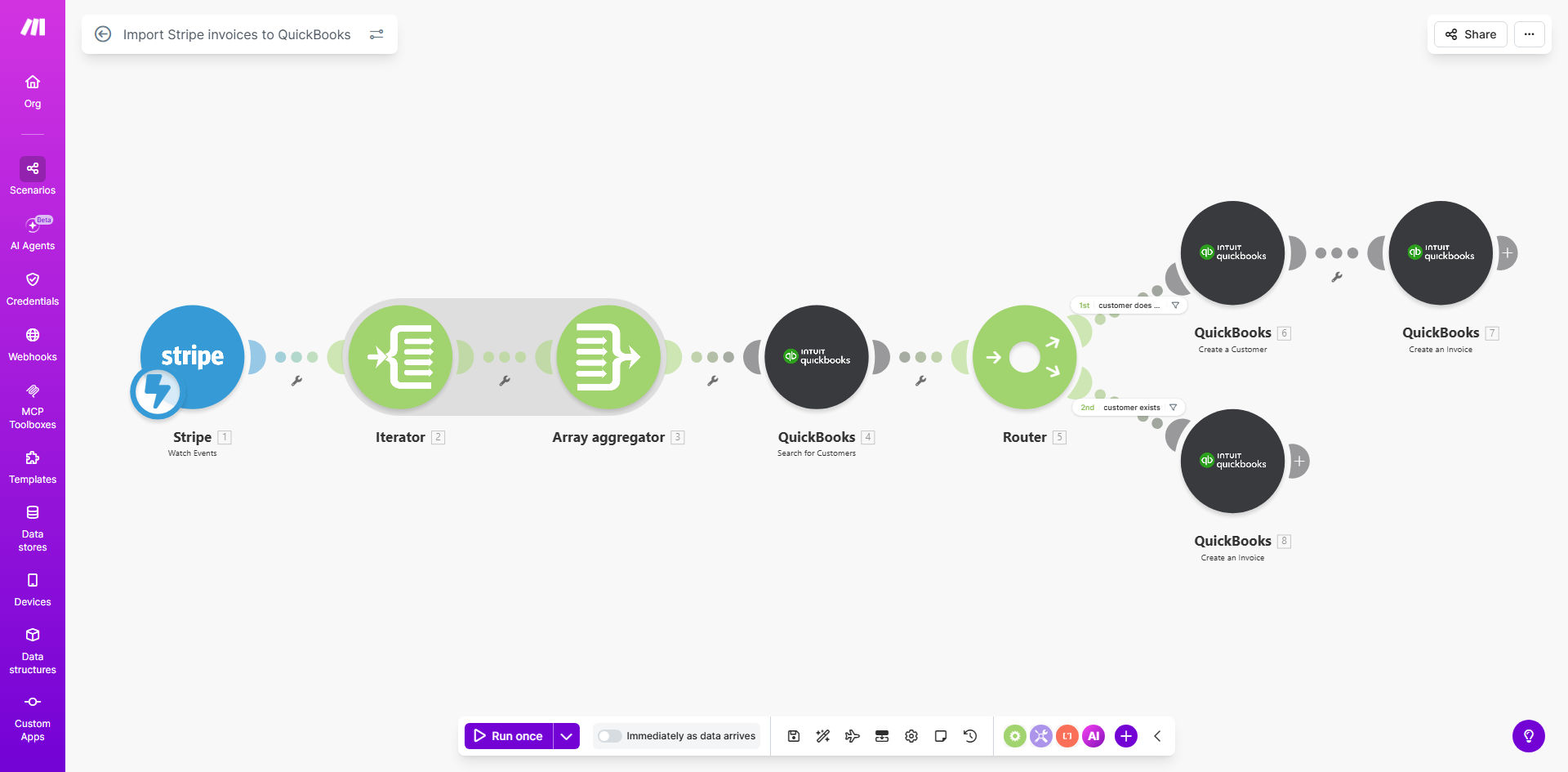
What This Workflow Does
For businesses using Stripe for billing and QuickBooks for accounting, manual invoice reconciliation is a tedious, error-prone, and time-consuming bottleneck. Finance teams waste hours each week copying data from one platform to another, risking typos, missed invoices, and delayed financial reporting. This disconnect creates frustration during month-end closes and can lead to inaccurate books.
This automation solves that problem completely. It acts as a real-time bridge between Stripe and QuickBooks Online. The moment a customer pays an invoice in Stripe, the workflow is triggered. It captures all the critical invoice data—customer details, line items, amounts, taxes, and payment info—and uses it to automatically create a corresponding, fully paid invoice within your QuickBooks account. Your revenue data is synchronized instantly, accurately, and without any human intervention.
How It Works
The workflow follows a logical, event-driven sequence to ensure a flawless transfer of financial data.
Step 1: Monitor for Paid Stripe Invoices
The automation continuously watches your Stripe account using a webhook or scheduled check. It listens for a specific event: an invoice transitioning to the "paid" status. This is the trigger that kicks off the entire process.
Step 2: Extract and Structure Invoice Data
Once a paid invoice is detected, the workflow pulls all relevant data from Stripe's API. This includes the invoice number, customer name and email, date, line item descriptions, quantities, unit prices, subtotal, tax amounts, and the final total. It structures this data into a format that QuickBooks can understand.
Pro tip: Ensure your Stripe product names and descriptions are clear, as they will be copied directly to the QuickBooks invoice line items. This maintains clarity for your bookkeeping and customer records.
Step 3: Create the Customer in QuickBooks (If New)
Before creating the invoice, the automation checks if the customer from Stripe already exists in your QuickBooks customer list. If they are a new customer, it will automatically create a new customer record in QuickBooks using the name and email from Stripe, ensuring your CRM stays unified.
Step 4: Generate the Invoice in QuickBooks
With the customer record ready, the workflow uses the QuickBooks Online API to create a new sales invoice. It maps all the extracted Stripe data to the correct fields in QuickBooks: invoice date, due date, line items, taxes, and the total amount. The invoice is marked as paid, and the payment method is recorded, completing the financial record.
Who This Is For
This automation is a game-changer for any business that bills through Stripe and accounts with QuickBooks Online. It's ideal for SaaS companies, subscription-based services, freelancers, agencies, and e-commerce stores. It's particularly valuable for solopreneurs or small finance teams who need to maximize efficiency and accuracy. If you're tired of spreadsheet exports, copy-pasting, and worrying about data mismatches, this workflow is built for you.
What You'll Need
- A Make.com account (free or paid plan).
- An active Stripe account with invoices enabled.
- A QuickBooks Online subscription (Simple Start, Essentials, or Plus).
- Admin access to both Stripe and QuickBooks to authenticate the API connections (OAuth).
- Basic understanding of your Stripe invoice structure and QuickBooks chart of accounts.
Quick Setup Guide
You can have this automation running in under 30 minutes.
- Clone the Template: Click "Get This Workflow" to open the template in your Make.com account and create a copy.
- Connect Your Apps: In the Make scenario, click on the Stripe module and authenticate your Stripe account. Repeat the process for the QuickBooks Online module.
- Configure the Trigger: Set the Stripe module to watch for "Invoice Paid" events. You may use instant webhooks for real-time sync or a scheduled poll.
- Map the Data: Review the data mapping between modules. Ensure fields like customer email, invoice total, and tax amounts are correctly mapped from Stripe to the corresponding QuickBooks fields.
- Test with a Live Invoice: Run the scenario once manually by paying a test invoice in Stripe. Verify that a correct, paid invoice appears in your QuickBooks Sandbox or live account.
- Activate: Turn the scenario "ON" in Make.com. Your automation is now live and will process all future paid invoices automatically.
Key Benefits
Save 5-10 hours per month on manual bookkeeping. Eliminate the repetitive task of entering invoice data, freeing up your finance team for higher-value analysis and strategy.
Achieve 100% accuracy in your financial records. Remove the risk of human error from data entry, ensuring your QuickBooks ledger perfectly matches your Stripe revenue reports.
Close your books faster at month-end. With revenue automatically recorded in real-time, reconciliation becomes a quick verification instead of a major project.
Gain real-time financial visibility. See your true cash position and revenue performance instantly, as there's no lag between receiving payment and updating your accounting system.
Simplify tax preparation and audits. Maintain a clean, automated audit trail from payment to invoice, making compliance straightforward and stress-free.